Top 7 WordPress Development Trends to Watch in 2026

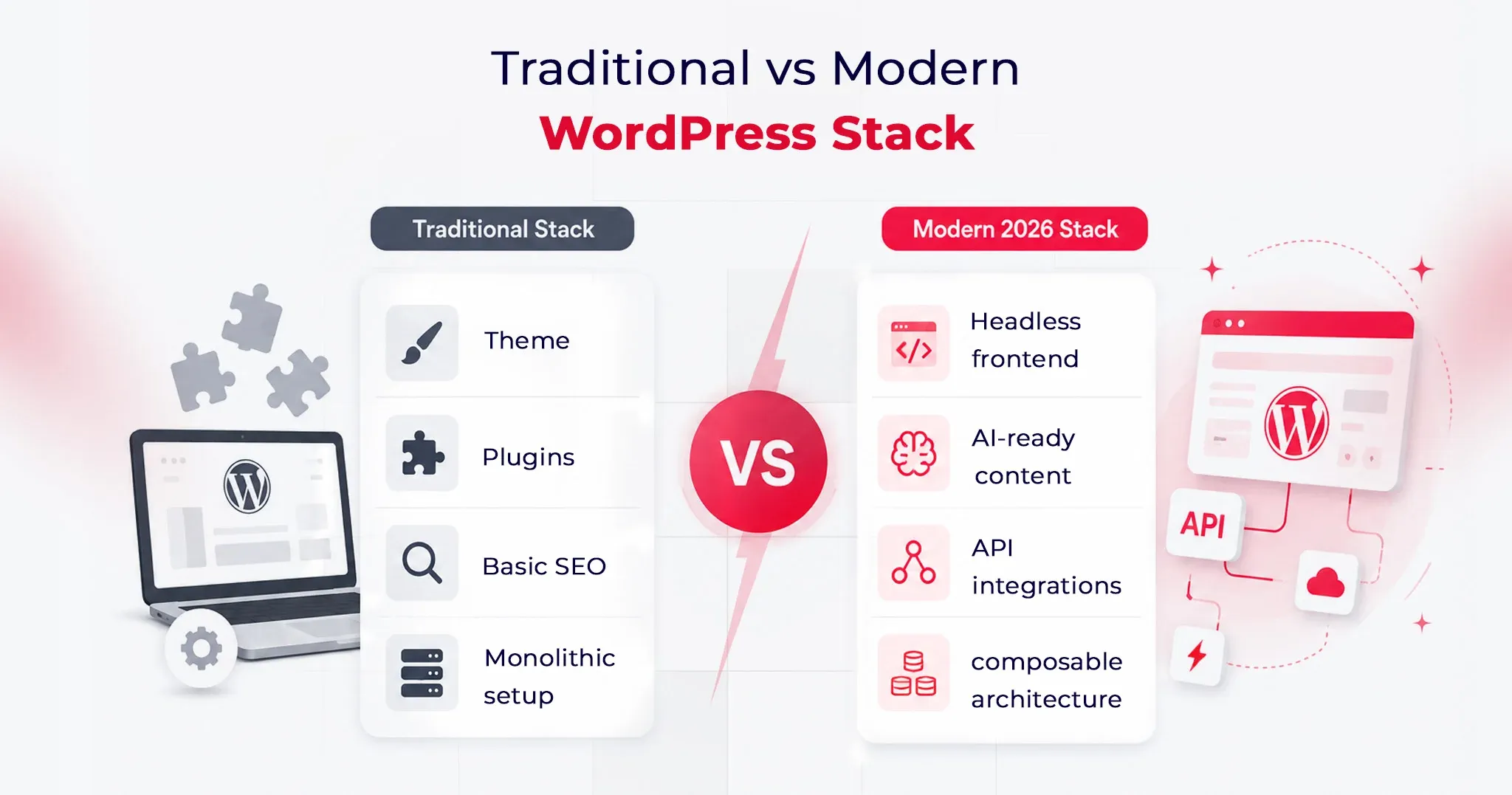
The days of evaluating WordPress solely by its aesthetic themes and basic publishing workflows are officially over. As we navigate 2026, the platform has transformed into a sophisticated operating layer. For direct-to-consumer brands looking to scale, the focus has fundamentally shifted. You are no longer just building a digital destination. You are engineering a content ecosystem built to survive and thrive alongside Agentic AI and rapidly evolving search algorithms.

This evolution changes every metric of success. The most critical WordPress development trends today intersect directly with advanced visibility strategies like Answer Engine Optimization and Generative Engine Optimization.

The objective is no longer just rendering web pages. It is about structuring data so AI models can confidently discover, extract, and cite your brand authority, all while maintaining uncompromising rendering speeds.

If your development team is planning a new digital experience or growth stack, sticking to legacy build models is a massive risk. These seven trends highlight the precise architectural and operational shifts you must implement now to ensure your platform remains resilient, visible, and highly functional.

Quick Trend Snapshot

Trend Why It Matters in 2026 Primary Impact Priority Level
Full Site Editing Block-first workflows are becoming standard. Faster delivery and reusable systems High
Headless WordPress Modern delivery models need more flexibility. Architecture freedom Medium-High
AEO and GEO AI search visibility is reshaping discoverability Better AI citations and visibility Critical
AI-Powered Workflows Teams need faster production without operational overload Workflow efficiency High
Core Web Vitals Performance directly affects rankings and conversion Better UX and SEO Critical
Low-code delivery Businesses want faster launch cycles and iteration Faster deployment Medium
Composable integrations WordPress now powers connected digital ecosystems Operational scalability High

Why Does WordPress Still Matter in 2026?

WordPress remains foundational because it strikes a rare balance among editorial control, developer extensibility, and ecosystem depth. While newer platforms push highly opinionated architectures, few match WordPress when content scale, workflow flexibility, and deployment speed are required simultaneously.

The critical shift is strategic. In 2026, WordPress will no longer be evaluated merely as a content management system. It is a content operating layer built to support SEO, AI-driven discovery, analytics integrations, and multi-channel delivery within a single cohesive stack.

The stakes for getting this right are high. According to recent McKinsey research, data-driven organizations are 23 times more likely to acquire customers and 19 times more likely to be profitable. Your CMS is the engine that structures and distributes that data.

1. Full Site Editing Is Becoming the Default Build Model

Full Site Editing continues to mature into the definitive standard for assembling modern WordPress sites. Instead of isolating templates, headers, and styling controls from daily content management, FSE unifies these layers within a single block-based editing system.

This standardization is a critical signal for digital agencies and in-house teams. According to Accenture’s 2026 Technology Vision research, 84 % of executives at diversified technology platforms are focused on fundamental transformation, compared to just 52 % at legacy companies. Sticking to rigid legacy theme architectures is an incremental tactic that slows down agility.

For developers, FSE delivers cleaner architectures and reusable components. For marketing teams, it allows template adjustments without creating engineering bottlenecks. Defaulting to classic themes without a strict legacy requirement is now a strategic misstep.

2. Headless WordPress Is Expanding Beyond Niche Use Cases

Headless WordPress is now a primary architectural strategy entering 2026. By decoupling the backend content workflows from a modern frontend presentation layer like Next.js or Astro, organizations gain unprecedented architectural freedom.

This is a practical requirement for DTC brands and enterprises that demand multi-channel publishing, granular performance control, and composable frontend stacks. The advantages include superior rendering performance and alignment with modern JavaScript patterns. The tradeoff involves increased deployment complexity and a higher coordination burden between content and engineering units.

Headless is a fit, not a default. Smart teams adopt it when the user experience ambition or a technical roadmap clearly justifies the separation.

3. AEO and GEO Are Becoming Core WordPress Visibility Priorities

Digital visibility in 2026 cannot rely on classic search models. Answer Engine Optimization and Generative Engine Optimization are mandatory priorities. Gartner predicts a 25 % decline in traditional search engine queries by 2026 as users shift to AI-generated answers and summaries.

Daily usage of AI integrated directly into search will be three times that of any standalone AI tool, with nearly one-third of adults encountering AI search summaries daily. Forbes corroborates this impact, noting that organic click-through rates have dropped 61 % on queries where AI Overviews appear, and 60 % of searches now end without a traditional click.

For WordPress teams, pages must be structured so AI systems can confidently extract and cite them. This requires sharp heading hierarchies, concise answer blocks, clean internal linking, and flawless schema markup. Technical SEO and citation readiness are now fundamental engineering tasks.
4. AI-Powered WordPress Workflows Are Becoming Operational Infrastructure

Artificial intelligence within WordPress has moved past the novelty phase. It is an operational infrastructure used to accelerate metadata generation, internal linking, and publishing operations.

The objective is not to flood the internet with thin content. The goal is operational efficiency. Agentic AI is driving the next era of enterprise integration, predicting that the majority of organizations will adopt agentic workflows by 2026. When integrated correctly, AI reduces production drag, allowing developers and strategists to focus on precision and conversion quality.

5. Core Web Vitals and Hosting Architecture Still Shape Outcomes

Performance remains a commercially critical development trend because it dictates visibility, retention, and conversion metrics. A visually polished site that responds slowly is a failing asset.

The current performance conversation revolves around LCP, INP, and CLS. With INP now the standard metric for interactivity, performance engineering must encompass script loading, font strategy, cache behavior, and rigorous plugin restraint.

Performance is an infrastructure decision that relies heavily on edge and object caching, as well as managed cloud environments.

6. Low Code and Pattern-Driven Delivery Are Speeding Up Launch Cycles

Pattern-driven workflows are accelerating how projects are shipped. Repeatable layout execution is becoming faster, freeing engineering teams to focus on bespoke integrations and performance-critical elements.

This rapid deployment is vital for minimal viable products, campaign hubs, and landing pages. Reusable block libraries reduce the time to market materially when governed with strict discipline. The optimal approach is selective acceleration: utilizing visual assembly tools to reduce drag while aggressively avoiding long-term technical debt.

7. Composable Integrations Are Defining the Next WordPress Stack

WordPress operates within a broader digital ecosystem. The most capable 2026 implementations connect seamlessly with CRMs, marketing automation platforms, commerce systems, and external APIs.

Content supports lead generation, customer education, and retention simultaneously. A platform that publishes well but integrates poorly creates systemic friction. Developers are building modular data flows and intentional plugin stacks, moving WordPress toward a composable operating model that delivers enterprise connectivity without forcing full headless complexity.
Final Thoughts

WordPress remains relevant in 2026, but the reasons are more strategic than before. It is no longer enough for a site to be easy to edit or quick to launch. It also has to perform well, integrate cleanly, stay secure, and remain visible in both traditional search and AI-mediated discovery.

That is why the most important WordPress development trends in 2026 intersect content, engineering, infrastructure, and discoverability. Teams that adapt early will build sites that are easier to scale, easier to govern, and far more resilient as the web continues to shift toward answer-driven discovery.


9 Practical Tips to Keep Your WordPress Website Safe

Your website can be hacked in less than one hour! Yes, you read it right!

WordPress is undoubtedly a testament to its user-friendly interface having a vibrant developer community that drives constant improvements. The popularity of WordPress fuels constant improvement, thanks to its vast developer community. However, this very popularity paints a bullseye on WordPress, making it an attractive target for hackers and malicious actors seeking vulnerabilities to exploit. The good news is, you can boost your WordPress security, even if you’re not tech-savvy.

Let’s check the 9-step WordPress security guide, that protects your website from vulnerabilities!

#1 Stay up-to-date – Regular Updates

Updating your WordPress core, themes, and plugins might seem routine, but it’s your first line of defense against potential security threats. Software updates aren’t just about adding new features; they often include vital security patches that shield your website from vulnerabilities.

Cybercriminals actively seek websites running on older versions because they exploit known vulnerabilities. Regular updates ensure your site is equipped with the latest security protocols, protecting it from potential breaches and data theft.

# Here is how you update WordPress Components:

Updating WordPress Core​:

  • Log in to your WordPress dashboard.
  • Click on the ‘Dashboard’ option in the left menu.
  • If an update is available, you’ll see a notification at the top. Click ‘Update Now.’

Updating WordPress Themes​:

  • Navigate to ‘Appearance’ in the left menu.
  • Click on ‘Themes.’
  • If an update is available, you’ll see an ‘Update Now’ option. Click it to install the latest version.

Plugins:

  • Go to ‘Plugins’ in the left menu.
  • You’ll see a notification next to plugins with available updates. Click on ‘Update Now’ next to each plugin.

Before updating, always back up your website. Use reliable backup plugins to create a full backup of your files and database. After updating, thoroughly check your website’s functionality. Sometimes, updates can conflict with other plugins or themes, causing unexpected issues. You can also automatically enable updates for plugins and themes using the following lines to your site’s wp-config.php file.

For plugins: define( ‘WP_AUTO_UPDATE_PLUGINS’, true );
For themes: define( ‘WP_AUTO_UPDATE_THEMES’, true );

#2 Make it Impermeable – Strong Password Policy

Creating strong passwords is the first line of defense against unauthorized access. Weak passwords are easy targets for hackers. A strong password should be complex, with a mix of uppercase and lowercase letters, numbers, and symbols. Avoid using easily guessable information like birthdays or common words.

# Check out these tips on Creating and Managing Complex Passwords:

  • Length and Complexity: Aim for passwords that are at least 12 characters long and include a mix of letters (both cases), numbers, and special characters.
  • Avoid Personal Information: Refrain from using personal details such as names, birthdays, or addresses in passwords.
  • Unique for Each Account: Use different passwords for different accounts. Reusing passwords across platforms increases vulnerability.
  • Passphrases: Consider using passphrases – longer phrases or sentences that are easy for you to remember but difficult for others to guess.

Password manager tools are invaluable in managing complex passwords. They generate, store, and autofill strong, unique passwords for each of your accounts. Some popular password managers include LastPass, 1Password, and Dashlane. These tools encrypt your password database with a master password, ensuring your credentials are securely stored.

Implementing these practices significantly enhances your WordPress security, ensuring robust protection against unauthorized access attempts. Remember, a strong password is your website’s first line of defense.

#3 Add an Extra Security Layer – Two-Factor Authentication

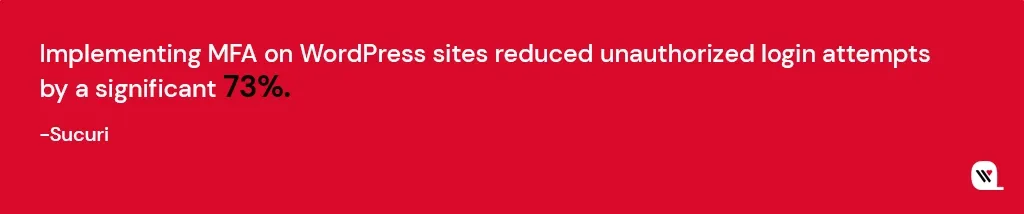
Two-factor authentication (2FA) requires users to provide two distinct forms of verification before accessing an account. Typically, this involves something you know (password) and something you have (a unique code sent to your mobile device or email). This dual-verification process ensures that even if a hacker discovers your password, they still cannot breach your account without the second form of authentication.

# How to Enable 2FA in WordPress:

# Benefits of 2FA in Website Security:

  • Choose a 2FA Plugin: Select a reputable 2FA plugin compatible with WordPress, such as Google Authenticator or Authy.
  • Install and Activate the Plugin: Install your chosen 2FA plugin from the WordPress repository. Once activated, the plugin integrates with your login system.
  • Configuration: Access the plugin’s settings and follow the configuration wizard. Typically, you’ll scan a QR code with a 2FA app on your mobile device, linking the app to your WordPress account.
  • Verification Codes: After setup, each time you log in, the 2FA app generates a time-sensitive verification code. Enter this code along with your password to access your account.
  • 2FA adds an extra layer of defense, significantly reducing the risk of unauthorized access, even if passwords are compromised.
  • Even if a user falls victim to a phishing attack and reveals their password, the hacker would still need the secondary 2FA code to access the account.
  • Particularly valuable for businesses, 2FA ensures secure logins from remote locations, safeguarding sensitive corporate data.

#4 Techniques to Prevent Unauthorized Access – Login Page Security

Ensure only authorized users can access your website’s backend. Stay proactive in these security practices, and your website remains resilient against cyber threats.

# By implementing the following technical techniques, you significantly enhance the security of your login page:

Limiting Login Attempts: Limiting the number of login attempts is a simple yet effective way to thwart brute force attacks. Brute force attackers try numerous password combinations, and limiting login attempts disrupts their efforts. To set this up:

  • Access Your WordPress Dashboard: Log in and navigate to the ‘Settings’ menu.
  • Select ‘Security’ or ‘Login Security’: Depending on your security plugin, locate the section related to login security settings.
  • Set Login Attempt Limit: Specify a low number of login attempts (e.g., 3-5). After this limit, the user is temporarily locked out, preventing further attempts for a defined period.

Customizing Login URL and Why It’s Important: Changing the default login URL from ‘/wp-admin/’ to a custom URL adds a layer of obscurity, making it harder for hackers to locate your login page. Here’s how to do it:

  • Install a Security Plugin: Use a reputable security plugin like WPS Hide Login or iThemes Security.
  • Configure Custom Login URL: In the plugin settings, locate the option for customizing the login URL. Enter the new URL you wish to use, ensuring it’s unique and not easily guessable.

Best Plugins for Login Page Security: Several plugins specialize in fortifying login page security, offering features beyond customization and login attempt limitations. Some top choices include:

  • iThemes Security: This comprehensive security plugin provides features like brute force protection, 2FA integration, and advanced user action logging.
  • Wordfence Security: Wordfence includes firewall protection, real-time threat defense, and login attempt monitoring, making it a robust choice for safeguarding your login page.
  • WPS Hide Login: Specifically designed to change your login page URL, this lightweight plugin ensures your login page is concealed from potential attackers.

#5 Data Protection in Case of a Security Breach – Regular Backups

Backups are essential not only for security breaches but also in cases of accidental data loss, server failures, or updates gone wrong. Moreover, regular backups, combined with a seamless restoration process, offer you peace of mind, knowing your data is secure and recoverable in the event of a security breach or any unforeseen circumstances.

# How to Set Up Automatic Backups:

  • Choose a Backup Plugin: Select a reputable WordPress backup plugin such as UpdraftPlus, BackWPup, or VaultPress. Install and activate your chosen plugin.
  • Configure Backup Settings: Access the plugin settings from your WordPress dashboard. Specify the backup frequency (daily, weekly), and choose a secure off-site storage location, like Dropbox, Google Drive, or a dedicated server.
  • Database and Full Site Backups: Configure the plugin to perform both database and full site backups. Database backups capture essential data, while full site backups include all files, ensuring comprehensive coverage.
  • Schedule Automated Backups: Set up automated backup schedules aligned with your website’s update frequency. Daily backups are advisable for active websites with frequent content changes.

# Restoring Your Website from a Backup:

  • Access Backup Plugin: In your WordPress dashboard, go to the backup plugin you installed.
  • Select the Backup File: Choose the backup file from the designated storage location. If your backup plugin offers versioning, select the appropriate date/version you want to restore.
  • Initiate the Restoration: Follow the plugin’s prompts to initiate the restoration process. Confirm settings, and the plugin will restore your site to the selected backup point.
  • Verify Website Functionality: After restoration, thoroughly test your website’s functionality. Ensure all pages, posts, images, and interactive elements are functioning correctly.

#6 Protect Against Brute Force Attacks – Implement CAPTCHA

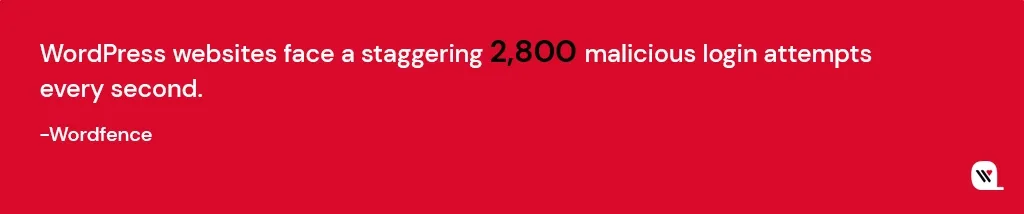
Brute force attacks, a common threat to website security, involve automated attempts to crack passwords systematically. Automated bots systematically test different passwords, exploiting weak credentials.

Such attacks can compromise your website’s integrity and sensitive data. To safeguard your WordPress site against such attacks, employ these technical strategies:

Plugins and Tools to Safeguard Against Brute Force:

Monitoring and Responding to Suspicious Login Attempts:

  • Security Plugins: Utilize reliable security plugins like Wordfence Security and Sucuri Security. These tools offer features like limiting login attempts, IP blocking, and CAPTCHA integration, bolstering your site’s defenses.
  • CAPTCHA and reCAPTCHA: Integrate CAPTCHA challenges or advanced reCAPTCHA from Google on your login page. These tests differentiate between humans and bots, preventing automated login attempts.
  • IP Whitelisting and Blacklisting: Whitelist trusted IP addresses, allowing only authorized users to access your login page. Simultaneously, blacklist suspicious IP addresses, thwarting potential attackers.
  • Real-Time Monitoring: Leverage security plugins to monitor login attempts in real-time. Track IP addresses, login patterns, and failed login counts. Unusual activities might indicate a brute force attack.
  • Email Alerts: Configure your security plugin to send email notifications for multiple failed login attempts. Immediate alerts enable swift responses to potential threats.
  • Automatic IP Blocking: Implement automatic IP blocking for repeated failed login attempts. Temporary blocks discourage attackers, protecting your site without manual intervention.

#7 Limiting Access to Your Website Files – File Permission Security

Understanding and correctly configuring these permissions is essential to prevent unauthorized access and maintain the integrity of your website files. Properly configured permissions ensure that only authorized entities can modify or access crucial files, enhancing the overall security posture of your WordPress website.

Setting Correct File and Folder Permissions:

Common Mistakes to Avoid:

  • Access Control: Use the principle of least privilege. Only grant permissions necessary for each user category. For instance, files should typically have permissions set to 644 (rw-r–r–) and directories to 755 (rwxr-xr-x).
  • Secure Config Files: Critical configuration files like wp-config.php should have permissions set to 400 (r——–), ensuring only the owner (usually the web server) can read them.
  • Avoid 777 Permissions: Never set files or directories to 777 (rwxrwxrwx), which grants universal read, write, and execute permissions. Such openness invites exploitation.
  • Overly Permissive Settings: Avoid granting unnecessary write or execute permissions. Limit permissions to prevent unwanted modifications.
  • Ignoring Ownership: Be aware of file ownership. Ensure the appropriate user or group owns files, usually the web server user (e.g., www-data on Apache).
  • Failing to Update Permissions: Regularly review and update permissions, especially after installing plugins or making significant changes to your website.

#8 Data Transmission Encryption – HTTPs and SSL Certificates

HTTPS (Hypertext Transfer Protocol Secure) and SSL (Secure Sockets Layer) certificates are fundamental components of web security. HTTPS encrypts data transmitted between a user’s browser and the website server, ensuring that sensitive information remains confidential. SSL certificates validate the authenticity of websites, confirming to users that they are interacting with a genuine and secure platform.

How to Install and Configure SSL on WordPress:

  • Obtain an SSL Certificate: Purchase an SSL certificate from a trusted Certificate Authority (CA) or use a reliable hosting provider that offers free SSL certificates (e.g., Let’s Encrypt).
  • Install SSL Certificate: Follow your hosting provider’s instructions to install the SSL certificate. This may involve generating a Certificate Signing Request (CSR) and providing it to the CA.
  • Update WordPress Address and Site Address: In your WordPress dashboard, go to ‘Settings’ > ‘General.’ Update both the ‘WordPress Address (URL)’ and ‘Site Address (URL)’ to begin with ‘https://’ instead of ‘http://.’
  • Update .htaccess File: Insert code in your .htaccess file to redirect all traffic to the secure HTTPS version of your site. Example code:

RewriteEngine On

RewriteCond %{HTTPS} off

RewriteRule ^ https://%{HTTP_HOST}%{REQUEST_URI} [L,R=301]

Mixed Content Issues: Check for mixed content issues (HTTP content loading on HTTPS pages) and update URLs to HTTPS to ensure a fully secure browsing experience.
Implementing HTTPS through SSL certificates not only enhances your website’s security but also augments its credibility, user trust, and search engine ranking.

#9 Beware of DDoS Attacks – Confine XML-RPC functionality

Disabling XML-RPC when it’s not needed eliminates a potential security risk and reduces the attack surface of your WordPress site. It is commonly targeted for Distributed Denial of Service (DDoS) attacks and brute force amplification. If your website doesn’t rely on XML-RPC functionalities, such as pingbacks and trackbacks, it’s advisable to disable it to enhance your site’s security.

How to Disable XML-RPC:

Using a Security Plugin:

  • Install a reputable security plugin like Wordfence Security or iThemes Security from the WordPress repository.
  • Access the plugin settings and look for options related to XML-RPC. Disable XML-RPC functionality through the plugin interface.

Editing .htaccess File:

  • Access your website’s root directory using an FTP client or cPanel File Manager.
  • Locate the .htaccess file and edit it (make sure to back up the file first).
  • Add the following code to disable XML-RPC:

# Block WordPress xmlrpc.php requests

Order Deny,Allow
Deny from all

Functions.php Method (Advanced Users):

  • If you’re comfortable with the code, you can add the following snippet to your theme’s functions.php file to disable XML-RPC:

add_filter(‘xmlrpc_enabled’, ‘__return_false’);

These technical methods provide you with the means to secure your site by preventing unwanted access through XML-RPC and fortifying your overall security posture.

End Note

Remember, website security is not a one-time task but a continuous commitment. Don’t wait for a security breach to take action. Protect your website and your visitors’ data by investing in professional WordPress security services today. Our experts are here to help you fortify your digital fortress. Contact us now and safeguard your online presence against the relentless forces of the cyber world.