What to Expect in WordPress 7: Features, Roadmap and Changes

WordPress 7.0 launched on May 20, 2026, and it is the most consequential release the platform has shipped in nearly a decade.

This is not a point release with incremental improvements. WordPress 7.0 formalizes Phase 3 of the Gutenberg roadmap, ships a provider-agnostic AI infrastructure layer, rebuilds the admin interface using React, and restructures how editorial teams collaborate inside the editor.

The release was originally scheduled for April 9, 2026, but the core team delayed it to address architectural concerns, a decision that signals where priorities sat. WordPress 7.0 has officially arrived. It came with one flagship feature removed and the platform’s foundations meaningfully strengthened.

In this blog, you will get a breakdown of what’s changed in WordPress 7.0, why recent changes matter the most, new features, its impact on plugins, themes, security, and what to check before installing it.

Work through each item on staging, document any failures, fix them, and schedule the production upgrade only when a rollback path is confirmed.

WordPress 7.0 Upgrade Guide: Plugin and Theme Compatibility Testing

The shift from classic PHP list tables to the React-based DataViews interface means certain plugins are at risk. Admin plugins that add custom columns, filters, bulk actions, meta boxes, or custom quick-edit fields to the Posts, Pages, or Users screens may not render correctly until their maintainers ship compatibility patches.

Media Plugins: Because image processing now begins in the browser before server-side hooks fire, media plugins that rely on early-stage upload interception must update their integration points. Actively maintained plugins should already have patches.

  • Warning: Abandoned plugins (inactive for more than 12 months) are high-risk and should be replaced rather than tested.

Why WordPress 7.0 Matters More Than Recent Updates

WordPress 7.0 formalizes Gutenberg Phase 3, which shifts the platform’s editorial model from individual-user publishing to team-based content operations.

Infrastructure Evolution, Not Just an Interface Refresh

WordPress 7.0 is not a cosmetic update. The admin interface, AI integration model, media processing pipeline, and PHP support boundaries have all been rearchitected to touch every layer of a running WordPress installation.

That separation from typical incremental updates changes the risk profile for agencies and enterprise teams planning upgrades, and it is the first thing worth understanding before a single plugin compatibility check.

WordPress 7.0 as the Foundation for AI-Ready Sites

The most important thing WordPress 7.0 ships is not a single feature. It is the AI infrastructure layer that governs how every future AI-powered plugin interacts with the platform.

Before this release, WordPress had accumulated a fragmented set of competing AI implementations, in which each plugin built its own permission system, provider connection, and access logic. That fragmentation created security exposure and unpredictable behavior across sites running multiple AI tools simultaneously.

WordPress 7.0’s AI Client and Abilities API resolve that fragmentation structurally rather than through guidelines alone. Whether or not you activate any AI features today, your site now runs on a platform that has defined how AI integration should work for the entire ecosystem going forward.

Major Features in WordPress 7.0: A Complete Breakdown

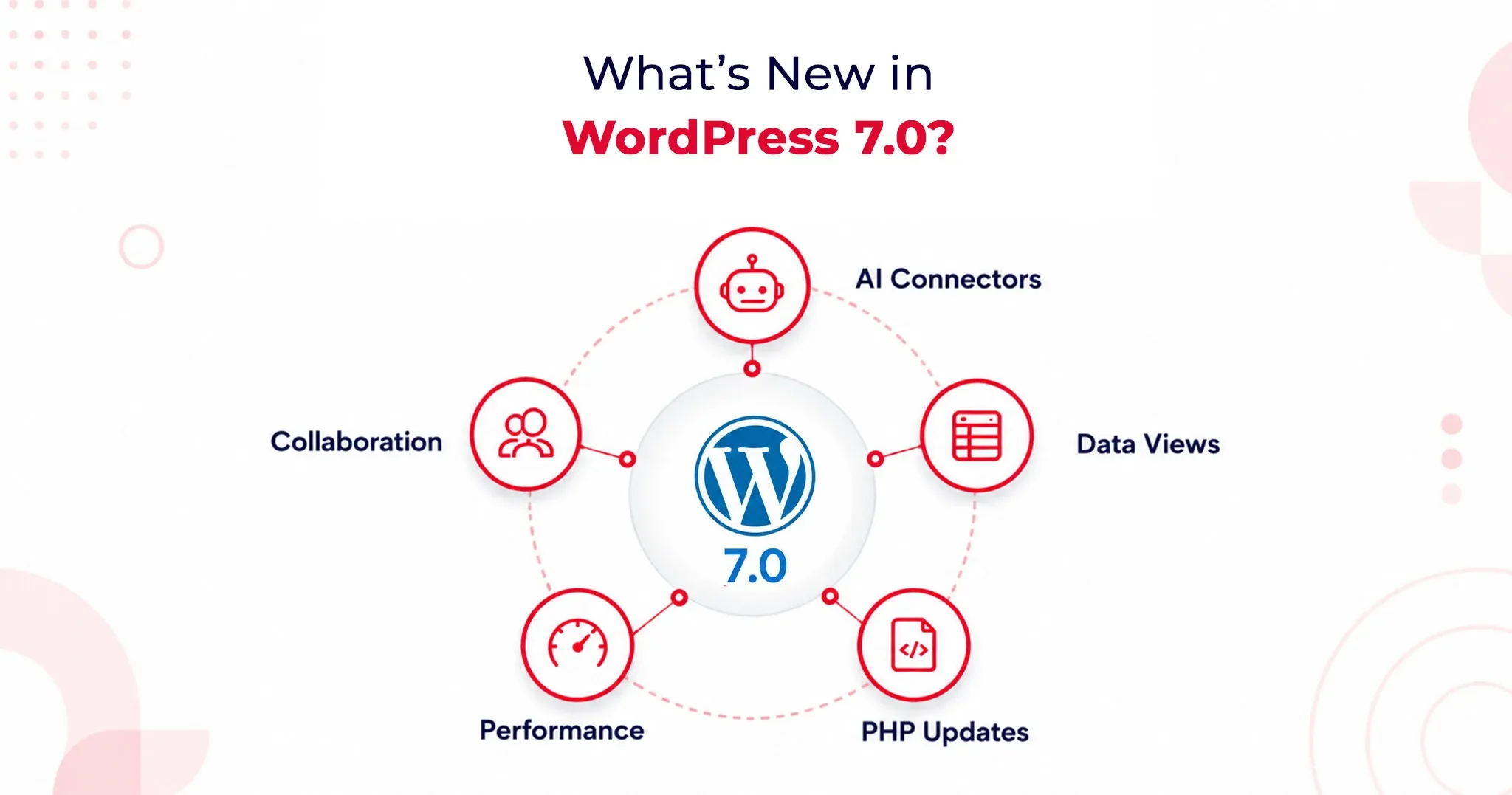
WordPress 7.0 introduces fundamental shifts in how the platform handles artificial intelligence, backend management, and team collaboration. Here is an optimized look at what you need to know about this landmark update.

1. AI Client and AI Connectors: A Provider-Agnostic AI Layer

WordPress 7.0 officially brings AI into the core experience by shipping a Web Client AI API. This establishes a standardized, deeply integrated interface that plugins and themes can use to connect to external AI providers.

According to WordPress.com’s official release documentation, the platform includes three pre-registered connectors right out of the box: OpenAI, Anthropic, and Google.

Why this matters:

  • Vendor Neutrality: The core team deliberately avoided locking users into a preferred AI service. You aren’t forced into a single model provider.
  • Centralized API Management: Site administrators simply enter one API key per provider. Any plugin built against the AI Client can leverage that connection immediately without requiring a separate plugin-level setup.
  • Future-Proofing: This design protects site owners from lock-in as the AI landscape shifts and gives developers a highly stable API surface to build against.

Practically, this streamlined setup powers features like:

  • Smart content suggestions
  • Auto-generated alt text
  • One-click summarization
  • Translation assistance

The Abilities API: Enterprise-Grade Security

To keep these powerful tools in check, WordPress 7.0 introduces the Abilities API. This defines exactly what AI tools are permitted to do within your installation.

Plugins must explicitly register their capabilities (e.g., creating posts, editing metadata, generating image descriptions). AI tools read these permissions in a structured way and operate strictly within defined boundaries. For enterprise site owners managing complex automation workflows, this boundary enforcement provides foundational security architecture, not just a convenience layer.

2. DataViews Admin Redesign: A Modern SaaS-Style Control Center

Say goodbye to WordPress’s classic PHP-rendered admin list tables. DataViews is a new React-based content management interface for posts, pages, media, and users. This redesign fundamentally alters how the backend behaves, not just how it looks.

The DataViews Upgrade:

  • Zero Reloads: Filtering, sorting, and bulk editing happen instantly without a full-page reload.
  • Seamless Toggling: Site administrators can fluidly switch between table, grid, and list views on the exact same screen.
  • Instant Updates: Grouping by status, author, or category updates on the spot.

This operational speed saves measurable hours per month for teams managing large content libraries. By bringing the admin experience closer to modern SaaS workflows like Notion and Airtable, editorial teams no longer have to justify a clunky backend to stakeholders.

3. Notes and Editorial Collaboration

Editorial workflows are getting a massive asynchronous upgrade, though the highly anticipated live-editing feature has been pushed back.

Real-Time Co-Editing Delayed

Real-time collaborative editing was officially removed from WordPress 7.0 on May 8, 2026. The core team pulled the flagship feature after race conditions, fuzz testing failures, and server memory concerns under concurrent load made it unsafe to release at scale.

If you were planning to restructure your editorial workflow around live co-editing, you will need to look toward a future WordPress release.

What Shipped: The Block-Level Notes System

While live co-editing is delayed, the new block-level Notes system has successfully shipped, and it covers the vast majority of what editorial teams actually need daily.

Key Collaboration Features:

  • Targeted Feedback: Editors can leave comments tied directly to specific blocks or text selections.
  • Team Tagging: Easily loop in teammates using @mentions.
  • Suggestions Mode: Propose changes that preserve the original text until the author explicitly accepts or rejects the edit.

This asynchronous collaboration model resolves major coordination friction without demanding the heavy WebSocket infrastructure that live co-editing requires from hosting environments.
Performance and Infrastructure Improvements

WordPress 7.0 Upgrade Guide: What Changes Under the Hood

Browser-side media processing is one of the most significant infrastructure changes in WordPress 7.0, profoundly impacting both site performance and plugin compatibility.

Uploaded images are now processed directly in the browser using WebAssembly before ever reaching the server. This means compression, resizing, and thumbnail generation all happen on the client side.

  • The Benefit: This shift drastically reduces server resource consumption and adds native support for modern image formats, including HEIC and AVIF, without requiring server-side library updates or changes to your hosting environment.

The media uploader now features real-time compression previews via slider controls, alongside saliency detection for automatic smart cropping based on an image’s most visually significant area.

With WordPress 7.0, the Block Editor loads noticeably faster. The iframe isolation model, which prevents style bleed between the admin area and the frontend, has also been refined, improving editing accuracy across both Block and Classic theme configurations.

PHP 7.4 Minimum Requirement and PHP 8.3 Compatibility

WordPress 7.0 officially draws a line in the sand regarding server environments:

  • The Baseline: It sets the PHP 7.4 Minimum Requirement, officially dropping support for PHP 7.2 and 7.3. Sites running those outdated versions will remain on the 6.9 branch (which receives security patches only) and will not receive the WordPress 7.0 update. Discovering this non-negotiable boundary on upgrade day is an avoidable operational disruption.
  • The Goal: The core team strongly advocates for PHP 8.3 Compatibility. Running PHP 8.3 or higher delivers measurable performance improvements, stronger type safety, and better alignment with modern development tooling. Upgrading to 8.3 positions your site safely for the next two to three release cycles.
  • Action Item: Check your hosting control panel or contact your host to verify your PHP version before scheduling your upgrade.
What Website Owners Should Check Before Updating to WordPress 7.0

Your WordPress 7.0 Upgrade Guide: Pre-Update Checklist

The only safe path to upgrading to WordPress 7.0 runs through a staging environment first. You must clone your production site, apply the update, and test comprehensively before pushing it live. This is entirely non-negotiable for installations that run custom blocks, have heavy admin modifications, or use server-side image plugins.

Your Pre-Update Checklist:

  • Full Backup: Secure the database and file system. WordPress 7.0 alters database structures and file handling, complicating mid-upgrade recovery if things go wrong.
  • PHP Verification: Confirm your version at the hosting level.
  • DataViews Compatibility: Review plugin changelogs for explicit DataViews support notes.
  • Editor Testing: Verify theme behavior within the new iframe-based editor.
  • React 19 Audit: Test custom block compatibility with React 19’s updated patterns.
  • Rule Validation: Check your caching and CDN rules following the admin interface change.

WordPress 7.0 Upgrade Guide: Plugin and Theme Compatibility Testing

The shift from classic PHP list tables to the React-based DataViews interface means certain plugins are at risk. Admin plugins that add custom columns, filters, bulk actions, meta boxes, or custom quick-edit fields to the Posts, Pages, or Users screens may not render correctly until their maintainers ship compatibility patches.

Media Plugins: Because image processing now begins in the browser before server-side hooks fire, media plugins that rely on early-stage upload interception must update their integration points. Actively maintained plugins should already have patches.

  • Warning: Abandoned plugins (inactive for more than 12 months) are high-risk and should be replaced rather than tested.

WordPress 7.0 WooCommerce Compatibility: What Store Owners Need to Know

Major ecosystem players WooCommerce, Yoast SEO, ACF, and Elementor have already shipped WordPress 7.0 compatibility updates ahead of the May 20 release. WooCommerce’s compatibility advisory confirmed rigorous testing across the release candidate cycle; standard configurations with major eCommerce extensions passed without regressions.

Where the risk lies:

  • Older, poorly maintained WooCommerce extensions.
  • Custom payment gateway integrations using legacy WordPress admin hooks.
  • Modified checkout flows are dependent on classic list table structures for order management.

If your store runs a standard WooCommerce setup, your risk is low. If your order management relies on custom admin modifications, prioritize those on your staging checklist immediately.

Will WordPress 7.0 Break Existing Plugins or Themes?

Yes, WordPress 7.0 carries a meaningfully higher risk profile than a typical point update. This is due to architectural depth, not careless engineering. The core shifts to the admin interface, media processing pipeline, and React version create new surface areas where older integrations can break without warning.

However, the core team’s commitment to backward compatibility remains firm:

  • Classic themes remain fully supported.
  • The Font Library, previously restricted to Block Themes, now officially extends to Classic Themes.

Is WordPress 7.0 Safe to Update Immediately?

  • For personal sites & standard blogs: Yes. Test on staging first, then update.
  • For Enterprise, Agencies & WooCommerce: No. Wait for the 7.0.1 and 7.0.2 minor patch releases before touching production.

Minor patches historically address the edge-case failures that crop up in the first 2–4 weeks. Given the architectural depth of 7.0, an active issue queue is guaranteed. Waiting costs little, but protects you from disproportionate recovery efforts in complex environments.

Agency Best Practice: Build a validation workflow. Require staging confirmation, plugin compatibility sign-off, client communication regarding interface changes, and a verified rollback path. WordPress 7.0 is stable, but planning for edge cases is the only professional response.

The Verdict

WordPress 7.0 is a genuine infrastructure release, not a marketing milestone. The AI Client, DataViews admin redesign, and browser-side media processing collectively shift what WordPress can do for content teams operating at scale. While real-time collaborative editing did not ship, the platform’s foundations are substantially stronger, highly AI-ready, and better suited to modern content operations than they were before May 20, 2026.

AI Search Visibility Audit: The Exact Checklist Agencies Should Use in 2026

An AI search visibility audit is a process that evaluates how often your brand is mentioned, cited, and accurately represented across AI search engines like ChatGPT, Google AI Overviews, and Perplexity.

It measures citation frequency, retrieval accuracy, and whether your content is selected as the source in AI-generated answers.

Clients want to know why their brand does not appear in ChatGPT answers or Google AI Overviews’ citations. And agencies need to answer in terms of strategy and numbers. But why is this so urgent?

In July 2025, TechCrunch reported that Google AI Overviews reached about 2 billion monthly users, with AI Mode at around 100 million in the US, making AI discovery a measurable channel rather than a future bet.

This guide gives you a productizable AI visibility audit you can sell as a repeatable service deliverable. You will get a six-category checklist, a 0 to 100 scoring rubric, and a 30/60/90 day execution roadmap. You will also get a prompt-based system that replaces keywords as the primary measurement unit as the primary measurement system for AI search.

What Is an AI Search Visibility Audit (And Why It’s Different from an SEO Audit)?

An AI search visibility audit or Generative Engine Optimization audit is a process to evaluate how well your brand is understood, trusted, and cited by AI-powered answer engines. This includes AI engines like ChatGPT, Perplexity, and Google AI Overviews.

An AI visibility audit measures:

  • Your brand presence: Does your brand appear in AI-powered answer engine responses?
  • Your branding accuracy: Is your brand information being captured accurately by LLMS?
  • Customer sentiment: How does AI frame your brand? (Is it described as an industry leader in your market niche?)
  • Competitive positioning: How is your brand pitched against the competition when it comes to answering specific queries in the niche?

However, if you want to measure these parameters, your AI visibility audit needs to include,

  • Technical AI readiness
  • Semantic content structure
  • Entity trust signals

How AI Search Visibility Differs from Traditional SEO?

Traditional SEO still plays a foundational role in AI visibility, especially for crawlability, content structure, and authority signals. Many businesses now combine SEO services with GEO/AEO strategies to improve both search rankings and AI citations.

This matters because AI answers compress the buyer journey, and a single cited source can win the click that organic listings used to capture.

Here are some key differences.

Dimension SEO Audit AI Visibility Audit (GEO and AEO)
Primary goal Improve rankings and traffic Improve citations and answer selection
Inputs measured Keywords, pages, links, crawl Prompts, entities, schema, citations, trust
Success metrics Rank, CTR, sessions Mentions, cited URLs, accuracy, coverage gaps
Optimization focus SERP positions Model retrieval and citation readiness
Client question answered Did we rank? Did we become the answer?

Why AI Search Visibility Matters in 2026

AI search visibility matters because buyers are outsourcing evaluation to assistants that summarize, compare, and recommend vendors in one step. For businesses, the risk is that a competitor becomes the default recommendation inside answers, even when your brand ranks well for classic queries.

The fastest way to make this tangible is to define a baseline AI visibility audit score, then map each fix to the exact prompts where the brand currently disappears.

When you present improvements as citation lift and answer coverage, the audit stops being subjective and becomes operational.

Step 1: Set the Audit Scope (Platforms, Audience, Goals)

The audit scope matters because you cannot fix what you cannot measure across the right engines and buyer intents.

Start by selecting the AI platforms relevant to this client’s market.

  • A B2B SaaS client may prioritize ChatGPT and Perplexity prompts, while a multi-location consumer brand may prioritize Google AI Overviews.
  • Next, map prompt intent to the ideal customer profile and the buying stage, because informational prompts and vendor selection prompts require different content structures.
  • Finally, define what winning means for this client, such as accurate positioning, brand-mention coverage, or citations for high-intent prompts.
  • Create a one-page audit scope sheet that lists target engines, target personas, and the goal definition for reporting.

Step 2: Build Your Money Prompt Set (10-30 Prompts)

A money prompt set matters because prompts replace keywords as the unit of measurement for AI discovery. Build ten to thirty prompts that mirror real buyer questions and decisions, and then use the same prompt set as your audit baseline and ongoing reporting cadence. Use three prompt categories so you capture awareness, evaluation, and conversion intent in one system.

Category prompts for agency services.

Write prompts like Best payroll software implementation partner for healthcare so you can test whether the client appears in curated recommendations. Track which competitors show up, and record which URLs get cited in the answer.

Problem solution prompts for buyer pain.

Write prompts like How do retail brands reduce checkout abandonment without redesigning everything so you can test whether the client’s expertise gets pulled into the explanation. These prompts often cite guides, research summaries, and pages with clear definitions.

Comparison prompts for shortlist decisions

Write prompts like Brand A vs Brand B and Alternatives to Brand B so you can see where the model positions the category and which comparison pages it trusts. This is where agencies can sell AI-driven visibility services in geo aeo as a recurring program, because the prompts keep changing with the competitive landscape.

Deliverable: Create a prompt tracker sheet with columns for engine, prompt, response summary, brand mention, cited URLs, and competitors shown.

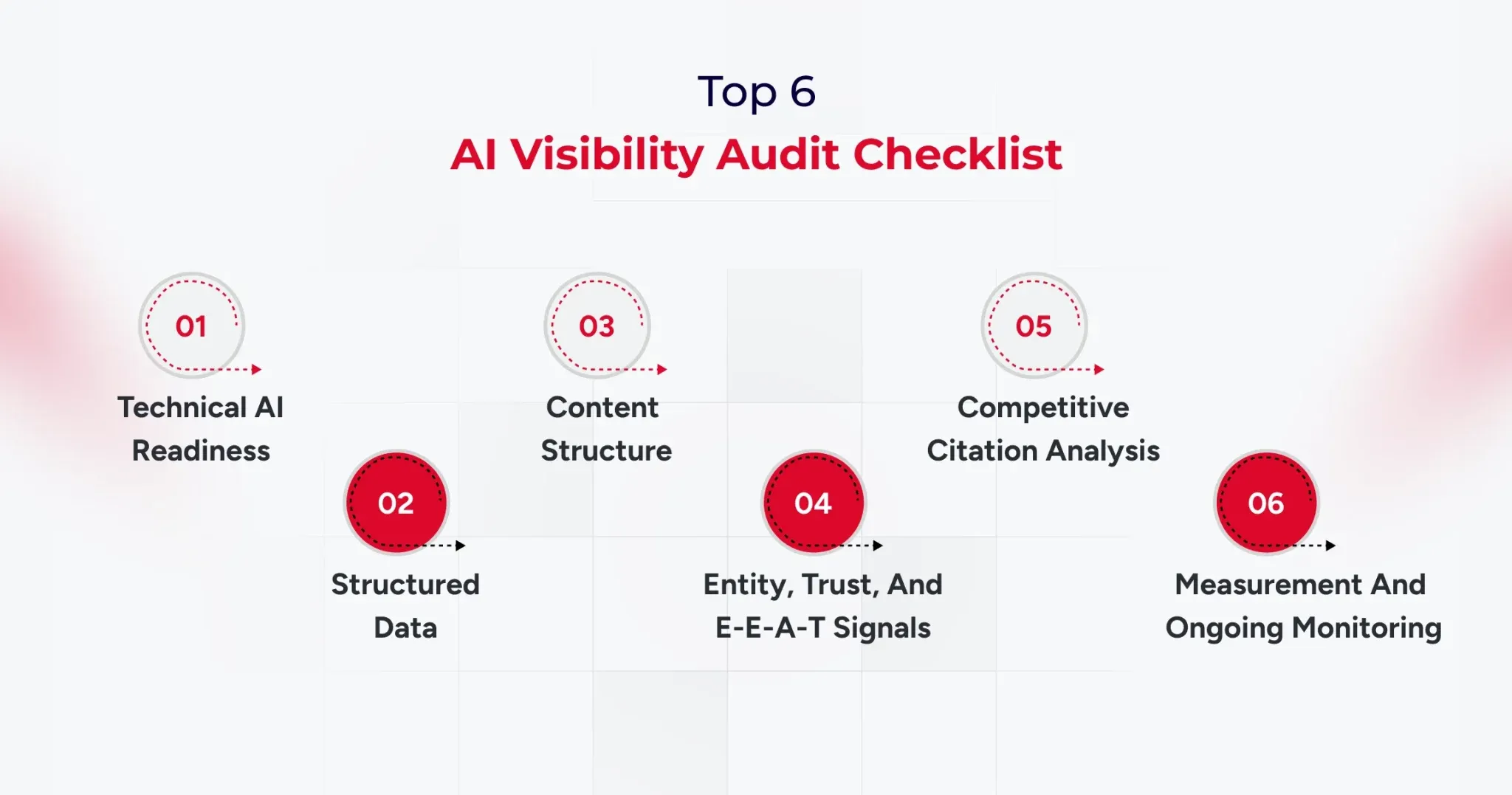
The AI Visibility Audit Checklist: Six Core Categories

A six-category checklist matters because clients approve audits when you show clear weights, concrete checks, and failure definitions. Use a scored checklist totaling 0 to 100 points, and force every finding into a measurable category with a clear remediation path.

1) Technical AI Readiness (20 points)

  • Confirm that key AI user agents are not blocked in robots.txt, including GPTBot, ClaudeBot, and PerplexityBot.
  • Verify crawl eligibility, indexability, and snippet extractability on priority pages.
  • Check performance, rendering, and stability on critical templates, especially on mobile.
  • Confirm HTTPS, canonical consistency, and sitemap freshness for the pages you expect to be cited.

Failure looks like blocked bots, inconsistent canonicalization, and pages that render poorly for crawlers.

2) Structured Data and Machine Understanding (20 points)

  • Validate JSON-LD schema for Organization, Article, FAQ, and Product where relevant.
  • Confirm that the schema matches the visible content, with no mismatches that could raise trust issues.
  • Check for an llms.txt file if the client uses one, and ensure it aligns with content priorities.
  • Verify Knowledge Graph entity claims, including consistent brand descriptors across properties.

Failure can look like missing, mismatched, or inconsistent entity descriptions.

3) Content Structure and Citation Readiness (30 points)

  • Ensure the answer appears in the first two to three sentences after each heading.
  • Write clean definitions that are copy-friendly and context complete.
  • Add lists and tables where the prompt expects them.
  • Support claims with proof such as data, case studies, and measurable outcomes.
  • Use question-based H2 structures when the prompt set indicates direct questions.

Failure looks like slow responses, vague claims, and pages that read like marketing copy rather than evidence.

4) Entity, Trust, and E-E-A-T Signals (20 points)

  • Add author bylines with credentials when expertise matters.
  • Maintain consistent brand descriptions across the website, profiles, and listings.
  • Identify third-party mentions, citations, and references from authoritative sources.
  • Evaluate the entity’s presence on sources like Wikipedia and Wikidata when relevant to the brand.
  • Document methodology on key pages so claims look reviewable.

Failure looks like anonymous content, inconsistent brand bios, and no third-party validation.

5) Competitive Citation Analysis (5 points)

  • Identify which competitors win citations for the target prompt set.
  • Capture which competitor URLs are being cited and why they fit the prompt.
  • Map content gaps where the client is missing pages that match the prompt intent.

Failure appears when competing pages are consistently cited, even though the client has no equivalent asset.

6) Measurement and Ongoing Monitoring (5 points)

  • Maintain a prompt tracking system with weekly or biweekly checks.
  • Track citation frequency and brand mention coverage by engine and prompt cluster.
  • Create a before-and-after report format that clients can sign off on.

Failure looks like one-off screenshots and no repeatable baseline.

Scoring note: A score below 60 indicates a high risk of AI invisibility and should be addressed as a priority.

AI Visibility Checking Tools Agencies Should Use in 2026

AI visibility checking tools matter because agencies need proof, baselines, and ongoing monitoring beyond traditional rank tracking.

You need four tool categories, and you should select tools based on the audit category they support, not based on brand popularity.

AI Visibility Checking Tools for Technical and Crawl Readiness

Use Google Search Console, Screaming Frog, and a crawler suite like Semrush to validate indexability, rendering, and template issues. Tie every finding back to the prompt set pages you expect to be cited, because generic crawl stats do not move AI citations by themselves.

AI visibility checking tools for structured data validation

Use Google’s Rich Results Test and Schema Markup Validator to confirm schema accuracy and coverage. Report schema findings as pass fail checks with URLs, so the remediation list becomes straightforward for engineering teams.

AI visibility checking tools for citation monitoring and AI tracking

Use an AI visibility tracker when you need prompt-level history, citation URLs, and sentiment trends across engines. Platforms like Profound and Wellows are positioned around multi-engine citation tracking and workflow reporting, while suites like SE Ranking are building bridges between classic SEO signals and AI visibility monitoring.

AI visibility checking tools for reporting and workflow proof

Use prompt tracking spreadsheets, annotated screenshots, and versioned reporting templates so the client can see progress by prompt cluster.

This is also how you turn AI visibility work into a monthly program, because the system becomes your audit-and-reporting engine.

How to Package AI-Driven Visibility Services in GEO/AEO for Clients

Packaging matters because the AI visibility audit becomes more valuable when it leads directly to an execution motion. You can offer three service models, each with a clear scope, deliverables, and reporting cadence.

Model 1: One-time AI Visibility Audit Report

The scope focuses on baseline scoring, findings, and a Top 10 GEO fixes list.

Model 2: Monthly GEO retainer

Scope focuses on prompt tracking, monthly citation delta reporting, and ongoing content and structure improvements.

Model 3: Full GEO as a service

Scope includes audit, content restructuring, technical fixes, schema improvements, entity building, and reporting.

Timeline expectations should be conservative and measurable, with early movement often visible within four to eight weeks and more stable citation gains typically visible within eight to sixteen weeks.

Scoring Your Client’s AI Visibility (0-100 Agency Rubric)

A scoring rubric matters because clients approve work when you quantify risk and prioritize fixes with a consistent standard.

  • Use the 0 to 100 score as a weighted summary of the six audit categories, and make sure every finding can be traced to an explicit score impact.
  • Use three score bands so the client can quickly understand severity.
  • A score below 60 indicates high risk and major visibility gaps.
  • A score from 60 to 79 indicates moderate risk with clear optimization opportunities.
  • A score of 80 or above indicates strong readiness, with effort shifting to competitive citations and prompt coverage expansion.

From Audit to Action: The 30/60/90-Day GEO Roadmap

A 30/60/90 roadmap matters because clients want a plan that converts audit findings into a calendar they can approve.

Start by building a priority matrix based on impact and effort, then map each fix to a time-bound sprint.

30/60/90 structure

  • Days 0 to 30: complete technical fixes, finalize baseline prompt tracking, and deliver the scored report.
  • Days 31 to 60: restructure content for answer first format, improve definitions, add tables and comparisons, and align entity language.
  • Days 61 to 90: monitor citations, run competitive gap analysis, and deliver a second baseline comparison with deltas.

Deliverable: Create a Top 10 GEO fixes list with issue, impact, effort, owner, and deadline.

Conclusion

An AI visibility audit is now a core agency deliverable because AI answers shape discovery at a massive scale. When Google AI Overviews alone reach about two billion monthly users, agencies cannot treat citations and answer selection as optional.

Use this AI visibility audit checklist to score readiness, prioritize fixes, and move from baseline to measurable citation gains with a 30/60/90 roadmap. If you standardize prompts, scoring, and reporting, you can turn AI visibility audit work into a repeatable service line with clear proof.

And if you are looking to improve AI search visibility without going through the hassle of creating a template, connect with our experts now.

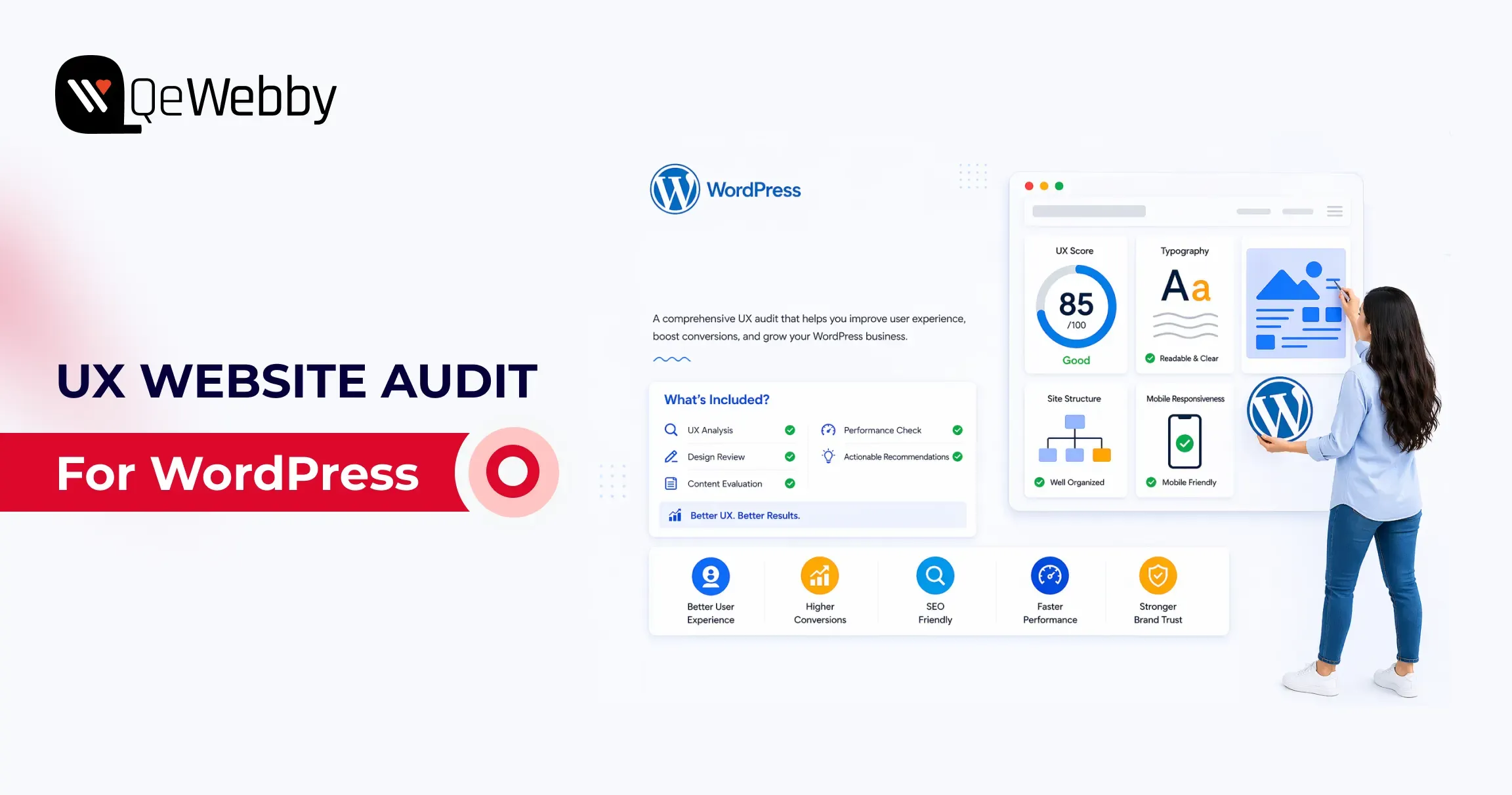
UX Website Audit: How to Improve Conversion Rates on WordPress

WordPress powers a massive share of the web, with a 42.5% CMS market share. However, there is a cost to scale. Founders and marketing teams need to understand, when using WordPress at scale, that traffic alone is not growth if users bounce before they act.

This guide is based on real audit frameworks used to improve conversion performance across WordPress websites.

How do you ensure users don’t leave before completing key actions?

A UX website audit helps gain measurable diagnosis, tying design, performance, and usability issues to revenue events. A structured website conversion audit helps you pinpoint churn points, which you can fix by using expert UI/UX design and development services.

In this guide, we break down practical strategies to improve conversion rates and optimize WordPress user experience. So, let’s get started with the ultimate WordPress UI/UX audit guide.

What is a UX website audit?

A UX website audit is a structured analysis of user behavior, performance, and usability to identify where users drop off and how to improve conversion rates.

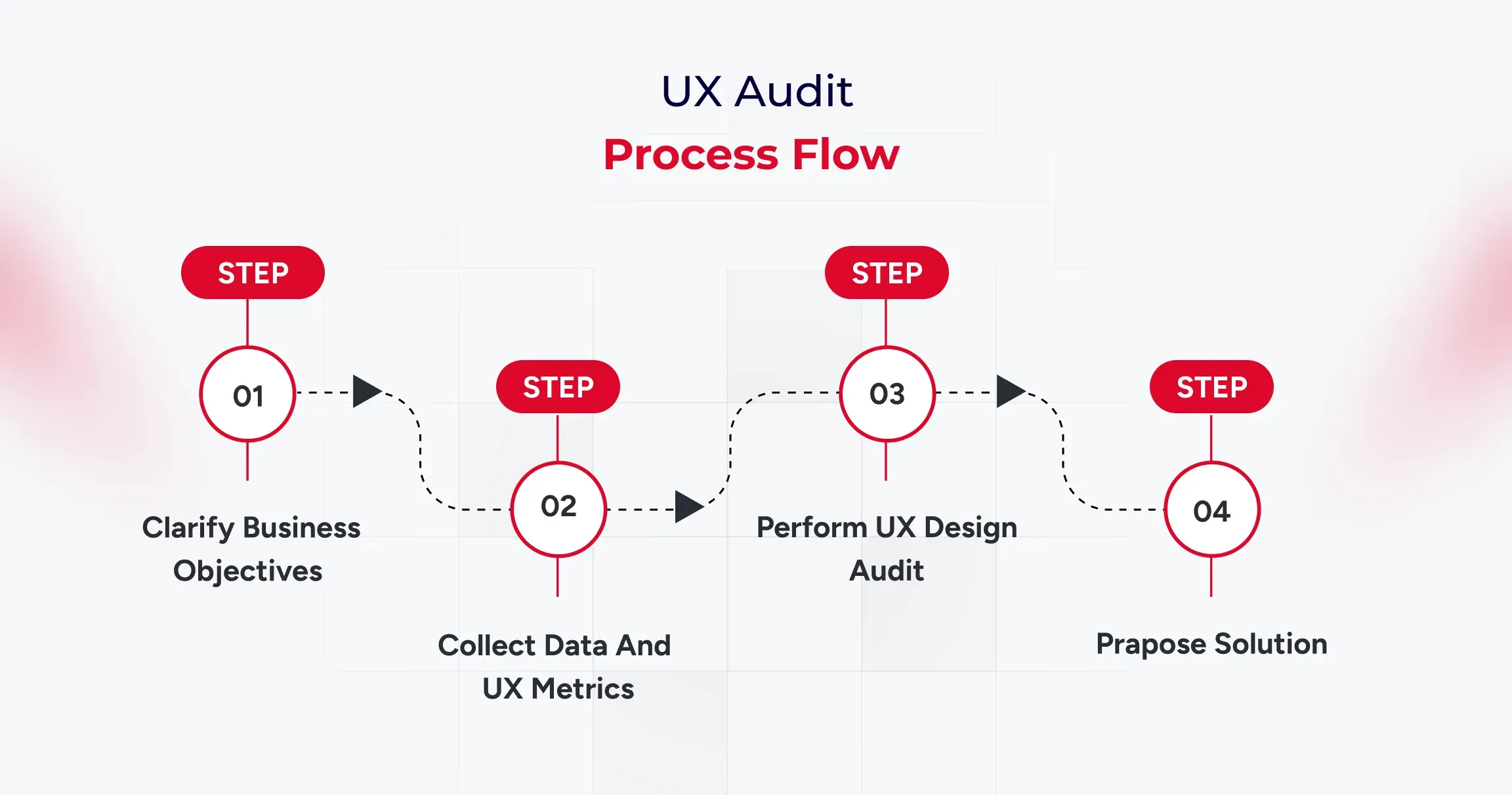
Start a WordPress UX Website Audit by Defining Conversion Goals

A conversion goal is a measurable action tied to business value, not a visual preference. For lead generation sites, macro conversions include demo requests, consultation bookings, and form submissions. For WooCommerce sites, macro conversions include completed purchases and checkout completion rate.

Micro conversions matter because they predict macro outcomes. Track add-to-cart rate, pricing-page views, click-to-call actions, scroll depth, and newsletter signups as leading indicators. Google’s documentation on GA4 purchases and eCommerce reports, and key events setup, gives the minimum event architecture you need before auditing UX.

If GA4 key events are not correctly configured, your audit is mostly guesswork. You might improve aesthetics and still lose revenue because no one measured task completion in the first place.

Audit the First 5 Seconds: Consent UX and Privacy Friction

Before a user ever sees your value proposition, they interact with your compliance layer. Large companies live and die by GDPR and CCPA, but poorly designed cookie banners are massive conversion killers.

Audit your Consent UX:

  • Does the banner block the Largest Contentful Paint (LCP) on mobile?
  • Is the opt-in seamless, or does it force users to hunt for the “Accept” button?

If your privacy compliance frustrates users immediately, your bounce rate will spike before the user even begins their journey.

Analytics Shows Where Users Leave, UX Analysis Explains Why

Analytics shows symptom location, not root cause. A drop on a contact page tells you where failure occurs, but not whether the issue is unclear value proposition, poor field design, weak trust signals, or mobile friction.

#1. Build a website conversion audit from GA4 funnel drop-offs

Start with the landing page report, device category split, source-medium quality, and funnel exploration. If paid traffic exists on mobile landing pages at a higher rate than desktop, you likely have mobile readability, hierarchy, or CTA visibility issues, not just “bad traffic.”

#2. Connect website conversion audit findings to user intent gaps

Map every high-drop page to the user’s job on that page. A pricing page job is not about browsing; it is about plan comparison and confidence-building. A contact page job is not reading; it is a low-friction submission that reassures about response time and privacy.

#3. Prioritize website conversion audit pages by revenue proximity

Review pages that directly impact revenue, such as checkout, lead forms, pricing, and high-intent landing pages. This is where small UX improvements usually return faster gains than broad redesign work.

What Is a Website Conversion Audit?

A website conversion audit analyzes user journeys, funnel drop-offs, and interaction data to identify friction points that reduce conversions.

Core Web Vitals Reveal Hidden Performance Friction on WordPress Sites

Core Web Vitals are user experience thresholds tied to perceived speed and interaction quality. web.dev defines healthy targets as LCP at or below 2.5s, INP at or below 200ms, and CLS at or below 0.1 at the 75th percentile.

On WordPress, performance debt often comes from heavy themes, page builder bloat, render-blocking scripts, oversized media, excessive third-party tags, and a weak caching strategy. The WordPress Hosting Performance Handbook is useful because it frames optimization as system design, not plugin roulette.

Poor CWV is not only an SEO problem, but it is also a trust problem. If the first viewport stalls, users infer risk before they read your offer.

What Is a Conversion Optimization Audit?

A conversion optimization audit focuses on improving high-impact areas like forms, checkout flows, and CTAs to increase task completion and revenue.

Mobile UX Often Determines Whether Visitors Ever Reach the CTA

According to report, 53% of mobile users abandon a website if it takes longer than 3 seconds to load.

Mobile-responsive means layouts technically resize. Mobile-optimization means users can complete tasks comfortably on small screens, with a clear hierarchy, readable type, and touch-friendly interactions.

  • Audit your mobile flow for menu depth, sticky header behavior, tap target sizing, above-the-fold CTA visibility, form fatigue, and friction caused by intrusive pop-ups.
  • Use Chrome DevTools and real-device checks because simulated tests miss thumb-zone and visual density issues.

Google’s mobile speed perspective and web.dev vitals guidance both reinforce that delay compounds abandonment. Most WordPress sites fail mobile not because teams ignore users, but because desktop-first blocks get stacked without mobile task prioritization. That is a design governance issue, not a single bug.

Forms and Checkout Flows Are the Highest-Value Audit Zones

Research from the Baymard Institute shows that the average cart abandonment rate is around 70%, often caused by complex checkout processes and poor usability.

Form and checkout design decide whether intent becomes revenue. Baymard’s checkout research and benchmarks are still the most practical evidence base for eCommerce teams, including the widely cited cart abandonment benchmark and checkout findings.

For lead-gen forms, reduce field count, clarify labels, use inline validation, and add contextual trust copy near submit actions. For WooCommerce checkout, support guest checkout, reveal costs early, simplify error recovery, and keep order review obvious.

A conversion optimization audit should prioritize these changes over cosmetic refreshes because they directly affect completion rates. The highest-converting checkouts are usually visually calm, predictable, and intentionally boring.

Accessibility Improvements Often Become Conversion Improvements

The WebAIM Million report found that over 95% of homepages have detectable accessibility issues, many of which impact usability and conversion performance.

Accessibility is a measurable usability quality, not a legal afterthought. WebAIM’s 2025 Million report found detectable WCAG failures on most analyzed home pages, and the same failure patterns often reduce conversion clarity for everyone.

Check CTA contrast, form label association, keyboard navigation, focus visibility, alt text coverage, empty button labels, and readable error messaging. Align your reviews with WCAG guidance from W3C, including practical implications of modern focus and target-size expectations.

The commercial angle is direct: inaccessible interactions increase cognitive load, and cognitive load kills action completion. Fixing accessibility frequently improves mobile completion rates, form success, and trust signals in one move.

A Strong Audit Prioritizes Fixes by Revenue Impact and Effort

Prioritization converts findings into outcomes. Use a simple matrix with effort on one axis and business impact on the other.

Quick wins include CTA contrast correction, image compression, form label clarity, and clarity of the above-the-fold message. Medium initiatives include simplifying navigation, aligning landing page intent, and reducing checkout steps. Large initiatives include theme refactor, page-builder cleanup, or full WooCommerce flow redesign.

Run a conversion optimization audit backlog with an impact x effort model

A conversion optimization audit backlog should be treated like a growth roadmap, not a design wishlist. Define owner, expected KPI movement, implementation effort, and validation window for each item before development starts.

A/B testing belongs after instrumentation and traffic reality checks. If your sample size is small, sequential UX improvements plus before/after cohort measurement are usually more reliable than underpowered split testing.

User Testing Validates What Analytics and Expert Review Cannot Prove

Heuristic evaluation and usability testing answer different questions. It is fast and cost-efficient for expert diagnosis. On the other hand, task-based testing with five representative users reveals internal friction that teams overlook.

Use task scripts tied to conversion intent: find pricing, submit a lead form, complete checkout, recover from an input error, and locate policy reassurance. Then compare observed friction against analytics drop points and fix the priority list.

This is where a website conversion audit matures into confidence in decisions. You move from “we think this is better” to “users completed the task faster, with fewer errors, on the pages that matter.”

Conclusion

A strong WordPress audit sequence is clear: goals first, then analytics, then CWV, mobile UX, forms and checkout, accessibility, prioritized fixes, and user validation. That framework gives business owners and growth teams an execution roadmap, not a generic design critique.

A UX website audit is most valuable when it ends with accountable implementation decisions, which is exactly where experienced UI/UX design and development services deliver measurable lift in leads and sales.

6 Tech Skills Entrepreneurs Must Have to Succeed

Business today operates in a state of constant change. Markets are more volatile, customer expectations shift rapidly, and new technologies continue to redefine how companies compete and grow. Relying solely on traditional business instincts is no longer enough success increasingly depends on how well you understand and apply technology.

Every business today, regardless of size or industry, runs on a combination of digital tools, platforms, and systems. You don’t need to be deeply technical, but you do need the awareness to identify the right technologies and the judgment to use them effectively. When leveraged correctly, technology simplifies operations, uncovers growth opportunities, and accelerates decision-making.

Founders who fail to adapt technology risk falling behind in a landscape where speed, efficiency, and data-driven execution define success. Strong skills of entrepreneurs now include the ability to evaluate evolving solutions, integrate systems seamlessly, and stay aligned with ongoing digital advancements.

With an overwhelming number of entrepreneur tech tools available for every business function, the real differentiator lies in knowing what to use, when to use it, and how to extract value from it.

Why Tech Skills Are Important for Entrepreneurs in 2026

According to report, global digital transformation spending is expected to exceed $3.4 trillion, highlighting how critical technology adoption has become for modern businesses.

Entrepreneurship today is about execution in a fast, unpredictable, and technology-driven environment. Markets shift quickly, customer behavior evolves overnight, and new competitors can emerge with scalable digital models at any moment.

This is exactly why technology skills for entrepreneurs have become a core business requirement. They help founders move faster, make smarter decisions, and stay aligned with how modern businesses actually operate.

Here’s why these skills matter more than ever:

  • Navigate market volatility with confidence: Rapid changes demand real-time insights. Tech skills help you track trends, adapt strategies, and respond before opportunities disappear.
  • Stay competitive in a crowded digital-first landscape: Businesses today compete on speed, experience, and efficiency. Strong skills of entrepreneurs ensure you can match and outperform digitally mature competitors.
  • Leverage AI and automation for smarter operations: From predictive analytics to workflow automation, AI is transforming how businesses function. Understanding how to apply it gives you a measurable edge.
  • Make data-driven decisions instead of guesswork: Access to data is easy; interpreting it is not. Tech literacy allows you to turn raw data into actionable insights that drive growth.
  • Maximize the value of modern tools and platforms: There’s no shortage of entrepreneur tech tools, but without the right knowledge, they become underutilized investments rather than growth enablers.
  • Scale efficiently without operational bottlenecks: Technology enables automation, integration, and streamlined workflows, these are key factors in scaling without increasing complexity.
  • Adapt quickly to continuous innovation: New technologies emerge constantly. Entrepreneurs who stay updated can identify opportunities early and implement them effectively.

Top 6 Tech Skills Every Entrepreneur Needs in 2026

The most impactful technology skills for entrepreneurs go beyond basic understanding; they enable smarter decisions, faster growth, and sustainable scalability.

Here are six essential skills of entrepreneurs that can truly be game changers, especially when powered by the right entrepreneur tech tools.

#1. Digital Marketing & SEO

Digital visibility is the backbone of modern growth, especially when supported by a strong website foundation built using professional WordPress development services that ensure performance, scalability, and SEO readiness.

Entrepreneurs who can analyze traffic patterns, optimize funnels, and refine campaigns based on data create predictable acquisition systems. To better understand how a strong website contributes to this, you can explore this WordPress website development guide.

How it can be a game changer?

You gain control over your customer acquisition channels, reduce dependency on third parties, and build a consistent pipeline of qualified leads.

Why this skill is important?

Among the most revenue-driven skills of entrepreneurs, this ensures you extract maximum value from entrepreneur tech tools while strengthening your overall technology skills for entrepreneurs.

#2. Sales and Networking Skills

Sales today is deeply integrated with technology. It involves understanding CRM platforms, managing pipelines, tracking lead journeys, and using automation for follow-ups. Networking has also evolved into a hybrid model, combining digital outreach, social platforms, and data-driven personalization. Entrepreneurs who can leverage insights to tailor communication and build relationships at scale create stronger conversion opportunities.

How it can be a game changer?

The ability to combine digital outreach with personal engagement accelerates trust-building and shortens the sales cycle.

Why this skill is important?

Modern skills of entrepreneurs include leveraging CRM and outreach platforms. When aligned with technology skills for entrepreneurs, these entrepreneur tech tools significantly amplify business growth.

#3. Basic Coding & Graphic Designs

Having foundational knowledge of coding and design empowers entrepreneurs to move faster and communicate better with technical teams. This includes understanding HTML/CSS basics, UI/UX principles, and visual hierarchy. Businesses that want to scale faster often complement this with UI/UX design and development services to create better user experiences and improve engagement.

It allows quick prototyping, minor website updates, and better decision-making when working with developers or designers. If you’re comparing development approaches, this custom WordPress vs page builders guide can help clarify the right direction. Instead of being fully dependent, entrepreneurs can validate ideas, test interfaces, and iterate quickly, reducing turnaround time and improving execution efficiency.

How it can be a game changer?

It enables faster experimentation, better collaboration with teams, and quicker implementation of ideas.

Why this skill is important?

These practical technology skills for entrepreneurs help you use entrepreneur tech tools more effectively while enhancing your overall skills of entrepreneurs.

#4. Cybersecurity Awareness

As businesses rely more on digital systems, cybersecurity becomes critical. This skill involves understanding data protection practices, secure authentication, threat detection, and compliance requirements.

Entrepreneurs must recognize vulnerabilities, implement basic safeguards, and ensure systems are protected against breaches. Implementing WordPress security services can further strengthen protection against evolving threats.

It also includes awareness to common risks in modern digitized operations such as phishing, ransomware, data leaks, and others.

How it can be a game changer?

Strong security practices prevent disruptions, protect sensitive data, and build long-term credibility.

Why this skill is important?

Cybersecurity is a core part of technology skills for entrepreneurs. Without it, even advanced entrepreneur tech tools can become liabilities, making it one of the essential skills of entrepreneurs.

#5. Cloud Computing & Remote Collaboration

Cloud computing enables businesses to operate with flexibility and scale without heavy infrastructure. This skill includes understanding cloud platforms, storage systems, SaaS tools, and real-time collaboration environments. Entrepreneurs can manage distributed teams, access data from anywhere, and ensure seamless communication across locations.

How it can be a game changer?

It allows businesses to scale efficiently, collaborate in real time, and operate without geographical constraints.

Why this skill is important?

Understanding cloud ecosystems is among key technology skills for entrepreneurs. It ensures effective use of entrepreneur tech tools while strengthening the adaptability of skills of entrepreneurs.

#6. AI Tools & Automation Platforms

A report by McKinsey & Company shows that companies using AI-driven automation can increase productivity by up to 40%, making AI one of the most impactful technology skills for entrepreneurs.

AI and automation are transforming how businesses operate. This skill involves understanding how to use AI for data analysis, customer insights, personalization, and predictive decision-making.

Automation tools streamline repetitive tasks like marketing workflows, customer support, and reporting. To further improve performance and decision-making, businesses can also explore AI A/B testing tools for WordPress for data-driven optimization.

Entrepreneurs who can identify where automation fits into their processes reduce operational load while increasing efficiency and accuracy, creating a scalable foundation for growth.

How it can be a game changer?

Automation boosts productivity, while AI enhances decision-making and operational efficiency.

Why this skill is important?

Adopting AI is a defining factor in modern skills of entrepreneurs. When combined with entrepreneur tech tools, it strengthens your technology skills for entrepreneurs and drives competitive advantage.

Strong technology skills for entrepreneurs become even more powerful when supported by the right execution partner. Whether it’s digital marketing, web development, or scalable software solutions, aligning technology with business goals ensures long-term growth and efficiency.

How to Develop and Improve These Tech Skills?

The smartest entrepreneurs focus on consistent, practical learning and apply it directly to their business. That’s how technology skills for entrepreneurs turn into real competitive advantage.

Here’s how you can systematically develop and sharpen these skills of entrepreneurs:

  • Start with problem-first learning: Don’t chase trends. Identify gaps in your business, it could be marketing, operations, or sales, and learn the tech that solves those specific problems.
  • Adopt a “learn by doing” approach: Theory won’t scale your business. Use entrepreneur tech tools hands on by setting up campaigns, automating workflows, analyzing dashboards, and experimenting in real scenarios.
  • Invest in structured learning: Take focused courses, certifications, or workshops that align with your business goals. This accelerates your understanding of key technology skills for entrepreneurs without wasting time.
  • Build a minimum viable tech stack: Start small. Select a few essential entrepreneur tech tools and learn them deeply instead of spreading yourself too thin across multiple platforms.
  • Follow industry trends and updates: Stay updated with AI advancements, automation tools, and emerging platforms to continuously upgrade your skills of entrepreneurs.
  • Collaborate with experts and teams: Work closely with developers, marketers, and analysts. This helps you learn faster and understand how different technologies work together in real business environments.
  • Analyze, optimize, repeat: Track results from every tool or system you implement. Continuous improvement is what strengthens technology skills for entrepreneurs over time.
  • Dedicate time for continuous learning: Set aside regular time each week to explore new tools, features, or strategies. Consistency compounds your growth faster than occasional learning.

The goal is to become a tech-enabled entrepreneur who knows how to leverage the right tools at the right time. That’s what transforms effort into scalable success.

When Should Entrepreneurs Invest in Technology Solutions?

As businesses grow, managing tools, automation, and integrations becomes complex. This is where entrepreneurs often need expert support.

Businesses should consider professional help when they need:

  • Scalable digital infrastructure
  • Advanced automation workflows
  • SEO-driven growth strategies
  • Custom software or platform development
  • Integration between multiple business systems

Working with the right technology partner ensures that your systems are not only functional but also optimized for long-term growth.

Conclusion

Technology is becoming the foundation of how resilient and future-ready businesses are built. Entrepreneurs who embrace this shift don’t just adapt to change; they create systems that absorb disruption and turn it into opportunity. That’s the real advantage, building a business that doesn’t just perform today but evolves continuously with the market.

This is where having the right technology partner matters. Working with a team that offers white-label WordPress development services can help agencies and businesses scale faster without increasing internal workload.

QeWebby brings deep expertise in building scalable, integrated digital solutions tailored to evolving business needs. With a strong focus on performance, usability, and innovation, we help translate technology into tangible outcomes.

If you’re ready to align your business with the evolving market requirements, contact us to get started.

How to Build a WordPress Website for Small Business

WordPress powers over 43% of all websites on the internet, and for good reason: it’s free, flexible, and designed specifically to let small business owners build professional sites without hiring developers or learning to code.

But here’s the reality: WordPress has dozens of options, infinite customization paths, and if you skip steps or misunderstand what you’re doing, things break fast. This is why many growing businesses rely on WordPress development services to build scalable and reliable websites from the start.

This guide walks you through the complete process of building a WordPress website for your small business, from choosing a domain to publishing your first post to launching live. You’ll have a fully functional, SEO-ready site that’s completely yours to control.

How to Build a WordPress Website for Small Business

Building a WordPress website for a small business involves following a clear process that ensures your site is secure, fast, and optimized for search engines.

Here are the essential steps to build a WordPress website:

  • Register a domain name for your business
  • Purchase a reliable web hosting plan
  • Install WordPress on your hosting server
  • Choose a professional WordPress theme
  • Install essential plugins for SEO, security, and backups
  • Create core pages such as Home, About, Services, and Contact
  • Add useful content and blog posts for your audience
  • Optimize your website for SEO and page speed
  • Set up website security and automatic backups
  • Launch and promote your website online

Following these steps helps you create a fully functional WordPress website that supports long-term business growth.

What You Need Before Getting Started?

Building a WordPress website for a small business requires exactly three things:

  • A domain name (your web address: yourname.com or yourbusiness.com)
  • Web hosting (the server that hosts your website files)
  • About one hour of focused time (and a notebook to write down passwords)

Your domain is your website address. Yourname.com or yourbusiness.com. Hosting is the server that your site actually lives on. Think of it like this: the domain is your street address, hosting is the actual building.

You’ll also need to decide whether to build this yourself or hire someone to do it.

Businesses that want advanced functionality or custom design often choose custom custom WordPress website development services to create a faster, more scalable platform from the beginning.

Step 1: Choose and Register a Domain Name

Your domain is the first decision for a small-business WordPress website because everything else connects to it.

Go to Namecheap or GoDaddy to register a domain for your WordPress website for a small business, and search for your preferred domain. Here’s the hard truth about building a WordPress website for a small business: most premium .com domains are already taken. Have 3–4 backup options ready before you search.

Cost & Strategy:

  • Standard .com domains: $10–$15/year
  • Register for 2 years if possible (locks in pricing, prevents accidental expiration)
  • Avoid exotic extensions (.info, .biz) unless necessary; people default to .com in their browsers

When setting up a WordPress website for a small business, your domain choice matters more than most people realize. It should be simple, memorable, and ideally include a keyword related to what you do (“plumbing-denver.com” instead of “jimbosservices.com”).

Once registered, save your domain registrar login details in a password manager. You’ll need it later.

Step 2: Purchase a Hosting Plan

For hosting a WordPress website for a small business, Bluehost is WordPress’s official recommendation and starts at around $4 a month. SiteGround costs a bit more but has better support. WP Engine is solid for more serious sites. Any of the three will work.

For a small-business WordPress website, don’t go with the cheapest option. Those providers oversell their servers, meaning your site shares resources with hundreds of other sites and loads slowly. Slow sites lose customers and rank lower on Google. Spend a few extra dollars a month and get something decent. Look for one-click WordPress installation, automatic backups, and a real uptime guarantee.

Many growing businesses later invest in professional WordPress website optimization services to improve loading speed, server configuration, and technical SEO performance. In more advanced setups, this often involves quality assurance testing services to identify performance bottlenecks and ensure stability.

After you sign up to host your WordPress website for a small business, your provider will provide you with nameservers. You plug those into your domain registrar account, and the two connect. This takes 24 to 48 hours to propagate fully.

Recommended hosting providers:

  • Bluehost– WordPress’s official recommendation, one-click installation, starts at ~$4/month
  • SiteGround– Better support quality, slightly higher cost (~$3/month base)
  • WP Engine– Premium option for more serious sites (~$20+/month)

What to look for:

  • One-click WordPress installation
  • Automatic daily backups
  • Real uptime guarantee (99.9%+)
  • SSD storage (not traditional hard drives)
  • Free SSL certificate (HTTPS)

Step 3: Install WordPress

Log in to your hosting control panel to build a WordPress website for a small business, and look for a tool called “WordPress Installer” or “Softaculous.” Click through the setup wizard, choose your domain, create an admin username and password, and hit install. The whole thing takes three minutes.

Write that admin password down somewhere real, like a password manager. Seriously. That login is how you access your entire site. If you lose it, recovering it is annoying. If someone else gets it, they control everything.

Once your WordPress website for a small business installation is done, go to yoursite.com/wp-admin and log in. That’s your backend. You’ll do everything from here. The left sidebar has Posts, Pages, Plugins, Themes, and Settings. Leave it alone for now. The first step is to pick a theme for your custom WordPress website development project.

Step 4: Choose a WordPress Theme

A theme is a pre-built design template for a small-business WordPress website. There are thousands of them. Free themes like Astra and Neve work great for a WordPress website for a small business are good enough for most small businesses and blogs. You don’t need to spend money here.

How to choose:

  • Go to Appearance > Themes > Add New
  • Browse or search for a theme
  • Preview it, then test it on your phone (over 60% of web traffic is now mobile)

Check your WordPress website for a small business on your phone before committing. Website speed directly impacts user behavior. Google reports that 53% of mobile users abandon sites that take longer than three seconds to load.

If you want to use a free WordPress builder for your WordPress website for a small business, instead of manually tweaking code, many themes come with drag-and-drop builders. These free WordPress builder tools make customization incredibly easy.

Most small-business owners building a WordPress website pick a theme and then never really change it. That’s completely fine. For your WordPress website for a small business, pick something clean, readable, and fast. Unless you work in design or fashion, flashy doesn’t help. People want to find what they’re looking for, not admire your website.

After you activate a theme for your WordPress website for a small business, go to “Appearance,” click on “Customize,” and add your site name, logo, and header image. These updates across the whole site are automatic.

Drag-and-drop builders, if you want to avoid code entirely, many themes include free builders:

  • Elementor (free version works well)
  • Beaver Builder
  • Gutenberg blocks (built into WordPress)

These let you design by dragging elements around like a Canva document.

Once you’ve chosen, activate your theme. Then go to Appearance > Customize to add:

  • Your site name and tagline
  • Your logo
  • Header images
  • Brand colors

These changes automatically apply across your entire site.

Step 5: Install Essential Plugins

Plugins add functionality to your WordPress website for a small business without code. But installing too many slows your site and creates maintenance nightmares.

When websites require features that plugins cannot support efficiently, businesses often turn to custom WordPress plugin development services to build tailored functionality.

For a WordPress website for a small business, install only these four essential plugins:

1. Yoast SEO or Rank Math

For your WordPress website for small business to rank, one of these is non-negotiable if you want your small-business WordPress website to rank in Google. They help you:

  • Optimize each page and post for search keywords
  • Generate XML sitemaps
  • Fix on-page SEO issues
  • Improve readability

Both are free. Choose one and stick with it.

2. Wordfence Security

WordPress gets attacked constantly. Wordfence monitors suspicious activity and blocks common attacks. Install it, run one security scan, then let it run in the background.

3. Jetpack or BackWPup

Automatic daily backups save you if your site ever breaks or gets hacked. Restore from yesterday’s backup with one click. This is critical.

4. Smush

Automatically compresses images on your WordPress website for small business before they are uploaded. Large image files are the #1 reason WordPress sites load slowly.

That’s it. Don’t install 20 plugins because you might need them. Every plugin you add increases your maintenance burden and slows your site.

Step 6: Customize Your Website

Most small business sites built on WordPress need five pages: Home, About, Services or Products, Blog, and Contact. Create them now for your WordPress website for a small business, even if they’re empty.

Go to Pages > Add New. Start with About. For your WordPress website for a small business’s About page, write 300 to 500 words about who you are and what you do. Write it like you’d explain yourself to someone at a coffee meeting, not like a press release.

Repeat that for Services and Contact. For Contact, just create the page for now.

Once your pages are set up, go to Settings > Reading and change your homepage from the default blog feed to your actual Home page. Then go to your Contact page, click Add Block, find your form plugin, insert it, and publish.

Step 7: Add Content to Your Site

For your first blog post, go to Posts > Add New. Don’t title it “Welcome to My Blog.” Write something useful. What’s a question your customers always ask you? Answer it in 800 to 1,200 words and publish it.

This first piece of content on your WordPress website for a small business is your foundation. It’s what Google indexes for your WordPress website for a small business, what visitors read, and where you show your expertise.

Step 8: Optimize for SEO and Speed

Go to Settings, click on “Permalinks,” and select “Post name.” For your WordPress small-business website, this makes your URLs readable instead of showing a bunch of numbers. Google prefers readable URLs.

After that, whenever you’re editing a page or post, scroll down to the Yoast or Rank Math section. It shows you what’s missing. At minimum, put your main keyword in the title and opening paragraph, and write a meta description under 160 characters.

On a WordPress website for a small business, don’t stuff keywords everywhere. Instead, focus on building a strong foundation with proper structure, which is often supported by WordPress SEO services for better long-term visibility. Write normally, and they’ll appear naturally.

To optimize your WordPress website for small-business speed, run it through Google PageSpeed Insights. It tells you what’s slow. Images are almost always the problem. Use Smush to compress them before uploading.

Step 9: Set Up Website Security

This is where WordPress security basics come into play for a small-business WordPress website. For your WordPress small-business website, use a strong password for your admin account. Not your dog’s name with a number appended. Something long and random that lives in your password manager.

Update WordPress, your theme, and plugins on your WordPress website for a small business whenever you see the notification. Outdated software is how most sites get hacked. WordPress security basics also include turning on auto-updates for plugins.

Larger websites often implement professional WordPress security services to add advanced monitoring, malware protection, and firewall configuration.

Enable the Wordfence firewall on your WordPress website for a small business. Run a security scan after you first install it. It takes a few minutes and tells you if anything is wrong.

For your WordPress small-business website, backups are critical. If your site gets hacked or something breaks, a backup from yesterday makes it a one-click fix. Jetpack’s automatic daily backups handle this for you. This is fundamental to WordPress security basics.

Step 10: Launch and Promote Your Website

Click every link on your WordPress website for a small business and make sure nothing’s broken. Fill out your WordPress website’s small-business contact form and make sure you actually receive the email. Pull up your WordPress website for a small business on your phone. Read everything for typos.

Go to Settings, “Reading,” and look for the checkbox that says “Discourage search engines from indexing this site.” If it’s checked, uncheck it. People forget to do this and then wonder why Google can’t find them.

Then go to Google Search Console, add your site, and submit your sitemap. Google will start picking up your pages within hours.

Put your WordPress website URL for a small business in your email signature. Add it to all your social profiles. Share your first blog post somewhere your audience actually is.

If you have existing customers, let them know about your new site. Ask a few if they’d be willing to link to you. Links from other sites are one of the biggest factors in where Google ranks you.

Keep publishing content on your WordPress website for a small business. If you’re planning long-term growth, this guide on tech skills for entrepreneurs can help you build the right digital foundation. One post every two weeks is manageable. The sites that consistently rank well in Google aren’t the ones with the most money. They’re the ones that kept showing up.

When Should You Hire a Custom WordPress Development Company?

Many small businesses start by building their own website using WordPress. However, as a website grows and requires more advanced functionality, businesses often choose to work with a custom WordPress development company.

A professional development team can help when your website needs:

  • A custom website design tailored to your brand
  • Advanced functionality or third-party integrations
  • Technical SEO optimization for better search visibility
  • Faster loading speeds and performance improvements
  • Ongoing website maintenance and security monitoring

A reliable custom WordPress website development company can build scalable websites that load faster, rank better in search engines, and support long-term business growth.

Common Mistakes to Avoid

  • For a WordPress website for a small business, don’t choose the wrong hosting provider. Cheap hosting with slow servers kills conversions and hurts your SEO rankings. Spend a few extra dollars for quality.
  • Don’t ignore mobile responsiveness on your WordPress website for a small business. More than half of your visitors use phones. If your site falls apart on mobile, you lose those visitors immediately.
  • Don’t skip WordPress security basics. Set strong passwords, keep everything up to date, and enable monitoring. Security isn’t optional.
  • Don’t over-install plugins. Every plugin slows your site and increases maintenance burden. Install only what you actually need.
  • Don’t write like a robot. Your website represents you. Write like a human, not like marketing copy.
  • Don’t forget to optimize for SEO. SEO isn’t magic. It’s just writing good content with keywords in the right places. Do this from the beginning.

Conclusion

Building a WordPress website for a small business feels overwhelming until you’ve done it once. Then you realize managing a WordPress website for a small business is mostly clicking around in a dashboard. Give it an afternoon, follow the steps, and you’ll have something real by the end.

Something you own completely is a WordPress website for a small business that’s yours. Not a Wix site that holds your content hostage. Not a Squarespace subscription you’re paying for forever. Your own site, on your own hosting, that you can do anything with.

If you need help with a custom WordPress website development strategy or want professional guidance, a team offering white-label WordPress development services can handle the technical setup and optimization while helping you scale faster. But you can absolutely build a WordPress website for a small business yourself.

If you want a faster launch, better SEO performance, and a scalable website architecture, partnering with a custom WordPress development company can help you build a professional website that grows with your business.

How to Integrate a Payment Gateway in WordPress (Complete Guide + Troubleshooting)

Modern eCommerce platforms treat payments as core infrastructure. For any online business, how customers complete transactions directly impacts revenue, trust, and long-term growth. A poorly configured checkout can cause abandoned carts, failed transactions, and frustrated buyers.

That’s why WordPress payment gateway integration is not just a technical task. It’s a strategic decision that affects conversion rates, security, and scalability, often requiring WooCommerce development services to build a stable and scalable checkout system.

Businesses today can choose between hosted processors, on-site integrations, or even custom payment gateway development, depending on their operational needs. Each approach influences compliance requirements, customer experience, and system complexity. If you’re building a broader ecommerce system, this omnichannel ecommerce strategy guide explains how payment systems fit into a unified customer experience.

When payment systems fail, whether due to timeouts, false declines, or WordPress checkout issues, revenue loss compounds quickly. This guide explains how payment gateways work in WordPress, how to implement them correctly, and how to troubleshoot common problems before they impact your business.

Types of Payment Gateways Supported by WordPress

Selecting the proper integration method is the first step before you look at specific providers. You must decide whether to keep data off-site to improve compliance or to keep users on-site for a better brand experience.

This fundamental choice shapes your security posture and conversion rates just as it does for major eCommerce platforms. Understanding these architectures is essential when you plan your WP payment gateway strategy.

1. Hosted Payment Gateways

Hosted payment gateways manage the transaction process by directing the customer away from your WP payment gateway interface to a secure processor page. You simply redirect the user to a trusted environment where they enter their details, then return to your success page.

Major platforms initially relied on external processors to build consumer confidence during the early internet era. You can use the same strategy to reassure cautious buyers who prefer entering their data on a familiar URL, such as PayPal, rather than an unknown store. This method reduces your security burden since the processor handles sensitive data.

Trust plays a decisive role in checkout completion. Around 17% of online shoppers abandon purchases because they don’t trust the site with their payment information, making recognizable payment brands an important confidence signal.

Benefits:

  • Lower security responsibility
  • Faster setup
  • Trusted external payment pages
  • Reduced PCI compliance scope

2. On-Site Direct Payment Gateways

On-site gateways allow customers to enter credit card information directly on your WordPress payment module without leaving the checkout page. You create a seamless experience that generally leads to higher conversion rates and a more professional feel for your brand.

Seamless checkout experiences are especially important on mobile devices, which now account for more than 60% of global eCommerce traffic. Optimized on-site payments help prevent abandonment during mobile transactions.

Replicate the friction-free checkout of modern apps. Leading tech companies use invisible payments to remove barriers between users and services. You can implement similar direct integrations using APIs that serve as digital bridges, often powered by custom API integration services to ensure secure and seamless communication between systems. This gives you complete control over the authorization flow while modern tokenization ensures raw data never touches your server.

Benefits:

  • Higher conversion rates
  • Better user experience
  • Full control over checkout design
  • Support for subscriptions and advanced billing

Best Payment Gateways for WordPress in 2026

Here are some of the popular payment gateways that you can leverage for a WordPress website.

1. WooPayments WooCommerce Payments

This native solution lets you manage payments and disputes directly from your dashboard without requiring external logins. You get support for multicurrency transactions and digital wallets like Apple Pay, which simplifies the buying process.

2. Stripe

Stripe is a developer-friendly platform known for its flexibility and extensive ecosystem for businesses that prioritize analytics. You can use its optimized checkout suite to dynamically display local payment methods based on the user’s location.

3. PayPal

PayPal remains essential for building buyer trust as one of the most recognized payment brands globally. You can now use modern integrations that offer bright buttons to keep customers on your site rather than relying on older redirect methods.

4. Square

Square is an ideal choice if you are an omnichannel retailer selling both online and in physical locations. You can synchronize inventory and payments between your online store and your physical point-of-sale systems in real time.

5. Authorize.Net

Operated by Visa, this gateway is favored by established businesses requiring enterprise-grade infrastructure. You get an advanced fraud detection suite and robust support for recurring billing, which is vital for subscription models.

Offering multiple payment methods is increasingly critical. Digital wallets alone now account for over over 50% of global eCommerce transactions, reflecting changing consumer preferences toward faster and more secure payment options.

Prerequisites Before Integrating a Payment Gateway

A successful payment integration often requires adjustments to themes, checkout flows, and server configurations. Businesses without technical expertise frequently rely on professional WordPress development services to ensure gateways are implemented securely, perform reliably under load, and remain compatible with future platform updates.

1. WordPress and Hosting Requirements

You must ensure your server environment meets specific security standards before installing any plugins. This prevents technical conflicts and ensures your WordPress payment module functions correctly.

SSL Certificate HTTPS

An active SSL certificate is mandatory to encrypt sensitive data, as most gateways refuse unsecured connections. Banks use encryption to signal safety immediately. You prevent browsers from flagging your site as Not Secure, which destroys customer confidence and increases abandonment.
Server and Caching Configuration

Your environment must run on recent PHP versions and explicitly exclude dynamic pages, such as the Cart, from caching to ensure session integrity. High-traffic retailers use strict session management to ensure cart accuracy. You must apply similar rules to your WooCommerce payment gateway troubleshooting checklist to prevent errors that cause customers to see empty carts.

2. Payment Gateway Account Setup

API Credentials and Webhooks

You need distinct API keys for testing and live environments, while configuring webhooks ensures your site receives automated payment updates. Fintech platforms rely on real-time synchronization. You can use webhooks to ensure your dashboard reflects fund status immediately without manual intervention.

3. Legal and Compliance Essentials

PCI Compliance and Tokenization

You must never store raw credit card data in your database. Instead, you should rely on tokenization to replace sensitive details with secure tokens. Modern providers keep data off your servers entirely. You can adopt this architecture to reduce your security scope while offering a seamless checkout experience.

Methods to Integrate Payment Gateway in WordPress

Choosing the correct integration method depends heavily on your scale. eCommerce stores generally require robust carts while service providers benefit from lightweight forms to reduce technical overhead.

Using WooCommerce (Recommended for Online Stores)

Integrating via WooCommerce remains the industry standard because it provides a structured framework for handling orders. This approach offers a stable foundation that scales from a single product to thousands without requiring custom code

1. Plugin-Based Integration

This method involves installing pre-built extensions to connect stores to processors instantly. It serves as an ideal entry point for startups processing moderate volumes due to the low technical barrier.

Businesses use plugin marketplaces to add complex features without development time. Using pre-built extensions allows early-stage companies to launch rapidly and focus resources on marketing rather than infrastructure.

Advantages:

  • Minimal technical expertise required
  • Fast deployment
  • Reliable updates
  • Compatibility with WooCommerce

2. WooPayments Native Integration

The official all-in-one solution is built directly into the dashboard to streamline operations. This architecture eliminates the need to toggle between third-party dashboards by keeping payments and disputes within the WordPress interface.

Major platforms centralize tools to reduce friction. Adopting native integration mirrors this efficiency by centralizing financial operations in a single view, reducing administrative time and potential errors.

3. Checkout Blocks Modern Architecture

Newer implementations use React-based Checkout Blocks to deliver a conversion-optimized experience. Integrating payment methods here ensures full compatibility with mobile-responsive themes.

Social apps refine interfaces for mobile fluidity. Leveraging React-based blocks brings the same level of seamless interaction to the checkout process, providing mobile users with a zero-friction experience.

Using Payment Plugins Without WooCommerce

1. WP Simple Pay

Designed for direct payments, this plugin allows site owners to embed Stripe forms anywhere on their site. It supports recurring payments without the overhead of a complete platform, making deployment faster.

2. WPForms Payments

This solution combines form building with payment collection to create seamless lead-to-payment flows. It proves highly effective for collecting application fees or donations directly within a contact form.

Custom Integration Using APIs

1. Direct API Communication

A custom API integration allows businesses to connect directly with gateways to access cost-plus pricing, often supported by custom API integration services for better control and flexibility. This connection grants access to data optimization, which can save thousands in interchange fees.

2. Control vs. Maintenance

While APIs offer unlimited customization,n they place the burden of security updates entirely on the development team. Organizations must weigh the benefits of total control against the ongoing cost of compliance management.

Step-by-Step Guide to Integrate Payment Gateway in WordPress

Integrating a payment gateway involves selecting the provider, installing the plugin, and configuring API credentials. You must ensure that security standards, such as PCI compliance, are met to process financial data safely.

Step 1: Preparation and Prerequisites

Before installing software, you must ensure your host is secure. An active SSL certificate is mandatory, as browsers flag non-HTTPS sites as Not Secure, which undermines user trust immediately. You also need a server running PHP 7.4 or higher to support secure communication with gateway APIs.

Step 2: Installing the Gateway Plugin

WooCommerce manages payments through extensions. You navigate to Plugins in your dashboard to search for your provider,r such as WooPayments or Stripe. Installing the official plugin ensures stability and compatibility with the core platform.

Step 3: Configuring Standard Plugins

Native solutions connect your store directly to the processor within the dashboard. You simply click Connect to link your account, or paste API keys for developer-friendly options like Stripe. You must also configure webhooks to ensure your store receivesreal-timee updates for events like refunds.

Step 4: Implementing Custom APIs

High-volume merchants often build custom integrations by extending the WC Payment Gateway class. This allows you to implement bespoke logic and access cost-plus pricing, which is not available in standard plugins.

Step 5: Testing the Integration

You must switch your plugin to Sandbox mode and use dummy card numbers provided by the gateway to verify that orders transition from Pending to Processing correctly.

Step 6: Troubleshooting and Security

If orders remain Pending after payment, your firewall might be blocking webhooks. You must allow gateway endpoints to ensure communication. Additionally, you should use tokenization to keep raw card data off your server to meet SAQ A compliance, along with quality assurance testing services to identify and resolve transaction-related issues early.

Common Payment Gateway Errors in WordPress and How to Fix Them

Here are some common payment gateway errors you can fix to ensure a seamless user experience.

1. Payment Declined or Failed Transactions

Transactions often fail due to mismatched API credentials or server communication timeouts, which are usually indicated by cURL Error 28. Verifying Live versus Test keys and upgrading server libraries ensures seamless connectivity between the store and the processor.

Cloud providers such as AWS utilize automated health checks to detect connection failures instantly. Adopting similar monitoring for API responses helps prevent revenue loss from silent authentication errors or server timeouts.

2. SSL or HTTPS Errors

Gateways reject connections from sites that lack valid SSL certificates or support modern TLS protocols. Ensuring the site is served over HTTPS with TLS 1.2 ensures that sensitive data remains encrypted during the handshake.

Financial institutions automatically terminate connections that do not meet encryption standards. Implementing strict SSL protocols mirrors this security posture, protecting customer data from interception.

3. Webhook Errors

Orders remaining in Pending status typically indicate that a firewall is blocking webhook callbacks. Allowing gateway IP addresses enables external services to communicate payment success statuses back to the WordPress database.

Apps like Slack rely on open channels to deliver messages instantly. Configuring firewalls to accept gateway signals ensures that order dashboards reflect actual payment statuses without manual refreshes.

4. Checkout Page Not Loading

Aggressive caching of dynamic pages often leads to broken checkout experiences or empty carts. Excluding specific endpoints, such as Cart and My Account, from the caching rules ensures that every session remains unique and functional.

Retail giants like Amazon dynamically render shopping carts to ensure inventory accuracy. Disabling cache for transactional pages prevents users from seeing outdated content and reduces cart abandonment.

Tips to Secure Your WordPress Payment Gateway

Payment systems are not a one-time setup. Plugins, APIs, and security protocols evolve continuously, making regular updates essential. Many businesses use ongoing website maintenance services to monitor performance, apply patches, and prevent disruptions that could affect transactions or customer trust.

Here are some valuable tips to help you secure WordPress payment gateway integrations.

1. Enable SSL and Secure Hosting

An active SSL certificate is mandatory for any website handling payments. It encrypts data, ensuring that malicious actors cannot intercept sensitive information like credit card numbers.

Banks use encryption to signal safety immediately upon user arrival. You must prevent browsers from flagging your site as Not Secure, which destroys customer trust and prevents gateways from functioning.

Because payment processing involves sensitive financial data, advanced protections such as firewalls, malware scanning, and intrusion detection are critical. Companies handling significant transaction volumes often implement dedicated WordPress security services to reduce vulnerabilities and maintain compliance standards.

2. Use Trusted Plugins and Tokenization

You should only install plugins from verified sources and ensure they utilize tokenization. This process replaces sensitive data with a secure token, ensuring raw credit card details never touch your database. Modern SaaS providers keep data offsite to reduce compliance burdens. You can significantly lower your risk profile by adopting this architecture and avoiding SAQ D-level scrutiny.

3. Regular Updates and Two Factor Authentication

Outdated software is a common entry point for attackers. You must enforce strong passwords and implement Two Factor Authentication to protect administrative accounts from compromise. Corporate IT departments enforce strict access protocols to prevent unauthorized logins. You should restrict administrative access to only essential team members to reduce your attack surface.

Best Practices for Optimizing Payment Experience

Here are the best practices you can use to optimize eCommerce payment experience.

1. Reduce Checkout Steps

A complicated process is the primary cause of abandonment. To improve conversions further, you can explore AI A/B testing tools for WordPress to optimize checkout performance using real user data. To maximize conversions, you must minimize the number of form fields and implement Guest Checkout to reduce friction. Major retailers removed the requirement to create an account to speed up transactions. You can capture more revenue by allowing users to purchase without the hassle of registration.

2. Offer that lacks Payment Options.

Customer support expects to be paid using their preferred method, including digital wallets, which helps customers significantly increase their order value. International platforms optimize payment methods based on user location. You can increase conversion rates by offering local payment options such as UPI or iDEAL alongside standard credit cards.

3. Mobile Friendly Design

Your checkout experience must be fully responsive. Elements should automatically adapt to smaller screens, ensuring that input fields are large enough to tap easily. Mobile-first platforms prioritize touch-friendly interfaces to keep users engaged. You should use express payment buttons to enable one-tap purchases without entering card numbers.

As eCommerce continues to evolve, payment systems are no longer just technical components but critical business infrastructure that directly influences trust, conversion rates, and long-term customer retention.

Wrapping Up

Integrating a payment gateway in WordPress isn’t a technical checkbox. It’s a revenue decision that compounds with every transaction. The difference between payment systems that enable growth and those that constrain it isn’t the gateway you choose, but how you architect the integration. Businesses that scale efficiently often rely on white-label WordPress development services to build and manage complex payment systems without increasing internal workload.

Successful implementations treat payments as core infrastructure: prioritize SSL encryption, enforce tokenization, configure webhooks for real-time updates, and test rigorously before going live. Every day your payment architecture introduces friction is a day where competitors with seamless checkouts capture customers who started their journey on your site.

Start by auditing your current integration against the security and performance benchmarks outlined in this guide, then optimize systematically to transform checkout from a necessary evil into a competitive advantage.

Omnichannel eCommerce: Syncing Web, Mobile & Email for B2B

Customers nowadays don’t shop in straight lines. They jump between devices, platforms, and touchpoints. A product might be discovered on social media, researched on a laptop, compared in a mobile app, and finally purchased in-store or through a website. For modern brands, this behaviour isn’t the exception anymore.

That’s exactly why omnichannel eCommerce has moved from being a competitive advantage to a business necessity.

Most businesses already operate across multiple channels that include websites, marketplaces, mobile apps, email campaigns, social platforms, and even have a physical presence. But being present everywhere isn’t the same as being connected everywhere. When these channels operate in silos, customers feel the friction and businesses feel the gap.

Omnichannel eCommerce changes that dynamic by unifying every interaction into one continuous experience. Instead of treating each channel as a standalone sales point, omnichannel creates a single, connected journey where customer data, inventory visibility, pricing, and engagement move seamlessly together. Whether a buyer starts browsing on Instagram or checks availability in-store before completing a purchase on their phone, every step feels intentional, personalized, and consistent.

This shift is especially critical for organizations building a modern B2B eCommerce strategy. Today’s B2B buyers behave more like B2C consumers; they expect instant access to product information, flexible purchasing options, and personalized experiences across digital touchpoints.

At its core, omnichannel eCommerce isn’t just about selling on more platforms. It’s about creating meaningful connections between systems, teams, and customers. It empowers brands to deliver relevance at scale, reduce operational friction, and respond faster to changing buyer behaviour. More importantly, it turns scattered interactions into a cohesive brand experience.

What Is Omnichannel eCommerce?

Omnichannel eCommerce is about creating one connected shopping journey across every customer touchpoint. Instead of treating your website, social media, mobile apps, marketplaces, and physical stores as separate channels, omnichannel eCommerce solutions unify them into a single experience where data, interactions, and transactions flow seamlessly.

This means a customer can discover a product on social media, check availability on your website, visit a store, and complete the purchase later on their phone without losing context along the way. Every interaction builds on the previous one, supported by shared customer data, consistent pricing, and personalized engagement.

Unlike multichannel selling, omnichannel ensures continuity rather than fragmentation. For businesses, this connectivity unlocks real operational value. The benefits of B2B eCommerce become clearer through improved buyer visibility, faster ordering, personalized pricing, and streamlined procurement workflows.

Ultimately, omnichannel eCommerce aligns your systems with modern buying behaviour, reducing friction, improving engagement, and turning disconnected touchpoints into a cohesive growth engine.

A seamless omnichannel experience begins with a scalable digital foundation. Businesses often invest in custom wordpress website development to build platforms capable of handling real-time integrations, personalized pricing, and complex B2B workflows across devices and touchpoints.

What Is The Difference Between Omnichannel and Multichannel?

At first glance, omnichannel and multichannel eCommerce appear similar. Both involve selling across multiple platforms. But the similarity ends there.

Multichannel simply means your business operates on more than one channel, which includes your website, marketplaces, social media, or mobile apps. Each channel functions independently. Pricing may vary. Customer data lives in silos. Messaging can feel inconsistent. From the buyer’s perspective, every interaction feels separate, often forcing them to restart their journey each time they switch platforms.

Omnichannel takes a fundamentally different approach.

With omnichannel eCommerce solutions, every channel is connected through shared data and unified systems. Customer preferences follow them from platform to platform. Product availability updates in real time. Branding, pricing, and communication remain consistent. The result is one continuous experience rather than a collection of disconnected touchpoints.

This distinction becomes especially important when shaping a modern B2B eCommerce strategy. Business buyers expect continuity across research, ordering, and post-purchase support. Omnichannel enables that flow, while multichannel merely provides options.

Multichannel uses multiple independent sales channels, while omnichannel integrates all channels into a single connected system with shared data and consistent customer experiences.

 Multichannel eCommerce Vs Omnichannel eCommerce

Aspect Multichannel eCommerce Omnichannel eCommerce
Core Approach Uses multiple sales channels independently Connects all channels into one unified experience
Customer Journey Fragmented; customers restart when switching platforms Seamless; every interaction builds on the previous one
Data Management Information stored in silos across platforms Centralized customer, product, and order data
Branding & Messaging Often inconsistent across channels Consistent branding, pricing, and communication everywhere
Inventory Visibility Limited or channel-specific Real-time inventory across all touchpoints
Personalisation Basic or isolated to individual channels Advanced personalization powered by shared customer insights
Operational Efficiency Requires manual coordination between systems Automated workflows reduce admin effort
Support Experience Separate service records per channel Single customer view for faster, better support
Suitability for B2B Limited scalability for complex buying journeys Ideal foundation for a modern B2B eCommerce strategy
Business Impact Increases reach but adds complexity Improves engagement, loyalty, and long-term growth

Key Benefits of Omnichannel eCommerce for B2B Businesses

When executed well, omnichannel commerce delivers measurable gains across customer experience, operational efficiency, and revenue. Modern omnichannel eCommerce solutions transform fragmented touchpoints into a unified ecosystem, helping businesses serve customers better while building a scalable digital foundation. Here’s how.

Capture Every Sales Opportunity

Omnichannel commerce enables businesses to meet demand wherever it appears. By connecting inventory across locations and digital channels, organizations gain real-time product visibility. Customers can browse online, check availability in-store, and complete purchases from any device without friction. This ability to say “yes” at every buying moment reduces lost sales and increases conversion rates.

Why is it needed?

Customers don’t wait. If a product isn’t available in their preferred channel, they move on. Omnichannel commerce connects inventory across locations and platforms, giving real-time visibility into stock levels. This allows businesses to fulfil demand instantly, whether purchases happen online, in-store, or through mobile, which helps reduce lost sales and improves conversion rates.

Deliver a Consistent and Cohesive Brand Experience

Customers expect continuity. Omnichannel ensures consistent messaging, pricing, and brand tone across websites, marketplaces, social platforms, and physical stores. Every interaction feels intentional rather than disconnected, strengthening trust and removing confusion caused by mismatched offers or policies.

Why is it needed?

Inconsistent messaging, pricing, or promotions create confusion and erode trust. Omnichannel ensures customers receive the same experience across websites, marketplaces, social platforms, and physical stores. This consistency strengthens brand credibility while eliminating friction caused by disconnected systems.

Gain a Complete View of the Customer Journey

By merging data from every channel, businesses unlock deeper insight into how customers discover products, switch platforms, and make purchase decisions. This holistic visibility reveals drop-off points, high-performing touchpoints, and engagement patterns, enabling teams to optimize experiences with precision instead of guesswork.

Why is it needed?

Without unified data, businesses see only fragments of buyer behaviour. Omnichannel consolidates touchpoints into a single customer view, revealing how people browse, switch channels, and convert. These insights help teams optimize experiences, reduce drop-offs, and make informed decisions backed by real behaviour.

Create Personalised Experiences That Drive Higher Value

A unified customer profile allows brands to tailor recommendations, promotions, and messaging based on real behaviour and preferences. These personalized interactions increase engagement, lift average order value, and encourage repeat purchases. For organizations refining their B2B eCommerce strategy, this also supports account-based pricing, customised catalogues, and streamlined reordering.

Deliver a Superior Customer Experience

Modern buyers move fluidly between channels, and omnichannel commerce supports that behaviour naturally. Whether customers start on social media, continue on mobile, and complete purchases in-store, or the sequence is reversed, the journey remains seamless. This continuity directly impacts satisfaction and spending, as connected experiences encourage larger and more frequent purchases.

Why is it needed?

Today’s buyers expect seamless journeys across devices and platforms. Omnichannel supports natural movement between channels, ensuring every interaction feels connected. This continuity improves satisfaction, increases basket size, and encourages repeat purchases.

Build Stronger Customer Loyalty and Advocacy

Consistent experiences foster trust, leading to repeat engagement and long-term relationships. Over time, satisfied buyers become brand advocates, recommending your business to peers and driving organic growth.

Why is it needed?

Trust grows through consistent experiences. When customers feel understood and supported across every touchpoint, they return more often and recommend your brand. Long-term loyalty reduces acquisition costs while creating sustainable growth.

Unlock Deeper Data and Actionable Insights

Every connected touchpoint generates valuable behavioural data. From browsing habits to promotion response, these insights inform smarter merchandising, more effective campaigns, and ongoing experience optimization. When supported by the right omnichannel eCommerce solutions, this data becomes a strategic asset rather than an operational burden.

Why is it needed?

Every connected interaction generates valuable behavioural data. Omnichannel brings this information together, enabling smarter merchandising, more effective campaigns, and continuous optimization. These insights become a strategic asset rather than scattered operational noise.

Increase Sales and Revenue Performance

Removing barriers between channels naturally boosts both conversion rates and average order value. Customers who engage across multiple platforms tend to purchase more frequently and spend more per transaction, making omnichannel a powerful driver of sustainable revenue growth.

Why is it needed?

Removing barriers between channels directly impacts revenue. Customers who engage across multiple platforms spend more and purchase more frequently. Omnichannel commerce increases conversion rates and average order value by meeting buyers wherever they are.

Improve Inventory Management and Operational Efficiency

Integrated inventory systems provide clear visibility across all sales channels, enabling accurate demand forecasting and better supply chain decisions. Businesses reduce overstock, avoid stockouts, and operate with greater agility, delivering better customer outcomes while protecting margins. These efficiencies are among the most practical benefits of B2B eCommerce, supporting scalable growth in complex buying environments.

Why is it needed?

Integrated inventory systems provide accurate demand forecasting and real-time visibility across all channels. This reduces overstock, prevents stockouts, and creates more agile supply chains. These efficiencies represent key benefits of B2B eCommerce, helping organizations scale without sacrificing profitability.

Why Omnichannel eCommerce Is Essential for Modern Retail?

Retail is no longer driven by single sales channels. Today’s customers move effortlessly between online stores, physical locations, and social platforms, and they expect every interaction to feel connected. This growing demand for seamless, personalized journeys is why omnichannel eCommerce solutions are becoming essential for modern retail.

Shoppers now discover products on one platform, research on another, and complete purchases elsewhere. When these touchpoints don’t align, the experience breaks. Omnichannel bridges this gap by creating continuity across channels, ensuring consistency in engagement, messaging, and service.

At the same time, data plays a critical role. Tracking customer behaviour across channels provides valuable insights that help improve satisfaction and engagement. Without this visibility, marketing and sales efforts lack direction.

Omnichannel eCommerce has also evolved beyond marketing. It now supports sales, inventory, loyalty, and customer engagement as a unified business foundation, helping retailers meet rising expectations with confidence.

Conclusion

Omnichannel eCommerce is about building a business ecosystem that adapts as fast as your customers do. As buyer expectations evolve and B2B journeys become more digital-first, businesses need platforms that don’t just support growth but actively accelerate it. That’s where the real opportunity lies: turning operational complexity into competitive advantage.

QeWebby helps brands do exactly that. As a digital solutions company and omnichannel eCommerce solutions provider, we design scalable, data-driven commerce experiences that support long-term business performance. Ready to modernize your eCommerce strategy? Contact us to start building your omnichannel future with confidence and modernize your eCommerce strategy.

HTML vs WordPress: Which One to Choose for Your Website?

Did you know ? WordPress powers over 43% of all websites on the internet (more than one out of every three sites).

Building a website today is about choosing a foundation that can support your goals, growth plans, and user expectations. The website building landscape has evolved significantly, giving businesses more choices than ever before. From flexible content management systems to lightweight, code-driven setups, each approach serves a different purpose. That’s why the debate around WordPress vs HTML continues to be relevant for businesses of all sizes.

On one side, WordPress dominates the web as a powerful, open-source CMS known for its ease of use, customization options, and cost efficiency. It allows businesses to launch, manage, and scale websites without deep technical expertise. On the other hand, HTML websites are built from the ground up using clean code. They are fast, secure, and minimal, but often require hands-on development effort for updates and changes. This contrast makes WordPress vs HTML websites an important decision, not just a technical one, but a strategic one.

  • Choose WordPress if you plan to update content regularly, scale features, or rely on SEO and marketing.
  • Choose HTML if your website is static, rarely updated, and performance is your top priority.

In this blog, we’ll break down WordPress vs HTML in detail, compare their strengths and limitations, and help you decide which option aligns best with your website goals.

Cons of HTML Websites

  • Time-consuming updates: Every change requires manual code edits. For content-heavy or frequently updated sites, this becomes inefficient.
  • Requires technical expertise: HTML, CSS, and often JavaScript knowledge are necessary, making it less accessible for non-technical users.
  • Limited flexibility: Adding new features or redesigning sections can mean rewriting large portions of the site.
  • Not ideal for complex functionality: Static HTML struggles with advanced requirements like eCommerce, user accounts, or dynamic content.

In the broader discussion of WordPress vs HTML websites, neither option is universally better. WordPress prioritizes flexibility, growth, and ease of management, while HTML emphasizes speed, simplicity, and control. The right choice depends on how often your site changes, how complex it needs to be, and who will manage it day to day.

Why the WordPress vs HTML Decision Still Matters

To make a confident decision in the WordPress vs HTML discussion, it’s important to understand what each technology is built for and where it performs best. While both can power successful websites, they solve very different problems and support different growth paths.

That’s why understanding how each platform behaves in real business scenarios is critical.

What Is WordPress?

WordPress is a content management system designed to simplify website creation and ongoing management. It allows users to build and update websites without writing code, which is why it powers a significant portion of the web today. From blogs and corporate websites to complex eCommerce platforms, WordPress adapts easily as business needs evolve.

Its strength lies in flexibility. Themes control the visual layout, while plugins extend functionality, enabling features like SEO tools, forms, analytics, and integrations without custom development. This dynamic nature is a key factor in WordPress vs HTML websites, especially for businesses that publish content frequently or rely on user interaction.

Did you know ? WordPress captures approximately 64% of the market, far ahead of competitors like Shopify, Joomla, or Wix.

1. Ideal Use Cases for WordPress

WordPress works best when content needs to change often or when scalability matters. It’s well-suited for blogs, marketing websites, news portals, membership platforms, and online stores. Small and mid-sized businesses also favor WordPress because it reduces development time and makes ongoing updates manageable without technical teams.

2. Popular Brands Using WordPress

Many global brands rely on WordPress for its stability and flexibility. Companies like Sony Music, The Walt Disney Company, TechCrunch, and BBC America use WordPress to manage high-traffic, content-rich websites. Their adoption highlights why WordPress remains a strong contender in the WordPress vs HTML comparison.

What Is HTML?

HTML, or Hypertext Markup Language, is the core building block of the web. It’s used to create static web pages where content is manually coded and doesn’t change unless the source code is updated. Unlike WordPress, HTML websites don’t depend on databases or backend systems.

This simplicity brings performance benefits. Static HTML sites are typically faster, lighter, and less vulnerable to security threats. In comparison of WordPress vs HTML websites, HTML stands out for control and efficiency, especially when content remains consistent.

1. Static vs Dynamic Websites

The core difference between WordPress and HTML comes down to content delivery. WordPress generates dynamic pages using a database, enabling real-time updates and personalization. HTML produces static pages that remain unchanged until manually edited. Dynamic sites offer flexibility, while static sites prioritize performance and predictability.

2. Use Cases Where HTML Is Preferable

HTML is ideal for landing pages, portfolios, microsites, documentation hubs, and websites with fixed content. It’s often chosen when performance, security, and full design control matter more than frequent updates. For teams with development expertise, HTML can be the winning choice when comparing WordPress vs HTML.

3. Popular Brands Using HTML

Several high-performance and design-focused brands rely heavily on HTML for specific parts of their web presence. Companies like GitHub (documentation pages), Dropbox (landing pages), Stripe (marketing pages), and Apple (product showcases) use static HTML to deliver speed, consistency, and flawless user experiences.

WordPress vs HTML: Side-by-Side Comparison

Choosing between WordPress and HTML isn’t about which option is “better.” It’s about understanding how each one fits your goals, resources, and long-term vision. When you look closely at WordPress vs HTML, the differences become clear, not just in how websites are built, but in how they grow, perform, and stay competitive over time.

Below, we break down the key differences between WordPress and HTML websites:

#1. Ease of Use and Learning Curve

This is often the first deciding factor in the WordPress vs HTML discussion.

WordPress is designed to remove friction. You don’t need to touch code to publish content, update pages, or manage media. Everything happens inside a visual dashboard. Themes control layout. Plugins extend functionality. Even beginners can launch a professional-looking site quickly, which explains why WordPress dominates the CMS market.

HTML, on the other hand, assumes technical comfort. Building WordPress vs HTML websites with pure HTML means writing and managing code manually. You’ll need a working knowledge of HTML, CSS, and often JavaScript. Modern tools and IDEs make the process smoother, but the learning curve is still steeper, especially for non-developers.

Bottom line: If speed, accessibility, and ease matter, WordPress has a clear edge in the WordPress vs HTML comparison.

#2. Design and Customization

Design flexibility looks very different when comparing WordPress vs HTML websites.

With HTML, design freedom is absolute. Every visual element is controlled by code. Advanced developers can create highly customized layouts with pixel-perfect precision. But that freedom comes at the cost of time and effort.

WordPress takes a modular approach. You start with themes, then customize them using built-in settings, page builders, or custom development. Tools like Elementor and Divi allow drag-and-drop design, making customization accessible even without coding. For businesses that want flexibility without complexity, this balance is hard to ignore in the WordPress vs HTML debate.

Functionality follows a similar pattern. HTML sites rely on custom-coded features, while WordPress unlocks thousands of plugins that add capabilities in minutes.

Bottom line: HTML offers raw control. WordPress offers scalable customization, which is faster and more practical for most teams.

#3. Maintenance and Updates

Maintenance is where WordPress vs HTML websites start to diverge sharply.

WordPress requires ongoing attention. Core updates, plugin updates, and theme updates are essential for performance and security. While this sounds demanding, most updates are automated or handled with a few clicks and many businesses choose professional Website Maintenance Services to ensure these updates are managed consistently without disrupting site performance.

HTML websites are lighter and simpler. There’s no CMS, no database, and no plugins to update. That reduces routine maintenance. However, even small changes, like updating content or fixing a typo, require editing the code and redeploying files.

Bottom line: WordPress needs regular upkeep, but is easier to manage. HTML needs less frequent maintenance but demands technical involvement every time.

#4. SEO and Performance

SEO and speed are critical in any WordPress vs HTML comparison.

HTML websites are naturally fast. There’s no server-side processing or database queries. The server simply delivers static files, which usually means quicker load times right out of the box.

WordPress websites do more behind the scenes. Pages are generated dynamically, which can add overhead. But modern optimization techniques, such as caching, CDNs, and optimized hosting, can make WordPress sites extremely fast.

From an SEO perspective, WordPress pulls ahead. Built-in features like clean permalinks, media optimization fields, and automatic sitemaps help search engines understand your site. When supported by structured WordPress SEO Services, businesses can further refine technical optimization, content structure, and performance signals without needing to modify core code.

With HTML, SEO is entirely manual. You can achieve similar results, but every optimization requires direct code edits.

Bottom line: HTML wins on raw simplicity. WordPress wins on SEO flexibility and long-term optimization in the WordPress vs HTML websites comparison.

#5. Cost and Budget Considerations

At first glance, both options appear free. In reality, WordPress vs HTML comes down to where you spend money.

WordPress itself is open source, but costs can add up through hosting, premium themes, plugins, and maintenance. Dynamic sites also tend to need better hosting environments.

HTML websites often cost less to host because they’re lightweight. There are no paid plugins or themes by default. However, development costs can rise quickly if you don’t have in-house coding expertise and need professional help.

Maintenance costs also differ. WordPress demands ongoing attention. HTML demands fewer updates, but every change can cost time or money.

Bottom line: WordPress spreads costs over time. HTML concentrates costs upfront, especially if development skills are outsourced.

#6. WordPress vs. HTML: Scalability and Growth

Every website evolves. You add content, introduce new features, attract more visitors, and suddenly, the platform you chose in the beginning starts to matter more than expected. This is where the WordPress vs HTML comparison becomes practical rather than theoretical.

WordPress is built with growth in mind. Publishing new pages, expanding functionality, or adjusting layouts doesn’t require rebuilding the site. Plugins, themes, and hosting upgrades allow WordPress vs HTML websites to scale smoothly as traffic and business needs increase.

HTML websites, on the other hand, can handle high traffic efficiently, but growth comes at a cost. Every new feature, page, or update must be manually coded. As the project expands, development becomes slower and more resource-intensive.

Bottom line: If continuous growth, frequent updates, and evolving functionality are part of your roadmap, WordPress clearly has the edge. HTML works best when the scope is fixed and unlikely to change.

#7. WordPress vs. HTML: Security Considerations

Did you know? As per the IBM report, 44% of organizations experienced a security breach related to website vulnerabilities, highlighting the importance of active maintenance and security practices.

Security is often misunderstood in the WordPress vs HTML debate. Many assume static HTML sites are automatically secure and WordPress websites are risky. In reality, both platforms require thoughtful security practices.

WordPress websites are more complex. Databases, plugins, and themes increase the attack surface, which makes them attractive targets. However, this complexity also comes with mature security tools, regular updates, and active monitoring options.

Many businesses rely on professional WordPress Security Services to implement firewalls, malware scanning, vulnerability patching, and continuous monitoring to reduce risk and maintain site integrity.

Bottom line: WordPress demands more attention but offers more protection tools. HTML is simpler, but responsibility rests entirely on how well access and hosting are managed.

Pros and Cons of WordPress and HTML

When comparing WordPress vs HTML, the decision often comes down to trade-offs. Both platforms are powerful in their own way, yet they solve very different problems. Understanding the strengths and limitations of WordPress vs HTML websites helps you choose a platform that aligns with your goals.

Pros and Cons of WordPress

WordPress is widely adopted for a reason. It lowers the barrier to entry while offering room to grow, but that convenience comes with a few considerations.

Pros of WordPress

  • Free and open-source foundation: WordPress can be used without licensing fees, and its global developer community continuously improves performance, security, and features. This ecosystem is one of the biggest advantages in the WordPress vs HTML debate.
  • Ease of use for non-developers: The dashboard is intuitive. Creating pages, publishing content, or updating layouts doesn’t require coding skills, making WordPress ideal for teams that want speed and autonomy.
  • High flexibility and extensibility: From blogs to enterprise-grade platforms, WordPress adapts easily. Thousands of themes and plugins allow WordPress vs HTML websites to support advanced functionality without starting from scratch.
  • Cost-effective entry point: You can launch quickly using affordable hosting and free themes, which makes WordPress attractive for startups and small businesses.
  • SEO-friendly by design: Clean structure, customizable URLs, and SEO plugins help WordPress sites perform well in search results with less manual effort.

Cons of WordPress

  • Hidden and recurring costs: While the core is free, expenses can add up through hosting, premium themes, plugins, and security tools.
  • Security requires active management: WordPress sites are common targets due to their popularity. Regular updates and security plugins are essential to reduce risk.
  • Performance can suffer if unmanaged: Too many plugins or poorly optimized themes can slow down a site, impacting user experience.
  • Some technical setup is unavoidable: Initial installation, configuration, and ongoing maintenance still require a basic level of technical understanding.

Pros and Cons of HTML Websites

  • Static HTML websites take a fundamentally different approach. They prioritize simplicity and control, which can be powerful but limiting.

Pros of HTML Websites

  • Simple and lightweight development: HTML sites don’t rely on CMS platforms or databases. With basic coding knowledge, developers can build clean, predictable websites.
  • Easy and flexible hosting options: Almost any server can host an HTML site, often at a lower cost than dynamic platforms.
  • Fast loading speeds: Without server-side processing, HTML pages load quickly, offering excellent performance out of the box.
  • Smaller attack surface: The absence of databases and dynamic scripts reduces common security vulnerabilities, a key consideration in WordPress vs HTML comparisons.

WordPress vs HTML: Which Platform Makes More Sense for Your Website?

Now that the strengths and limitations are clear, the real question is simple: which option actually fits your goals? The answer depends less on technology and more on how you plan to use your website and what you expect.

If flexibility, independence, and long-term growth matter, WordPress usually comes out ahead in the WordPress vs HTML debate. It gives you control without forcing you to rely on developers for every small update. Want to add new pages, refresh content, or test new ideas? WordPress lets you do that quickly and cost-effectively, which is why many growing brands prefer WordPress over HTML websites for business use.

On the other hand, if your website is purely informational and unlikely to change, a static HTML site can be a practical choice. It’s lightweight, fast, and does exactly what it’s built to do.

But if your website is meant to evolve and you want to generate leads, sell products, build a community, or create new revenue streams, WordPress offers far more room to scale. From eCommerce and memberships to digital downloads and online payments, WordPress supports growth without rebuilding your site from scratch.

In short, HTML works when your needs are fixed. WordPress wins when your ambitions aren’t.

Conclusion

Choosing between WordPress vs HTML isn’t just a technical decision; it’s a reflection of how your business plans to evolve online. Beyond features and performance, the right platform determines how quickly you can respond to market changes, experiment with new ideas, and deliver consistent user experiences. As digital expectations grow, businesses need website foundations that support agility, scalability, and long-term value rather than short-term convenience.

This is where QeWebby stands out. As a trusted custom WordPress development company, we help businesses design, build, and optimize websites based on real business outcomes, not assumptions. From strategy to execution, our experts ensure your website is future-ready and performance-driven. Contact us to explore how we can help you build a website that grows with your business.

Custom WordPress vs Page Builders: Which is Right for Your B2B Business?

A B2B business website is not just a gateway for your customers to interact with your services and products. It’s a powerful platform for demand generation, CRM integration, and improving brand credibility. So, you need to get it right, and a wrong architectural choice can impact your site performance.

One way is to use WordPress page builders that offer development speed. Just drag, drop, and launch the site. The platform handles everything else. And yet, your team has complete control over every functionality without writing a single line of code. The second approach is to opt for custom WordPress development, which offers more than WordPress page builders.

You don’t just get a fully functional site with a custom WordPress development approach, but one that has tailored themes, templates, and features. It’s engineered to your needs and offers CRM integration from day one.

So, which approach should you choose: Custom WordPress or page builders?

This article answers it with a clear comparison between Custom WordPress vs page builders. It covers everything from technical comparison to business trade-offs. But first, let’s understand each of these approaches individually.

What is Custom WordPress Development?

According to W3Techs, WordPress powers over 43% of all websites globally, making it the most widely adopted content management system. For B2B businesses, this dominance translates into long-term stability, a mature ecosystem, and strong compatibility with enterprise tools and integrations.

Custom WordPress development is an approach to building your website customized to specific business goals. This includes developing custom themes and templates with the exact content structure you need to cater to your audience.

A custom WordPress website has purpose-built components that offer functionalities as per your business requirements. Whether you need an ROI calculator that integrates with your CRM or want to create a resource library for gated content or lead scoring, it allows you to design and develop a site tailored to your needs.

A custom WordPress solution offers,

  • Optimized database queries that make your site faster
  • Tailored integrations that connect your site with the systems you need.
  • Brand differentiation through customizations of themes and templates
  • Optimal performance, both technically and SEO-based
  • Advanced SEO and structured content to improve visibility across channels

What are WordPress Page Builders?

WordPress page builders are drag-and-drop interfaces that let anyone build webpages without coding. It comes with pre-built blocks, widgets, and templates, which you can assemble to create high-performance websites.

It offers a live preview editor that lets you drag and drop hero sections, testimonial sliders, pricing tables, and contact forms. You can even tweak colors, fonts, and spacing with sliders without knowledge of CSS. Plus, it offers pre-built templates like “SaaS Landing Page,” and you can even add your custom logo. After all of this, your site will be ready to launch, and that too in hours and not weeks.

But its biggest advantage is also its most significant disadvantage. You don’t have control over how elements, functions, and components behave whenever a user interacts. Plus, maintaining branding consistency becomes complex.

But does that mean custom WordPress development is better?

Let’s evaluate custom WordPress development vs. page builders using different criteria.

Custom WordPress vs Page Builders: Key Comparison Areas

B2B businesses choose the web development approach based on what compounds revenue over time. Here is a comparison of custom WordPress development vs page builders.

Comparison Area Custom WordPress Page Builders Winner for B2B Scale
Performance & Core Web Vitals Lean code, optimized assets, 90+ Lighthouse scores. Your pricing page loads in 1.2s Bloated DOM, unused CSS/JS everywhere. 50-70 Lighthouse scores are typical Custom – Speed wins SEO and conversions
SEO & Content Structure Granular HTML control, custom schema, semantic content models, Limited markup, bloated layouts dilute semantic signals Custom – Google rewards clean structure
Scalability & Long-Term Growth Handles 100k+ pages, complex content types, deep integrations Restrictive at 10k+ visitors, content sprawl kills performance Custom – Built for your 5-year roadmap
Flexibility & Custom Integrations Deep CRM/automation connections, purpose-built functionality Plugin-dependent, shallow integrations, API limits Custom – Your workflows, not vendor limits
Time-to-Market 4-8 weeks planning + build 1-2 weeks drag-drop-launch Page Builders – Speed for MVPs
Maintenance & Technical Debt Clean architecture, dev-friendly, future-proof Lock-in, upgrade breakage, “spaghetti code” inheritance Custom – Lower lifetime ownership cost
Cost Over Time $20-50k upfront, $2-5k/year maintenance $5-15k upfront, $10-30k/year bloat fixes + migrations Custom – ROI compounds Year 2+

For B2B companies focused on long-term growth, custom WordPress consistently outperforms page builders across performance, SEO, and scalability.

1. Performance and Core Web Vitals

Custom WordPress development helps you minimize coding by keeping the focus on the functionality your site needs. There are no unused slider libraries or components that are slowing your site. What this means is your core web vitals are right on point. The Large Contentful Paint (LCP) is under 2 seconds. Similarly, you can keep the Cumulative Layout Shift (CLS) close to zero. Page builders add assets per page, such as animations, fonts, and effects, which are often not useful for your website but can affect performance and core web vitals.

Did you know ? “Google officially confirms that Core Web Vitals are a ranking factor, meaning site architecture, code efficiency, and performance directly influence search visibility.”

2. SEO and Content Structure

Custom WordPress development with custom theme development. WordPress practices enable granular control over HTML, schema markup, and semantic content models through WordPress SEO best practices, allowing precise structured data for rich snippets in B2B searches like “ERP software comparison.”

This approach follows Elementor vs custom WordPress comparisons, where custom builds produce cleaner code that boosts indexing and visibility, unlike Gutenberg vs page builders, where native blocks offer better semantic output than bloated plugins. Page builders like Elementor generate generic divs and bloated layouts that dilute crawler signals and weaken topical authority over time.​ Clean architecture combined with strong UI/UX design helps reduce friction and improve task completion.

3. Scalability & Long-Term Growth

WordPress website scalability shines in custom development, supporting complex content types, API-driven catalogs, and integrations like HubSpot without dips, thanks to its optimized architecture.

Page builders restrict growth due to nested elements causing content sprawl and slowdowns at scale, often requiring migrations that harm SEO equity. Custom setups align with long-term roadmaps, avoiding the limitations of Gutenberg vs. page builders on high-traffic sites.

4. Flexibility & Custom Integrations

Custom WordPress sites support advanced API integration services that connect CRMs, analytics, and internal systems without plugin limitations.

Page builders depend on plugins for integrations, risking shallow APIs, rate limits, and breakage during updates, as highlighted in Elementor vs custom WordPress analyses. This flexibility supports WordPress performance optimization by minimizing dependencies.

5. Time-to-Market

Page builders accelerate launches to 1-2 weeks via drag-and-drop, making them ideal for MVPs in demand gen or pilots where speed trumps depth. Custom WordPress projects require 4-8 weeks of planning to build robust foundations that reduce future rework and support evolution. Balance depends on urgency versus WordPress website scalability needs.

6. Maintenance and Technical Debt

Custom builds provide a clean, modular architecture for easy updates and no vendor lock-in, enhanced by WordPress performance optimization techniques such as lean queries. Page builders create proprietary lock-in, upgrade issues, and spaghetti code that raise costs for teams. Ongoing QA and testing services help ensure updates and new features don’t degrade performance over time.

7. Cost Over Time

According to McKinsey, unresolved technical debt can consume 20–40% of an organization’s IT budget, slowing innovation and increasing long-term costs.

Page builders have lower upfront costs but incur higher costs for fixes and migrations due to bloat. Custom WordPress costs more initially but yields savings in maintenance and SEO gains, as custom solutions outperform in the long term.

Which Option Fits Your B2B Business? (Decision Framework)

Before choosing the best option for your web development, ensure it aligns with your lead generation and retention goals. To make this decision more accurate, here is a framework you can use,

Choose Page Builders if

Leverage a page builder only when you need speed over customizations or are looking to launch a minimum viable product. It suits best for temporary assets or microsites. The performance of the website you get is basic and there are no deep custom integrations.

  • Campaign Landing Pages: Deploy event promos or webinar signups in days for A/B testing lead magnets.
  • MVP Prototypes: Validate SaaS demos or quick commerce pilots with non-technical teams.
  • Temporary Microsites: Run seasonal product launches or partner co-branded pages without long-term commitment.
  • Small Agency Sites: Basic service showcases under 1k monthly visitors, where drag-drop speeds client delivery.

Choose Custom WordPress If,

Select custom WordPress development to build scalable platforms which can offer better SEO optimixations, customizations and integrations. It is the most suitable for enterprise B2B companies with complex workflows, offering better Core Web Vitals.

  • Enterprise Content Hubs: Scale resource libraries, case studies, and blogs to 100k+ pages with semantic SEO.
  • Integrated Lead Funnels: Sync ROI calculators, gated ebooks, and CRM scoring for nurturing pipelines.
  • High-Traffic Portals: Handle surges from LinkedIn campaigns or webinars with optimized Core Web Vitals.
  • Custom Workflows: Build demo schedulers, analytics dashboards, or API-driven catalogs for CTO audiences.

Hybrid WordPress Strategy: When It Makes Sense for B2B

Many B2B companies adopt a hybrid WordPress strategy that leverages custom development as the core foundation while incorporating selective Gutenberg blocks or lightweight page builders for targeted marketing needs.

This approach delivers marketing flexibility through drag-and-drop editing on specific pages without compromising site-wide performance or scalability. Custom themes provide optimized architecture, lean code, and deep integrations, while Gutenberg’s native blocks enable non-technical teams to handle content updates efficiently.

Core Foundation

Custom WordPress themes form the backbone, ensuring 90+ Lighthouse scores, granular SEO control, and CRM syncing from launch. Optimized database queries and semantic HTML support enterprise-scale growth to 100k+ pages without bloat.

Selective Builder Use

Gutenberg blocks or lightweight builders like Beaver Builder integrate sparingly for high-velocity pages such as campaign landing pages or A/B tests. This maintains Core Web Vitals like LCP under 2s and CLS near zero, while avoiding the DOM bloat of full-page builders.

Benefits for B2B Scale

Marketing teams gain speed for MVPs and seasonal microsites, while developers retain control over critical funnels and portals. Long-term ROI compounds through reduced technical debt and seamless evolution.

Final Note

No universal “right” choice exists between custom WordPress and page builders; success depends on your B2B stage and revenue goals. Startups benefit from page builders’ rapid 1-2-week launches for MVPs and A/B testing, delivering quick ROI via low costs and fast demand generation.

Page builders offer short-term speed but dilute SEO over time. Custom development’s upfront investment yields long-term savings, and hybrid flexibility with Gutenberg for marketing pages without performance trade-offs. For B2B sites as revenue engines, prioritize scalable architecture over design ease.

Top 11 APIs for Seamless B2B API Integration in Your Next Business Project

In modern B2B environments, speed, data flow, and seamless API integration determine whether businesses scale or stall. According to Salesforce’s 2025 report, only 27% of enterprise applications in APAC are fully interconnected, leaving most organizations operating in data silos.

As companies embrace innovations such as generative AI, B2B API integrations become increasingly crucial. McKinsey reports that 42% of B2B decision-makers are already using generative AI, or are preparing to use it. But if your systems can’t connect and integrate such innovations seamlessly, your business will lag in an AI-first market.

That’s where API integration for business becomes the real growth driver. APIs aren’t just technical add-ons. B2B APIs help connect your existing systems with CRMs, payment systems, logistics tools, and communication platforms.

The best APIs for B2B integration depend on your business function. CRM APIs like Salesforce and HubSpot unify customer data, payment APIs like Stripe handle secure transactions, communication APIs like Twilio enable real-time messaging, while infrastructure APIs like AWS and Microsoft Graph power scalable, connected enterprise systems. Most modern B2B platforms rely on multiple APIs working together rather than a single solution.

Why B2B API Integration Is the Backbone of Modern Business Operations?

B2B API integrations enable seamless, real-time data exchange between systems, automating processes and reducing errors. It also allows businesses to create an agile, efficient, and connected business ecosystem.

Here are some key reasons why you need to invest in B2B API integrations,

  • Reduced Silos- B2B API integrations help break down silos across CRM, ERP, and supply chain processes. It offers a unified view of all the data and ensures everyone has access to real-time data.
  • Process Automation- Integrating B2B APIs can automate repetitive tasks that take too much time and effort. It also minimizes human error and optimizes outcomes.
  • Improved Collaborations- APIs enable direct, secure data sharing with partners, suppliers, and customers. This fosters smoother collaborations, faster approvals, and transparent communication across the value chain.
  • Faster Decision-Making- With real-time data flowing across integrated platforms, leaders gain timely and accurate information to make better business decisions, respond quickly to market changes, and capitalize on new opportunities.
  • Scalability and Flexibility- APIs make it easy to add or upgrade business systems, launch new products, or scale to new markets without rebuilding core infrastructure.
  • Enhanced Customer Experience- By connecting backend and frontend systems, B2B APIs ensure that customers and partners have seamless interactions, prompt support, and efficient order fulfillment.
  • Stronger Security & Compliance- APIs enable secure, permission-based data exchange and make it easier to track data flows, thereby supporting better compliance with industry regulations.

Now that you know the reason why you need B2B API integrations, it’s time to choose the best option for your project. However, before you select the best B2B APIs, you need to consider some of the key criteria.

Key Criteria for Choosing the Right API for B2B Integration

Selecting the best API for your B2B integration project is fundamental to creating a reliable, efficient, and future-ready business operation. Here’s what you should continually evaluate before making your choice:

1. Compatibility and Ease of Integration

Ensure the API works seamlessly with your existing systems (CRM, ERP, supply chain, etc.). Look for well-documented endpoints, SDKs, and support for multiple programming languages to minimize development time and complexity.

2. Security and Compliance

Your chosen API should support secure data transmission and robust authentication protocols (such as OAuth2). Ensure it complies with relevant industry standards, such as GDPR, HIPAA, and PCI DSS, to protect sensitive information and meet regulatory requirements.

3. Scalability and Performance

Consider whether the API can handle increasing volumes of data and users as your business grows. Features such as rate limiting, efficient data formats, and low latency are crucial for high-volume, mission-critical integrations.

4. Reliability and Uptime

Pick APIs with established reputations for stability and high availability. Check for documented SLAs (Service Level Agreements), redundant infrastructure, and clear incident response protocols to avoid costly downtime.

5. Customization and Flexibility

Choose APIs that let you tailor functionality to your specific business needs. This may include support for webhooks, extensible features, and modular endpoints that make it easy to adapt as your processes evolve.

Now that you have the criteria defined to choose the best APIs for integration into your systems, it’s time to choose the most suitable ones.

Top 11 APIs for Enhancing Your B2B Projects

With millions of APIs available, finding the right ones for your B2B projects can feel overwhelming. The goal is to select tools that enhance your B2B API integration capabilities and streamline everything from supply chains to customer communication. A well-chosen API integration platform can transform your operations.

Here are some of the best options,

1. Salesforce API for Streamlined CRM Operations

The Salesforce API is the best CRM API for B2B companies looking to consolidate customer relationship information across connected systems. By connecting Salesforce with your other business applications, you can build a single, unified view of all customer interactions. This integration helps all your sales, marketing, and support organizations work from the same current information.

Key Features:
  • Unified customer data across systems
  • Real-time data synchronization
  • Programmatic access to CRM analytics
  • Workflow automation
  • Extensive data migration
When to Integrate:
  • eCommerce checkout address validation
  • On-demand delivery apps
  • Travel, hospitality, or multi-location directories
  • Real estate or property mapping platforms

2. Stripe API for Seamless Payment Processing

Including the Stripe API in your B2B platform makes it really easy to process payments. Stripe is built to handle complex payment scenarios, making it ideal for companies with recurring subscriptions, marketplace payouts, or high-volume transactions. Using its powerful API, you can include payment gateways directly within your applications.

Key Features:
  • Secure card payments (Apple Pay, Google Pay, etc.)
  • Recurring subscriptions and invoicing
  • Real-time payout tracking
  • Fraud prevention and compliance tools
  • Multi-currency and international support
When to Integrate:
  • eCommerce stores and marketplaces
  • SaaS subscription platforms
  • Mobile apps requiring in-app purchases
  • Donation or fundraising portals

3. Twilio API for Advanced Communication Solutions

The Twilio API provides a comprehensive set of tools for integrating communication capabilities into your applications. To send automated SMS messages, handle voice calls, or add video chat, Twilio gives you the building blocks to reach users in real time. This is what business departments must have today to communicate with customers and trading partners instantly.

Key Features:
  • SMS, MMS, and voice call automation
  • Phone number masking
  • Global phone verification
  • Video and chat integrations
  • Real-time status tracking
When to Integrate:
  • Account signup verification (OTP)
  • Customer service chatbots
  • Marketing campaigns via SMS
  • Telemedicine/video appointment platforms

4. DocuSign API for Secure Document Management

The DocuSign API is essential for companies that want to automate and secure document management processes. It enables you to add electronic signature functionality directly within your own apps, simplifying processes that have long required manual printing, signing, and scanning.

Key Features:
  • Seamless integration with the existing system
  • Secure authentication through OAuth 2.0
  • Compliance with global eSignature laws
When to Integrate:
  • Automated order or signup confirmations
  • Newsletter distribution
  • Password reset/notification workflows
  • Application status updates

5. AWS API for Cloud Infrastructure

The Amazon Web Services (AWS) API is a core B2B API integration, offering cloud infrastructure services and improved data control. Rather than having to manually set up servers, databases, or storage, your applications can leverage the AWS API to provision and manage these resources automatically. This is critical to creating scalable, high-availability B2B applications. This robust B2B API integration enables your systems to dynamically respond to shifting demands in real time.

Key Features:
  • Fully-managed services for API management
  • Offers API Gateway Pattern
  • Automates the process of app integration with third-party services
When to Integrate:
  • Instant messaging apps
  • Real-time user dashboards
  • Multi-user collaboration platforms
  • Event-driven content

6. HubSpot API for Powerful Marketing Automation

The HubSpot API is among the greatest CRM APIs for B2B companies with marketing automation. It enables you to sync customer data across all your tools. It allows seamless data flows between your CRM, email marketing tool, and website, and offers a single view of your marketing and sales funnel.

Key Features:
  • Lead/enquiry syncing
  • Campaign automation
  • CRM and content integration
  • Analytics endpoints
When to Integrate:
  • To streamline marketing, CRM, and sales handoffs
  • Automating end-to-end customer journeys
  • Generating robust marketing analytics

7. Microsoft Graph API for Connected Workflows

The Microsoft Graph API is one gateway to data and intelligence throughout the Microsoft 365 solution. It includes services such as Outlook, Teams, OneDrive, and SharePoint. You can use this API to develop robust application integration solutions that connect business departments and simplify their everyday processes. This B2B API integration simplifies complex business processes spanning multiple applications.

Key Features:
  • Cross-app file and calendar automation
  • Task and message triggers
  • Unified identity/authentication
When to Integrate:
  • Collaborative document sharing/editing
  • Automated notifications across teams
  • Task tracking and reporting

8. QuickBooks API for Efficient Accounting Integration

For any B2B business, seamless accounting integration is not optional, and the QuickBooks API offers a one-way ticket to get there. The API lets your applications talk directly to QuickBooks, automatically exchanging financial information and removing manual data entry between your sales, invoicing, and accounting systems.

Key Features:
  • Invoice/expense syncing
  • Real-time payment updates
  • Comprehensive reporting
When to Integrate:
  • Automated order-to-cash workflows
  • Invoice management in eCommerce
  • Financial reporting for B2B projects

9. Slack API for Real-Time Team Collaboration

The Slack API makes your workspace a unified team collaboration center by bringing together notifications and tools in one location. Coupling third-party APIs with an environment such as Slack enables your team to get real-time updates from applications such as project management software, CRM software, and code repositories without ever leaving their main communication channel.

Key Features:
  • Custom notifications
  • Bot automation
  • Third-party integrations
  • Message/search endpoints
When to Integrate:
  • For instant notifications from business apps
  • Real-time project status updates
  • Automated alerts for support issues

10. Google Maps API for Location-Based Services

Google Maps API is one of the key B2B API integration tools that support businesses through location-based services. It helps you map custom data, calculate logistics routes, and find the closest points of interest. This B2B API integration is used across B2B platforms, particularly in logistics and retail operations.

Key Features:
  • Map and address embedding
  • Geocoding, routing
  • Places info and search
  • Live traffic data
When to Integrate:
  • Delivery, logistics, or fleet solutions
  • Real estate or local business directories
  • eCommerce store locators

11. Shopify API for eCommerce Management

The Shopify API enables you to integrate your Shopify store with other essential business systems, including your ERP, warehouse management system, and marketing platforms. This automates key processes and gives you a single, unified view of your entire operation. When selecting a B2B API integration platform, choose one that supports the multifaceted processes of eCommerce.

Key Features:
  • Product/inventory updates
  • Order processing
  • Customer and sales analytics
  • Integration hooks
When to Integrate:
  • B2B/B2C commerce platforms
  • Businesses expanding into online retail
  • Synchronizing eCommerce with back-end systems

How to Choose the Right API Stack for B2B Integration?

Most B2B platforms require a combination of APIs rather than a single solution. CRM, payments, communication, infrastructure, and collaboration APIs work best when integrated through a unified architecture or API management layer supported by reliable API integration services that ensure secure data flow, scalability, and long-term system stability.

How to Implement These APIs for Optimal Integration?

Successful B2B API integration involves defining clear goals, selecting secure and scalable APIs, designing integration architecture, testing thoroughly, and continuously monitoring performance.

  • Define Integration Objectives- Start by clarifying your business goals, whether it’s automating order processing, real-time inventory updates, or enhancing customer experiences. Map out the data flows and processes you need to connect.
  • Assess Current Systems- Audit existing infrastructure, determine compatibility, and identify any legacy systems or manual workflows that need API-driven transformation.
  • Choose Scalable and Secure APIs- Select APIs based on the criteria outlined earlier, prioritizing security, scalability, and ease of integration.
  • Develop Integration Architecture- Decide on integration patterns (point-to-point, middleware, API gateway) and design your data mapping between systems.
  • Test and Validate- Use sandbox environments or staging to run extensive tests checking for data accuracy, error handling, and performance under load.
  • Monitor and Optimize- Once live, continuously monitor API usage, performance, and security. Collect feedback and iterate to improve reliability, efficiency, and user experience.
  • Train Teams and Document Processes- Equip IT and business users with guides and support to maximize the value of your integrations and respond rapidly to any issues.

What is The Future of B2B API Integration?

B2B API integration is rapidly evolving, transforming how companies collaborate, automate, and scale in the digital age.

  • AI-Driven, Self-Optimizing APIs- Machine learning will allow APIs to auto-adapt to changing workflows, errors, or demand, further reducing manual intervention.
  • Universal API Management Platforms- Unified portals will centralize monitoring, deployment, and security for all API connections, simplifying multi-cloud, multi-partner management.
  • Hyperconnectivity and Industry Standards- A shift towards standardized data schemas and protocols will allow businesses to onboard new partners or applications with minimal development effort.
  • Event-Driven and Real-Time Integrations- Future APIs will enable instant interactions, predictive analytics, and adaptive business logic, ushering in real-time B2B automation.
  • Enhanced Security and Compliance- Next-gen APIs will ace the compliance checks, consent management, and advanced encryption as standard features, safeguarding sensitive B2B data exchanges.

B2B API integration is moving toward real-time, event-driven, AI-optimized ecosystems where systems adapt automatically, scale instantly, and enforce security by design.

Final Thoughts

Effective B2B API integration is not merely a matter of system integration. It is about empowering quantifiable productivity and building a digitally scalable ecosystem. When it comes to weighing the optimal CRM APIs for B2B or the wider API integration to the business, the aim is the same: a smooth bridge that will bring growth.

Incorporated strategically, the API integration in the B2B sphere will become the start of the scalable development and of the smarter decisions. The concepts of data security, scalability and constant optimization must remain at the center of your integration strategy.

To learn more about the ways you can speed up your digital transformation with the integration of API, schedule a strategic consultation with our solution experts.