Migrate Your WordPress Sites: A Definitive Guide [Easy & Fast]

Over 43% of the web runs on WordPress, yet the moment someone needs to migrate a WordPress site to a new host, the process feels anything but routine.

The fear is legitimate.

A failed WordPress migration does not just break a website. It can affect SEO rankings, form submissions, analytics tracking, checkout functionality, and customer trust within hours.

According to W3Techs WordPress Usage Statistics, WordPress powers more than 43% of all websites globally, making migration reliability a critical operational concern for businesses of every size.

What most migration guides miss is that failure rarely happens during the transfer itself. It usually happens before the migration begins or after the new site goes live.

This guide covers the complete process, including:

  • pre-migration preparation
  • plugin-based migration
  • manual migration
  • SEO preservation
  • downtime prevention
  • post-launch validation
  • common troubleshooting scenarios

So you can migrate your WordPress website safely without damaging performance, visibility, or user experience.

Pre-Migration Checklist: What to Do Before You Start

The WordPress site migration checklist isn’t administrative busywork. Every item on it represents a failure mode caught in advance, rather than a recovery task you’ll face under pressure with a live site down. Skipping even one step can mean a corrupted database, missing media files, or an SSL mismatch that takes days to trace.

#1. Build Your WordPress Site Migration Checklist Around a Full Backup First

A full site backup means your database export (.sql file) AND your complete WordPress file directory, including wp-content, all themes, all active plugins, and your .htaccess file.

There are many tools that let you store backups to Google Drive, Dropbox, and Amazon S3. Run a fresh backup immediately before migrating, not the one from yesterday. The few minutes this takes pays off the moment something breaks mid-transfer.

#2. Create a Staging Environment Before Any Live Migration Work

A staging environment is a private, non-indexed copy of your site hosted on a subdomain or locally, where you can test the migrated version before switching DNS. Managed hosts like Cloudways, SiteGround, and WP Engine offer one-click staging environments.

If your current host doesn’t, set one up by pointing a subdomain at a temporary directory. Testing on staging catches the majority of migration errors before they touch your live site.

#3. Audit Your Plugin Stack, Theme Dependencies, and PHP Version

Check the PHP version your current site runs on and confirm your new host supports the same version. Plugin conflicts post-migration are frequently traced back to PHP version mismatches, not the migration process itself.

Deactivate any plugins you no longer use before migrating: fewer files, smaller export, and a cleaner environment on the new host. This step alone reduces migration time noticeably on sites with bloated plugin libraries.

#4. Document Your Current SEO Configuration as a Baseline

Record your current permalink structure, sitemap URL, and robots.txt setup. Screenshot your Google Search Console coverage report. These become your post-migration benchmarks.

A spike in 404 errors or crawl anomalies in Search Console within 48 hours of going live on the new host is the signal to investigate; a clean baseline tells you exactly what changed.
How to Avoid Downtime During WordPress Migration

DNS propagation issues, incomplete file transfers, or untested staging environments usually cause downtime during a WordPress migration. The safest migrations reduce risk before the DNS switch happens.

Practical Steps to Reduce Downtime
  • Lower DNS TTL 24 hours before migration
  • Complete all testing inside a staging environment
  • Keep the old hosting account active during propagation
  • Verify forms, images, redirects, and SSL before switching DNS
  • Schedule migrations during low-traffic hours
  • Avoid making content changes during migration windows

A properly planned migration often completes with minimal or no visible downtime for users.

Choosing the Right Migration Method

When Plugin-Based Migration Is the Smarter Call

Plugin-based migration handles file transfer, database export, import, and URL rewriting in a single coordinated workflow. For most site owners and small agencies, a WordPress migration plugin reduces a four-hour manual process to approximately 45 minutes.

Duplicator, with over 1 million active installs and a 4.9-star rating on WordPress.org, is the most commonly used tool for this. All-in-One WP Migration and Migrate Guru each cover the same core workflow with different trade-offs on file size limits, automation depth, and server-side processing.

The right choice depends on site size and technical comfort. All-in-One WP Migration works well for sites under 512MB with no technical configuration required. Duplicator’s free tier handles unlimited restore sizes and includes recovery tools. For large sites or multisite networks, Migrate Guru runs the migration on the server side, so your local machine never becomes a bottleneck.

When Manual Migration Gives You the Control You Need

Manual migration takes longer but gives you direct visibility into every layer of the process. Developers migrating sites with complex custom database tables, multisite configurations, or non-standard directory structures often find the manual route less prone to unexplained failures. If a plugin migration fails silently at the database import step, identifying which table caused it requires digging into logs. Manual migration makes every failure point explicit.

That said, manual migration is not inherently more reliable than a well-configured WordPress migration plugin. The reliability difference depends on the site’s complexity and your familiarity with phpMyAdmin, FTP, and wp-config.php, not on the method itself.

Best WordPress Migration Plugins in 2026

The right WordPress migration plugin depends on your website size, technical comfort level, and hosting environment.

Plugin Best For Key Strength
Duplicator Most WordPress websites Flexible and reliable migration workflow
All-in-One WP Migration Beginners Simple drag-and-drop interface
Migrate Guru Large websites Server-side migration handling
UpdraftPlus Backup-focused migrations Cloud backup integration
WPVivid Small-to-medium sites Easy scheduled backups and migrations

As per the WordPress Plugin Repository Duplicator reports over 1 million active installs, making it one of the most widely used migration tools in the WordPress ecosystem.

How to Migrate a WordPress Site Using a Plugin (Step-by-Step)

This walkthrough uses Duplicator, since it handles the widest range of site sizes, and the free version covers most common migration scenarios without file size restrictions on restores.

Step 1: Install and Activate Your WordPress Migration Plugin

Log in to your WordPress admin dashboard. Go to Plugins > Add New, search for Duplicator, install it, and activate. Once active, Duplicator appears in your left sidebar under its own menu.

Step 2: Create the Migration Package on Your Current Site

Click Duplicator > Packages > Create New. Run the pre-build scan to catch any configuration warnings: large files, oversized databases, and non-standard table prefixes. Name your package, run the build, and download both the installer file (.php) and the archive (.zip). Both files are required for the next steps. The installer file is useless without the archive.

Step 3: Prepare a Fresh Database on Your New Host

On your new host, create a MySQL database, create a database user, and assign full privileges. If your new host uses cPanel, the MySQL Databases section handles all three in under five minutes. Note the database name, username, and password; you’ll enter these during the Duplicator import step.

Step 4: Upload the Package Files and Run the Installer

Upload both Duplicator files to your new host’s root directory via FTP using FileZilla, or through your host’s cPanel file manager. Navigate to yoursite.com/installer.php in a browser. The installer walks you through database connection, archive extraction, and URL updating in a guided interface. Enter your new database credentials when prompted.

Step 5: Complete Your WordPress Site Migration Checklist Verification

After the installer finishes, log in to your new WordPress admin dashboard. Check that pages load, images display correctly, and no critical functions are broken. Run a URL search-replace if Duplicator didn’t handle it automatically; the Velvet Blues Update URLs plugin covers this. Update your DNS pointing to the new host only after this full verification step passes.

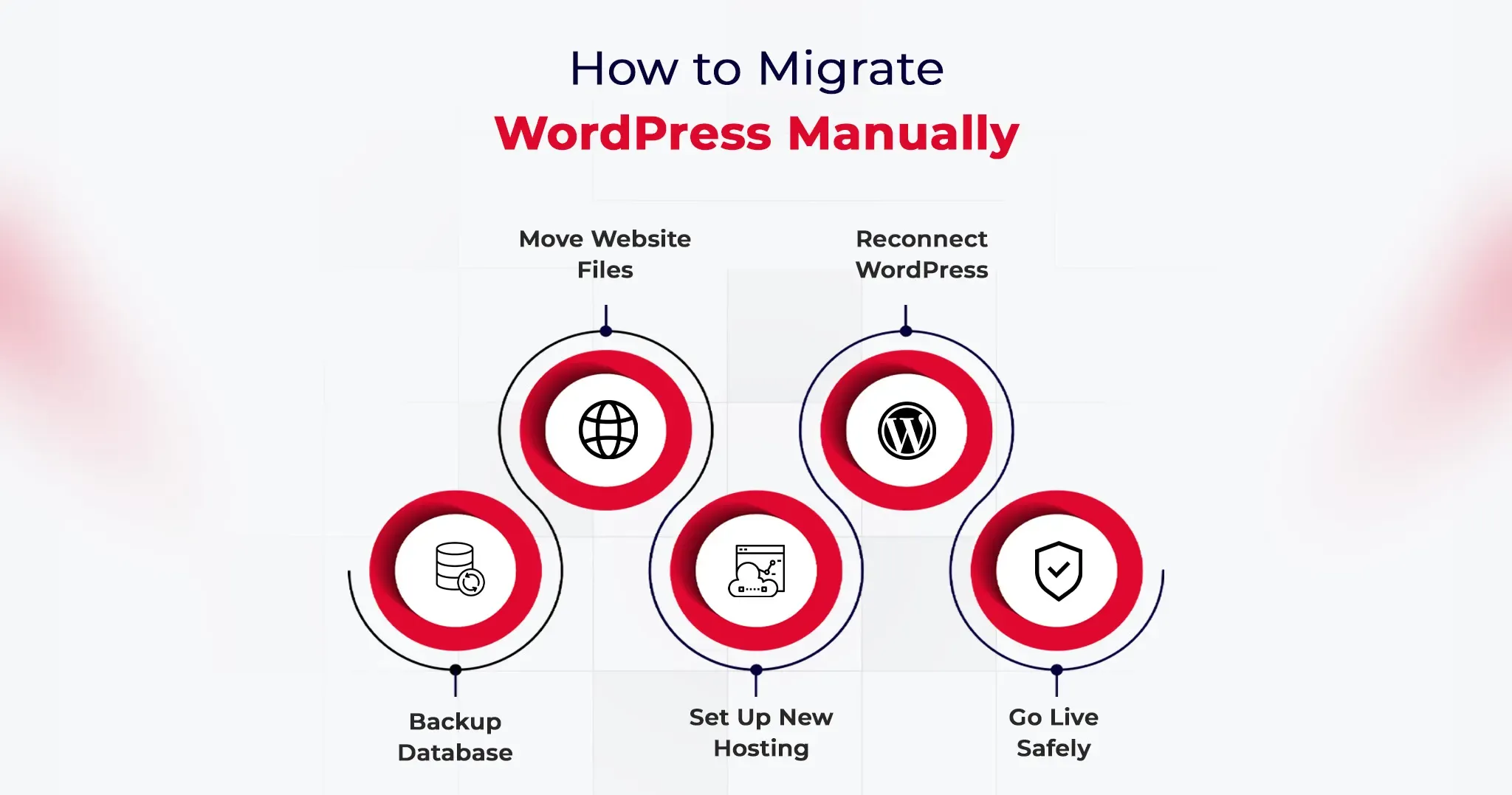
How to Migrate WordPress Site Manually (Step-by-Step)

Manual migration covers the same destination as the plugin method but gives you direct access to every component of the transfer.

Step 1: Export Your WordPress Database via phpMyAdmin

Log in to your current hosting cPanel and open phpMyAdmin. Select your WordPress database from the left panel, click the Export tab, choose the Quick export method, set the format to SQL, and click Go. Save the .sql file locally. This file contains every post, page, user, plugin setting, theme option, and WordPress configuration your site holds. Back it up separately before importing to the new host.

Step 2: Download All WordPress Files via FTP

Connect to your current server using FileZilla or an equivalent FTP client. Navigate to your WordPress root directory, typically public_html or www. Download the entire directory including wp-content, wp-includes, wp-admin, and the .htaccess file. Download time ranges from 15 minutes for a lean site to over an hour for wp-content folders heavy with media.

Step 3: Create a New Database on Your Destination Host

On your new host’s cPanel, open MySQL Databases. Create a fresh database, create a user, and assign all privileges to that user. Record the database name, username, and password precisely. The WordPress site migration checklist requirement at this step is exact credential matching: a single character mismatch between your wp-config.php and the actual database credentials will produce a database connection error.

Step 4: Import the Database and Reconfigure wp-config.php

Open phpMyAdmin on your new host, select the new empty database, click Import, and upload your .sql file. Once imported, open wp-config.php in a text editor and update DB_NAME, DB_USER, DB_PASSWORD, and DB_HOST to match your new database credentials. Upload the updated wp-config.php and all your WordPress files to the new host’s public root via FTP.

Step 5: Update URLs and Complete Your WordPress Site Migration Checklist

Navigate to your new site using the host’s temporary URL during the staging period. Run a database search-replace to update all instances of your old domain with the new one.

Better Search Replace handles serialized data correctly, which is critical for sites built with Elementor, Divi, or WooCommerce, where hardcoded URLs nest inside serialized arrays. Flush your permalinks by going to Settings > Permalinks and clicking Save Changes. That single action resolves approximately 90% of 404 errors that appear immediately after a manual migration.
How to Migrate WooCommerce Sites Safely

WooCommerce migrations require additional caution because they involve customer accounts, order data, payment gateways, and transactional functionality.

Important WooCommerce Migration Checks
  • Place the store in maintenance mode before migration
  • Backup WooCommerce orders separately
  • Test checkout and payment gateway functionality after migration
  • Reconnect Stripe, PayPal, and shipping integrations if needed
  • Verify transactional emails and automation workflows
  • Check product image references and inventory sync

Even when pages load correctly, payment or checkout issues can remain hidden until customers attempt purchases. That is why live transactional testing is essential after migrating WooCommerce websites.

Important Post-Migration Tasks You Shouldn’t Skip

The migration is not finished when the site loads correctly on the new server. These tasks are where most people create the problems they later spend hours debugging.

Verify SSL installation and HTTPS consistency. Confirm HTTPS works correctly on the new host. If your old host provisioned the SSL and your new host requires a fresh certificate, your site may load on HTTP but not HTTPS, which breaks any hardcoded HTTPS links stored in the database.

Recheck Google Analytics and Search Console tracking. Confirm your analytics tracking code fires on the new environment. If you changed domains, update your Search Console property and resubmit your XML sitemap to trigger a fresh crawl indexing the correct URLs.

Test every form, integration, and payment gateway. Contact forms, WooCommerce checkout flows, and third-party API connections (Mailchimp, Stripe, CRM hooks) need live testing. API keys and environment variables don’t transfer automatically, and a visual check of the page doesn’t confirm a form submission actually routes correctly.

Run a full crawl within 24 hours of going live. Screaming Frog or Sitebulb will surface broken internal links, redirect chains, missing image references, and duplicate content signals that a manual browse misses entirely. Even a 15-page site can return a crawl report with 30 actionable items.

Reduce DNS TTL 24 hours before the migration, not after. Lowering TTL to 300 seconds before you switch DNS means propagation completes in minutes rather than 24 to 48 hours. Set it back to 3600 once propagation confirms fully across major DNS resolvers.

WordPress Migration SEO Checklist

Moving a WordPress website without protecting SEO can quietly damage rankings, traffic, and indexed pages even when the migration itself appears successful. A structured SEO migration checklist helps preserve visibility and reduces the risk of crawl or indexing issues after launch.

Key SEO Checks Before and After Migration

  • Preserve the existing URL structure whenever possible
  • Configure 301 redirects for changed URLs
  • Verify canonical tags after migration
  • Re-submit your XML sitemap in Google Search Console
  • Review robots.txt configuration on the new environment
  • Monitor crawl errors and indexing coverage for at least two weeks
  • Check Core Web Vitals and page speed after DNS propagation
  • Validate internal links and image URLs after migration

According to Google Search Central, proper redirects and sitemap resubmission are critical steps when migrating websites without losing search visibility.

Even small migration errors like broken redirects or incorrect noindex settings can affect organic performance within days.

Common Migration Issues and How to Fix Them

404 errors across all pages. Go to Settings > Permalinks and click Save Changes without modifying anything. This regenerates the rewrite rules in .htaccess and resolves the majority of post-migration 404 issues within seconds.

White screen of death after migration. This points to a PHP version mismatch or an exhausted memory limit on the new host. Check the server error logs first. If logs show a memory error, add define(‘WP_MEMORY_LIMIT’, ‘256M’); to wp-config.php. If logs show plugin errors, rename the entire plugins folder via FTP to deactivate all plugins at once, confirm the admin loads, then reactivate plugins one by one to isolate the conflict.

Images not loading after the transfer. Hardcoded image URLs in the database still reference the old domain. Run Better Search Replace, searching for your old domain and replacing with the new one, with the dry-run option turned off. Confirm the serialized data checkbox is enabled.

Database import timeout or file size error. Large .sql files frequently exceed phpMyAdmin’s default upload limit. Compress the file to .sql.gz before importing, or use a tool like BigDump for databases exceeding 200MB. Alternatively, import via SSH: mysql -u username -p database_name < backup.sql.

Admin login broken after migration. This is typically a cookie domain mismatch or a siteurl/home URL conflict. Add define(‘COOKIE_DOMAIN’, ”); to wp-config.php to reset the cookie domain configuration, then log in and correct the URLs under Settings > General.

Bonus Tips to Make WordPress Migration Even Faster

Use your new host’s free migration service. Per hosting industry data, 63% of managed WordPress hosting plans include free site migrations. Providers like Kinsta, WP Engine, and Cloudways move your site at no additional charge and handle technical edge cases that trip up self-managed migrations. For non-developers, this is consistently the fastest and lowest-risk path.

Move to NVMe-based hosting while you’re migrating. Sites migrated from SATA SSD to NVMe infrastructure typically see a 50 to 70% reduction in server response time (TTFB), according to hosting benchmark data from Hostingstep. If your migration is performance-driven, the hosting infrastructure choice matters more than the migration method you use.

Migrate during low-traffic hours. Schedule migrations between midnight and 6 AM in your site’s primary audience timezone. Any DNS propagation window falls during minimum traffic, errors surface before peak audience hours, and your monitoring tools catch anomalies before users do.

Use WP-CLI for databases over 1GB. WP-CLI, WordPress’s command-line interface, handles database exports, imports, and search-replace operations directly on the server, with no phpMyAdmin file size caps and no browser timeout risk. For any site with a database above 1GB, command-line tooling is the correct approach, not a browser-based phpMyAdmin interface.

Conclusion

Getting the process of how to migrate a WordPress site right is not primarily a technical challenge. It is a sequencing challenge. Full backup happens before anything else. The staging environment gets tested before DNS changes. The post-migration checklist runs before you announce the new site is live.

Whether you use a WordPress migration plugin like Duplicator or work through the manual FTP and phpMyAdmin method, the structure of the process matters more than the specific tools. Follow the sequence, test before switching DNS, verify after switching, and most migrations complete without incident.
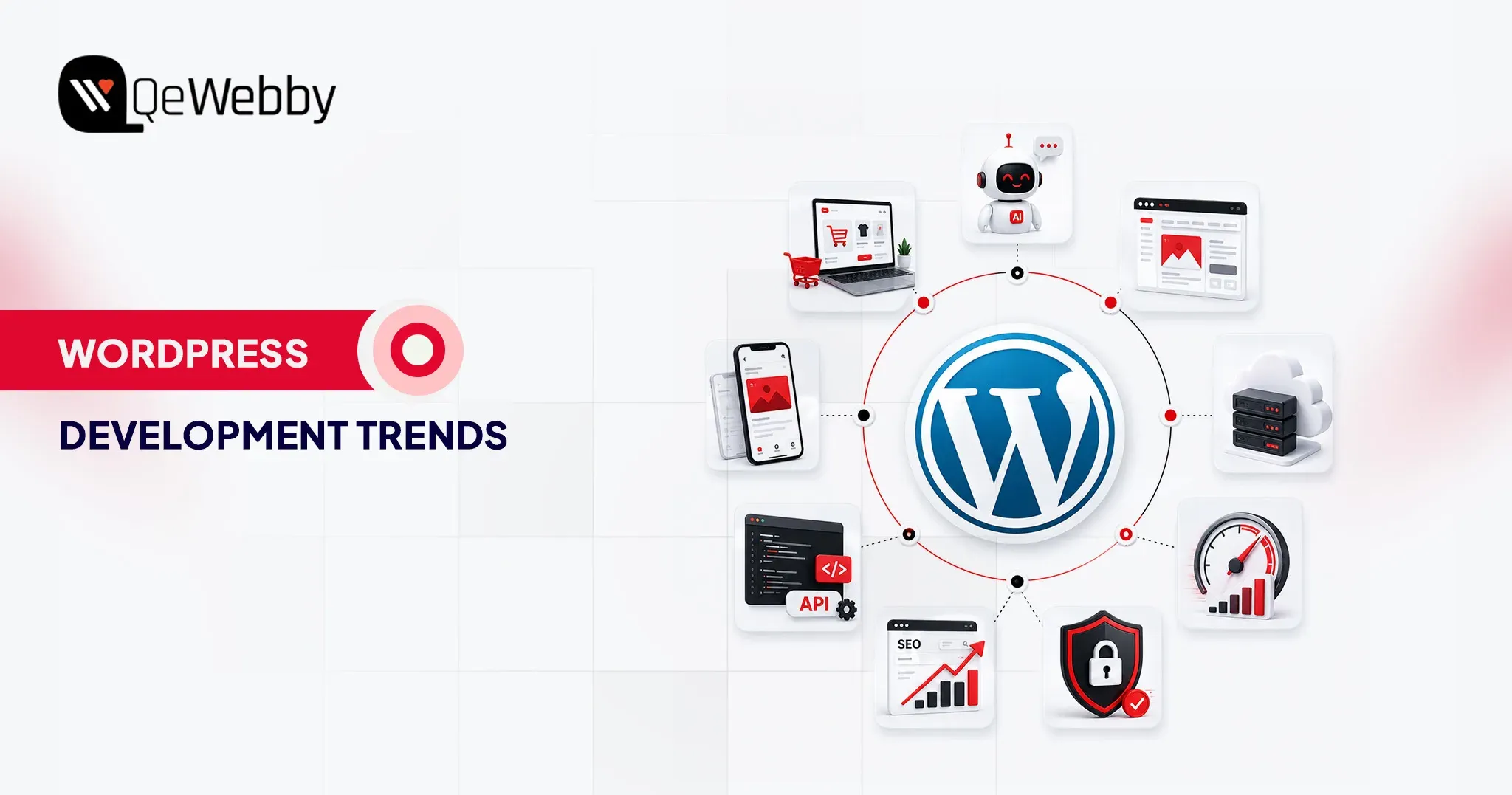
Top 7 WordPress Development Trends to Watch in 2026

The days of evaluating WordPress solely by its aesthetic themes and basic publishing workflows are officially over. As we navigate 2026, the platform has transformed into a sophisticated operating layer. For direct-to-consumer brands looking to scale, the focus has fundamentally shifted. You are no longer just building a digital destination. You are engineering a content ecosystem built to survive and thrive alongside Agentic AI and rapidly evolving search algorithms.

This evolution changes every metric of success. The most critical WordPress development trends today intersect directly with advanced visibility strategies like Answer Engine Optimization and Generative Engine Optimization.

The objective is no longer just rendering web pages. It is about structuring data so AI models can confidently discover, extract, and cite your brand authority, all while maintaining uncompromising rendering speeds.

If your development team is planning a new digital experience or growth stack, sticking to legacy build models is a massive risk. These seven trends highlight the precise architectural and operational shifts you must implement now to ensure your platform remains resilient, visible, and highly functional.

Quick Trend Snapshot

Trend Why It Matters in 2026 Primary Impact Priority Level
Full Site Editing Block-first workflows are becoming standard. Faster delivery and reusable systems High
Headless WordPress Modern delivery models need more flexibility. Architecture freedom Medium-High
AEO and GEO AI search visibility is reshaping discoverability Better AI citations and visibility Critical
AI-Powered Workflows Teams need faster production without operational overload Workflow efficiency High
Core Web Vitals Performance directly affects rankings and conversion Better UX and SEO Critical
Low-code delivery Businesses want faster launch cycles and iteration Faster deployment Medium
Composable integrations WordPress now powers connected digital ecosystems Operational scalability High

Why Does WordPress Still Matter in 2026?

WordPress remains foundational because it strikes a rare balance among editorial control, developer extensibility, and ecosystem depth. While newer platforms push highly opinionated architectures, few match WordPress when content scale, workflow flexibility, and deployment speed are required simultaneously.

The critical shift is strategic. In 2026, WordPress will no longer be evaluated merely as a content management system. It is a content operating layer built to support SEO, AI-driven discovery, analytics integrations, and multi-channel delivery within a single cohesive stack.

The stakes for getting this right are high. According to recent McKinsey research, data-driven organizations are 23 times more likely to acquire customers and 19 times more likely to be profitable. Your CMS is the engine that structures and distributes that data.

1. Full Site Editing Is Becoming the Default Build Model

Full Site Editing continues to mature into the definitive standard for assembling modern WordPress sites. Instead of isolating templates, headers, and styling controls from daily content management, FSE unifies these layers within a single block-based editing system.

This standardization is a critical signal for digital agencies and in-house teams. According to Accenture’s 2026 Technology Vision research, 84 % of executives at diversified technology platforms are focused on fundamental transformation, compared to just 52 % at legacy companies. Sticking to rigid legacy theme architectures is an incremental tactic that slows down agility.

For developers, FSE delivers cleaner architectures and reusable components. For marketing teams, it allows template adjustments without creating engineering bottlenecks. Defaulting to classic themes without a strict legacy requirement is now a strategic misstep.

2. Headless WordPress Is Expanding Beyond Niche Use Cases

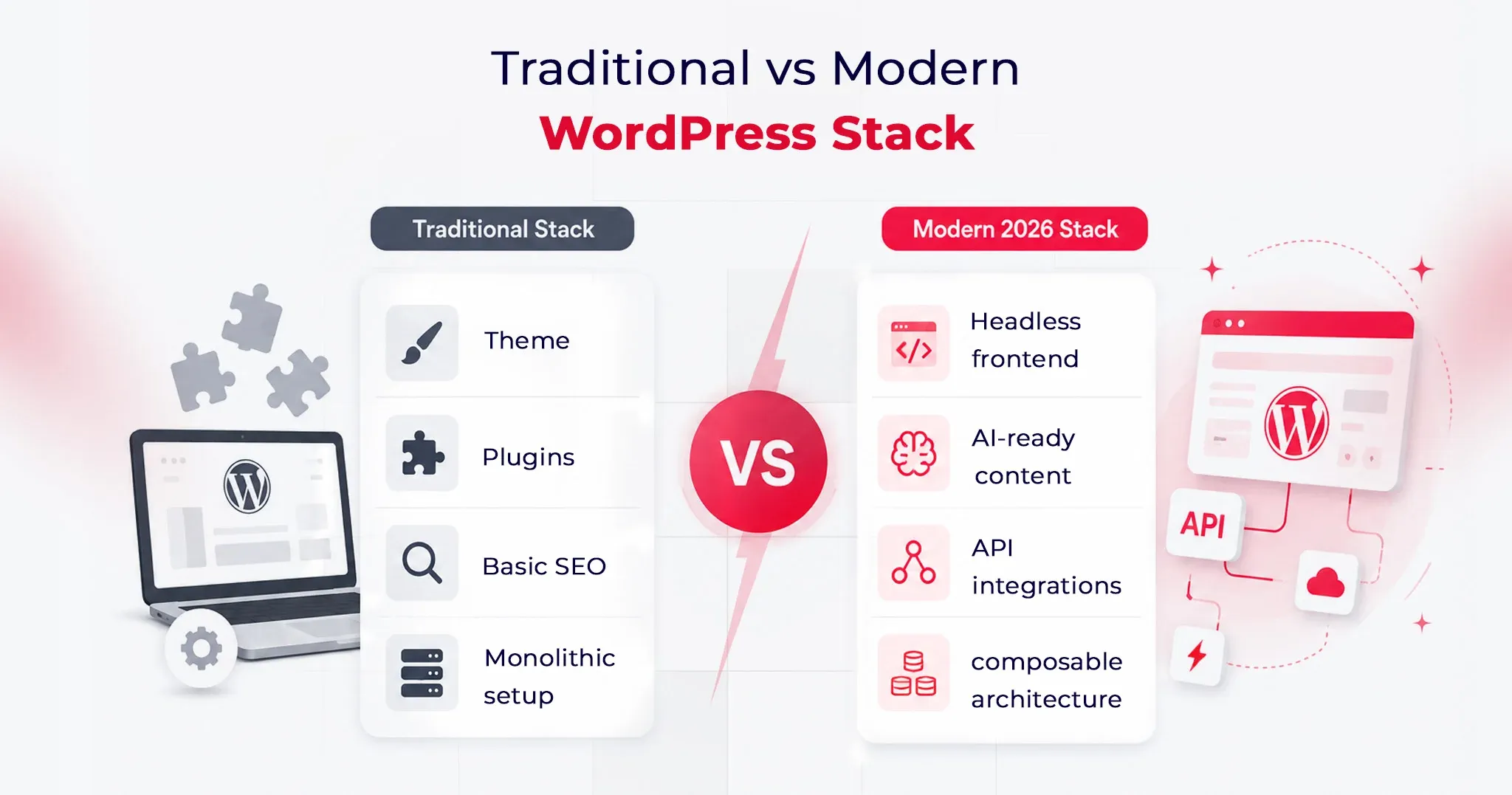
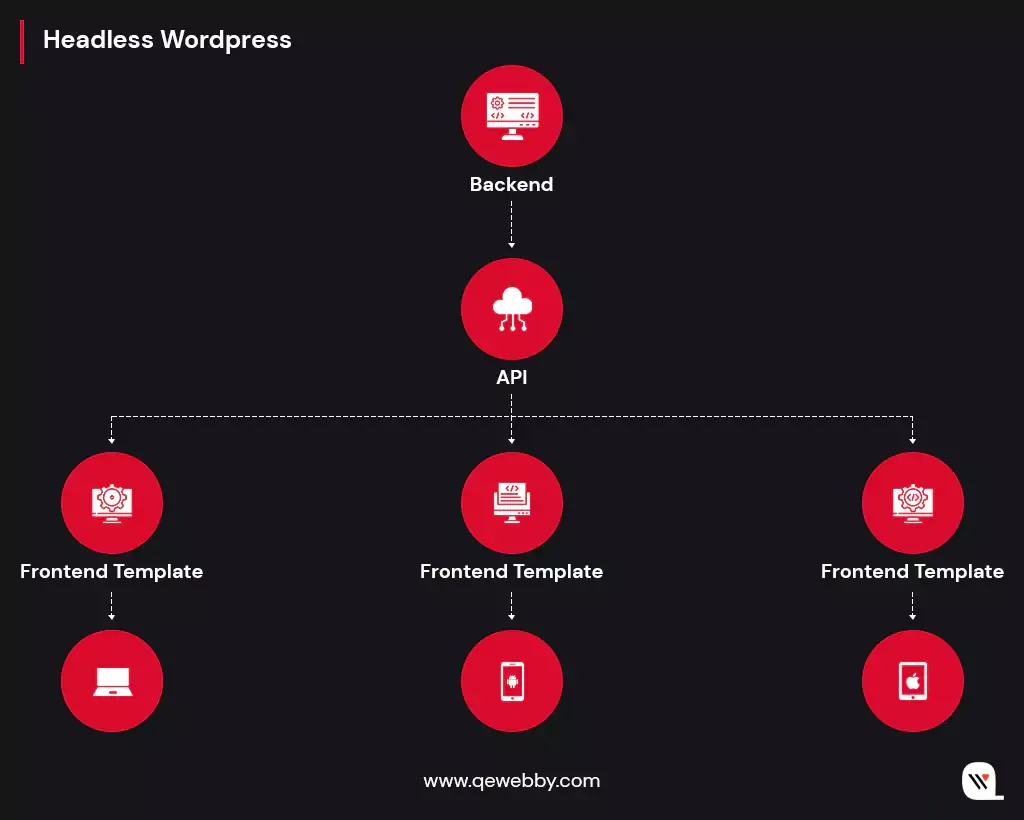
Headless WordPress is now a primary architectural strategy entering 2026. By decoupling the backend content workflows from a modern frontend presentation layer like Next.js or Astro, organizations gain unprecedented architectural freedom.

This is a practical requirement for DTC brands and enterprises that demand multi-channel publishing, granular performance control, and composable frontend stacks. The advantages include superior rendering performance and alignment with modern JavaScript patterns. The tradeoff involves increased deployment complexity and a higher coordination burden between content and engineering units.

Headless is a fit, not a default. Smart teams adopt it when the user experience ambition or a technical roadmap clearly justifies the separation.

3. AEO and GEO Are Becoming Core WordPress Visibility Priorities

Digital visibility in 2026 cannot rely on classic search models. Answer Engine Optimization and Generative Engine Optimization are mandatory priorities. Gartner predicts a 25 % decline in traditional search engine queries by 2026 as users shift to AI-generated answers and summaries.

Daily usage of AI integrated directly into search will be three times that of any standalone AI tool, with nearly one-third of adults encountering AI search summaries daily. Forbes corroborates this impact, noting that organic click-through rates have dropped 61 % on queries where AI Overviews appear, and 60 % of searches now end without a traditional click.

For WordPress teams, pages must be structured so AI systems can confidently extract and cite them. This requires sharp heading hierarchies, concise answer blocks, clean internal linking, and flawless schema markup. Technical SEO and citation readiness are now fundamental engineering tasks.

4. AI-Powered WordPress Workflows Are Becoming Operational Infrastructure

Artificial intelligence within WordPress has moved past the novelty phase. It is an operational infrastructure used to accelerate metadata generation, internal linking, and publishing operations.

The objective is not to flood the internet with thin content. The goal is operational efficiency. Agentic AI is driving the next era of enterprise integration, predicting that the majority of organizations will adopt agentic workflows by 2026. When integrated correctly, AI reduces production drag, allowing developers and strategists to focus on precision and conversion quality.
5. Core Web Vitals and Hosting Architecture Still Shape Outcomes

Performance remains a commercially critical development trend because it dictates visibility, retention, and conversion metrics. A visually polished site that responds slowly is a failing asset.

The current performance conversation revolves around LCP, INP, and CLS. With INP now the standard metric for interactivity, performance engineering must encompass script loading, font strategy, cache behavior, and rigorous plugin restraint.
Performance is an infrastructure decision that relies heavily on edge and object caching, as well as managed cloud environments.

6. Low Code and Pattern-Driven Delivery Are Speeding Up Launch Cycles

Pattern-driven workflows are accelerating how projects are shipped. Repeatable layout execution is becoming faster, freeing engineering teams to focus on bespoke integrations and performance-critical elements.

This rapid deployment is vital for minimal viable products, campaign hubs, and landing pages. Reusable block libraries reduce the time to market materially when governed with strict discipline. The optimal approach is selective acceleration: utilizing visual assembly tools to reduce drag while aggressively avoiding long-term technical debt.
7. Composable Integrations Are Defining the Next WordPress Stack
WordPress operates within a broader digital ecosystem. The most capable 2026 implementations connect seamlessly with CRMs, marketing automation platforms, commerce systems, and external APIs.

Content supports lead generation, customer education, and retention simultaneously. A platform that publishes well but integrates poorly creates systemic friction. Developers are building modular data flows and intentional plugin stacks, moving WordPress toward a composable operating model that delivers enterprise connectivity without forcing full headless complexity.

Final Thoughts

WordPress remains relevant in 2026, but the reasons are more strategic than before. It is no longer enough for a site to be easy to edit or quick to launch. It also has to perform well, integrate cleanly, stay secure, and remain visible in both traditional search and AI-mediated discovery.

That is why the most important WordPress development trends in 2026 intersect content, engineering, infrastructure, and discoverability. Teams that adapt early will build sites that are easier to scale, easier to govern, and far more resilient as the web continues to shift toward answer-driven discovery.

9 Practical Tips to Keep Your WordPress Website Safe

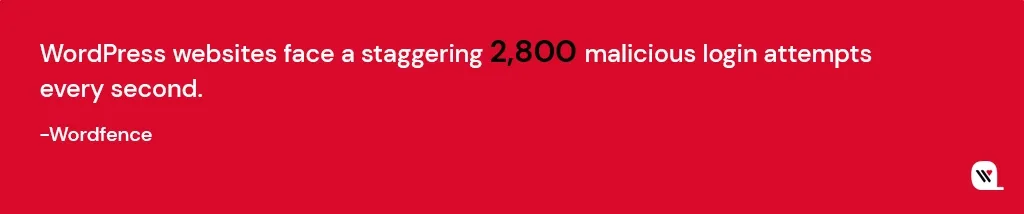
Your website can be hacked in less than one hour! Yes, you read it right!

WordPress is undoubtedly a testament to its user-friendly interface having a vibrant developer community that drives constant improvements. The popularity of WordPress fuels constant improvement, thanks to its vast developer community. However, this very popularity paints a bullseye on WordPress, making it an attractive target for hackers and malicious actors seeking vulnerabilities to exploit. The good news is, you can boost your WordPress security, even if you’re not tech-savvy.

Let’s check the 9-step WordPress security guide, that protects your website from vulnerabilities!

#1 Stay up-to-date – Regular Updates

Updating your WordPress core, themes, and plugins might seem routine, but it’s your first line of defense against potential security threats. Software updates aren’t just about adding new features; they often include vital security patches that shield your website from vulnerabilities.

Cybercriminals actively seek websites running on older versions because they exploit known vulnerabilities. Regular updates ensure your site is equipped with the latest security protocols, protecting it from potential breaches and data theft.

# Here is how you update WordPress Components:

Updating WordPress Core​:

  • Log in to your WordPress dashboard.
  • Click on the ‘Dashboard’ option in the left menu.
  • If an update is available, you’ll see a notification at the top. Click ‘Update Now.’

Updating WordPress Themes​:

  • Navigate to ‘Appearance’ in the left menu.
  • Click on ‘Themes.’
  • If an update is available, you’ll see an ‘Update Now’ option. Click it to install the latest version.

Plugins:

  • Go to ‘Plugins’ in the left menu.
  • You’ll see a notification next to plugins with available updates. Click on ‘Update Now’ next to each plugin.

Before updating, always back up your website. Use reliable backup plugins to create a full backup of your files and database. After updating, thoroughly check your website’s functionality. Sometimes, updates can conflict with other plugins or themes, causing unexpected issues. You can also automatically enable updates for plugins and themes using the following lines to your site’s wp-config.php file.

For plugins: define( ‘WP_AUTO_UPDATE_PLUGINS’, true );
For themes: define( ‘WP_AUTO_UPDATE_THEMES’, true );

#2 Make it Impermeable – Strong Password Policy

Creating strong passwords is the first line of defense against unauthorized access. Weak passwords are easy targets for hackers. A strong password should be complex, with a mix of uppercase and lowercase letters, numbers, and symbols. Avoid using easily guessable information like birthdays or common words.

# Check out these tips on Creating and Managing Complex Passwords:

  • Length and Complexity: Aim for passwords that are at least 12 characters long and include a mix of letters (both cases), numbers, and special characters.
  • Avoid Personal Information: Refrain from using personal details such as names, birthdays, or addresses in passwords.
  • Unique for Each Account: Use different passwords for different accounts. Reusing passwords across platforms increases vulnerability.
  • Passphrases: Consider using passphrases – longer phrases or sentences that are easy for you to remember but difficult for others to guess.

Password manager tools are invaluable in managing complex passwords. They generate, store, and autofill strong, unique passwords for each of your accounts. Some popular password managers include LastPass, 1Password, and Dashlane. These tools encrypt your password database with a master password, ensuring your credentials are securely stored.

Implementing these practices significantly enhances your WordPress security, ensuring robust protection against unauthorized access attempts. Remember, a strong password is your website’s first line of defense.

#3 Add an Extra Security Layer – Two-Factor Authentication

Two-factor authentication (2FA) requires users to provide two distinct forms of verification before accessing an account. Typically, this involves something you know (password) and something you have (a unique code sent to your mobile device or email). This dual-verification process ensures that even if a hacker discovers your password, they still cannot breach your account without the second form of authentication.

# How to Enable 2FA in WordPress:

# Benefits of 2FA in Website Security:

  • Choose a 2FA Plugin: Select a reputable 2FA plugin compatible with WordPress, such as Google Authenticator or Authy.
  • Install and Activate the Plugin: Install your chosen 2FA plugin from the WordPress repository. Once activated, the plugin integrates with your login system.
  • Configuration: Access the plugin’s settings and follow the configuration wizard. Typically, you’ll scan a QR code with a 2FA app on your mobile device, linking the app to your WordPress account.
  • Verification Codes: After setup, each time you log in, the 2FA app generates a time-sensitive verification code. Enter this code along with your password to access your account.
  • 2FA adds an extra layer of defense, significantly reducing the risk of unauthorized access, even if passwords are compromised.
  • Even if a user falls victim to a phishing attack and reveals their password, the hacker would still need the secondary 2FA code to access the account.
  • Particularly valuable for businesses, 2FA ensures secure logins from remote locations, safeguarding sensitive corporate data.

#4 Techniques to Prevent Unauthorized Access – Login Page Security

Ensure only authorized users can access your website’s backend. Stay proactive in these security practices, and your website remains resilient against cyber threats.

# By implementing the following technical techniques, you significantly enhance the security of your login page:

Limiting Login Attempts: Limiting the number of login attempts is a simple yet effective way to thwart brute force attacks. Brute force attackers try numerous password combinations, and limiting login attempts disrupts their efforts. To set this up:

  • Access Your WordPress Dashboard: Log in and navigate to the ‘Settings’ menu.
  • Select ‘Security’ or ‘Login Security’: Depending on your security plugin, locate the section related to login security settings.
  • Set Login Attempt Limit: Specify a low number of login attempts (e.g., 3-5). After this limit, the user is temporarily locked out, preventing further attempts for a defined period.

Customizing Login URL and Why It’s Important: Changing the default login URL from ‘/wp-admin/’ to a custom URL adds a layer of obscurity, making it harder for hackers to locate your login page. Here’s how to do it:

  • Install a Security Plugin: Use a reputable security plugin like WPS Hide Login or iThemes Security.
  • Configure Custom Login URL: In the plugin settings, locate the option for customizing the login URL. Enter the new URL you wish to use, ensuring it’s unique and not easily guessable.

Best Plugins for Login Page Security: Several plugins specialize in fortifying login page security, offering features beyond customization and login attempt limitations. Some top choices include:

  • iThemes Security: This comprehensive security plugin provides features like brute force protection, 2FA integration, and advanced user action logging.
  • Wordfence Security: Wordfence includes firewall protection, real-time threat defense, and login attempt monitoring, making it a robust choice for safeguarding your login page.
  • WPS Hide Login: Specifically designed to change your login page URL, this lightweight plugin ensures your login page is concealed from potential attackers.

#5 Data Protection in Case of a Security Breach – Regular Backups

Backups are essential not only for security breaches but also in cases of accidental data loss, server failures, or updates gone wrong. Moreover, regular backups, combined with a seamless restoration process, offer you peace of mind, knowing your data is secure and recoverable in the event of a security breach or any unforeseen circumstances.

# How to Set Up Automatic Backups:

  • Choose a Backup Plugin: Select a reputable WordPress backup plugin such as UpdraftPlus, BackWPup, or VaultPress. Install and activate your chosen plugin.
  • Configure Backup Settings: Access the plugin settings from your WordPress dashboard. Specify the backup frequency (daily, weekly), and choose a secure off-site storage location, like Dropbox, Google Drive, or a dedicated server.
  • Database and Full Site Backups: Configure the plugin to perform both database and full site backups. Database backups capture essential data, while full site backups include all files, ensuring comprehensive coverage.
  • Schedule Automated Backups: Set up automated backup schedules aligned with your website’s update frequency. Daily backups are advisable for active websites with frequent content changes.

# Restoring Your Website from a Backup:

  • Access Backup Plugin: In your WordPress dashboard, go to the backup plugin you installed.
  • Select the Backup File: Choose the backup file from the designated storage location. If your backup plugin offers versioning, select the appropriate date/version you want to restore.
  • Initiate the Restoration: Follow the plugin’s prompts to initiate the restoration process. Confirm settings, and the plugin will restore your site to the selected backup point.
  • Verify Website Functionality: After restoration, thoroughly test your website’s functionality. Ensure all pages, posts, images, and interactive elements are functioning correctly.

#6 Protect Against Brute Force Attacks – Implement CAPTCHA

Brute force attacks, a common threat to website security, involve automated attempts to crack passwords systematically. Automated bots systematically test different passwords, exploiting weak credentials.

Such attacks can compromise your website’s integrity and sensitive data. To safeguard your WordPress site against such attacks, employ these technical strategies:

Plugins and Tools to Safeguard Against Brute Force:

Monitoring and Responding to Suspicious Login Attempts:

  • Security Plugins: Utilize reliable security plugins like Wordfence Security and Sucuri Security. These tools offer features like limiting login attempts, IP blocking, and CAPTCHA integration, bolstering your site’s defenses.
  • CAPTCHA and reCAPTCHA: Integrate CAPTCHA challenges or advanced reCAPTCHA from Google on your login page. These tests differentiate between humans and bots, preventing automated login attempts.
  • IP Whitelisting and Blacklisting: Whitelist trusted IP addresses, allowing only authorized users to access your login page. Simultaneously, blacklist suspicious IP addresses, thwarting potential attackers.
  • Real-Time Monitoring: Leverage security plugins to monitor login attempts in real-time. Track IP addresses, login patterns, and failed login counts. Unusual activities might indicate a brute force attack.
  • Email Alerts: Configure your security plugin to send email notifications for multiple failed login attempts. Immediate alerts enable swift responses to potential threats.
  • Automatic IP Blocking: Implement automatic IP blocking for repeated failed login attempts. Temporary blocks discourage attackers, protecting your site without manual intervention.

#7 Limiting Access to Your Website Files – File Permission Security

Understanding and correctly configuring these permissions is essential to prevent unauthorized access and maintain the integrity of your website files. Properly configured permissions ensure that only authorized entities can modify or access crucial files, enhancing the overall security posture of your WordPress website.

Setting Correct File and Folder Permissions:

Common Mistakes to Avoid:

  • Access Control: Use the principle of least privilege. Only grant permissions necessary for each user category. For instance, files should typically have permissions set to 644 (rw-r–r–) and directories to 755 (rwxr-xr-x).
  • Secure Config Files: Critical configuration files like wp-config.php should have permissions set to 400 (r——–), ensuring only the owner (usually the web server) can read them.
  • Avoid 777 Permissions: Never set files or directories to 777 (rwxrwxrwx), which grants universal read, write, and execute permissions. Such openness invites exploitation.
  • Overly Permissive Settings: Avoid granting unnecessary write or execute permissions. Limit permissions to prevent unwanted modifications.
  • Ignoring Ownership: Be aware of file ownership. Ensure the appropriate user or group owns files, usually the web server user (e.g., www-data on Apache).
  • Failing to Update Permissions: Regularly review and update permissions, especially after installing plugins or making significant changes to your website.

#8 Data Transmission Encryption – HTTPs and SSL Certificates

HTTPS (Hypertext Transfer Protocol Secure) and SSL (Secure Sockets Layer) certificates are fundamental components of web security. HTTPS encrypts data transmitted between a user’s browser and the website server, ensuring that sensitive information remains confidential. SSL certificates validate the authenticity of websites, confirming to users that they are interacting with a genuine and secure platform.

How to Install and Configure SSL on WordPress:

  • Obtain an SSL Certificate: Purchase an SSL certificate from a trusted Certificate Authority (CA) or use a reliable hosting provider that offers free SSL certificates (e.g., Let’s Encrypt).
  • Install SSL Certificate: Follow your hosting provider’s instructions to install the SSL certificate. This may involve generating a Certificate Signing Request (CSR) and providing it to the CA.
  • Update WordPress Address and Site Address: In your WordPress dashboard, go to ‘Settings’ > ‘General.’ Update both the ‘WordPress Address (URL)’ and ‘Site Address (URL)’ to begin with ‘https://’ instead of ‘http://.’
  • Update .htaccess File: Insert code in your .htaccess file to redirect all traffic to the secure HTTPS version of your site. Example code:

RewriteEngine On

RewriteCond %{HTTPS} off

RewriteRule ^ https://%{HTTP_HOST}%{REQUEST_URI} [L,R=301]

Mixed Content Issues: Check for mixed content issues (HTTP content loading on HTTPS pages) and update URLs to HTTPS to ensure a fully secure browsing experience.
Implementing HTTPS through SSL certificates not only enhances your website’s security but also augments its credibility, user trust, and search engine ranking.

#9 Beware of DDoS Attacks – Confine XML-RPC functionality

Disabling XML-RPC when it’s not needed eliminates a potential security risk and reduces the attack surface of your WordPress site. It is commonly targeted for Distributed Denial of Service (DDoS) attacks and brute force amplification. If your website doesn’t rely on XML-RPC functionalities, such as pingbacks and trackbacks, it’s advisable to disable it to enhance your site’s security.

How to Disable XML-RPC:

Using a Security Plugin:

  • Install a reputable security plugin like Wordfence Security or iThemes Security from the WordPress repository.
  • Access the plugin settings and look for options related to XML-RPC. Disable XML-RPC functionality through the plugin interface.

Editing .htaccess File:

  • Access your website’s root directory using an FTP client or cPanel File Manager.
  • Locate the .htaccess file and edit it (make sure to back up the file first).
  • Add the following code to disable XML-RPC:

# Block WordPress xmlrpc.php requests

Order Deny,Allow
Deny from all

Functions.php Method (Advanced Users):

  • If you’re comfortable with the code, you can add the following snippet to your theme’s functions.php file to disable XML-RPC:

add_filter(‘xmlrpc_enabled’, ‘__return_false’);

These technical methods provide you with the means to secure your site by preventing unwanted access through XML-RPC and fortifying your overall security posture.

End Note

Remember, website security is not a one-time task but a continuous commitment. Don’t wait for a security breach to take action. Protect your website and your visitors’ data by investing in professional WordPress security services today. Our experts are here to help you fortify your digital fortress. Contact us now and safeguard your online presence against the relentless forces of the cyber world.

5 Best Practices for Choosing the Right B2B eCommerce Platform

Smart B2B businesses recognize that 89% of buyers prefer vendors with strong eCommerce solutions. Although, it’s a misconception to think that the future of online shopping is limited to B2C platforms. Forrester Research predicts that the US B2B eCommerce sector will surge to $2 trillion by year-end and reach $3 trillion by 2027.

Think about the advantages of embracing a B2B eCommerce platform if you are in the B2B sector. It has the potential to streamline operations for both your clients and your team, paving the way for accelerated growth and enhanced efficiency. Let’s delve deeper into the process of selecting the ideal B2B eCommerce platform for your business.

What’s Important in a B2B Platform, Anyway?

A robust and effective platform is the backbone of your business success. It’s not just a digital space; it’s a dynamic tool that can transform the way you interact with clients, manage transactions, and facilitate growth. So, what exactly is important in a B2B platform?

  • Seamless User Experience
  • Scalability
  • Customization
  • Security Measures
  • Integration Capabilities
  • Mobile Responsiveness
  • Excellent Customer Support

B2B eCommerce Platform Checklist for Better Selection

Grab this checklist on the go and explore it even when you’re offline!

Download Now

5 Best Practices for Selecting the Ideal B2B eCommerce Platform

The eCommerce platform you choose is the foundation of your online store. To help you make the right choice, let’s categorize the selection process into five key criteria, aligning with best practices based on user needs.

#1 Selection Based on Your Product Type

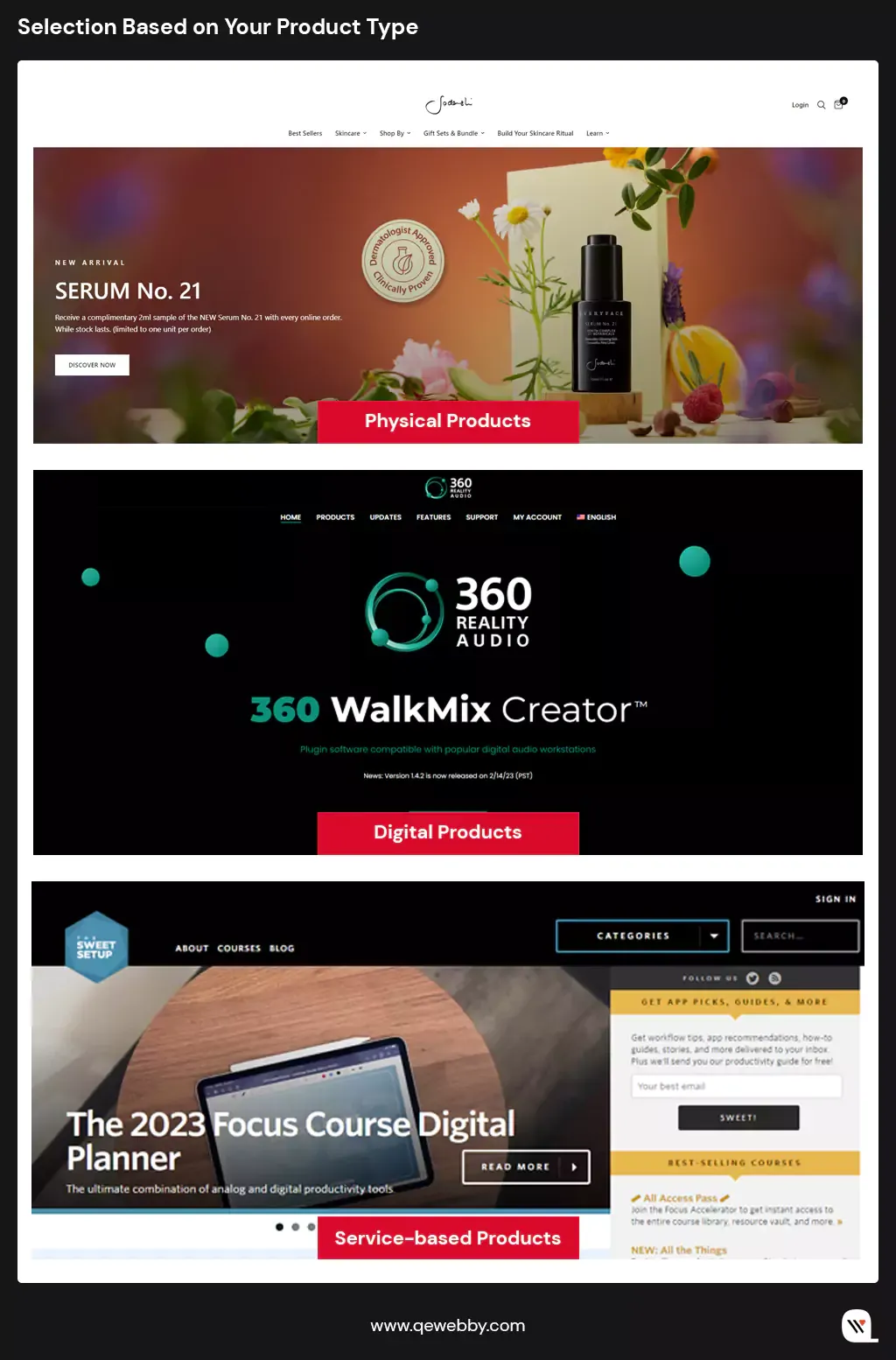
B2B businesses often deal with a wide array of products, ranging from physical goods and digital items to services and subscriptions. Each category necessitates a distinct approach in terms of presentation, payment methods, and user experience. Identifying the primary nature of your products is the initial step in this selection process.

Image Source: Physical, Digital, Service

  • Physical Products: For businesses dealing in physical products, a robust B2B platform should seamlessly integrate with shipping carriers. Efficient logistics management, including real-time tracking and inventory synchronization, becomes vital. Businesses that deal in physical products such as electronics (e.g., smartphones, laptops), machinery (e.g., industrial equipment, manufacturing machinery), or industrial supplies (e.g., safety gear, construction materials), need a platform that integrates seamlessly with shipping carriers. For that, features like weight-based or location-based shipping fees are essential to ensure accurate cost calculations for both you and your clients.
  • Digital Products: Digital products such as software, eBooks, or multimedia files demand heightened security measures. Platforms like WooCommerce, with its extensive plugin library, enable you to implement secure payment gateways like Stripe or PayPal. Easy Digital Downloads (EDD) is another WordPress-based solution tailored for digital products. These platforms provide secure transactions and download links, ensuring that your clients receive their digital goods promptly and safely.
  • Service-based Products: Businesses offering services or subscription-based products, such as consulting services or software subscriptions, require platforms that support flexible payment models. B2B platforms should support recurring payments, allowing seamless billing cycles for ongoing services. Additionally, features like trial periods, subscription upgrades, and automated invoicing enhance user experience for both you and your clients.

#2 Selection Based on Customization Capabilities for Exceptional User Experience

Today, businesses are increasingly aware that a one-size-fits-all approach doesn’t suffice. Your clients are diverse, with varying preferences, technical expertise, and business requirements. Tailoring your platform’s UX ensures that your users find the buying process intuitive, efficient, and delightful. Whether it’s simplifying complex ordering processes, enabling quick product searches, or offering personalized recommendations, a customized UX addresses these specific needs, fostering a positive customer journey.

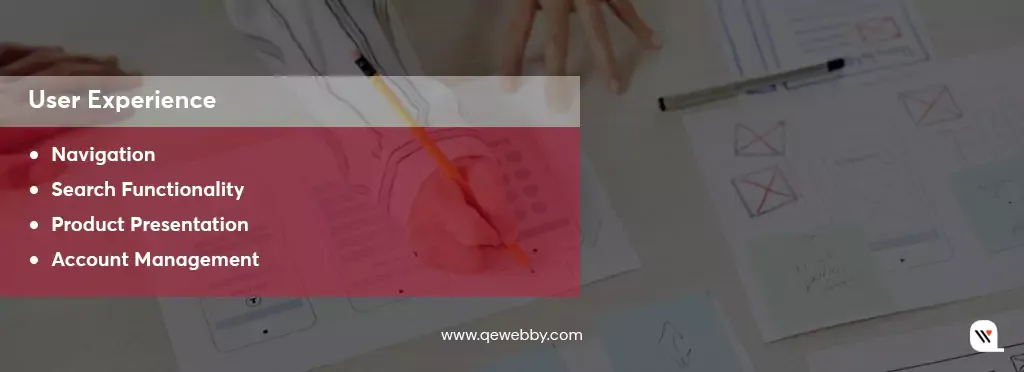
Check out these key elements of your UX that require customization:

  • Navigation: A platform should allow you to create logical menu structures, categorize products effectively, and implement filters for easy product discovery.
  • Search Functionality: Advanced search options, including filters, auto-suggestions, and synonym recognition, enhance the search experience.
  • Product Presentation: From high-quality images and detailed descriptions to interactive elements like product videos and 360-degree views, a tailored product presentation enhances client engagement.
  • Account Management: The ability to set up multiple users, manage permissions, access order history, and facilitate bulk ordering simplifies their procurement process.

#3 Selection Based on Design Elements

Choosing a B2B platform based on its design elements is not just about aesthetics; it’s about creating an immersive, intuitive, and trust-building user experience. Here are the key aspects of design elements that should guide your selection process:

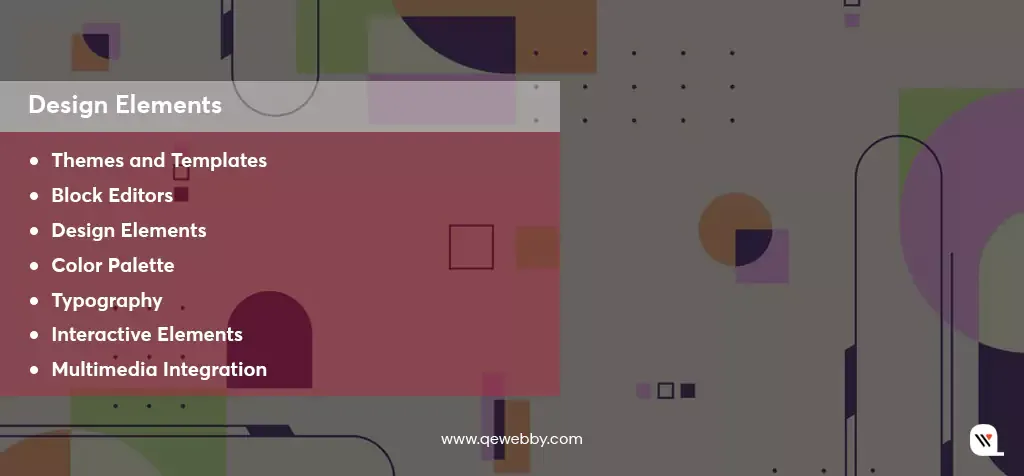
  • Themes and Templates: Themes serve as a foundation, allowing businesses to modify layouts, color schemes, and typography to align with their brand identity. With 80% of visitors attributing design to credibility, choosing the perfect theme on your platform is paramount to securing a lasting impression and ensuring 70% higher conversion rates for your business.
  • Block Editors: With a 40% increase in customization options, block editors ensure higher user interaction, enhancing the overall shopping experience for customers on your B2B eCommerce platform. It empowers businesses to create custom layouts without intricate coding. Drag-and-drop functionality and a variety of content blocks facilitate the creation of visually appealing product pages and landing pages.
  • Design Elements: Design Elements are the heart of your B2B eCommerce platform, shaping your brand identity and user experience. They ensure a visually appealing and intuitive interface, enhancing customer engagement and trust, making them essential for a successful online business.
  • Color Palette: Colors evoke emotions and convey brand identity. A harmonious color scheme not only enhances visual appeal but also creates a consistent and memorable brand image. For instance, a medical equipment supplier might opt for calming blues and whites to instill trust, while a technology provider might choose vibrant, modern hues to signify innovation.
  • Typography: Clear and readable fonts are fundamental. Choose fonts that align with your brand personality and ensure readability across devices. Serif fonts can evoke tradition and reliability, while sans-serif fonts often convey modernity and simplicity.
  • Interactive Elements: Buttons, forms, and other interactive elements should be intuitive and responsive. Interactive design fosters engagement, guiding visitors seamlessly through the buying process.
  • Multimedia Integration: High-quality images, product videos, and interactive media enrich the browsing experience. Showcase products from multiple angles, provide detailed images, and incorporate videos demonstrating product features. Platforms like WooCommerce enable easy multimedia integration, allowing businesses to create compelling product presentations.

#4 Selection Based on Integration Capabilities

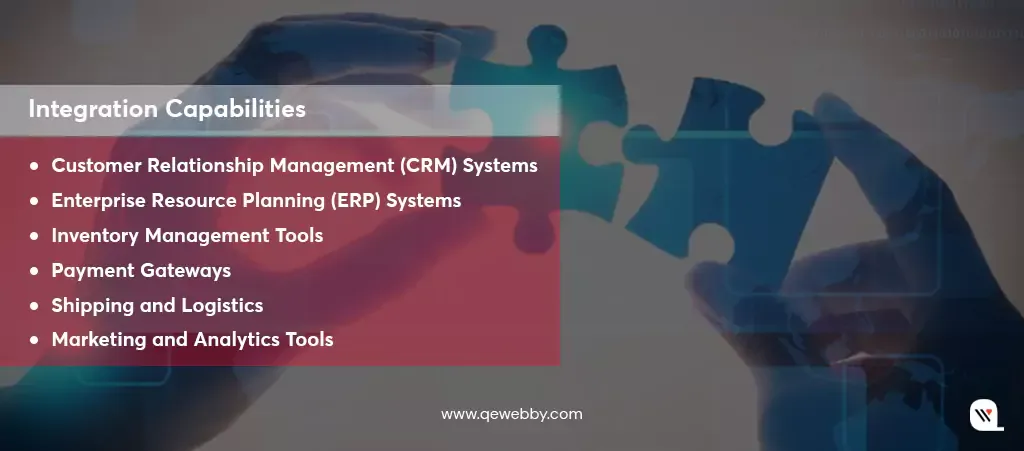
Choosing a B2B platform that seamlessly integrates with various software and tools is essential for managing diverse aspects of your enterprise, from inventory and customer relationship management to payment processing and analytics. Look for the following integration capabilities in a B2B platform:

  • Customer Relationship Management (CRM) Systems: Integration with CRM software enables you to manage client relationships, track interactions, and personalize customer experiences. Salesforce, HubSpot, and Zoho CRM are popular CRM systems that seamlessly integrate with various B2B platforms.
  • Enterprise Resource Planning (ERP) Systems: ERP integrations centralize business processes, including inventory management, order fulfillment, and financial reporting. Platforms like SAP, Oracle NetSuite, and Microsoft Dynamics offer robust ERP solutions, often with pre-built integrations for leading eCommerce platforms.
  • Inventory Management Tools: Integration with inventory management systems ensures real-time visibility into stock levels, preventing over-selling and stockouts. Tools like TradeGecko and Skubana integrate seamlessly with eCommerce platforms, providing advanced inventory control features.
  • Payment Gateways: Secure and diverse payment options are crucial for B2B transactions. Evaluate platforms that support major payment gateways like Stripe, PayPal, and Square. Consider gateways that offer features such as multi-currency support and subscription billing for enhanced flexibility.
  • Shipping and Logistics: Integration with shipping carriers streamlines order fulfillment, automates label generation, and provides real-time tracking information to customers. Consider platforms compatible with carriers like UPS, FedEx, and DHL for efficient shipping operations.
  • Marketing and Analytics Tools: Integrations with marketing automation platforms (e.g., Mailchimp) and analytics tools (e.g., Google Analytics) enable data-driven marketing strategies and performance tracking.

#5 Selection Based on Security Potential

Security encompasses a range of aspects, including data protection, payment security, user privacy, and safeguarding against cyber threats. For B2B platforms, security is not just a feature; it’s a fundamental requirement. A secure platform not only protects your business and customers but also fosters confidence, leading to long-term relationships with clients and partners. Here’s how you evaluate the security aspects of a B2B platform:

  • Data encryption & SSL certificates: Data encryption ensures that all information exchanged between your website and users remains private and secure. Secure Sockets Layer (SSL) certificates encrypt data transmissions, preventing unauthorized access during communication.
  • Compliance with Regulations: Various regions and industries have specific regulations governing data protection and privacy, such as GDPR in Europe and HIPAA in healthcare.
  • Regular Security Audits and Updates: Cyber threats evolve continuously. A reputable B2B platform conducts regular security audits to identify vulnerabilities and employs timely updates and patches to address them.
  • Authentication and Authorization Protocols: Implement multi-factor authentication (MFA) and strong password policies to fortify user access controls. MFA adds an extra layer of security, requiring users to provide multiple forms of identification before accessing sensitive data or performing critical actions.
  • Payment Security: For B2B transactions, payment security is paramount. Choose platforms that support reputable payment gateways and comply with Payment Card Industry Data Security Standard (PCI DSS) requirements. PCI DSS ensures secure handling of credit card information, reducing the risk of data breaches and financial fraud.
  • Firewalls and Intrusion Detection Systems: Robust firewalls and intrusion detection systems (IDS) provide a proactive defense against malicious attacks. Firewalls filter incoming and outgoing traffic, blocking unauthorized access, while IDS monitors network activities, detecting and alerting you to potential security threats.
  • Security Certifications and Partnerships: Look for B2B platforms that have security certifications or partnerships with cybersecurity organizations. Certifications like ISO 27001 demonstrate a commitment to information security management, indicating a high level of dedication to safeguarding user data and maintaining robust security practices.

End Note

Selecting the right B2B eCommerce platform is a pivotal decision that will significantly impact the success and growth of your business. The right platform should offer customization, robust design elements, seamless integration capabilities, and top-notch security features. As you embark on this journey to transform your B2B eCommerce venture, we invite you to explore our trusted services in WooCommerce B2B development. Our expert team stands ready to help you build a powerful and tailored online presence that not only meets but exceeds your expectations. Contact us today to take the next step toward eCommerce excellence and success. Your journey to a thriving B2B eCommerce platform begins here.

WordPress 6.4 Release Update – What You Need To Know?

WordPress continues to lead the way with its groundbreaking updates. As we eagerly anticipate the arrival of WordPress 6.4 on November 7, 2023, it’s not just another release—it’s a significant leap forward in the world of website building. Moreover, the core web vitals performance has almost doubled since the 2021 proposal for the WordPress Performance Team, showcasing a delightful trend of continuous improvement. So, gear up for an exciting upgrade that promises to elevate your website experience to new heights!

What Makes WordPress 6.4 Special?

WordPress 6.4 is more than just a software update; it’s a game-changer for website developers and creators. This release represents a carefully crafted culmination of innovative features, user-centric enhancements, and a forward-thinking approach to design and functionality.

Its significance lies in the standardization of web development. With intuitive tools, diverse themes, and powerful customization options, building a website that aligns with your vision has never been easier.

Let’s explore some significant changes that are arriving with WordPress 6.4!

The Rise of Twenty Twenty-Four

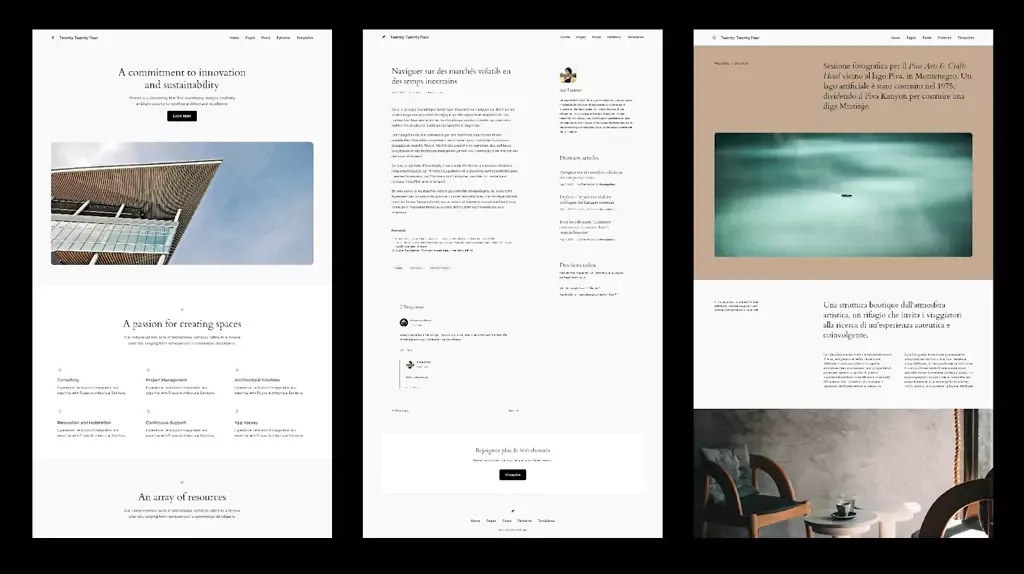
WordPress 6.4 introduces its new default theme, Twenty Twenty-Four. Departing from the conventional approach, Twenty Twenty-Four is a paradigm shift in theme design.

In addition to catering to entrepreneurs, artists, and writers, it embraces versatility. Twenty Twenty-Four explores three distinct use cases instead of one:

a. Entrepreneurs and Small Businesses: This iteration focuses on functionalities essential for businesses, incorporating sections like services, testimonials, and contact forms. The design emphasizes professionalism and accessibility, ensuring businesses create an impactful online presence.

b. Photographers and Artists: For creatives, Twenty Twenty-Four offers dynamic gallery layouts, seamless integration of multimedia elements, and a focus on visual storytelling. Artists and photographers can showcase their work in an immersive and visually appealing manner, enhancing their online portfolios.

c. Writers and Bloggers: Writers and bloggers benefit from clean and reader-friendly layouts. Twenty Twenty-Four prioritizes readability, featuring elegant typography and customizable post layouts. With intuitive navigation and emphasis on content, writers can captivate their audience without distractions.

Empowering Block Editor with Block Hooks

In WordPress 6.4, the introduction of Block Hooks marks a pivotal moment in the evolution of WordPress themes. Block Hooks redefines the way developers approach theme customization by providing an advanced extensibility mechanism for Block Themes.

Unlike traditional themes, Block Themes can now leverage Block Hooks to insert blocks relative to instances of other block types dynamically. This groundbreaking feature allows for precise control and seamless integration, empowering developers to craft more intricate and user-friendly interfaces.

Block Hooks revolutionizes the theming experience by enabling developers to extend Block Themes using filters and actions. As a result, themes can now respond dynamically to user interactions, creating highly interactive and dynamic websites. With the ability to insert blocks intelligently, Block Themes can cater to a wide range of user preferences, making the browsing experience more engaging and tailored.

Enhancement in User Interactivity and Functionality

WordPress 6.4 introduces several innovative blocks designed to enhance user experience and content engagement. The latest WordPress release is poised to revolutionize the way websites engage with their audiences. These technical advancements will not only elevate the visual appeal of websites but also simplify the process of creating dynamic, interactive, and user-friendly web experiences.

Content Organization and Engagement

The Table of Contents block provides seamless navigation within lengthy articles, enabling users to jump to specific sections effortlessly. The Time to Read block caters to user preferences by displaying estimated reading time, offering a more user-friendly reading experience.

Additionally, the Scrolling Marquee block adds a dynamic touch, allowing content to scroll horizontally or vertically, making certain types of information, such as news updates or testimonials, visually more appealing and attention-grabbing.

Aesthetic Image Presentation Reinvented
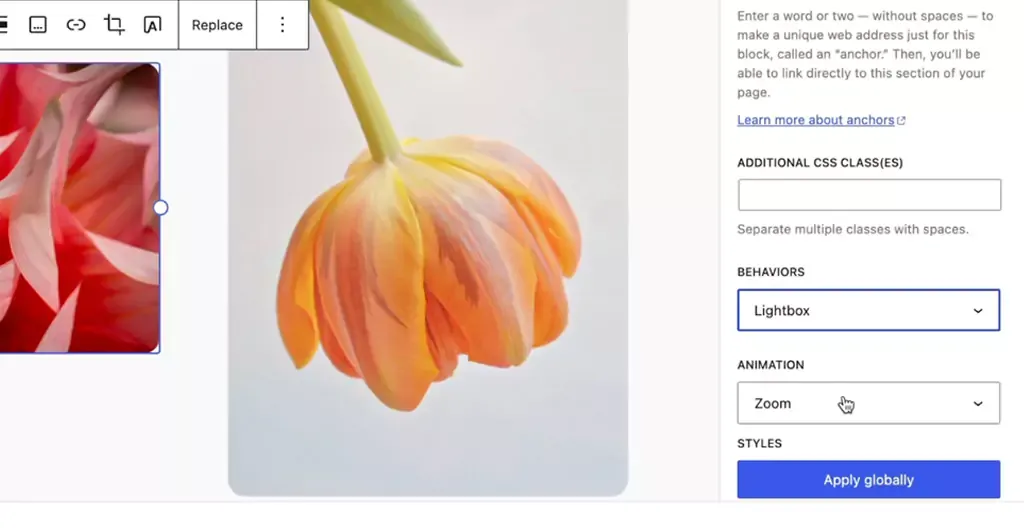
  • Among the exciting additions in WordPress 6.4 is the Image Lightbox feature. This feature significantly enhances the way images are presented on websites.
  • By implementing a lightweight standardized JavaScript library, WordPress 6.4 now offers a native lightbox functionality. When toggled on, this feature allows individual image blocks to expand elegantly when clicked, providing a distraction-free, immersive viewing experience for website visitors. This feature not only improves aesthetics but also ensures a more engaging interaction with multimedia content.
Streamlining Content Integration
  • WordPress 6.4 introduces Auto-Insert Blocks, a feature designed to simplify the process of integrating blocks into websites. With this functionality, WordPress intelligently suggests and embeds relevant blocks based on the user’s actions.
  • For instance, when a user installs a plugin and modifies the navigation, a prompt pops up, offering to seamlessly integrate a login/logout option. This proactive approach not only saves time but also enhances user-friendliness, allowing users to effortlessly enrich their website’s functionality without extensive manual block integration.

Empowering Intuitive Customization

WordPress 6.4’s enhancements in the writing experience, interface refinement, and site editing tools redefine the user experience. By focusing on fluid creativity, offering optimized interfaces like List View iterations and Distraction-free mode, and introducing intuitive site editing improvements, WordPress ensures that both content creators and developers can unleash their creativity effortlessly.

Fluid Creativity

Enhanced text formatting options, including typography and spacing presets, provide writers with the tools to craft visually appealing and engaging content. Additionally, the streamlined handling of media elements ensures that multimedia integration is smooth and intuitive, fostering a more immersive storytelling experience.

Interface and Tool Enhancements
  • WordPress 6.4 introduces several interface and tool enhancements aimed at optimizing user interaction. The List View iterations feature provides a comprehensive overview of the content structure, enabling users to easily navigate and manage complex layouts. Distraction-free mode is refined for a truly immersive writing experience, allowing writers to focus solely on their content without any interface clutter.
  • Keyboard shortcuts for duplicating blocks and media previews for gallery and image blocks enhance efficiency, making the content creation process both intuitive and swift.
Site Editing Improvements
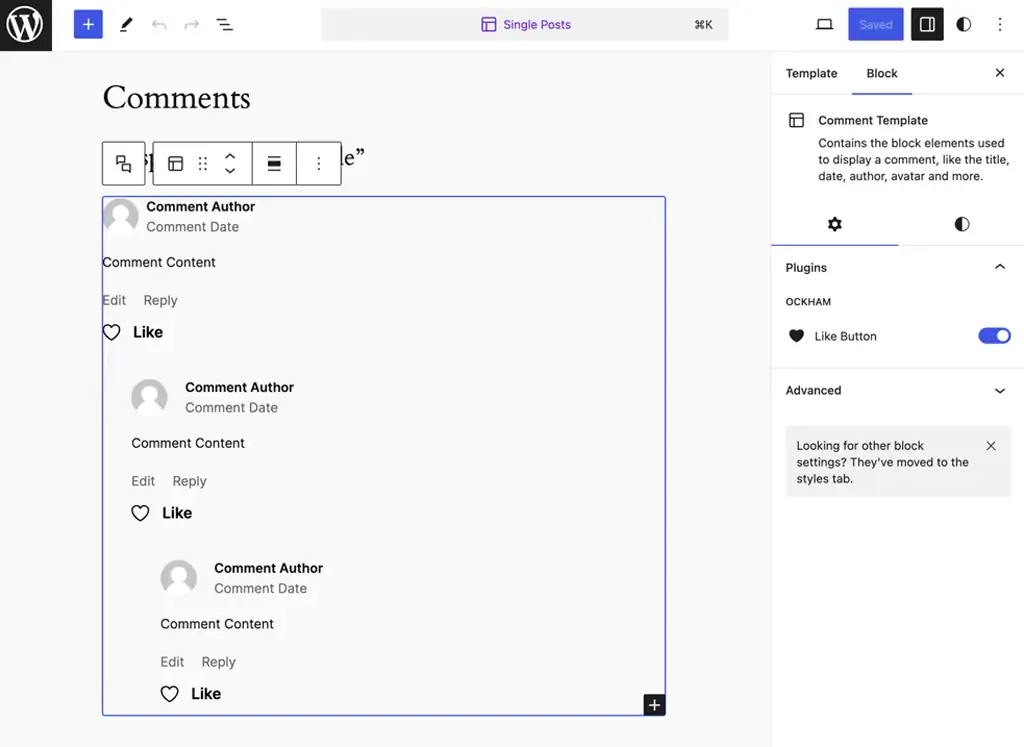
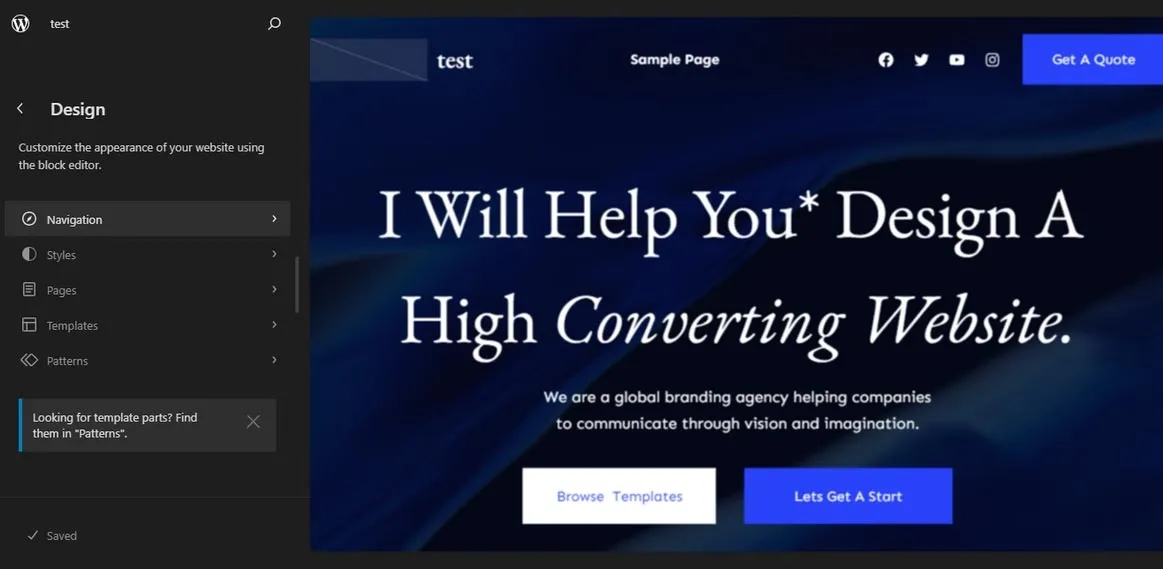
  • Site editing in WordPress 6.4 is elevated to a new level of intuitiveness. Introducing the “Show Template” toggle provides users with a clear visual representation of their website’s structure while editing pages, ensuring precise customization.
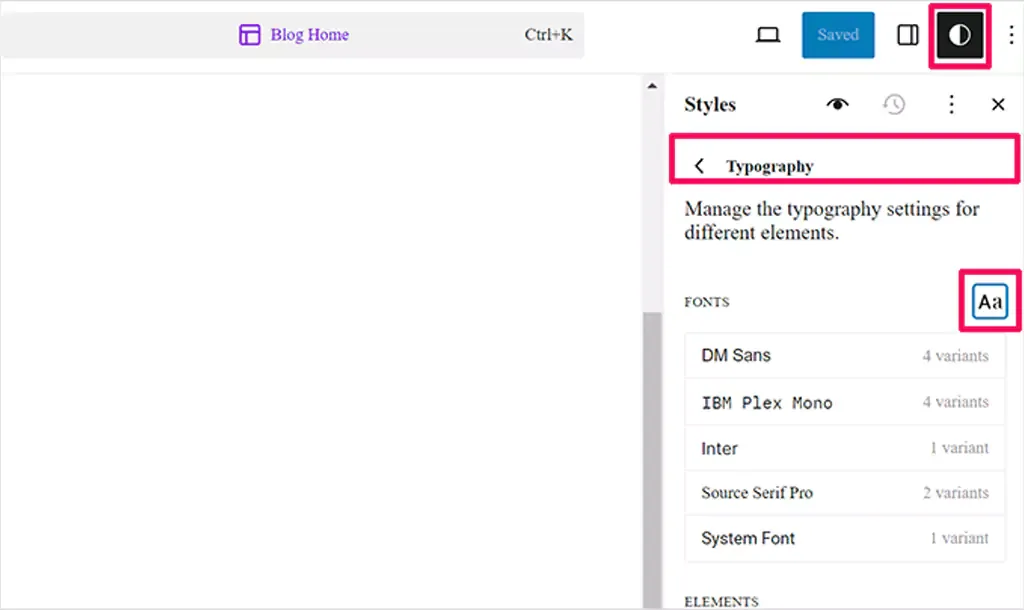
  • Discussion settings/details for pages are seamlessly integrated, offering enhanced control over user interactions. The “Browse styles” panel now displays current modifications, allowing users to track changes effortlessly.
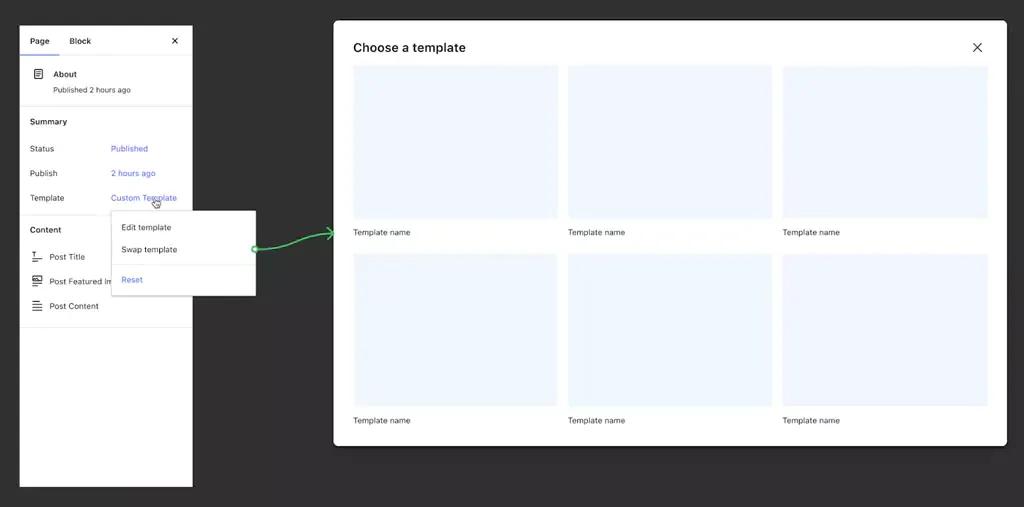
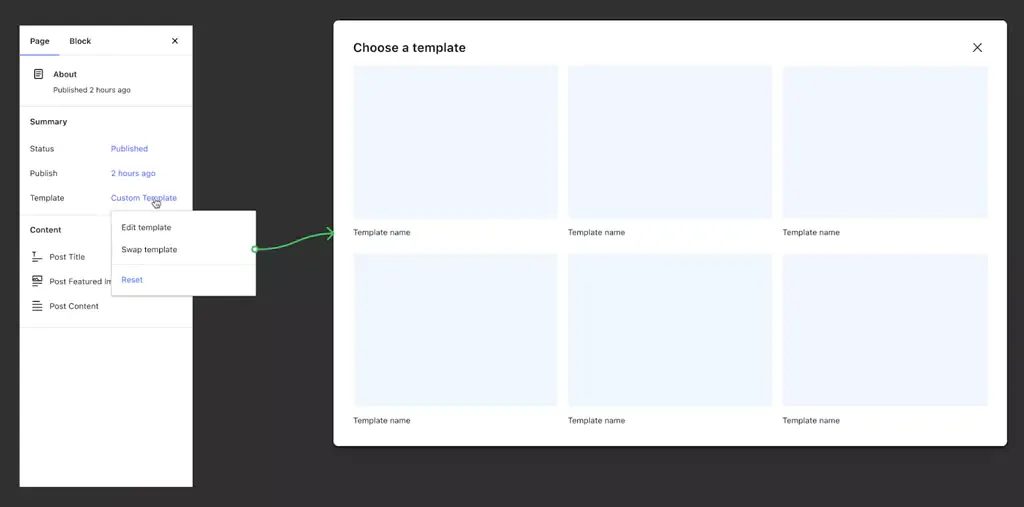
  • Additionally, switching templates within the Page Inspector empowers users to explore different design possibilities without complications. CSS class additions to templates offer developers greater flexibility in customization, making it easier to style specific elements according to their vision.

Design Tools and Global Styles

WordPress 6.4 sets a new standard in web design, empowering users to craft websites that are not only functional but also visually exceptional. By offering advanced layout controls, custom CSS enhancements, and a streamlined approach to managing global styles, WordPress ensures that designers and developers have the tools needed to create visually captivating and user-friendly websites.

Precision in Layout and Styling
  • WordPress 6.4 introduces advanced design tooling, enhancing precision and creativity in layout and styling. The layout controls now offer intricate adjustments, enabling developers and designers to fine-tune the placement and spacing of elements with exceptional accuracy.
  • Additionally, custom CSS enhancements empower developers to inject specific styles, ensuring pixel-perfect designs. These tools provide a robust framework for crafting visually stunning and responsive websites, catering to diverse user preferences and device types.
Streamlining Styling Across Websites
  • The evolution of Global Styles in WordPress 6.4 denotes a significant leap in managing styling elements across websites efficiently. With Global Styles, developers can implement consistent design patterns throughout the entire site. This comprehensive system allows for effortless management of typography, color schemes, spacing, and other design elements across various pages and sections.
  • The intuitive interface of Global Styles simplifies the process of applying site-wide changes, ensuring a cohesive and harmonious visual identity across the entire website.
Introducing Patterns
  • WordPress 6.4 introduces Patterns, a revolutionary feature that elevates the editing experience and enhances user engagement. Patterns are pre-designed blocks or layouts that offer advanced editing features. These meticulously crafted patterns streamline the design process, allowing users to create complex and visually appealing sections effortlessly.
  • From interactive call-to-action sections to immersive multimedia displays, Patterns enable users to implement intricate designs without extensive coding or design expertise. By providing a library of versatile and aesthetically pleasing patterns, WordPress empowers users to enhance their website’s visual appeal and user experience significantly.

Navigation and Query Loop Enhancements

  • With the Navigation block’s advanced customization features and responsive options, users can create menus that are not only visually appealing but also highly intuitive across all devices.
Introducing Patterns
  • WordPress 6.4 brings forth significant updates to the Navigation block, providing users with advanced customization options and enhanced responsiveness. Users can now tailor menu items more precisely, defining unique styles and interactions for each item. This granular control ensures a seamless and intuitive navigation experience for website visitors.
  • Furthermore, the Navigation block introduces responsive options, enabling users to configure menu behaviors for different devices and screen sizes. This flexibility ensures that menus adapt seamlessly, delivering an optimal user experience across various platforms, from desktops to smartphones.
Query Loop Block Enhancements
  • The Query Loop Block in WordPress 6.4 undergoes transformative enhancements, enabling users to create dynamic and personalized content displays. Users can now incorporate complex queries, allowing them to filter posts based on multiple criteria such as categories, tags, custom fields, and post types. This versatility empowers content creators to showcase specific content tailored to their audience’s interests.
  • Additionally, the Query Loop Block introduces post-display options, enabling users to determine how posts are presented, whether as grids, lists, or carousels. These options enhance the visual appeal of the displayed content, ensuring a captivating and engaging user experience.

End Note

With WordPress 6.4, a wave of innovation and user-centric design will reshape the landscape of WordPress website development. Its intuitive interface, coupled with a diverse array of features, caters to beginners and seasoned developers alike. Are you excited about the possibilities that WordPress 6.4 offers? We’re here to bring your vision to life! Our expert team specializes in the latest WordPress development, ensuring your website stands out in the digital landscape. Let’s turn your ideas into a captivating online presence. Contact us now and embark on a journey of innovation and creativity with WordPress 6.4!

8 Ways Headless WordPress Development Supercharges Business Growth

In the ever-evolving landscape of digital technology, WordPress has undoubtedly reigned as the go-to content management system worldwide. Its ease of use, flexibility, and code-free content creation have made it a favorite among businesses of all sizes. However, what truly sets WordPress apart is its evolution alongside emerging technologies, giving rise to the innovative concept of Headless WordPress and the revolutionary WP Engine’s Atlas. So are you ready to step into a world of limitless possibilities?

Let’s dive in and uncover the magic of Headless WordPress!

Advantages of Headless WordPress for Business Owners

Headless WordPress offers a plethora of advantages for business owners, empowering them to create dynamic, high-performing, and user-centric digital experiences. Let’s explore the compelling benefits that make Headless WordPress a game-changer in the CMS landscape.

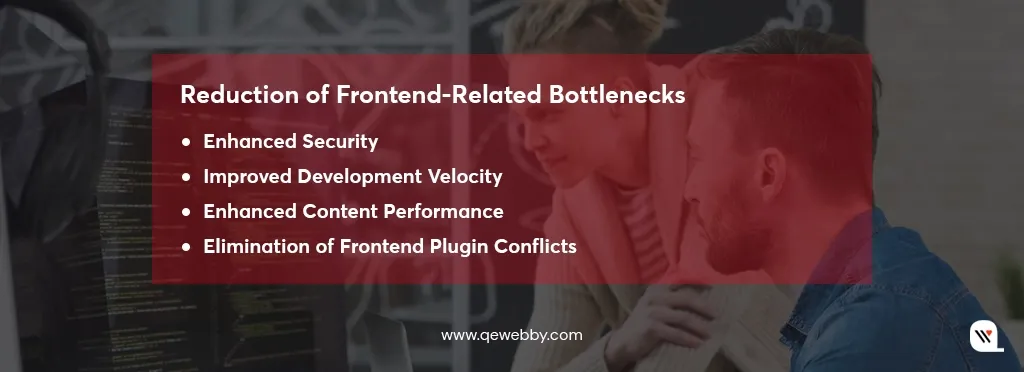
#Reduction of Frontend-Related Bottlenecks:

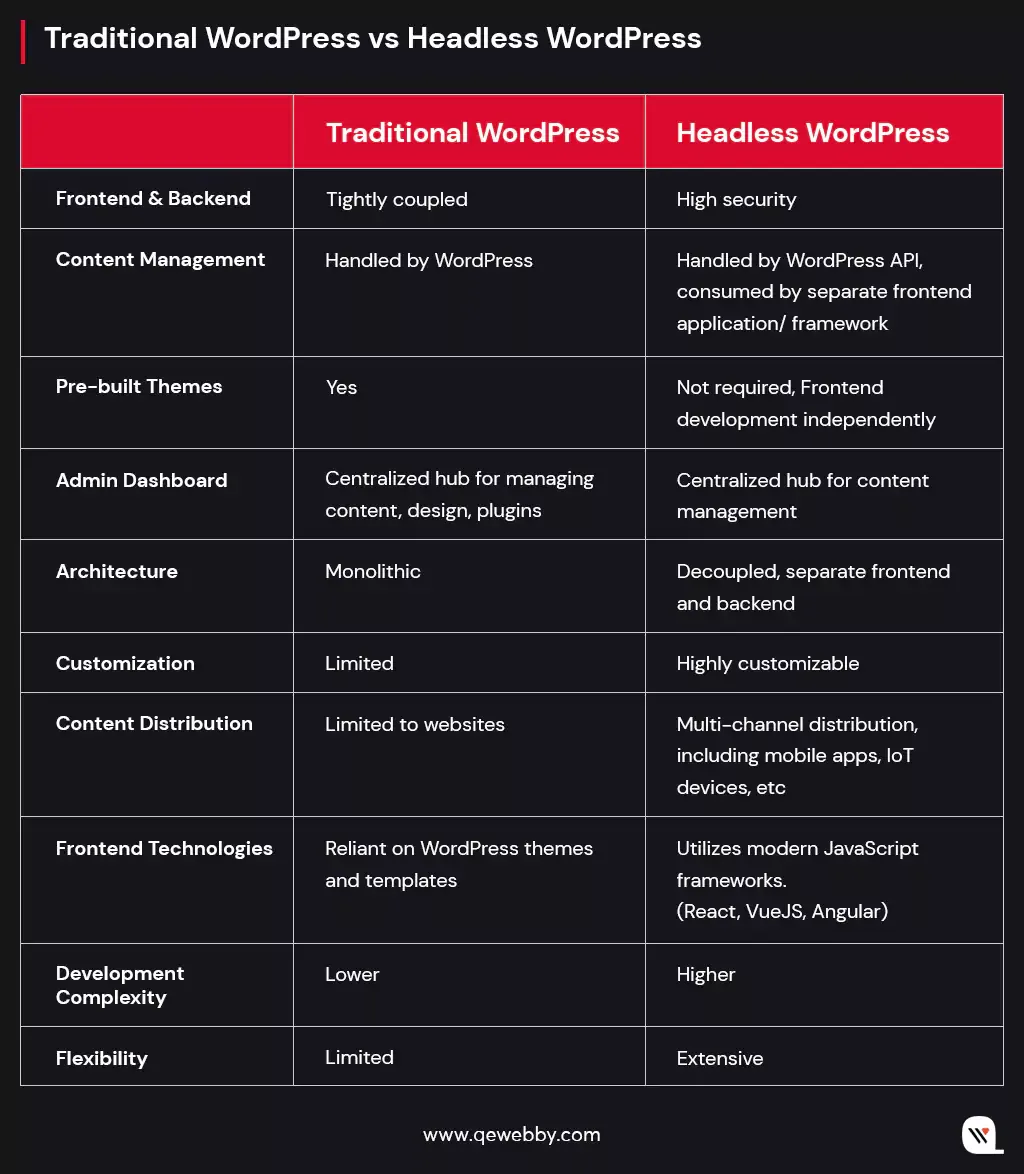
  • Enhanced Security: With the frontend and backend layers decoupled, Headless WordPress reduces the risk of security breaches. By limiting direct access to the backend, potential attack vectors are minimized, ensuring a more secure digital ecosystem.
  • Improved Development Velocity: The separation of frontend and backend development in Headless WordPress allows for faster iterations and updates. Developers can work independently on their respective layers, enabling rapid development and deployment of new features, enhancements, and bug fixes.
  • Enhanced Content Performance: Decoupling the frontend from the backend enhances content delivery, as the focus shifts solely to content presentation. Content delivery networks (CDNs) can be effectively utilized to cache and serve content, reducing latency and ensuring optimal content performance across the globe.
  • Elimination of Frontend Plugin Conflicts: Traditional CMS setups often face frontend conflicts arising from various plugins. In Headless WordPress, these conflicts are minimized or eliminated altogether, ensuring a smoother and more reliable frontend experience for users.

#Ability to Handle High Traffic Loads:

  • Enhanced User Retention: Headless WordPress’s efficient scaling capabilities ensure a seamless user experience, preventing potential frustration and retaining users during peak traffic periods. Visitors are more likely to stay on the site, explore more content, and engage with your brand.
  • Scalability on Demand: Headless WordPress offers businesses the flexibility to allocate additional resources specifically for handling frontend traffic when needed. Scaling up or down becomes more manageable, allowing businesses to adapt quickly to fluctuating traffic demands.
  • Global Reach and Performance: Handling high traffic loads efficiently ensures consistent website performance, even with users accessing the site from different parts of the world. Users in various geographic locations experience optimized page loading times, fostering positive user experiences.
  • Stability during Traffic Spikes: Seasonal promotions, marketing campaigns, or viral content can result in sudden spikes in traffic. Headless WordPress can effortlessly handle these surges without compromising site performance or user satisfaction.

#Separation of Design and Content:

  • Design Flexibility and Iteration: With design and content separated, website redesigns become more manageable and less disruptive. Design teams can experiment freely, iterate quickly, and refine the user interface without affecting content integrity.
  • Consistent User Experience: By allowing design updates independently of content changes, Headless WordPress ensures a consistent user experience. This consistency across design elements creates a cohesive and memorable brand identity for visitors.
  • Collaborative Workflow: The separation of design and content empowers design and content teams to work concurrently. This collaborative workflow streamlines the creation and updating of web pages, resulting in more efficient website management.
  • Future-Proof Branding: With the ability to change the website’s design without altering the underlying content, businesses can easily adapt their branding to stay relevant in a rapidly evolving digital landscape. Headless WordPress ensures branding agility and future-proofing capabilities.

#Freedom to Choose Frontend Technologies:

  • Cutting-edge Frontend Choices: Whether it’s React, Vue.js, Angular, or any other modern JavaScript framework, the flexibility allows businesses to implement cutting-edge features, dynamic interactions, and personalized user experiences that perfectly align with their specific business goals.
  • Customized User Experience: This freedom of choice ensures that businesses can tailor their website’s frontend to best cater to their target audience, delivering an exceptional digital experience that sets them apart from the competition. With the power to integrate the latest frontend technologies, businesses can stay at the forefront of innovation and provide users with captivating and engaging interactions that leave a lasting impression.
  • Innovation Unleashed: Headless WordPress becomes a versatile canvas for businesses to create digital masterpieces that resonate with their audience and drive meaningful growth.

#Faster Loading Times and Improved Performance:

  • Optimized User Engagement: With faster loading times, users are more likely to stay engaged and explore your website. The reduced waiting period minimizes user frustration and increases the chances of conversions, leading to a positive impact on your business’s bottom line.
  • Mobile Responsiveness: In today’s mobile-centric world, a quick and responsive website is crucial for success. Headless WordPress’s improved performance ensures that mobile users enjoy a smooth and enjoyable browsing experience, encouraging them to return for more interactions.
  • SEO Advantages: Search engines favor fast-loading websites, and Headless WordPress’s optimized performance can positively influence your search engine rankings. This boost in SEO visibility translates to increased organic traffic and broader brand reach.
  • Streamlined Development: The decoupled nature of Headless WordPress enables developers to focus on their specific tasks, resulting in more streamlined and efficient development processes. This reduction in development complexities allows for faster project completion and quicker time-to-market for new features and updates.

#Seamless Integration with Multiple Platforms:

  • Omnichannel Content Delivery: Headless WordPress empowers businesses to deliver content seamlessly across various platforms, ensuring an omnichannel presence. Whether it’s mobile apps, voice assistants, smartwatches, or other IoT devices, your content remains accessible to users wherever they are.
  • Consistent Branding: Maintaining a consistent brand experience across different platforms is essential for building trust and loyalty. Headless WordPress ensures that your brand identity remains intact across all touchpoints, reinforcing your message and values to users.
  • Targeted User Experiences: Tailoring user experiences for specific platforms becomes more manageable with Headless WordPress. Businesses can optimize content and interactions according to each platform’s unique requirements, ensuring relevance and engagement for diverse audiences.
  • Expansion into Emerging Markets: As new platforms and technologies emerge, Headless WordPress enables swift adoption and integration. Businesses can take advantage of untapped markets and early adopter opportunities, setting the stage for future growth and expansion.

#Easy Integration with Emerging Technologies:

  • Future-Ready Innovation: Headless WordPress’s adaptability to emerging technologies ensures that your digital presence remains cutting-edge and future-ready. As technology advances, your business can easily embrace new trends and capitalize on novel opportunities.
  • Enhanced User Experiences: By integrating emerging technologies like virtual reality (VR), augmented reality (AR), or AI-powered chatbots, businesses can offer captivating and immersive digital experiences that resonate with users on a deeper level.
  • Competitive Edge: Being an early adopter of emerging technologies can give your business a competitive edge in the market. With Headless WordPress as your foundation, you can lead the industry and attract tech-savvy audiences who seek innovative and forward-thinking brands.
  • Versatile Applications: Whether it’s incorporating VR for immersive product demonstrations, using AR for interactive shopping experiences, or leveraging chatbots for personalized customer support,
  • Headless WordPress can seamlessly accommodate a wide range of applications, unleashing creativity and innovation for your business.

#Flexibility to Adapt to Changing Business Needs:

  • Agile Business Growth: Headless WordPress’s flexibility empowers businesses to adapt to changing market demands and evolving customer preferences swiftly. This agility ensures that your digital strategy can pivot and align with your business’s growth trajectory.
  • Scalability for Success: As your business scales, Headless WordPress can scale with it, accommodating increased traffic, data volumes, and user interactions without compromising performance. This scalability ensures a consistent and positive user experience during periods of rapid growth.
  • Efficient Content Management: The decoupled architecture allows for streamlined content management, making it easier to update, modify, or repurpose content as needed. Businesses can respond promptly to changing requirements and trends, ensuring that their content remains relevant and up-to-date.
  • Future-Proof Investment: Investing in Headless WordPress means investing in a versatile and adaptable digital solution. As your business evolves and embraces new technologies, Headless WordPress remains the backbone of your digital presence, future-proofing your investment and supporting your long-term success.

Conclusion

Headless WordPress is the gateway to unparalleled potential in the dynamic digital realm. Its decoupled architecture, seamless integration capabilities, and flexibility to adapt to changing business needs position it as a transformative force in the world of web development. By reducing frontend-related bottlenecks, handling high traffic loads, and offering seamless integration with emerging technologies, Headless WordPress paves the way for improved website performance, user engagement, and brand reach.

Don’t miss out to discover the full suite of WordPress solutions tailored to your business needs and embark on a journey of growth and prosperity. Contact us today for a free consultation for any WordPress solutions!

8 Essential Client Site Features That Boost WordPress Website Success

According to W3Techs, WordPress powers 43.1% of all websites on the internet, making it the most popular content management system (CMS). With over 810 million websites using WordPress and a daily increase of more than 500 sites, it continues to rapidly gain traction as the go-to CMS. Creating a compelling WordPress website isn’t just about aesthetics; it’s about ensuring you have these 8 must-have features in your arsenal.

Let’s dive in!

#1 User-Friendly Navigation

A website with clear and intuitive navigation can increase user satisfaction by up to 50%. Similarly, websites with challenging navigation offer limited accessibility, compelling users to explore alternative options. Your goal should be to make sure that every page on your website, even the ones not in the main menu, can be easily reached within three clicks.

Some of the most used types of website navigation:

  • Mega Drop Downs: Large menus that drop down from the top header, ideal for sites with many pages like e-commerce sites.
  • Top Menu vs. Footer Menu: Top menus run along the top of the page, while footer menus are at the bottom, suitable for less crucial content.
  • Sidebars: Appear at the side of the webpage, directing users to related content, great for blogs.
  • Breadcrumbs: Hierarchical links showing sub-categories, aiding navigation through nested content.
  • Sticky/Fixed Navigation: Navigation bars that remain at the top as users scroll down for easy access.
  • Vertical vs. Horizontal Navigation: Choose between a horizontal bar at the top or a vertical one often seen on corporate or portfolio sites.
  • Primary vs. Secondary Navigation: Primary bars hold key content, while secondary elements direct users to additional content on the site.

Basically, your website navigation should allow users to select from a concise set of pages with clear labels, adapting to their needs. And based on your business’s required pages to promote your business online, you can pick any of the suitable menu styles for your WordPress website and make it easier for users to navigate through the different sections of your website.

#2 Fast Loading Times

Just like a firm and confident handshake that sets the tone for positive interaction, your website has less than 3 seconds to make a memorable first impression. A common error among new WordPress users is picking a flashy theme that’s overly complicated and packed with unnecessary features. This can be problematic as it can slow down your website and negatively impact its performance. A multifaceted approach encompassing various facets of web development and server performance:

  • Image optimization plays a pivotal role, with careful consideration given to file formats, compression, and the implementation of lazy loading techniques.
  • Minification of HTML, CSS, and JavaScript files is another vital step, significantly reducing file sizes and enhancing load times.
  • Content Delivery Networks (CDNs) are a powerful ally, dispersing website assets across geographically distributed servers and enhancing caching capabilities.
  • Hosting choices are critical, with performance-focused hosting providers offering SSD storage, server-side caching, and scalable resources.
  • The adoption of HTTP/2 protocol accelerates page loading, enabling parallel requests and responses.
  • Browser caching is another indispensable component, with Expires headers and Cache-Control directives facilitating the storage of static resources for returning visitors.

We strongly recommend you consider incorporating some most popular WordPress plugins like ‘WP Super Cache’ or ‘W3 Total Cache’ for efficient page caching. Additionally, optimizing images using ‘Smush’ and streamlining scripts and styles with ‘Autoptimize’ can significantly enhance your website’s loading speed.

Take a moment to check your website’s loading time!

Feel the need for speed?

Check Here

#3 Mobile Responsiveness

Over 4.9 billion people worldwide use mobile devices to access the internet. Imagine the vast pool of potential visitors your website can attract. However, mobile responsiveness isn’t just about fitting content onto smaller screens but delivering an exceptional user experience. A responsive design ensures that your website adapts seamlessly to various screen sizes, orientations, and resolutions. Whether your visitors are using smartphones, tablets, or laptops, they should encounter a website that’s easy to navigate, read, and interact with.

Google, the undisputed king of search engines, has adopted a mobile-first indexing approach. This means that when determining search rankings, Google predominantly considers the mobile version of websites. A non-responsive site risks plummeting in search engine rankings, reducing visibility and, subsequently, organic traffic.

Research shows that mobile users are less patient than their desktop counterparts. If a website doesn’t load or function correctly on a mobile device, users quickly abandon it. In fact, a one-second delay in mobile page load times can result in a 7% reduction in conversions. You simply can’t afford high bounce rates caused by poor mobile performance.

#4 High-Quality Content

Today, where attention spans are dwindling and competition is relentless, high-quality content stands as the bedrock upon which WordPress website success is built. As you embark on the journey to elevate your website’s performance, understand that crafting, curating, and consistently delivering exceptional content is not just an option; it’s an essential feature that can catapult your online presence to unprecedented heights.

A study by Databox revealed that the average dwell time (the time users spend on a webpage) for high-quality blog content surpasses that of lower-quality content by 202%. Longer dwell times indicate user engagement and satisfaction, factors that search engines like Google consider when ranking websites.

Content marketing generates 3x more leads than paid search advertising. But, high-quality content doesn’t happen by accident, it’s the result of a proactive content strategy. This involves,

  • Thorough Research: Understanding your audience’s needs, preferences, and pain points.
  • Keyword Research: Identifying relevant keywords to target in your content.
  • Regular Updates: Consistently refreshing and updating existing content to keep it relevant.
  • Content Promotion: Actively promoting your content through social media, email marketing, and other channels.
  • Measuring Success: Monitoring key metrics, such as engagement, traffic, and conversion rates, to refine your content strategy.

WordPress offers AI-powered plugins designed to assist you in crafting accurate and top-notch content for your website. These plugins leverage cutting-edge AI technology to streamline your content creation process, ensuring that your website consistently delivers valuable and engaging material to your audience.

#5 Contact Forms

HubSpot indicates that businesses experience a 5% to 10% increase in conversion rates when they provide multiple contact methods, including contact forms. One of the most significant advantages of contact forms is their accessibility and convenience. They eliminate the need for visitors to search for an email address or pick up the phone, streamlining the communication process. With a well-designed contact form, users can quickly submit their queries or requests without leaving your website.

Contact forms encourage user engagement, allowing visitors to take an active step in reaching out to you. This interaction not only builds a sense of involvement but also increases the likelihood of further engagement. Contact forms serve a dual purpose. Besides facilitating communication, they also serve as valuable data-collection tools. When designed thoughtfully, contact forms can capture essential information about your visitors, such as their names, email addresses, and specific inquiries.

To harness the full potential of contact forms, consider the following strategies:

  • Clear Placement: Position contact forms prominently on your website, ensuring that they are easily accessible from every page.
  • Form Fields: Keep contact forms concise and relevant, minimizing the number of fields to encourage submissions.
  • Autoresponders: Implement autoresponders to acknowledge submissions promptly, assuring users that their messages have been received.
  • Personalization: Tailor contact form messages and responses to align with your brand’s tone and personality.

Moreover, tailor-made forms designed to suit your unique requirements and branding, enhance user engagement and provide efficient communication channels for your visitors. This, in turn, can lead to increased conversions and improved user satisfaction.

#6 Multilingual Support

In a world that’s more interconnected than ever before, embracing multilingual support is no longer a luxury; it’s a strategic necessity for WordPress website success. Thus, to truly succeed in this global digital ecosystem, you must be able to communicate with them in their preferred language.

Research reveals that 75% of consumers prefer to buy products in their native language. Multilingual support extends beyond mere translation; it’s about cultural relevance. When your website speaks the language of your audience, it conveys an understanding of their culture, preferences, and needs.

With the WPML plugin’s automated installation and update system, achieving a multilingual WordPress website has never been easier. This powerful WordPress plugin streamlines the entire process, allowing you to effortlessly connect with a global audience by breaking down language barriers. By keeping your website’s content current and accessible to a diverse audience, you also create an enriched user experience that goes beyond language barriers.

#7 Regular Backups

According to cybersecurity firm Sucuri, the number of website attacks continues to rise, with an average of 62.7% of WordPress vulnerabilities resulting from outdated plugins and themes. Besides, a single data loss incident can lead to hours or even days of website downtime.

Data loss incidents are not just about the inconvenience of rebuilding; they often involve a race against time. The longer it takes to recover lost data, the higher the financial and reputational costs. With up-to-date backups, you have the power to restore your website to a clean, pre-attack state, minimizing downtime and data loss.

To harness the full potential of regular backups, consider these proactive strategies:

  • Automated Backups: Implement automated backup solutions that perform regular backups at specified intervals, reducing the risk of human error.
  • Off-Site Storage: Store backups in secure, off-site locations to prevent data loss in the event of server issues or disasters.
  • Testing Backups: Regularly test the restoration process to ensure that backups are functional and reliable.
  • Versioning: Maintain multiple backup versions to allow for the retrieval of specific data or configurations.

With automated backup systems in place, we prioritize having a proactive approach to minimize downtime and data loss, allowing your site to operate seamlessly even in the face of unexpected challenges.

#8 SEO Optimization

Research by OptinMonster shows that SEO leads have a 14.6% close rate, while outbound leads (such as cold calling or direct mail) have a mere 1.7% close rate. SEO-optimized traffic is not only abundant but also more likely to convert into clients.

SEO ensures that your website is visible to users actively searching for products, services, or information related to your niche. SEO optimization aligns your website’s content with user intent, delivering content that addresses their specific queries and needs. High search engine rankings bestow credibility on your website, positioning it as an authoritative source in your industry.

To harness the full potential of SEO optimization, consider these proactive strategies:

  • Keyword Research: Identify relevant keywords and phrases that resonate with your target audience.
  • On-Page SEO: Optimize your website’s structure, meta tags, headings, and content to align with SEO best practices.
  • Link Building: Cultivate high-quality backlinks from reputable websites to enhance your website’s authority.
  • Mobile Optimization: Ensure that your website is mobile-friendly and loads quickly on all devices.
  • Regular Audits: Conduct regular SEO audits to identify and rectify issues that may impact your website’s performance.

Yoast SEO is one robust WordPress plugin that offers comprehensive on-page optimization, including keyword analysis, content readability checks, and XML sitemap creation. It provides actionable insights and suggestions to enhance your site’s search engine visibility, helping you climb the ranks and attract more organic traffic.

Wrap-Up

Your WordPress website isn’t just a digital entity; it’s your brand’s ambassador, your client’s first impression, and your portal to global success. It’s your digital frontier, where success hinges on the right tools, strategies, and, above all, a website that stands as a beacon in the vast online landscape. At QeWebby, we’re not just developers; we’re digital architects, crafting websites that captivate, engage, and convert.

Our expertise spans the spectrum of essential client site features, from user-friendly navigation that guides your visitors seamlessly to high-quality content that resonates with your audience. As the digital landscape evolves, so do we. Our commitment is to your success, and we’re here to navigate the ever-changing digital currents on your behalf. Your website’s success story begins here!

What Makes Headless WordPress Unique? Pros & Cons Explored

With over 60% of the market share in the CMS market, WordPress is the most widely used and also the fastest-growing CMS of this digital world. Renowned for its user-friendly interface, extensive plugin ecosystem, and robust community support, WordPress has become the go-to choice for website owners and bloggers worldwide. Now, with the rise of Headless CMS, WordPress expands its horizons, embracing a new era of flexibility and innovation.

Here you will discover how Headless WordPress transcends the limitations of traditional websites and opens the door to a new realm of innovation and user engagement.

Let’s explore!

Defining the Concept of Headless WordPress

Headless WordPress is a powerful concept that revolutionizes how we approach content management systems. At its core, Headless WordPress separates content management capabilities from the frontend presentation. It focuses solely on content management through its robust backend. It exposes a powerful API (Application Programming Interface) that allows developers to retrieve content in a structured manner. And this content can then be consumed by a separate frontend application or framework, which handles the rendering and presentation. So ultimately, it gives the developers the freedom to choose the frontend technologies that best suit the project requirements.

Differentiating Traditional WordPress from Headless WordPress

Understanding the distinctions between Traditional WordPress and Headless WordPress is crucial in selecting the right approach for your specific project requirements. Traditional WordPress is suitable for simple websites with straightforward needs, offering simplicity and ease of use. On the other hand, Headless WordPress provides greater flexibility, customization options, and the ability to deliver content to multiple channels beyond websites. Here are the basic differences:

How Headless WordPress Works?

In the world of Headless WordPress, the traditional coupling of the frontend and backend layers gives way to a more flexible architecture. Here are the key components involved in its operation.

Separation of frontend and backend layers

In a Headless WordPress setup, the frontend and backend are decoupled, allowing for independent development and management of each layer. Let us see how this separation works:

Backend (Content Management):

  • The backend layer, powered by WordPress, serves as the content management system (CMS).
  • Content creators utilize the familiar WordPress admin interface to manage and organize content, including creating posts, pages, and media.
  • WordPress retains its robust content management capabilities, ensuring efficient organization, searchability, and retrieval of content.

Frontend (Presentation and User Interface):

  • The frontend layer is responsible for rendering and presenting the content to the end-users.
  • Instead of relying on WordPress to generate complete web pages, the frontend is developed using modern JavaScript frameworks like React, Vue.js, or Angular.
  • These frameworks consume the content using APIs provided by Headless WordPress and handle the rendering and user interface interactions.
  • Developers have the freedom to design highly customized and dynamic interfaces, tailoring the user experience to specific requirements.
Role of APIs in Headless Architecture

API plays a pivotal role in facilitating the communication and data flow between the backend and frontend layers in Headless WordPress. Here’s how APIs enable this seamless interaction:

REST API (Representational State Transfer):

  • WordPress provides a powerful REST API that exposes endpoints to access and manipulate content.
  • The REST API allows frontend applications to retrieve structured content, such as posts, pages, categories, and tags.
  • By making HTTP requests to these API endpoints, frontend frameworks can fetch the required content and utilize it to build dynamic interfaces.

GraphQL:

  • In addition to the REST API, Headless WordPress also supports GraphQL, an alternative query language for APIs.
  • GraphQL offers more flexibility in fetching precisely the data needed, reducing the overhead of over-fetching or under-fetching data.
  • Developers can define custom queries in GraphQL to retrieve specific fields or related data efficiently.
Exploring the Content Delivery Process in Headless WordPress:

Once the frontend is developed and the APIs are utilized, content delivery process in Headless WordPress follows these steps:

Content Creation and Management:

  • Content creators use the WordPress admin interface to create and manage content, organizing it into posts, pages, and other relevant structures.
  • Metadata, taxonomies, and custom fields can be added to enhance the content structure and organization.

API Consumption:

  • The frontend application, built with JavaScript frameworks, interacts with the Headless WordPress API to retrieve the desired content.
  • Developers use API requests to fetch specific content, filtering by categories, tags, or custom parameters as needed.

Content Rendering and Presentation:

  • The retrieved content is then dynamically rendered and presented to the end-users.
  • Frontend frameworks handle the rendering process, applying the desired design, layout, and user interface interactions.

Real-World Utilization of Headless WordPress Implementation

  • Headless WordPress serves as a powerful backend for mobile applications, enabling businesses to leverage their existing WordPress content and deliver it seamlessly to mobile users.
  • When modern frontend frameworks are used it helps to build highly interactive and engaging product catalogs and shopping interfaces.
  • Integration with third-party eCommerce platforms or custom-built solutions will handle transactions, inventory management, and order processing.
  • The robust content management capabilities of WordPress will allow the flexibility to tailor the frontend experience to match specific branding and user interface requirements.
  • Headless WordPress empowers businesses with a multichannel content delivery approach to ensure consistent branding and engaging experiences across platforms.

Challenges of Headless WordPress Implementation

While the benefits of Headless WordPress are compelling, it’s essential to consider the following challenges when implementing this approach:

  • Development expertise: Implementing Headless WordPress requires familiarity with frontend frameworks and API integrations. Ensure you have the necessary technical expertise or partner with experienced developers.
  • Customization complexity: Headless WordPress provides extensive customization options, but this can also introduce complexity. Plan for additional development time and resources for building and maintaining the frontend application.
  • Plugin compatibility: Some WordPress plugins rely on the traditional frontend architecture and may not be compatible with Headless WordPress setups. Ensure critical functionality can be replicated or find suitable alternatives.

Conclusion

Headless WordPress stands out as a transformative approach to content management systems that offers unparalleled flexibility, customization, and multichannel content delivery. By decoupling the frontend and backend layers, Headless WordPress empowers you to deliver exceptional user experiences, achieve enhanced performance and scalability, and future-proof your website.

QeWebby specializes in harnessing the full potential of every innovation in WordPress website development. Our team of experts can best guide you through the setup process, ensuring a seamless transition to Headless WordPress and helping you unlock the benefits it offers.

Don’t miss out on the opportunity to revolutionize your digital presence with a free consultation call with our experts! Contact us today to explore how Headless WordPress can transform your business and create memorable experiences for your audience.

WordPress 6.3 Unwrapped: Discover What’s New and Exciting

WordPress 6.3 marks the second major release of 2023, bringing with it a plethora of notable updates, fresh features, enhancements, and bug fixes that amplify the strength and utility of WordPress. With the changes that are spread across 43 core components, WordPress 6.3 opens new possibilities for the creative expression of designers, creators, and builders.

Within this post, we’ll unveil the highlights of WordPress 6.3 and spotlight the features that deserve your attention following the update.

Let’s take a look!

Enhancements in Selectors API

Designed to elevate your styling capabilities to unprecedented heights, this advanced API empowers you with the ability to configure multiple CSS selectors, ensuring a seamless generation of global styles across your blocks. Notably, this can be achieved across three distinct levels: root, feature, and sub-feature.

  • Root Selectors At the core of the Selectors API lies the root selector, your block’s principal CSS selector. Every block requires a primary CSS selector to orchestrate global style declarations. Should you not designate one through the Block Selectors API, rest assured that a default selector (in the form of .wp-block-) will be generated for you.
  • Feature-level Selectors In the new version, API empowers you to target specific block features with unparalleled precision – be it borders, colors, typography, or other attributes. This facet enables you to bestow distinct styles upon various elements within your block. For instance, imagine applying color schemes to your block’s wrapper while refining typographic elements within an inner text element.
  • Subfeature Selectors The Subfeature Selectors elevate your styling prowess to unparalleled heights. Now, individual styles associated with block features (e.g., background-color or border-radius) can be expressed through unique selectors. This proves invaluable when aiming to implement diverse styles within a single feature. Consider a scenario where the block’s typography necessitates font family at the wrapper level while specifying distinct text decoration and font size for inner elements.

The brand-new Command Palette

This exciting feature takes center stage within the post and site editors, granting users swift access through keyboard shortcuts, namely ctrl + k or command + k. It offers two avenues to maximize command utilization: static and dynamic commands.

  • Static Commands: Easily register static commands using the wp.data.dispatch( wp.commands.store ).registerCommand action or the wp.commands.useCommand React hook. With either approach, a command object is provided, equipped with a distinct name, a clear label, an icon, a callback function invoked upon command selection, and potentially, a context.
  • Dynamic Commands: Dynamic commands, on the other hand, are enabled via “command loaders.” These prove invaluable when command availability hinges on user-input search terms or certain conditions.

The command palette’s versatility extends to contextual commands, ensuring priority visibility and a seamless user experience. These commands shine in specific contexts, such as navigating the site editor or editing a template. Currently, two key contexts have been implemented:

  • Site-editor – While navigating the site editor with the sidebar visible.
  • Site-editor-edit – When engaged in editing a document (template, template part, or page) within the site editor.
  • And the journey doesn’t end here. As adoption grows, additional contexts will be seamlessly incorporated

To manipulate the command palette’s behavior, it is enriched with a host of selectors and actions through the WordPress Data API. These include:

  • Retrieving registered commands and command loaders with selectors like getCommands and getCommandLoader.
  • Checking whether the command palette is open via the isOpen selector.
  • Programmatic control over opening and closing the command palette using the open and close actions.

Evolution of Layout Support

The latest WordPress 6.3 update brings exciting enhancements to layout support, marking its graduation from experimental to stable. While the functionality remains consistent, the upgrade comes with a small change: when you’re adding block support for layout in your block.json, the syntax “layout” now replaces “__experimentalLayout.” Although the support for the “__experimentalLayout” syntax will still be retained for a transitional period, we strongly recommend that you seize the opportunity to elevate your custom blocks by transitioning to the rock-solid layout syntax.

Innovations in CSS Specificity for Enhanced Layouts:

When you offer something valuable in exchange for someone’s email (like a free trial, eBook, or exclusive demo), you’re not just collecting random email addresses. You’re attracting leads who are genuinely interested in what your software can do. This means the leads you gather are more likely to convert into paying clients.

Empowering Complex Block Markup with Classnames:

Building on the foundation laid in WordPress 6.2, the latest version integrated layout classnames into the block inner wrapper. While this aligns with the outer wrapper for most blocks, certain blocks (like the core Cover block) encompass multiple inner containers. With WordPress 6.3, a novel classname graces the inner wrapper of all blocks with layout, amalgamating the block classname with the layout classname.

Say Hello to the New Grid Layout:

Embrace innovation with the introduction of the all-new grid layout type, underpinned by the power of CSS Grid. This dynamic layout defaults to an auto-fill approach, complete with configurable column widths. For those seeking precise control, the columnCount property within the layout object allows you to establish a fixed number of columns.

Elevated Layout and Spacing in the Post Template Block:

Embrace innovation with the introduction of the all-new grid layout type, underpinned by the power of CSS Grid. This dynamic layout defaults to an auto-fill approach, complete with configurable column widths. For those seeking precise control, the columnCount property within the layout object allows you to establish a fixed number of columns.

Seamless Spacer Block Alignment with Parent Layouts:

Spacer blocks now seamlessly integrate with parent layout configurations, taking on the orientation of the parent layout, especially within flex-type layout blocks. While you can still manually set an orientation for Spacer blocks based on parent context, flex layouts grant priority to the flex orientation, ensuring consistent and harmonious designs.

Dynamic Coloring of Social Icons Block

The Social Icons block now offers the option to customize both the “Icon color” and “Icon background color” in WordPress 6.3. Prior to this version, the chosen colors were hardcoded as hex code values within the block, even if you selected a color from the theme palette defined in theme.json.

Now, with WordPress 6.3 release, the Social Icons block embraces CSS classes that seamlessly align with your chosen color values. These classes are an integral part of the WordPress ecosystem, ingeniously generated in harmony with the color palette outlined in your theme.json file. Their structure is straightforward:

has-[color_slug]-color

has-[color_slug]-background-color

It’s essential to note that these empowering classes won’t come into play when a user opts for a custom color. This dynamic integration ensures that your design retains its integrity and aligns seamlessly with your chosen color palette, making WordPress 6.3 the pinnacle of design control and cohesion.

Bundled Themes Drops Internet Explorer Scripts and Styles

In recognition of the diminishing traffic from Internet Explorer users and WordPress’ discontinuation of support for this outdated browser, certain default themes have taken proactive steps. By removing specific Internet Explorer-oriented scripts and styles, these themes are ensuring that the majority of users can enjoy a smoother and faster browsing journey.

Moreover, these optimizations extend to focus enhancement scripts that were previously tailored for Internet Explorer and older versions of Chrome. With the arrival of WordPress 6.3, themes like Twenty Thirteen and Twenty Fourteen have gracefully evolved, no longer incorporating these scripts in their functions.js files. Additionally, from Twenty Fifteen to Twenty Twenty-One, themes have been fine-tuned to neither enqueue nor print these scripts.

This strategic move not only aligns with modern web standards but also reflects our commitment to delivering a top-tier experience for every user. Embrace these enhancements as we usher in a new era of optimized performance and a richer online encounter.

Improvements to the Cache API

WordPress 6.3 release brings forth an array of strategic enhancements that redefine how queries are cached within the WordPress ecosystem.

Elevating Cache Group Dynamics:

Diving into the heart of WordPress 6.3, a paradigm shift in cache group dynamics emerges. Previous versions of WordPress stored query results in cache groups aligned with their corresponding objects. However, the landscape has evolved, and WordPress 6.3 introduces a groundbreaking approach that offers developers unprecedented control and precision.

As the WP_User_Query class joins the cache hierarchy, a dynamic modification unfolds. The introduction of distinct cache groups tailored for queries becomes the cornerstone of this evolution. Developers now hold the reins to specify cache group expiration times, enabling the fine-tuning of cache duration. The innovative wp_cache_flush_group() function stands ready for developers seeking tailored cache clearance.
Flexibility extends even further, granting developers the ability to designate cache groups as non-persistent, if necessary. The newly introduced cache groups encompass:

  • post-queries
  • term-queries
  • comment-queries
  • network-queries (global cache group)
  • site-queries (global cache group)
  • user-queries (global cache group)

Enhancement to get_pages() Function

WordPress 6.3 introduces a significant improvement to the get_pages()function. It now utilizes WP_Query internally, addressing a 13-year-old ticket (#12821). This update reduces complexity by offloading database queries and cache handling to WP_Query.

As a result, this eliminates redundancy and ensures that all filters within WP_Query apply to get_pages(). Users employing filters like posts_pre_query or posts_results for customized WP_Query behavior, including data retrieval from alternative sources such as cache or other databases, will benefit. Additionally, a new filter named get_pages_query_args has been added, allowing developers to modify parameters passed to WP_Query while maintaining compatibility with original arguments.

PHP Support

WordPress 6.3 no longer provides support for PHP 5.

The minimum supported PHP version has been raised to 7.0.0.

Wrap Up

WordPress 6.3 release represents a significant leap in the editing experience. The improvements are substantial, covering various new editing features in the site editor, a redesigned and versatile block pattern system, new blocks, improved performance, enhanced accessibility, and internationalization enhancements, among other improvements.

If you’re thinking about upgrading your WordPress site to leverage these remarkable advancements, our skilled team of WordPress professionals is here to offer seamless assistance and guidance. Embrace the capabilities of WordPress 6.3 and discover new possibilities for your online presence.

WordPress 6.3 introduces notable improvements aimed at enhancing load time performance for content containing images. The impact of these enhancements is particularly evident in the Largest Contentful Paint (LCP) metric, which gauges the time taken from the request initiation until the largest content element within the viewport is rendered.

Automated fetchpriority Support

WordPress 6.3 latest release, now includes the fetchpriority attribute, set to “high,” within the image tag it identifies as the “LCP image” – the image constituting the largest content within the viewport. This attribute instructs the browser to prioritize this image, boosting LCP performance by approximately 5-10%. For further context, refer to the initial proposal post.

Automated lazy-loading

A series of refinements and resolutions have been introduced to enhance the automatic management of lazy-loading using the loading attribute. This refinement process, initiated in WordPress 5.9 and continued in 6.2, culminates in comprehensive enhancements in WordPress 6.3. This meticulous approach ensures the more accurate identification of images where omission of the attribute is appropriate, thereby contributing to optimized performance. For deeper insights into the significance of not lazy-loading in-viewport images, especially the LCP image, in the context of performance, refer to the relevant WordPress 5.9 dev note post.

Choose the Right 360 Product View Plugin: An Informed Look

Almost half of your visitors could be persuaded to hit that “Buy Now” button simply by experiencing your products in a more immersive way. Well, that’s right! Customers crave a dynamic and interactive shopping experience that allows them to truly connect with your products. And that’s where 360 product view plugins for WordPress come into play. So, get ready to discover the magic that can revolutionize your online store and skyrocket your sales. Let’s check out the features, pros, cons, and everything you need to know about 3 such WordPress plugins to make an informed decision.

Let’s start!

What are 360 Degree Product View WordPress Plugins?

360 Degree Product View WordPress plugins are powerful tools that allow you to showcase your products in a whole new dimension. These plugins leverage cutting-edge technology to create interactive and immersive product views that go beyond traditional static images. Not only do these plugins enhance the visual appeal of your products, but they also have a direct impact on customer engagement and conversion rates.

With 360 Product View WordPress plugins, you can unleash the true potential of your products. Whether you’re selling fashion items, electronics, furniture, or any other physical goods, these plugins enable you to showcase the intricate design, craftsmanship, and unique features that set your products apart.

So, if you’re looking to elevate your online store and leave a lasting impression on your customers, 360 Product View WordPress plugins are your secret weapon. They bring your products to life, increase customer engagement, and boost your sales like never before.

360 Product View for WooCommerce Plugin

Improve Your Customer Engagement in Free with

Free Download

What are 360 Degree Product View WordPress Plugins ?

To ensure you choose the right plugin that meets your requirements, there are certain must-have features to consider. Let’s explore these features in detail:

  • Smooth 360-Degree Rotation: The plugin should enable smooth and fluid rotation of the product, allowing customers to view it from all angles. It should provide a high frame rate and low latency, ensuring a realistic and responsive rotation experience.
  • High-Resolution Images: The plugin should support high-resolution images to ensure crisp and detailed product views. It should be capable of handling large image files without compromising loading speed or performance.
  • Interactive Zoom Functionality: The ability to zoom in on specific areas of the product is crucial for customers to examine fine details. The plugin should support interactive zoom functionality, allowing users to magnify the product and explore it with precision.
  • Hotspot Capability: Interactive hotspots offer the opportunity to add additional information, such as product specifications or clickable links, directly within the 360-degree view. The plugin should support hotspot creation and customization, enhancing the interactive browsing experience.
  • Mobile Responsiveness: With mobile devices being widely used for online shopping, the plugin should be fully responsive and optimized for mobile viewing. It should adapt to different screen sizes, maintaining smooth rotation and functionality across smartphones and tablets.
  • Customizable Design: The plugin should offer customization options to match your store’s branding and design. You should be able to adjust colors, button styles, control layouts, and other visual elements to create a seamless integration with your website’s aesthetics.
  • Cross-Browser Compatibility: The plugin should be compatible with all major web browsers, including Chrome, Firefox, Safari, and Edge. It should render consistently and perform optimally across different browsers to ensure a smooth experience for all users.
  • Device Compatibility: The plugin should be compatible with various devices, including desktop computers, laptops, tablets, and mobile phones. It should adapt to different device capabilities and orientations, providing a consistent and intuitive user experience.
  • Quick Loading Times: The plugin should be optimized for fast loading times to ensure that customers can access and interact with the 360-degree product view without delays or interruptions. It should utilize efficient loading techniques, such as lazy loading, to prioritize the initial image and load subsequent frames seamlessly.
  • Analytics and Tracking: Integrating analytics and tracking capabilities within the plugin can provide valuable insights into customer behavior, engagement levels, and conversion rates. It should support integration with popular analytics tools to help you measure the effectiveness of the 360-degree product view and make data-driven decisions.

Easy 360° Product Viewer

This one plugin is a powerful solution that brings your products to life with stunning 360° views. With its user-friendly interface and extensive customization options, this plugin allows you to showcase your products from every angle, providing an interactive and engaging experience for your customers. Whether you’re selling physical goods, digital products, or creative designs, Easy 360 Product Viewer empowers you to create immersive product presentations that captivate and convert.

SR Product 360° Product Viewer

This is another feature-rich WordPress plugin that revolutionizes the way you showcase your products. With its seamless integration and intuitive interface, this plugin allows you to create captivating 360° views of your products, giving your customers a dynamic and immersive experience. With easy customization options and support for both 2D and 3D views, SR Product 360° View empowers you to highlight every detail and angle of your products, helping you boost engagement, increase conversions, and stand out from the competition.

360 Product Viewer for WooCommerce

This is the ultimate solution to showcase your products in a whole new dimension. With this powerful plugin, you can effortlessly create immersive 360° views of your products, allowing your customers to explore every angle and detail. Whether it is to engage your audience with interactive product experiences that captivate and inspire, or lead to increased customer satisfaction and higher conversion rates, this plugin has it all. With easy integration, customizable settings, and seamless compatibility with WooCommerce, the 360 Product Viewer empowers you to create a truly remarkable shopping experience. This innovative plugin allows you to take your online store to new heights and let your products shine.

Wrap Up

A correct 360 product view plugin enables you to provide an immersive and interactive shopping experience to your customers, allowing them to explore your products from every angle. It’s the secret ingredient that will take your product presentation to new heights and leave your customers in awe. By incorporating the power of 360-degree product views, you create an unparalleled shopping experience that drives excitement and captivates your audience.

The best part? This amazing plugin can be available to you completely free of charge. Yes, you read that right! You can harness the full potential of 360 product viewing without spending a penny. It’s a remarkable opportunity to level up your online store and stand out from the competition, all while keeping your budget intact.

360 Product View for WooCommerce Plugin

Download the free access to

Free Download