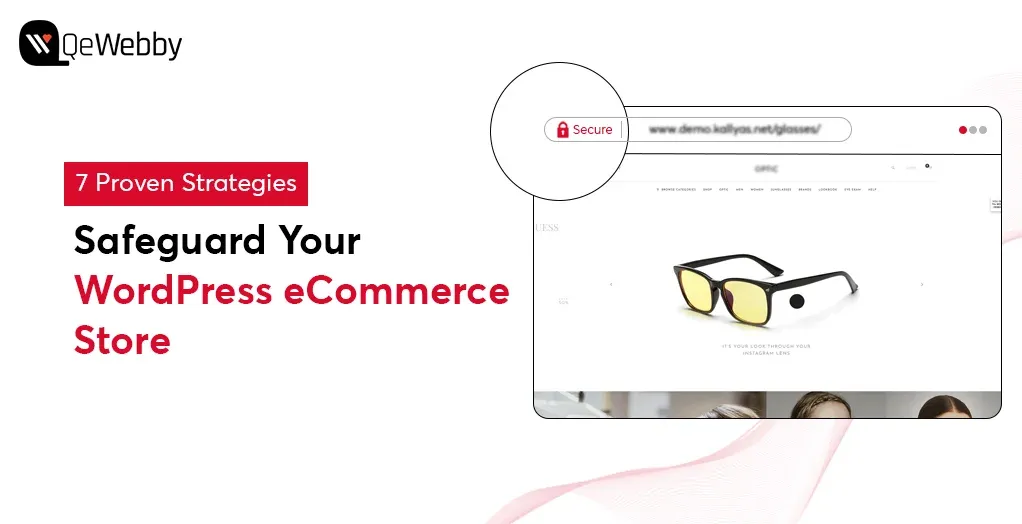
7 Proven Strategies to Safeguard Your WordPress eCommerce Store

The global average cost of a data breach in 2024 is $4.88 million—an alarming 10% increase from last year. It’s a staggering number and a wake-up call for all of us in the online retail space.

When customers shop on your site, they expect their personal and payment information to be protected. A security breach can lead to financial losses and, even worse, a loss of trust. And we all know that trust is everything in eCommerce!

A secure online store reassures customers that their sensitive information is safe, fostering loyalty and encouraging repeat business. Here, we’ll explore 7 proven strategies to safeguard your WordPress eCommerce store.

Let’s dive in!

Our 7 Strategies for Your WordPress Store Safety

1. Use HTTPS to Protect Transactions
2. Choose Trusted Payment Processors
3. Opt for Reliable Hosting
4. Strengthen User Account Security
5. Regularly Backup Your Store
6. Monitor User Activity & Access
7. Educate Your Team and Customers

1. Use HTTPS to Protect Transactions

HTTPS (HyperText Transfer Protocol Secure) encrypts data transferred between your website and your customers’ browsers. This encryption makes it much harder for hackers to intercept sensitive information, like credit card details. Displaying HTTPS in the browser’s address bar signals to customers that their data is secure. A padlock icon reassures users that the site is trustworthy, which can significantly reduce cart abandonment rates and increase conversion rates.

Moreover, search engines like Google prioritize HTTPS websites in their rankings. By adopting HTTPS, eCommerce stores can improve their visibility in search results, potentially driving more traffic and sales.

Many payment processors and regulatory bodies require HTTPS for online transactions. Using HTTPS helps ensure compliance with standards such as PCI DSS (Payment Card Industry Data Security Standard), which is essential for accepting credit card payments.

How we implement:
  • Get an SSL Certificate: Purchase an SSL certificate from your hosting provider or a trusted certificate authority. Many hosts offer free options, like Let’s Encrypt.
  • Install the Certificate: Follow your host’s instructions to install the SSL certificate. Most providers have a simple setup process.
  • Redirect HTTP to HTTPS: Ensure that all traffic is redirected to the secure version of your site. This can usually be done in your website’s settings or via your .htaccess file.

Security for WooCommerce plugin ensures SSL is configured correctly and assists with PCI-DSS compliance for handling payment information.

2. Choose Trusted Payment Processors

Customers are more likely to complete purchases when they see familiar and reputable payment options. Well-known processors like PayPal, Stripe, and Square carry a reputation for security, which helps build trust and can lead to higher conversion rates.

Many established payment processors offer user-friendly interfaces and seamless integration with WordPress. This enhances the overall shopping experience, making it easier for customers to complete transactions and reducing cart abandonment rates.

Reputable payment processors typically support multiple currencies and various payment methods, including credit cards, digital wallets, and bank transfers. This flexibility can cater to a broader audience and enhance the store’s global reach.

What to look for:
  • Security Certifications: Ensure the processor complies with PCI-DSS (Payment Card Industry Data Security Standard), which sets security requirements for handling credit card information.
  • User Reviews: Check reviews for customer feedback on reliability and security.

WordFence Security plugin monitors traffic and provides login security features such as two-factor authentication (2FA).

3. Opt for Reliable Hosting

Fast-loading websites are crucial for eCommerce success. Reliable hosts utilize high-performance servers and Content Delivery Networks (CDNs) to optimize site speed. A well-performing site improves user experience, reduces bounce rates, and increases conversion rates.

Reliable hosting providers implement robust security measures, such as firewalls, DDoS protection, and malware scanning. These features help protect the eCommerce store from various cyber threats, including hacking attempts and data breaches.

As your eCommerce business grows, your hosting needs may change. Reliable hosting services offer scalable solutions that allow you to upgrade your resources (such as bandwidth and storage) easily, ensuring your site can handle increased traffic without compromising performance.

Key Features to Consider:
  • Automatic Updates: Ensure your host automatically updates WordPress core, themes, and plugins.
  • Backups: Choose a host that provides regular backups, so you can restore your site easily if something goes wrong.

Sucuri Security plugin helps mitigate the risks of DDoS attacks and malware infections.

4. Strengthen User Account Security

User accounts typically store sensitive information such as names, addresses, and payment methods. By enhancing account security, you significantly reduce the risk of unauthorized access and data breaches.

When customers feel their accounts are secure, they are more likely to make purchases and return to your store. Building trust through security measures can lead to increased customer loyalty and sales.

Strong account security measures help prevent unauthorized transactions and account takeovers. This not only protects the business but also fosters trust with customers.

Tips for Implementation:

  • Use plugins like Google Authenticator or Wordfence to set up 2FA for both admin and customer accounts.
  • Provide easy instructions for customers on how to enable 2FA.

2FA adds an extra layer of security by requiring a second form of verification (like a text message) in addition to a password.

5. Regularly Backup Your Store

Regular backups protect against data loss due to hacks or technical failures. If something goes wrong, you want to be able to restore your site quickly.

Analyzing user activity can provide insights into potential vulnerabilities in your security protocols. This information can guide improvements, allowing you to adapt your security measures based on real user behavior.

Our Easy Backup Solutions:

Keep track of failed login attempts and set thresholds for account lockouts. Notifying users of failed attempts can prompt them to strengthen their passwords or enable additional security measures.
Use user-friendly plugins like UpdraftPlus or BackupBuddy to automate backups. Set your backups to run daily or weekly, depending on how often you update your site.

Aim for daily backups if you frequently add new products or content. For less active sites, weekly backups may suffice.

6. Monitor User Activity and Access

Early detection allows for prompt action to mitigate potential threats. Regularly monitoring user activity can help identify unusual patterns, such as repeated failed login attempts or access from unfamiliar IP addresses.

Account takeovers are a significant threat in eCommerce. Monitoring user activities can help detect signs of account compromise, such as unexpected changes to user profiles or unauthorized transactions. Swift intervention can mitigate damage and protect both customer data and business assets.

Understanding how users interact with your site can provide valuable insights into their preferences and behaviors. This information can help you optimize the user experience while identifying potential security weaknesses based on usage patterns.

Easy Implementation Tips:
  • IP Address Monitoring: Track the IP addresses from which users log in. Identify and flag logins from unusual or unexpected locations, allowing for additional verification steps if necessary.
  • Regularly Review Activity Logs: Schedule routine audits of user activity logs to identify any patterns or anomalies. This proactive monitoring can help catch potential security issues before they escalate.

Jetpack Security offers a complete suite of features including real-time backups, malware scanning, and spam protection.

7. Educate Your Team and Customers

Many security breaches occur due to human error, such as weak passwords or falling for phishing scams. Training your team to recognize these risks helps minimize mistakes that could compromise the store’s security.

Many data protection regulations require businesses to implement training programs for employees regarding data security and privacy. Educating your team helps ensure compliance and protects your business from legal repercussions.

Regularly educating your team about security is one best practice. This can be done by recognizing phishing emails and using secure connections.

Easy Ways for Informing Customers:
  • Customer Awareness Campaigns: Implement campaigns to educate customers about account security. This could include blog posts, email newsletters, and social media content that highlight best practices for online safety.
  • Phishing Awareness: Provide training and resources that help users recognize phishing attempts. This includes identifying suspicious emails and messages that could lead to compromised accounts.

Send out security tips through newsletters or blog posts to keep security awareness high among your customer base.

End Note

A secure eCommerce store is not just a necessity; it’s a promise to your customers that their shopping experience will be safe and trustworthy. By focusing on creating a secure shopping experience, you’re not just protecting your business; you’re also fostering confidence and loyalty among your customers. Every time they make a purchase, they should feel safe and supported, knowing that you’re taking every possible step to safeguard their data.

By implementing robust security measures, you demonstrate to your customers that their safety is your top priority. Ultimately, the commitment to security transforms your eCommerce store into a trusted space for customers to explore and shop. A secure shopping environment not only enhances the customer experience but also serves as a powerful differentiator in a crowded marketplace.

Investing in the security of your WordPress eCommerce store is an investment in your business’s future. Connect with us to elevate your eCommerce store security standards. We secure your storefront with our customized security measures for eCommerce store owners.

Contact Form 7 vs. WPForms – A Business Owner’s Guide

Companies generating 40% or more of their leads through online forms grow 4X faster than those relying on offline channels. [Hinge Marketing]

An effective contact form is indispensable for any business website. It streamlines communication, enhances user experience, and supports your lead generation efforts while reflecting your business’s commitment to professionalism. Hence, by focusing on the unique needs of businesses, this article aims to simplify the decision-making process, ensuring you select the contact form solution that best supports your business objectives and drives your online success. Let’s learn more about this!

Finding the Right Contact Form Plugin for Your WordPress Site

When it comes to optimizing your WordPress website’s contact capabilities, the choice of plugin can make a significant difference. Among the leading options are Contact Form 7 and WPForms, each offering distinct advantages to cater to various business needs. Whether you need a basic solution or a robust, feature-rich tool, understanding the unique benefits of each can guide you to the perfect choice for enhancing your website’s communication efficiency.

Ready to find out which contact form plugin suits your WordPress site?

Let’s see when and why each option might be the right choice.

Contact Form 7

Contact Form 7, a long-standing player in the WordPress ecosystem, is celebrated for its simplicity and flexibility, ideal for straightforward form creation.

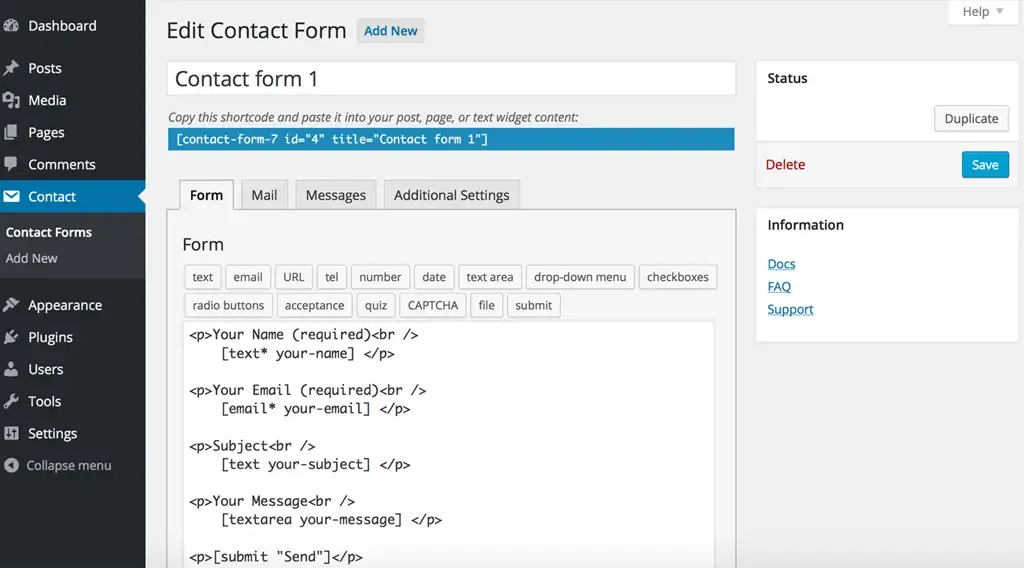
It operates through a text-based interface that requires users to work with HTML and shortcodes. This setup can be quite challenging for beginners, as it demands a certain level of technical knowledge to create and customize forms effectively. The learning curve can be steep, especially for those not familiar with coding. Customizing forms beyond basic functionality requires manual adjustments and a good understanding of HTML and CSS.

With Contact Form 7, users enjoy extensive customization options, but these require working directly with HTML and CSS. The plugin does not include built-in conditional logic, which means implementing advanced features often necessitates additional custom code or third-party add-ons. While there is a broad selection of third-party extensions available, these typically require manual installation and configuration.

It supports a range of third-party services through various add-ons, including popular tools like Mailchimp and Google reCAPTCHA. However, integrating these services often requires manual installation and setup of additional extensions, which can be time-consuming and complex.

Contact Form 7 relies on community-based support through forums, with official assistance being relatively limited. The documentation, while thorough, is often technical and assumes some level of coding knowledge, which might be a barrier for users who are not familiar with programming.

The plugin contact form 7 is entirely free, making it an attractive option for users seeking a no-cost solution. However, advanced features may require additional paid add-ons, which can add to the overall cost if specific functionalities are needed. It is best suited for users who need basic form capabilities and are comfortable with manual configurations.

WP Forms

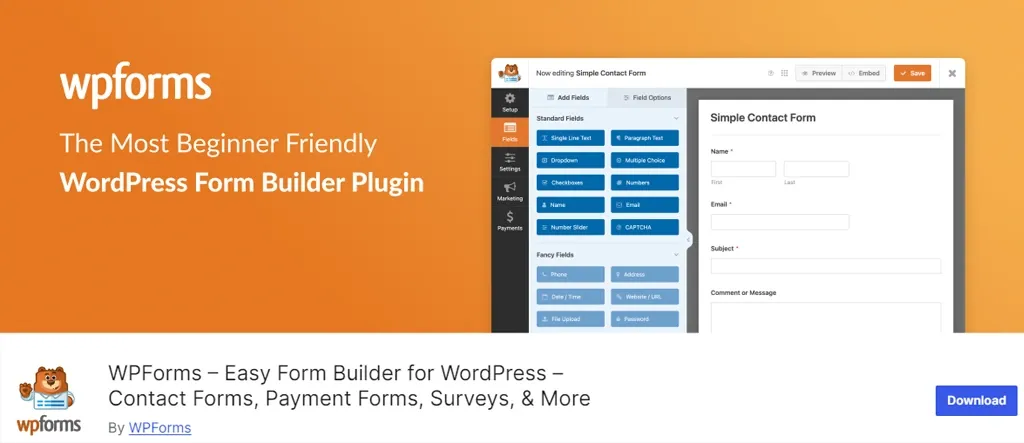
WPForms provides a more intuitive experience with its drag-and-drop builder. This user-friendly interface allows for real-time previews, making it easy for users of all skill levels to design and adjust forms without needing technical expertise. The drag-and-drop functionality simplifies the form creation process, making WPForms ideal for those who want to build forms quickly and efficiently.

It simplifies customization through its drag-and-drop interface and a library of pre-built templates. This plugin includes built-in conditional logic, allowing users to create dynamic forms that respond to user input. Additionally, WPForms comes with a variety of built-in add-ons, especially in its pro versions, covering functionalities such as payment processing, CRM integration, and email marketing, thereby enhancing flexibility and ease of use.

In contrast to Contact Form 7, WPForms offers seamless integration with major services such as PayPal, Stripe, and Mailchimp. The process of connecting these services is straightforward, thanks to its easy-to-configure options. Furthermore, WPForms’ pro versions include a comprehensive array of add-ons that enhance functionality and provide additional integration options, making it easier to extend the plugin’s capabilities.

WPForms offers a more robust support system, including premium options for live chat and email support available with its paid versions. The free version also benefits from community support. The documentation for WPForms is user-friendly, featuring detailed guides and tutorials that are accessible to users of all levels. Paid plans come with responsive support, ensuring that users receive timely help when needed.

What is the best contact form builder?

Contact Form 7 vs WPForms

Feature Contact Form 7 WPForms
Ease of Use Text-based interface; requires HTML/coding Drag-and-drop builder; user-friendly
Customization Extensive with HTML/CSS; no built-in logic Drag-and-drop; includes built-in conditional logic
Integration Supports via third-party add-ons; manual setup Seamless integrations (e.g., PayPal, Mailchimp)
Add-ons Many third-party add-ons; manual installation Comprehensive built-in add-ons; easy configuration
Support Community forums; limited official support Premium support with live chat; extensive documentation
Documentation Technical; requires coding knowledge User-friendly guides and tutorials
Pricing Free; some advanced features require paid add-ons Free version available; pro versions start at $39.50/year

Which Contact Form is Best for Your WordPress Site?

When deciding between Contact Form 7 and WPForms for your WordPress site, it’s essential to consider the specific needs of your business. Different types of websites may benefit from different features offered by these plugins. Here’s a breakdown based on various business sectors:

eCommerce Websites

eCommerce sites benefit from user-friendly contact forms that can handle customer inquiries effectively. WPForms offers features like conditional logic and payment integrations, making it easy for customers to get in touch or make purchases. Contact Form 7 requires more setup for similar functionalities.

We recommend: WPForms for eCommerce Websites

Portfolio and Creative Websites

Artists and freelancers who showcase their work may prefer a minimalist contact form. Contact Form 7 offers straightforward functionality that lets visitors easily reach out without overwhelming them with options.

We recommend: Contact Form 7 for eCommerce Websites

Service-Based Businesses

Service providers need forms that facilitate appointment bookings and inquiries. WPForms includes features for appointment scheduling and customizable fields, creating a seamless booking experience. While Contact Form 7 can be adapted for this purpose, it often requires additional technical work.

We recommend: WPForms for eCommerce Websites

Blog and Personal Sites

For bloggers and personal websites, simplicity is key. Contact Form 7 is lightweight and straightforward, making it a good choice for basic needs. However, WPForms provides a more polished experience that can enhance user engagement.

We recommend: Contact Form 7 for eCommerce Websites

Non-Profit Organizations

Non-profits often need to manage donations and volunteer sign-ups efficiently. WPForms supports donation collection and integrates easily with payment gateways, making it ideal for these needs. Contact Form 7 can be customized, but lacks built-in donation options.

We recommend: WPForms for eCommerce Websites

Corporate Websites

Corporate sites demand professional, branded contact forms. WPForms offers a user-friendly drag-and-drop builder that allows for quick customization, saving time for busy professionals. Contact Form 7 can be styled, but may not be as intuitive.

We recommend: WPForms for eCommerce Websites

Educational Institutions

Schools and universities often need simple forms for inquiries and feedback. Contact Form 7 is easy to implement and can be tailored to collect specific information from students and parents without unnecessary complexity.

We recommend: Contact Form 7 for eCommerce Websites

Local Businesses

Local businesses, such as restaurants and salons, often need basic contact forms for reservations or inquiries. Contact Form 7 is simple to set up and can be customized to fit specific needs without the complexity of advanced features.

We recommend: Contact Form 7 for eCommerce Websites

The Crux

While both Contact Form 7 and WPForms have their strengths, WPForms generally stands out for its advanced features and ease of use, making it suitable for a wide array of businesses. Contact Form 7 is an excellent choice for those seeking a simple, customizable solution, especially in sectors like education, creative portfolios, and local businesses.

By carefully assessing your specific requirements—whether it’s ease of use, integration capabilities, or support options—you can choose the solution that best aligns with your goals. Ultimately, investing in an effective contact form will streamline communication, boost lead generation, and reinforce your commitment to professionalism, paving the way for your online success.

Our team has successfully helped hundreds of business owners navigate this process. Contact us today to unlock our expertise that helps you attract leads and propel your business forward!

WordPress Maintenance vs. Managed Hosting – What’s Best for Your Site’s Growth?

A 1-second delay in page load time can lead to a 7% reduction in conversions and a 16% decrease in customer satisfaction. For online businesses, this translates into real financial losses and missed opportunities.

Effective site management isn’t just a technical necessity—it’s a critical driver of growth and user engagement that is majorly done in two ways: via Maintenance Services and Managed Hosting.

Both options offer distinct advantages and can significantly affect your site’s performance, security, and scalability. By exploring the benefits and challenges of each approach, we’ll provide you with the insights needed to make an informed choice that aligns with your business goals.

Let’s dive in!

Table of Contents

  • What is WordPress Maintenance?
  • What is Managed Hosting
  • Comparing the Two Approaches for Business Growth
  • Making Decisions for Your Business
  • Wrap Up

What is WordPress Maintenance?

WordPress maintenance is like giving your website a regular check-up to keep it in top shape. It involves tasks like applying updates, backing up your data, and monitoring security to ensure everything runs smoothly. For businesses, this kind of regular upkeep is essential—it helps prevent unexpected problems, boosts site performance, and keeps your site secure from emerging threats. Essentially, it’s about making sure your website stays functional, user-friendly, and protected, so you can focus on growing your business without worrying about technical glitches.

Typical Maintenance Tasks Include:

1. Updates:
  • Regular updates to the WordPress core software help patch security vulnerabilities and introduce new features. Ensuring these updates are applied promptly prevents compatibility issues and security breaches.
  • Keeping themes and plugins updated is essential for compatibility with the latest WordPress versions and for ensuring that any known vulnerabilities are patched.
2. Backups:
  • Scheduled backups of your website’s files and database ensure that you have recent copies available in case of data loss or site failure. Backups can be stored locally, on a remote server, or in cloud storage.
  • Periodically testing backups to ensure they are functional and complete is essential for quick recovery in the event of an issue.
3. Security Monitoring:
  • Regular scans for malware, vulnerabilities, and unauthorized changes help protect your site from attacks.
  • Implementing and managing a firewall helps prevent malicious traffic and potential security threats.
  • Enhancing login security through measures like two-factor authentication and monitoring login attempts to prevent unauthorized access.
4. Performance Optimization:
  • Regularly testing and optimizing site speed, including image optimization, caching, and minimizing code, to ensure fast load times.
  • Cleaning and optimizing the WordPress database to improve performance and reduce clutter.
5. Content Management:
  • Ensuring that content remains current and relevant, and making updates as needed.
  • Regularly checking and fixing broken links to maintain a smooth user experience and improve SEO.

What is Managed Hosting?

Managed hosting is like having a dedicated team of experts take care of all the technical details of your website’s server and operations. Instead of you needing to dive into the complexities of server management and maintenance, the hosting provider handles it all. They ensure everything runs smoothly, from setting up the server to optimizing performance and securing your site.

For businesses, this means less stress and more focus on what you do best. You can rest easy knowing that skilled professionals are managing the nuts and bolts of your website’s infrastructure, leaving you with peace of mind and more time to grow your business.

What Managed Hosting Includes:

  • Server Management: The hosting provider takes care of the entire server environment, including hardware and software setup, configuration, and maintenance. This means you don’t have to worry about server issues, performance tuning, or hardware failures—everything is managed on your behalf.
  • Performance Optimization: Managed hosting includes performance enhancements to ensure your website runs smoothly. This often involves optimizing server settings, caching solutions, and load balancing to improve site speed and handle traffic spikes efficiently.
  • Security: Security is a top priority with managed hosting. Providers implement robust security measures, including firewalls, intrusion detection systems, and regular security updates. They also monitor for potential threats and respond to security incidents to keep your site safe.
  • Backups: Regular backups are a standard feature of managed hosting. The provider schedules automatic backups of your website’s files and database, ensuring you have up-to-date copies available in case of data loss or site failure. Backup solutions are often tested to ensure quick recovery.

Comparing the Two Approaches for Business Growth

When choosing between WordPress maintenance services and managed hosting, understanding how each approach impacts your business growth is crucial.

Comparing Factor WordPress Maintenance Services Managed Hosting
Initial Investment Generally lower, as you choose specific services. Typically higher due to comprehensive all-in-one packages.
Long-Term Value Variable; potential for additional costs and service upgrades. Generally high, with predictable costs and extensive support.
Time Commitment Requires more time from your team for management. Minimal time commitment; provider handles most tasks.
Effort and Expertise Requires technical expertise; may need in-house or external support. Minimal technical expertise needed; managed by the provider.
Scalability May involve separate arrangements for scaling. Typically includes built-in scalability options.
Performance Speed Performance optimization varies; may need additional services. Often includes advanced performance optimization features.
Security Measures Depends on chosen services; may vary in quality. Comprehensive security features included by default.
Backup Solutions Backup solutions vary; may need additional management. Regular, automated backups with robust recovery options.

Here’s a detailed comparison to help you make an informed decision:

Initial Investment:
  • Managed Hosting: Generally higher upfront cost due to its all-inclusive nature, covering server management, performance, and security. This premium provides convenience and expert support.
  • WordPress Maintenance Services: Lower initial cost, especially with a la carte options. Costs depend on selected services like updates, backups, and security, with potential additional expenses for in-house management.
Long-Term Value:
  • Managed Hosting: Offers long-term value with a worry-free experience and predictable costs. All-inclusive services reduce unexpected expenses from server issues or security breaches.
  • WordPress Maintenance Services: Value varies based on service quality. Flexibility to choose services can save money, but extra costs may arise from issues or upgrades.
Time and Effort:
  • Managed Hosting: Minimizes team time investment. The provider handles technical aspects, allowing focus on core business activities.
  • WordPress Maintenance Services: Requires more time and effort from your team, especially for in-house tasks like updates and security checks.
Effort and Expertise:
  • Managed Hosting: Minimal technical expertise needed from your end. The provider manages server operations and security.
  • WordPress Maintenance Services: Requires technical skills from your team or external experts to handle updates, troubleshooting, and security.
Growth and Scalability:
  • Managed Hosting: Offers robust scalability with easy upgrades to resources like storage and bandwidth, often with minimal disruption.
  • WordPress Maintenance Services: Scaling may involve managing or coordinating upgrades separately, potentially causing additional work and disruptions.
Performance and Speed:
  • Managed Hosting: Includes advanced performance optimization like caching and load balancing, ensuring fast load times.
  • WordPress Maintenance Services: Performance optimization varies and might require separate management or additional hosting provider support.
Security and Backup:
  • Managed Hosting: Includes comprehensive security features like firewalls and malware scanning, with regular updates and proactive management.
  • WordPress Maintenance Services: Security quality depends on selected services. You may need multiple solutions to match the level of protection offered by managed hosting.
Backup Solutions:
  • Managed Hosting: Provides automated, regular backups with off-site or cloud storage and quick recovery options.
  • WordPress Maintenance Services: Backups might be part of the package but can lack the integration and reliability of managed hosting solutions.

Making the Decision for Your Business

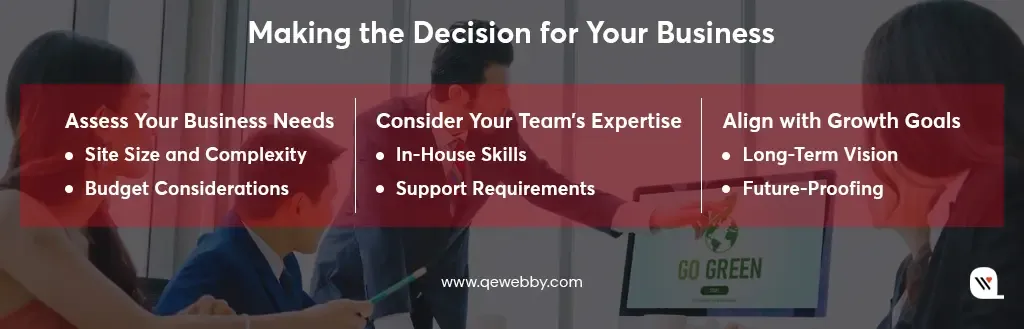
When deciding between WordPress maintenance services and managed hosting, it’s crucial to align your choice with your specific business needs, team capabilities, and long-term goals. Here’s a detailed guide to help you make the best decision:

Assess Your Business Needs

Site Size and Complexity:
  • Small, Simple Sites: For low-traffic, straightforward sites, WordPress maintenance services offer a cost-effective way to handle updates, backups, and security without excessive features.
  • Large, Complex Sites: For high-traffic sites with extensive plugins and custom functions, managed hosting provides robust infrastructure and performance optimization, ensuring reliability and responsiveness.
Budget Considerations:
  • Cost Efficiency: WordPress maintenance services typically have a lower initial cost but can add up with multiple services or unexpected issues. Managed hosting has a higher upfront cost but offers comprehensive support and potentially better long-term value.
  • Budget Flexibility: Managed hosting usually provides predictable costs, aiding financial planning. WordPress maintenance may involve variable costs, so ensure your budget can handle potential fluctuations.

Consider Your Team’s Expertise

In-House Skills:
  • Technical Capabilities: If your team has strong technical skills and can handle maintenance tasks, WordPress maintenance services might be suitable. This approach allows you to manage site operations internally.
  • Capacity and Bandwidth: If your team is stretched thin, managed hosting can offload technical responsibilities, allowing your team to focus on core activities.
Support Requirements:
  • Level of Support Needed: For 24/7 support and rapid issue resolution, managed hosting is ideal. WordPress maintenance services vary in support availability, so ensure it meets your operational needs.
  • Risk of Disruptions: Managed hosting typically offers higher reliability and minimizes downtime. With WordPress maintenance, ensure you have reliable support and a plan to address potential disruptions.

Align with Growth Goals

Long-Term Vision:
  • Growth Compatibility: Managed hosting supports scalability and can handle increased traffic and complexity, making it suitable for significant expansion. Ensure the solution aligns with your long-term growth and performance goals.
  • Performance Expectations: Managed hosting often includes advanced performance tools, maintaining high performance as your site grows. Verify that the solution meets your evolving performance needs.
Future-Proofing:
  • Technological Advancements: Managed hosting providers stay updated with the latest technologies, offering features to keep your site current. WordPress maintenance may require you to actively seek new tools or upgrades.
  • Adaptability: Managed hosting offers greater flexibility in scaling resources and integrating new technologies. WordPress maintenance might need manual adjustments to accommodate growth and new features.

Wrap-Up

Deciding between WordPress maintenance services and managed hosting comes down to what works best for your business. If you’re running a smaller site and prefer a more hands-on approach, WordPress maintenance could be a great fit. It’s flexible and cost-effective, though it does require some technical know-how and time. For those with bigger sites or plans for significant growth, managed hosting offers a worry-free, all-in-one solution that can handle your needs as they evolve.

Want to see how we can help your website thrive? Reach out to us today! We’re excited to help you achieve your goals and ensure your site performs at its best. Let’s make your website work wonders for your business!

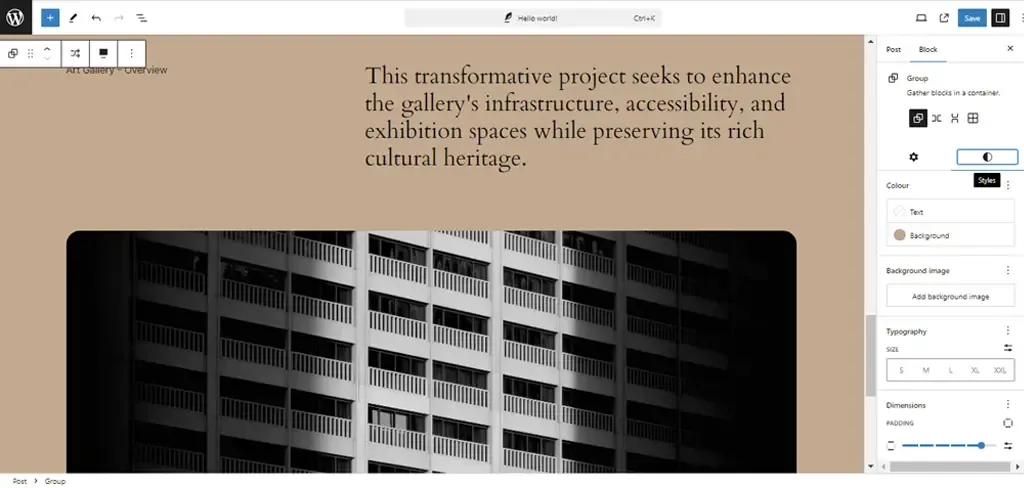
How WordPress 6.6 Drives Engagement To Your Website with Advanced Features

WordPress 6.6 is set for release on July 16, 2024. This update introduces new features like section styles and overrides in synced patterns, along with enhancements to the Font Library and Interactivity API. These improvements streamline site editing, enhance design flexibility, and boost overall performance for business websites.

WordPress 6.6 brings significant benefits to website owners by enhancing site editing capabilities, improving design flexibility with new features like section styles and synced pattern overrides, and optimizing overall performance through updates to the Font Library and Interactivity API. These enhancements translate into streamlined site management, increased customization options, and improved user engagement, ultimately empowering website owners to create more dynamic and efficient online experiences for their audience.

Let’s discover how these updates can empower your WordPress website with deeper insights.

Enhanced Site Editing Capabilities
  • Advanced-Data Views in the Site Editor
  • Zoomed Out Composition with Patterns
  • Viewing Inherited Style Values
Unified Editor Experiences
  • Streamlined Publish Flow
Design Tools Empowerment
  • Expanded Style Variation Options
  • Synced Blocks and Pattern Attributes
  • Enhanced Grid Layout and Font Library
Performance and API Enhancements
  • Performance Improvements
  • API Iterations: Interactivity, Block Hooks, and HTML
Infrastructure and Compatibility Updates
  • PHP Version Support Update
  • Rollback Feature for Auto-Updates
Upgrade to WordPress 6.6 Today
  • For Agencies
  • For Business Leaders
Take the Next Step

Enhanced Site Editing Capabilities

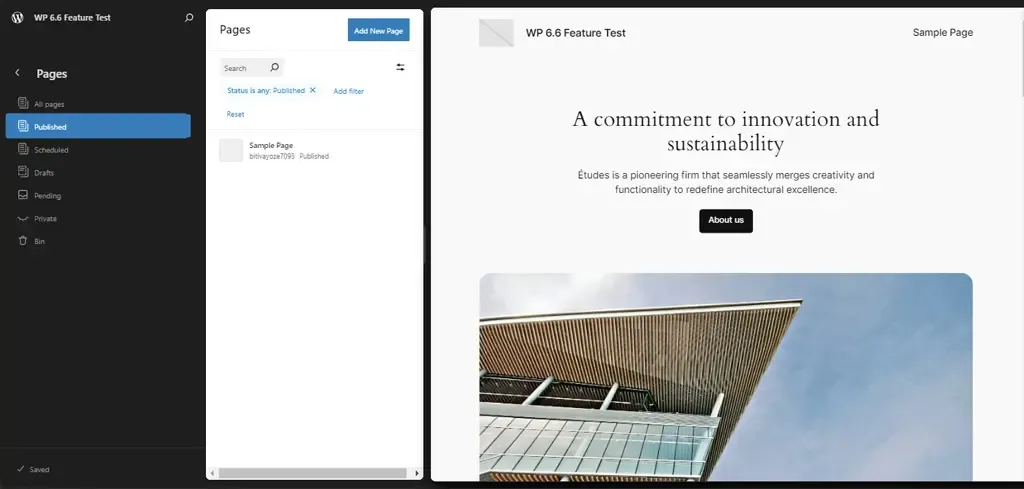
Advanced-Data Views in the Site Editor

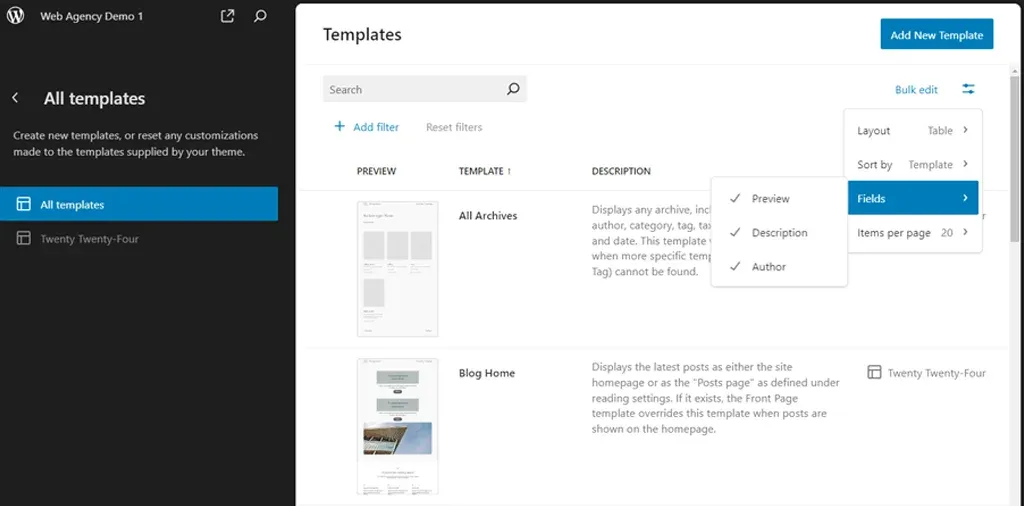
WordPress 6.6 introduces advanced data views in the Site Editor, enhancing how site administrators manage templates, template parts, and pages. Key updates include:

  • Improved Management Pages: Options for managing all templates, template parts, and pages are now consolidated into easily accessible sections.
  • Side-by-Side Layout: Users can view all pages alongside a larger preview of the selected page, reducing the steps needed to access critical information.

These enhancements streamline site management, offering quicker navigation and preview capabilities crucial for efficient content updates and template adjustments.

Zoomed Out Composition with Patterns

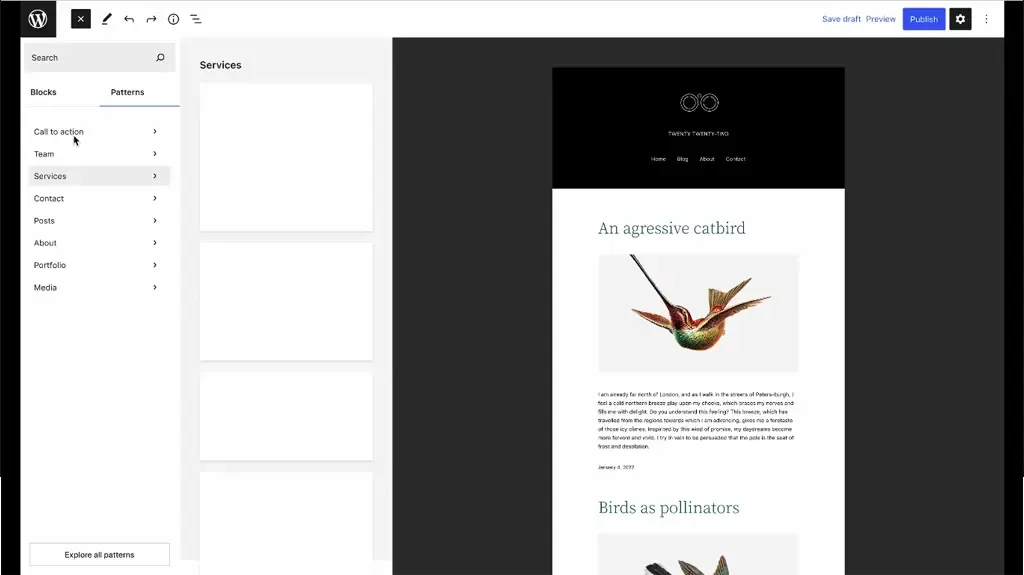
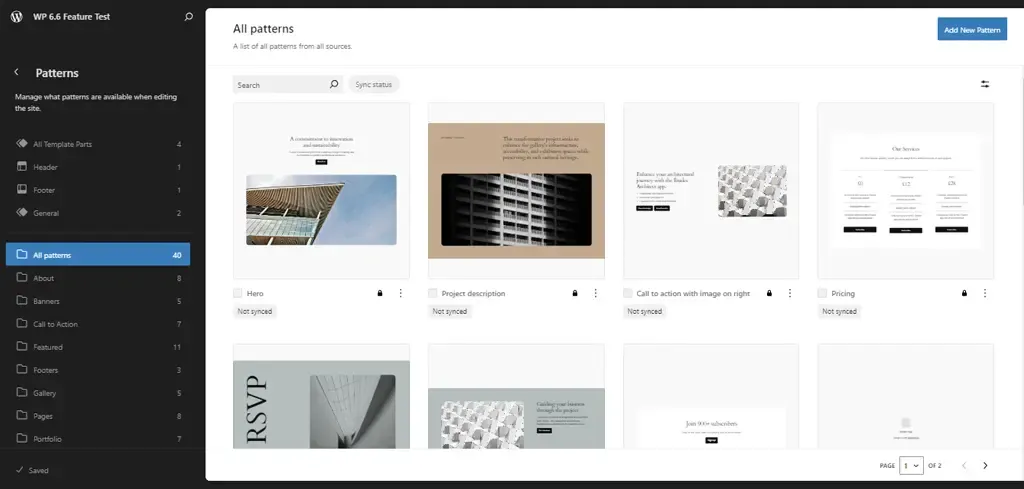
A standout feature of WordPress 6.6 is its zoomed-out composition capability with patterns, revolutionizing how users interact with site content. This feature allows for a high-level overview of site structure through patterns, facilitating the manipulation of patterns within templates effortlessly.

Users can now explore alternative layouts and adjust patterns more efficiently, thanks to UX enhancements that simplify pattern management. This not only enhances design flexibility but also significantly improves the efficiency of site-building processes, empowering users to create and modify complex site layouts with ease.

Viewing Inherited Style Values

WordPress 6.6 enhances the understanding and management of site-wide design consistency with improved handling of inherited style values. Key improvements include:

  • Clear Display of Inherited Styles: Users can now see globally inherited block styles directly within the editor interface, ensuring transparency in how styles propagate across different blocks and pages.
  • Elimination of Confusion: The exact inherited style values are displayed locally when applicable, making it easier to identify and modify design elements consistently throughout the website.

This clarity promotes better design decisions and enhances the overall visual coherence of WordPress-powered websites.

Unified Editor Experiences

Streamlined Publish Flow

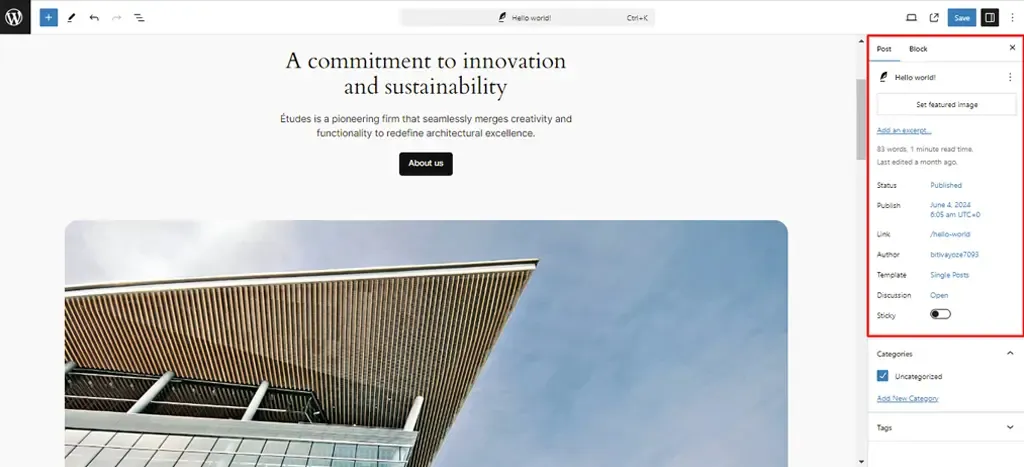
WordPress 6.6 introduces a streamlined publishing flow, unifying the publishing process across both post and site editors. This update ensures a coherent experience when publishing content, whether managing individual posts or updating entire site sections.

A key enhancement is the introduction of a unified “summary” inspector panel, consolidating essential controls and settings into a single, intuitive interface. This panel offers a comprehensive overview of content status, revisions, and publishing options, simplifying content management tasks for users.

By streamlining the publishing flow, WordPress 6.6 enhances user efficiency and ensures a seamless editing experience from creation to publication.

Design Tools Empowerment

Expanded Style Variation Options

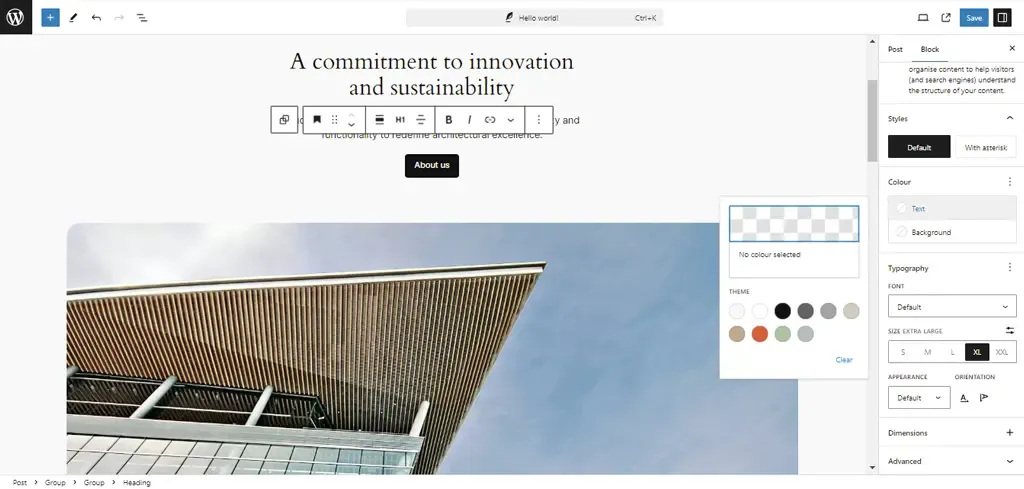
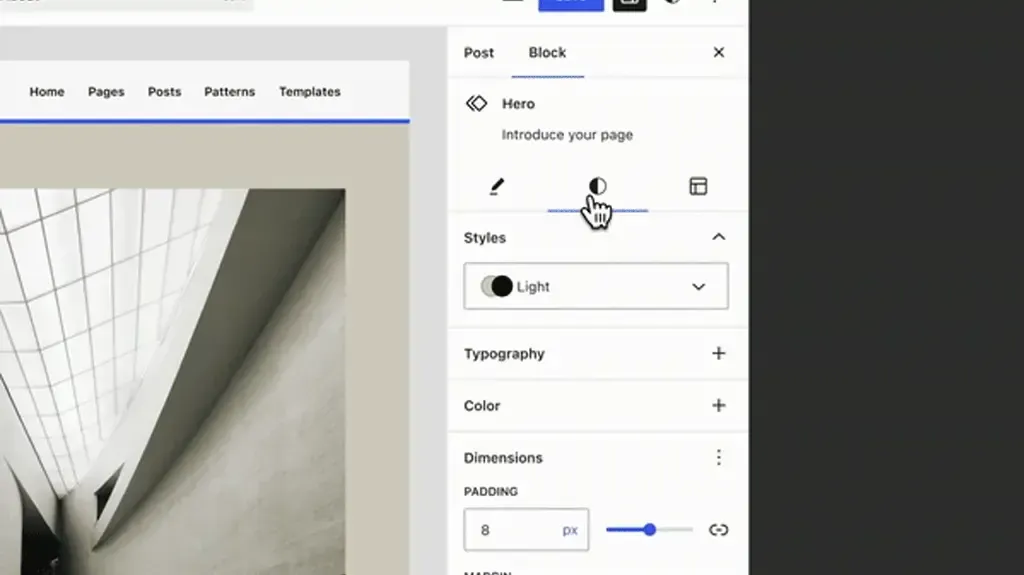
WordPress 6.6 introduces expanded style variation options, allowing users to mix and match typography and color palettes across different style variations effortlessly. This update enables increased design customization without requiring additional theme adjustments.

By leveraging existing style presets and the Font Library, users can create unique visual identities for their websites while maintaining consistency across various sections. This enhancement provides designers and developers with greater flexibility to tailor site aesthetics according to specific branding needs and user preferences, ultimately enhancing the overall visual appeal and user experience.

Synced Blocks and Pattern Attributes

With WordPress 6.6, maintaining design consistency across multiple instances of synced patterns is made easier than ever. This update ensures that layout and styling attributes remain synchronized across different content areas, while allowing for customizable content within each instance.

Users can now deploy patterns across various pages or posts without compromising design integrity, facilitating efficient content management and design updates.

By offering flexibility alongside uniformity, this feature empowers users to deliver cohesive yet personalized web experiences, aligning with diverse content requirements and user expectations.

Enhanced Grid Layout and Font Library

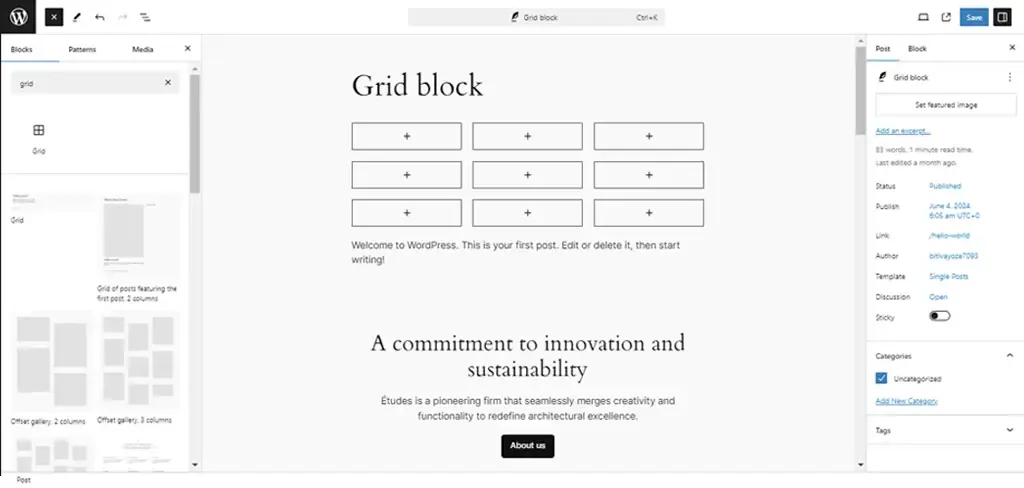
WordPress 6.6 enhances design flexibility with the introduction of grid layout options within the Group block, providing users with advanced layout control and customization capabilities. This update enables seamless arrangement of content elements in grid format, offering improved visual organization and structure for website layouts.

Additionally, refinements to the Font Library based on user feedback enhance typography choices, allowing for richer text styling options throughout the site. These enhancements collectively contribute to enhanced site aesthetics, offering users more creative freedom and usability in designing captivating and functional websites.

Performance and API Enhancements

Performance Improvements

WordPress 6.6 brings significant optimizations aimed at improving site performance and user experience. These optimizations include faster template loading times and overall enhancements to site responsiveness.

By improving caching mechanisms and optimizing autoload options, WordPress 6.6 ensures that websites load quicker and operate more efficiently, leading to enhanced user engagement and satisfaction. These performance improvements not only benefit site visitors by reducing wait times but also support administrators in managing content more seamlessly, thereby boosting overall site performance metrics.

API Iterations: Interactivity, Block Hooks, and HTML

In WordPress 6.6, several APIs receive iterative enhancements to empower developers with advanced customization capabilities and improved tools. Key updates include:

Interactivity API Enhancements:
  • Better error handling
  • Improved debugging tools
  • Increased code quality These enhancements provide developers with more robust options for adding interactive features to websites, enhancing user engagement and interaction possibilities.
Block Hooks API Refinements:
  • Dynamic insertion of blocks into themes
  • Enhanced content flexibility and customization options By refining the Block Hooks API, WordPress enhances its extensibility, enabling developers to create more versatile and feature-rich websites tailored to specific client needs.
HTML API Improvements:
  • Enhanced encoder/decoder functionalities
  • Improved compatibility with web standards These advancements streamline the creation and modification of HTML content within WordPress, ensuring consistency and reliability across different browsers and devices.

By enhancing these foundational APIs, WordPress 6.6 equips developers with powerful tools to build robust and scalable web solutions, driving innovation and efficiency in web development practices.

Infrastructure and Compatibility Updates

PHP Version Support Update

WordPress 6.6 marks a strategic shift by dropping support for older PHP versions in favor of enhancing site security and performance. With this update, WordPress recommends using PHP versions that ensure optimal performance and compatibility with modern technologies. By encouraging users to upgrade to newer PHP versions (specifically PHP 7.2.24 or higher), WordPress 6.6 aligns with industry standards and best practices for web security and performance. This proactive approach not only strengthens site defenses against potential vulnerabilities but also ensures seamless integration with the latest WordPress features and functionalities, offering users enhanced stability and efficiency in their website operations.

Rollback Feature for Auto-Updates

A standout feature introduced in WordPress 6.6 is the rollback capability during automatic plugin updates. This feature mitigates risks associated with plugin updates by allowing administrators to revert to the previous version in case of compatibility issues or unexpected errors. By enabling automatic rollbacks, WordPress 6.6 minimizes downtime and enhances reliability during plugin updates, ensuring uninterrupted site performance and user experience. This capability empowers administrators with greater control over plugin management, offering peace of mind and confidence in maintaining a stable and secure website environment.

Maximize the Benefits of WordPress 6.6

Upgrade Your Site with Experts

Connect Now!

Upgrade to WordPress 6.6 Today!

WordPress 6.6 introduces a host of powerful features and enhancements designed to elevate your website’s performance, security, and user experience. Whether you’re an agency looking to deliver cutting-edge solutions or a business leader aiming to enhance your online presence, now is the time to upgrade to WordPress 6.6.

For Agencies

Embrace the latest in design flexibility with expanded style variations and enhanced grid layouts. WordPress 6.6 empowers you to create visually stunning websites tailored to your client’s unique branding and functional requirements. Take advantage of streamlined site editing capabilities and advanced APIs to streamline development workflows and deliver exceptional results faster.

For Business Leaders

Ensure your website operates at peak performance with optimized site loading times and improved caching mechanisms. Upgrade to WordPress 6.6 for enhanced security features and compatibility with modern PHP versions, safeguarding your online presence against potential threats. Experience a seamless publishing process and intuitive content management with unified editor experiences and rollback capabilities during plugin updates.

Take the Next Step

Explore the benefits of WordPress 6.6 and unlock new possibilities for your website. Upgrade today to harness the full potential of these advanced features and stay ahead in the digital landscape. Contact our team to learn more about upgrading to WordPress 6.6 and discover how we can support your journey towards a more secure, efficient, and engaging web presence.

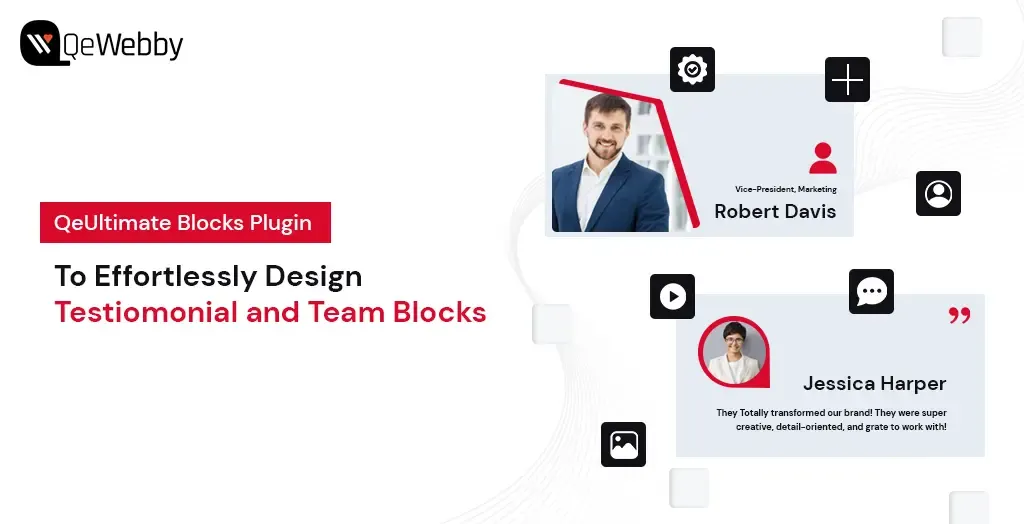
Effortlessly Design Testimonial and Team Blocks with QeUltimate Blocks Plugin

The QeUltimate Blocks Plugin for WordPress is a game-changer for anyone looking to create stunning, functional web pages with ease. Designed to enhance the Gutenberg editor, this plugin offers a variety of customizable blocks for testimonial and team member display that can transform your website without the need for complex coding or expensive design services.

Whether you’re a blogger, a business owner, or a creative professional, QeUltimate Blocks empowers you to craft pages that are not only aesthetically pleasing but also incredibly user-friendly. With an array of options to customize fonts, colors, backgrounds, and more, you have full control over every design element. Plus, the intuitive drag-and-drop interface means you can build and arrange your pages in no time, focusing on what you do best—creating outstanding content.

But that’s not all. QeUltimate Blocks enhances the visitor experience with features that promote easy navigation and engagement, such as interactive buttons and forms. Fully compatible with WordPress, this plugin seamlessly integrates with your existing setup, allowing you to easily expand your site’s capabilities.

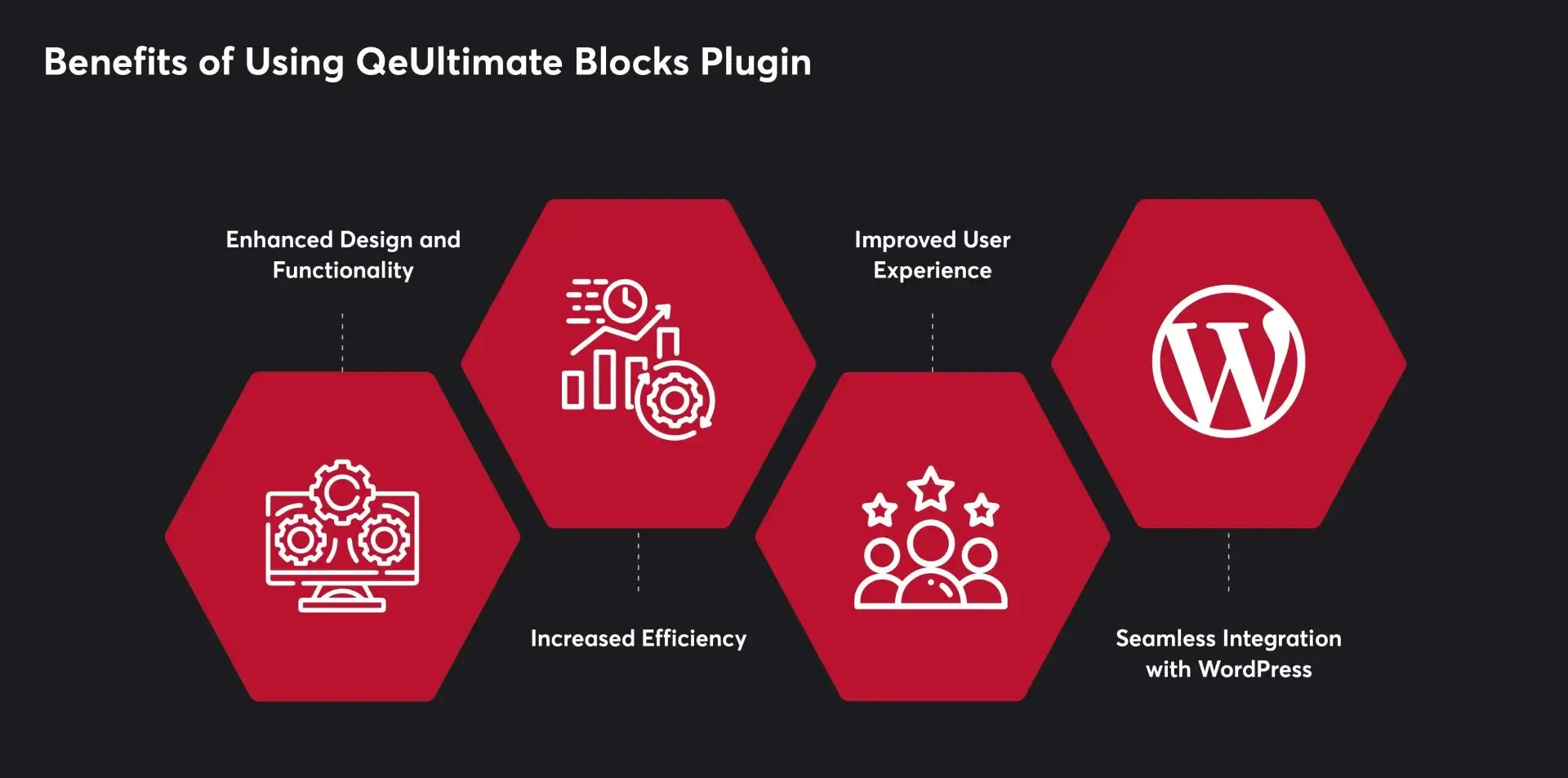
Benefits of Using QeUltimate Blocks Plugin

The QeUltimate Blocks Plugin significantly improves website design and functionality. With a variety of customizable blocks, users can create visually appealing and user-friendly pages. The plugin offers easy customization of fonts, colors, backgrounds, and other design elements, giving users complete control over their website’s appearance.

QeUltimate Blocks streamlines the page creation process with its intuitive drag-and-drop interface. Users can quickly add and arrange blocks without coding or technical skills, saving time and effort. This efficiency allows users to focus more on creating quality content for their website.

The plugin enhances the user experience by making website navigation and readability straightforward. Visitors can easily find the information they need, and interactive elements such as buttons and forms help increase user engagement and drive conversions.

QeUltimate Blocks is fully compatible with WordPress, making it easy to integrate into existing websites. Users can install the plugin directly from the WordPress repository and start building pages immediately. Additionally, the plugin works seamlessly with other WordPress plugins, enabling users to add further functionality to your websites.

3 Easy Steps to Add Testimonial and Team Blocks on WordPress Pages

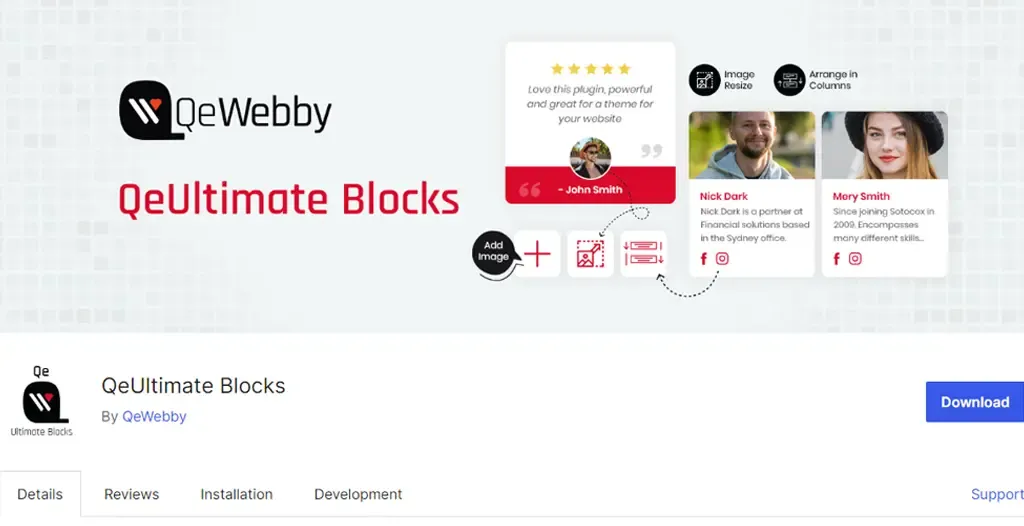
Step 1: Install and Activate QeUltimate Blocks Plugin

Get QeUltimate Blocks Plugin for Free!

Craft Stunning Web Pages –

Free Download

Whether you want to improve your site’s design, enhance SEO, or add interactive elements, plugins provide a simple solution. One such powerful plugin is the QeUltimate Blocks Plugin, designed to help you effortlessly create stunning and functional pages. Here’s a detailed guide on how to install and activate the QeUltimate Blocks Plugin.

Log in to Your WordPress Dashboard: Open your web browser and navigate to your WordPress admin panel by adding /wp-admin to your site’s URL (e.g., www.yoursite.com/wp-admin). Enter your username and password to log in.

Go to Plugins: Once logged in, look at the menu on the left-hand side of the dashboard. Find and click on “Plugins” to open the Plugins management page.

Add New Plugin: At the top of the Plugins page, you will see a button labeled “Add New.” Click on this button to navigate to the Add Plugins page where you can search for and install new plugins.

Install the Plugin: Once you find the QeUltimate Blocks Plugin in the search results, click the “Install Now” button next to it. The installation process will begin, and the button will display a progress indicator.

Activate the Plugin: After the plugin has been installed, the “Install Now” button will change to “Activate.” Click on the “Activate” button to enable the plugin on your WordPress site.

Confirmation: After activation, you will be redirected back to the Plugins page, and a message at the top will confirm that the QeUltimate Blocks Plugin has been successfully activated.

 Step 2: Explore and Utilize QeUltimate Blocks Features

Now that you have installed and activated the QeUltimate Blocks Plugin, it’s time to explore its powerful features and see how you can utilize them to create stunning and functional web pages. QeUltimate Blocks provides a diverse set of blocks designed to meet various needs, including content structuring, interactivity, and visual enhancement. Here are some of the key blocks you can use:

Key Block: Team Members

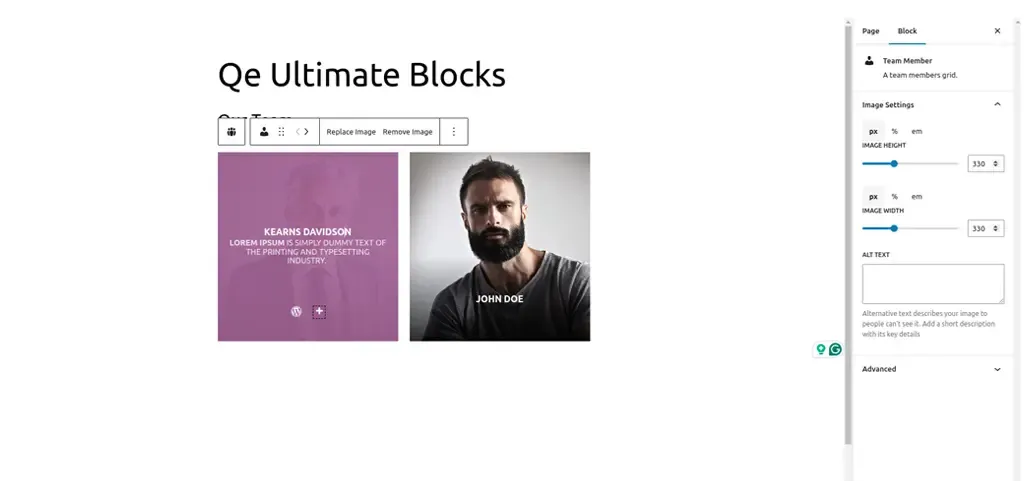
The “Team Members” block is a powerful feature of the QeUltimate Blocks Plugin that enables you to create an attractive section dedicated to showcasing your team. This block is perfect for highlighting the individuals behind your business, project, or organization, adding a personal touch to your website. The basic features include:

  • Go to the Post/Page Editor: From your WordPress dashboard, navigate to Posts or Pages and create a new post/page or edit an existing one.
  • Open the Block Inserter: In the Gutenberg editor, click on the “+” button to open the Block Inserter menu.
  • Find the Team Members Block: Scroll through the QeUltimate Blocks section or use the search bar to locate the “Team Members” block.
  • Add the Block: Click on the “Team Members” block to add it to your post or page.
  • Customize the Block: Once added, you can customize the block using the settings panel on the right-hand side of the editor. Here’s how:
    • Add Team Members: Start by adding individual team members. For each member, you can input their name, position, and a brief bio.
    • Profile Pictures: Upload profile pictures for each team member to add a personal touch.
    • Social Media Links: Include links to social media profiles or personal websites. You can add icons for platforms like LinkedIn, Twitter, and Facebook.
    • Layout Options: Choose from different layout styles, such as grid or list, to best present your team members.
    • Styling Options: Customize colors, fonts, and spacing to ensure the section aligns with your website’s design.
    • Arrange Team Members: Drag and drop team members to arrange them in the desired order. This helps highlight key individuals or create a logical flow.
  • Preview Your Page: Click the “Preview” button to see how the team section looks. Check for any adjustments needed to ensure it is visually appealing and informative.
  • Publish Your Page: Once you are satisfied with the design and layout, click the “Publish” button to make your page live.

Key Block: Testimonials

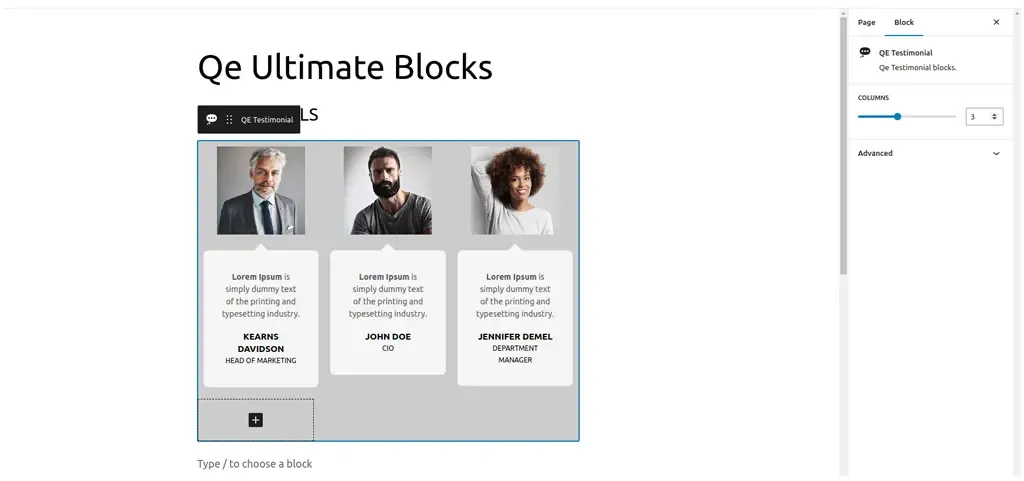
The “Testimonials” block is an essential feature for showcasing positive feedback from your customers. Testimonials serve as social proof, helping to establish trust and encouraging potential customers to engage with your business. The QeUltimate Blocks Plugin makes it easy to create and customize testimonial sections that stand out. The basic features include:

  • Customizable Layouts: Choose from various layout options, including grid, slider, and list formats.
  • Profile Information: Display the name, position, company, and photo of each testimonial provider.
  • Styling Options: Customize colors, fonts, backgrounds, and borders to match your website’s design.
  • Responsive Design: Ensure testimonials look great on all devices, from desktops to mobile phones.

Here is a step-wise guide to implement:

  • Go to the Post/Page Editor: From your WordPress dashboard, navigate to Posts or Pages and either create a new post/page or edit an existing one.
  • Open the Block Inserter: In the Gutenberg editor, click on the “+” button to open the Block Inserter menu.
  • Find the Testimonials Block: Scroll through the QeUltimate Blocks section or use the search bar to locate the “Testimonials” block.
  • Add the Block: Click on the “Testimonials” block to add it to your post or page.
  • Customize the Block: Once added, you can customize the block using the settings panel on the right-hand side of the editor. Here’s how:
    • Add Testimonials: Start by adding individual testimonials. For each testimonial, input the customer’s name, position, company, and their feedback.
    • Profile Pictures: Upload a photo of the customer to add authenticity and a personal touch.
    • Layout Options: Choose the layout style that best fits your design—grid for a clean, structured look, slider for a dynamic presentation or list for a straightforward approach.
    • Styling Options: Adjust colors, fonts, and backgrounds to ensure the testimonial section aligns with your website’s overall design. You can also add borders and shadow effects to enhance the visual appeal.
    • Display Options: Customize how many testimonials to display at a time and whether to include navigation arrows or dots if using a slider layout.
    • Arrange Testimonials: Drag and drop testimonials to rearrange their order as needed. Highlight the most impactful testimonials at the top for maximum effect.
  • Preview Your Page: Click the “Preview” button to see how the testimonial section looks on your site. Ensure it is visually appealing and the text is easy to read.
  • Publish Your Page: Once you are satisfied with the design and layout, click the “Publish” button to make your page live.

Step 3 Design and Publish Your Stunning Page

You are now ready to design and publish your stunning WordPress page. This final step involves putting together all the elements you’ve customized, arranging them for the best visual impact, and ensuring your page is ready to captivate your audience. Here’s a detailed guide on how to design and publish your beautiful, functional page.

Here is a step-wise guide to implement:

  • Outline Your Content: Before you start designing, outline the key sections and elements you want on your page. This could include a header, hero image, team section, testimonials, a call-to-action, and footer.
  • Sketch a Layout: Sketch a rough layout of your page on paper or using a digital tool. This helps you visualize the structure and flow, making it easier to arrange blocks later.
  • Go to the Post/Page Editor: From your WordPress dashboard, navigate to Posts or Pages and create a new post/page or edit an existing one.
  • Add a Title: Start by adding a compelling title that clearly conveys the purpose of your page.
  • Add and Arrange Blocks: Using the “+” button, add the blocks you’ve outlined in your plan. Arrange them in the order that follows your sketched layout. Here are some key sections you might include:
    • Hero Section: Use an Image or Cover block to create a visually striking hero section. Add a headline and a subheadline that grabs attention.
    • Team Members: Use the Team Members block to introduce your team. Customize it with profile pictures, names, and bios.
    • Testimonials: Add a Testimonials block to showcase positive feedback. Customize the layout and design for maximum impact.
    • Call to Action: Use the Call to Action block to encourage visitors to take a specific action, like signing up for a newsletter or contacting you.
    • Customize Each Block: Adjust the settings for each block to match your design preferences. This includes changing colors, fonts, spacing, and adding background images where needed.
  • Add Media: Enhance your page with high-quality images, videos, and graphics. Use the Image Slider block for interactive galleries or the Video block to embed engaging video content.
  • Use Advanced Columns: For a more sophisticated layout, use the Advanced Columns block to create multi-column sections. This can help organize content and improve readability.
  • Ensure Consistency: Maintain a consistent design throughout your page. Use the same fonts, colors, and styles to create a cohesive look.
  • Preview Your Page: Click the “Preview” button to see how your page looks on different devices. Check for any alignment issues, broken links, or design inconsistencies.
  • Optimize for SEO: Use an SEO plugin to optimize your page title, meta description, and content. This helps improve your page’s visibility in search engine results.
  • Test Functionality: Ensure all interactive elements, like buttons and forms, work correctly. Test any links to make sure they direct to the intended pages.
  • Save Draft: Before publishing, save your page as a draft. This ensures you don’t lose any work and can make final adjustments.
  • Publish: Once you’re satisfied with the design and functionality, click the “Publish” button to make your page live. Confirm any prompts to finalize the publication.
  • Promote Your Page: Share your newly published page on social media, in newsletters, and through other marketing channels to drive traffic.

End Note

The QeUltimate Blocks Plugin offers a range of customizable blocks that cater to various needs, from showcasing team members and displaying testimonials to creating advanced layouts and interactive elements. These features enable you to build professional, user-friendly pages without needing extensive coding skills. Now that you have the knowledge and tools to craft stunning WordPress pages, it’s time to unleash your creativity and make your website stand out. Happy designing!

QeUltimate Blocks Plugin!

Enhance your website’s design and functionality effortlessly with the

Free Download

7 Proven Strategies to Skyrocket Your WooCommerce Sales

WooCommerce powers over 5 Million online stores worldwide! It is a robust platform for businesses aiming to capitalize on online sales opportunities. However, merely having an online presence is no longer sufficient to guarantee success. And especially to thrive in today’s competitive market, businesses must harness the power of technology-driven strategies to optimize their WooCommerce stores and maximize sales conversions.
Check out these 7 strategies that will elevate your WooCommerce sales game!

1. Optimize Your Product Pages

Optimize Your Product Pages

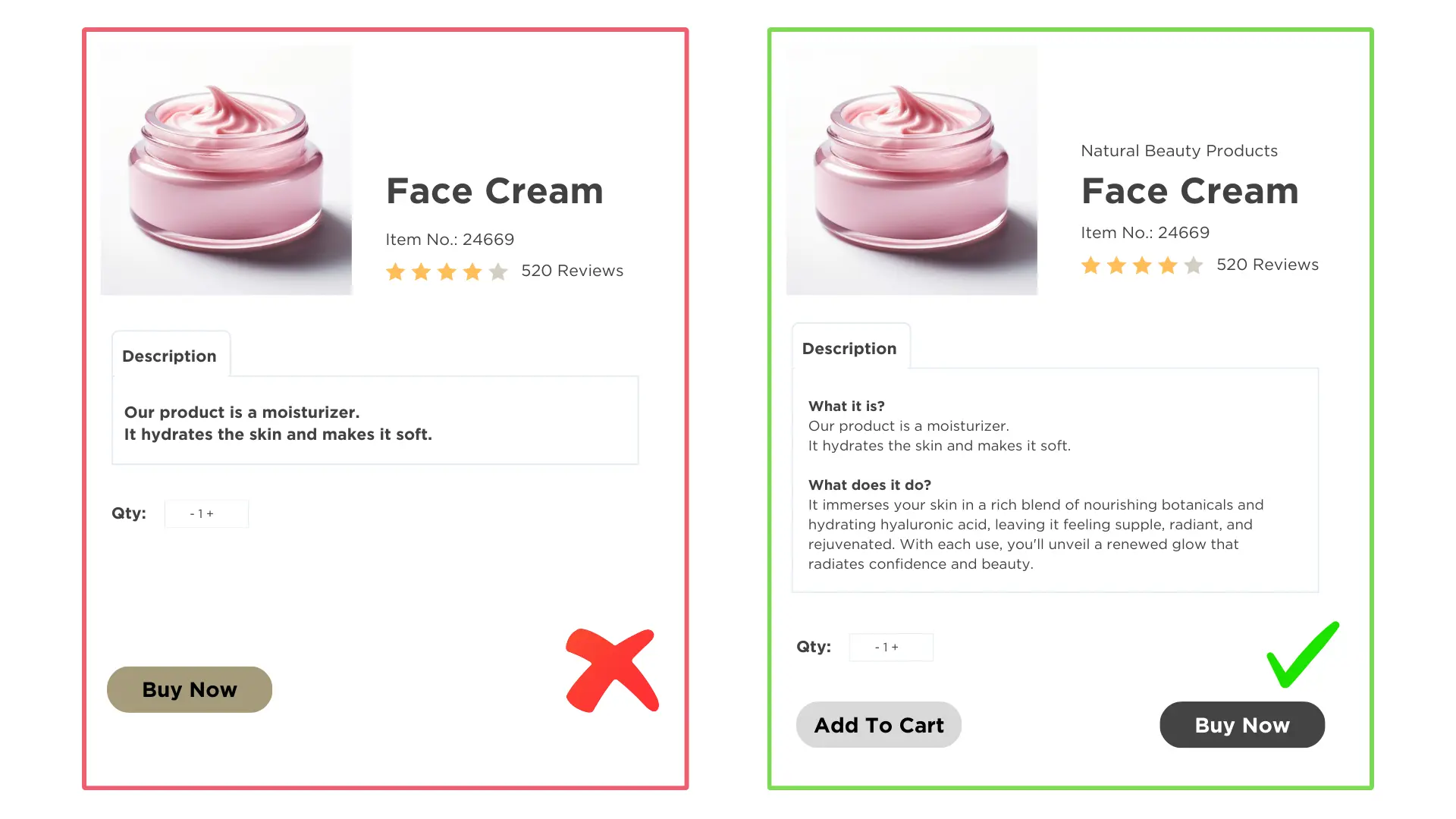
Your product pages are the digital storefront of your e-commerce business. They serve as the gateway to converting visitors into paying customers. Here’s how to fine-tune your product pages for maximum impact:

  • Craft product descriptions that not only inform but also inspire. Use vivid language to highlight the benefits and unique features of your products. Complement your descriptions with high-quality images that showcase your products from different angles, providing a clear and enticing visual representation.
  • Ensure your product pages are user-friendly and intuitive. Simplify navigation with clear and prominent CTAs, guiding visitors seamlessly towards making a purchase. Optimize your pages for mobile devices to accommodate the growing number of mobile shoppers, offering a smooth browsing experience across all devices.
  • Instill confidence in your potential customers by showcasing social proof. Incorporate customer reviews, testimonials, and ratings to demonstrate the quality and reliability of your products. Transparently communicate your shipping, return, and refund policies to reassure customers and foster trust.
  • Increase the visibility of your product pages in search engine results by optimizing for relevant keywords. Conduct keyword research to identify terms your audience is searching for and strategically incorporate them into your product titles and descriptions. Enhance your meta tags to improve your pages’ ranking and click-through rates.
  • Maximize sales opportunities by strategically presenting related or complementary products on your product pages. Encourage upselling and cross-selling by showcasing bundle offers or package deals. By suggesting additional items, you can increase the average order value and enhance the overall shopping experience.

WooCommerce development company like ours specializes in providing top-notch WooCommerce development services tailored to boost WooCommerce sales and enhance the performance of your WooCommerce store.

360 Product View for WooCommerce Plugin

Improve Your Customer Engagement with

Free Download

2. Utilize Discounts and Offers

Discounts and special offers can be powerful tools for driving sales and attracting customers. It creates a sense of urgency and exclusivity, motivating customers to purchase to take advantage of the savings. By offering discounts, you can enhance the perceived value of your products, making them more appealing to potential customers. Here’s why they work:

  • Offering discounts to first-time customers can encourage them to take the plunge and try your products or services.
  • It makes loyal customers feel rewarded as a token of appreciation for their continued support.
  • It re-engages customers who last made a purchase a while ago, enticing them to return and make another purchase.

And, here are some examples of how you can leverage them effectively in your business:

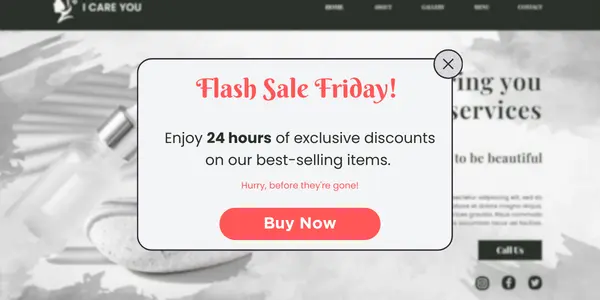
  • Flash Sales: Create a sense of urgency by offering limited-time discounts on select products, driving impulse purchases.

Flash Sales

  • Bundle Deals: Offer discounts on bundled products or packages, encouraging customers to purchase multiple items at once.

Blog Image

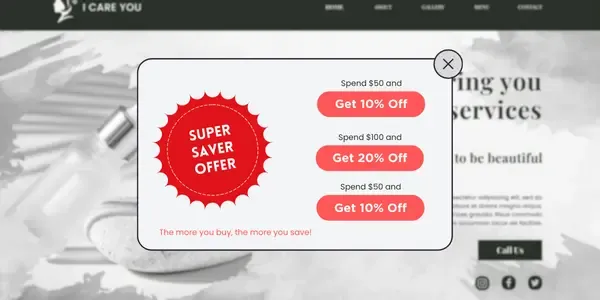
  • Tiered Discounts: Reward customers for spending more by offering tiered discounts based on order value or quantity purchased.

Blog Image

  • Holiday Promotions: Capitalize on seasonal events or holidays by offering special discounts or promotions to celebrate the occasion.

Blog Image

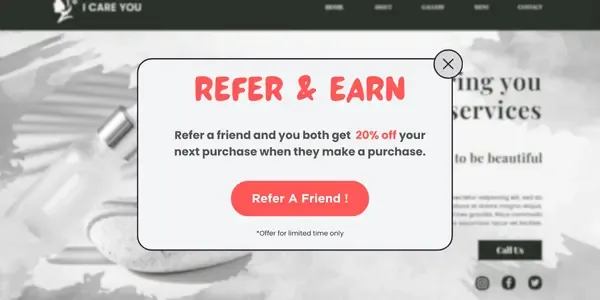
  • Referral Programs: Incentivize word-of-mouth marketing by offering discounts to customers who refer friends or family members to your business.

Blog Image

Comprehensive WooCommerce development services, coupled with strategic WooCommerce marketing tactics, can elevate your WooCommerce sales and drive business growth.

That Strategically Elevates Their WooCommerce Sales

Join the 10,000+ Businesses

Let’s Connect

3. Implement Upselling and Cross-selling Techniques

These two are powerful techniques to increase the average order value and maximize sales.

Upselling: Encouraging customers to upgrade to a more expensive or premium version of the product they’re considering. For example, offering a larger size or additional features.

Cross-selling: Recommending complementary or related products to accompany the item customers are purchasing. For example, suggesting batteries for a purchased electronic device.
Here’s how you can strategize to make it work:

  • Position upsell and cross-sell suggestions prominently on product pages or during the checkout process, where they are most likely to be noticed.
  • Ensure that upsell and cross-sell suggestions are relevant to the customer’s current purchase and align with their needs and preferences.
  • Leverage customer data and purchase history to personalize upsell and cross-sell suggestions, increasing the likelihood of relevance and effectiveness.
  • Provide personalized recommendations based on the customer’s preferences, previous purchases, and browsing behavior.
  • Highlight the benefits and value-add of the upsell or cross-sell suggestion, demonstrating how it enhances the customer’s overall experience or meets their specific needs.
  • Sweeten the deal by offering discounts or special promotions on upsell or cross-sell items, making the offer more enticing to customers.

4. Enhance UX Across Devices

Blog Image
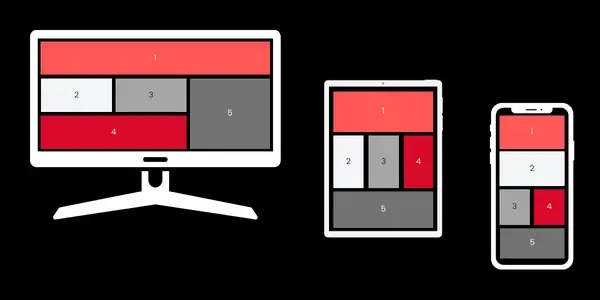
Responsive design is paramount for ensuring a seamless and engaging user experience across all devices. With the increasing prevalence of smartphones and tablets, more users are accessing websites and making purchases on mobile devices. With that, mobile users also expect websites to load quickly and display properly on their devices, regardless of screen size or resolution. To make it advantageous, responsive design is favored by search engines like Google, as it provides a consistent user experience and improves website performance, leading to higher search rankings. Take a look at how you can easily implement it for your website:

  • Use Fluid Grids: Design your website using fluid grids that adapt and resize based on the user’s screen size, ensuring content remains readable and accessible.
  • Flexible Images: Use CSS techniques such as max-width: 100% to ensure images scale proportionally and maintain clarity across different devices.
  • Media Queries: Implement media queries to apply specific stylesheets based on screen size, allowing for targeted adjustments to layout, typography, and other design elements.
  • Optimize Page Speed: Prioritize performance optimization techniques such as image compression, minification of CSS and JavaScript files, and asynchronous loading to ensure fast load times on mobile devices.
  • Seamless Navigation: Ensure navigation menus, buttons, and links are easily accessible and functional on mobile devices, facilitating smooth and intuitive navigation.
  • Readable Content: Optimize typography for readability on smaller screens, using legible font sizes and ample spacing between text elements.
  • Thumb-Friendly Design: Place important interactive elements within easy reach of the user’s thumb, minimizing the need for scrolling or zooming.

From enhancing user experience to implementing effective WooCommerce marketing campaigns, our expertise in WooCommerce development services transforms your online store into a sales powerhouse.

5. Utilize Social Proof

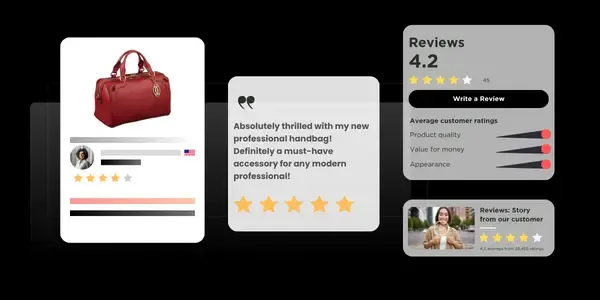
Showcasing social proof is a powerful psychological phenomenon that influences purchasing decisions by leveraging the behavior and opinions of others. builds trust and credibility by showcasing the positive experiences and satisfaction of previous customers. builds trust and credibility by showcasing the positive experiences and satisfaction of previous customers. Additionally, it creates a sense of urgency and FOMO, encouraging customers to purchase to avoid missing out on a popular or highly-rated product. Some substantiated strategies that you can incorporate involve:

  • Customer Reviews and Testimonials
  • User-Generated Content
  • Social Media Mentions
  • Influencer Endorsements

Blog Image

Here are some proven ways to display these effectively:

Strategic Placement: Position social proof elements such as reviews, testimonials, and user-generated content prominently on product pages and checkout pages, where they are most likely to influence purchasing decisions.
Visual Presentation: Use appealing formats like star ratings, customer photos, and video testimonials to capture attention and engage users effectively.
Real-Time Updates: Ensure that social proof elements are dynamic and updated regularly to reflect the latest feedback and interactions from customers.
Importantly, don’t settle for mediocre results when it comes to your WooCommerce store. Partner with a WooCommerce development company that understands the intricacies of e-commerce and knows how to leverage the power of WooCommerce marketing to drive tangible results.

6. Integrate AI-Powered Chatbots

Chatbots leverage AI algorithms to analyze customer queries and provide tailored responses, offering a personalized support experience that meets individual needs. Moreover, AI-powered chatbots are available round-the-clock to assist customers with inquiries, providing instant responses and resolving issues promptly. It engages with visitors proactively, guiding them through the sales process, recommending products, and capturing leads for follow-up. But, here is what should be considered before integrating a chatbot on your business website:

Blog Image

  • Select a chatbot platform or plugin that integrates seamlessly with your WooCommerce store and offers advanced AI capabilities.
  • Customize your chatbot’s responses and workflows to align with your brand voice and customer service standards.
  • Integrate your chatbot with other tools and systems, such as CRM software and inventory management systems, to streamline workflows and enhance efficiency.
  • Test your chatbot thoroughly to ensure it functions correctly and provides accurate responses to customer queries.
  • To add a cherry on the cake, one can even offer multilingual support through your chatbot to cater to diverse customer demographics and enhance accessibility.

7. Leverage Email Marketing

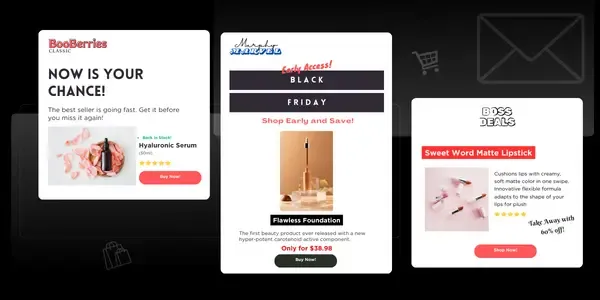
Email provides a direct channel to reach your audience, allowing you to deliver targeted messages and promotions directly to their inbox. enables you to personalize your messages based on customer preferences, purchase history, and browsing behavior, increasing relevance and engagement. Moreover, regular email communication helps nurture relationships with customers over time, keeping your brand top-of-mind, and encouraging repeat purchases that ultimately boost WooCommerce sales.

Blog Image

Check out the following strategies to improve sales for your business using email marketing:

  • Segmentation: Segment your email list based on demographics, purchase behavior, or engagement level to deliver more targeted and relevant content to each group.
  • Compelling Subject Lines: Craft attention-grabbing subject lines that entice recipients to open your emails and discover what’s inside.
  • Clear CTA: Include a clear and prominent CTA in your emails, directing recipients to take the desired action, whether it’s making a purchase, signing up for a webinar, or visiting your website.
  • Engaging Content: Create engaging and valuable content that provides useful information, offers exclusive deals or promotions, or tells a compelling story about your brand.
  • Mobile Optimization: Design your emails with mobile users in mind, ensuring they are optimized for viewing on smartphones and tablets.
  • Visual Appeal: Use eye-catching visuals, such as images and graphics, to capture attention and make your emails visually appealing.
  • Consistent Branding: Maintain consistent branding across all elements of your email campaigns, including colors, fonts, and imagery, to reinforce brand recognition and trust.
  • Automated Workflows: Set up automated email workflows, such as welcome sequences, abandoned cart reminders, and post-purchase follow-ups, to streamline your marketing efforts and nurture leads.
  • Dynamic Content: Use dynamic content blocks to personalize your emails based on recipient data, such as name, location, or previous purchases.
  • Behavioral Triggers: You can even implement Trigger emails based on specific customer actions or behaviors, such as browsing certain products or abandoning a shopping cart, to deliver timely and relevant messages.

End Note

WooCommerce empowers businesses to connect with customers in meaningful ways. By harnessing the power of technology like AI chatbots, responsive design, email automation, various selling techniques, email marketing, psychological selling along social proof integration, it emerges as the hero in driving sales growth.
Leverage the full potential of your WooCommerce store with QeWebby. Contact us today for expert WooCommerce development services and take your online store to the next level!

Experience the Power of Data-Driven Strategies

To Boost Your Conversion Rate With About 87% !

Get in Touch !

Beyond Contracts: 9 Strategies that Strengthen Agency-Client Relationship

A strong agency-client relationship serves as the cornerstone of successful collaborations in the business world. This partnership is vital across various industries, including marketing, advertising, public relations, and consulting, among others. By investing in nurturing and maintaining these relationships, both agencies, and clients can unlock new opportunities, achieve their objectives, and thrive in an increasingly competitive marketplace.

Let’s examine these key strategies!

9 Strategies that Strengthen Agency-Client Relationships

The cornerstones for nurturing robust agency-client relationships are effective communication, transparency, and reliability. These pillars form the foundation for collaboration, innovation, and mutual success between agencies and clients. And for that reason, we categorize our 9 strategies as

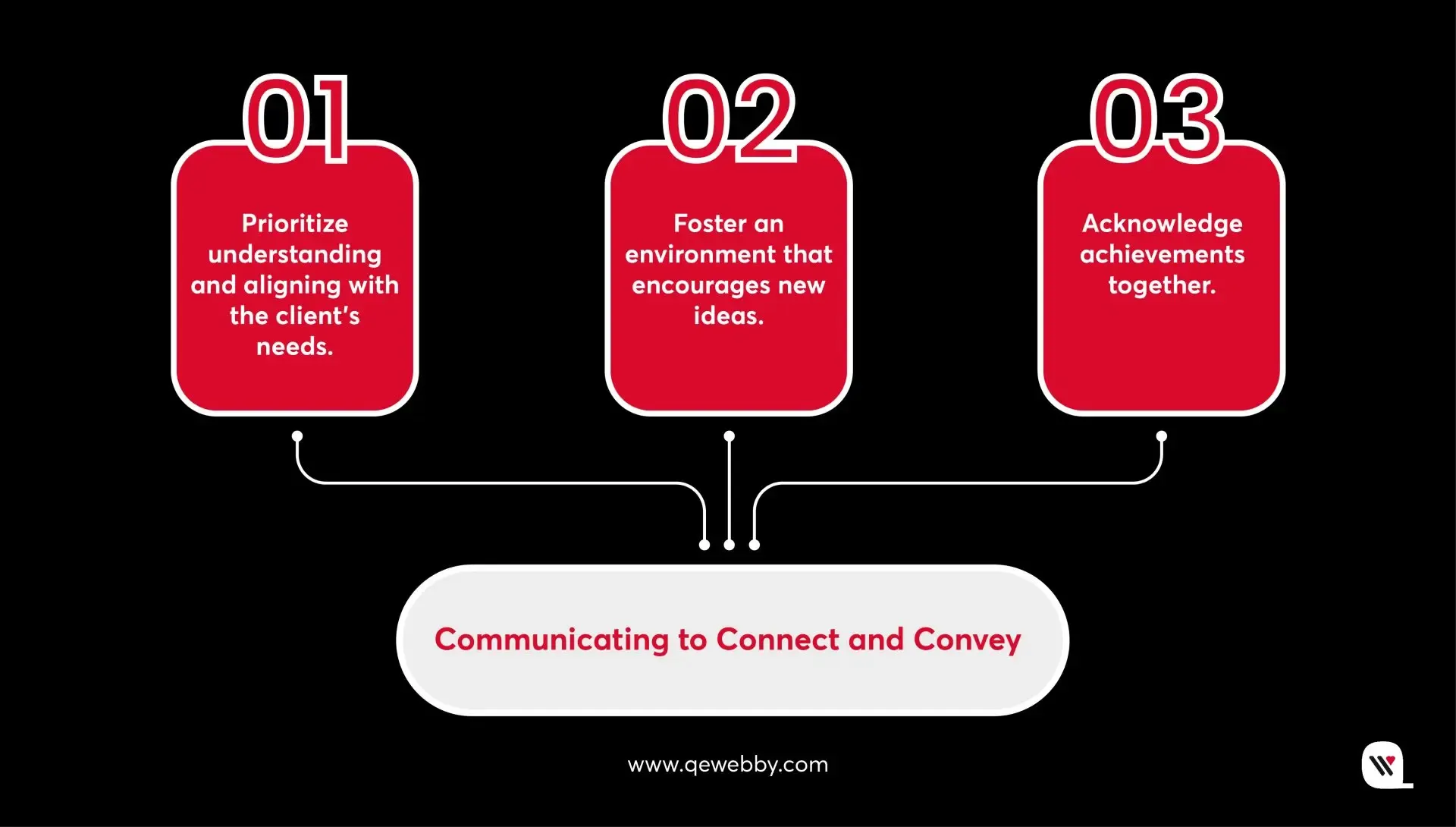
  • Communicating to Connect and Convey:

    1. Prioritize understanding and aligning with the client’s needs.
    2. Foster an environment that encourages new ideas.
    3. Acknowledge achievements together.
  • Embracing Transparency in Business:

    1. Maintain clear and open channels for trust and credibility.
    2. Establish a mechanism for ongoing improvement.
    3. Remain flexible and responsive to change.
  • Building Trust Through Reliability:

    1. Consistently deliver high-quality work to build trust.
    2. Nurture the partnership for continued growth.
    3. Blend agency and client creativity to generate innovative solutions.

1. Prioritize Understanding and Aligning with the Client’s Needs

Understanding and aligning with the client’s needs should be the cornerstone of any agency-client relationship. By taking the time to truly comprehend the client’s goals, challenges, and objectives, agencies can tailor their strategies and solutions to meet their specific requirements. Active listening, thorough research, and collaborative workshops are key to achieving this alignment. For example, an advertising agency working with a client launching a new product would conduct in-depth research into the target audience and market trends, ensuring that their campaign resonates with the client’s vision.

Pro Tip : Regularly revisit and reassess client needs throughout the project lifecycle to ensure ongoing alignment and relevance.

2. Foster an Environment that Encourages New Ideas

Fostering an environment that encourages new ideas is essential for driving innovation and creativity in agency-client relationships. Agencies should create a culture that values experimentation, rewards creativity, and celebrates out-of-the-box thinking. By providing opportunities for team members to share their ideas and perspectives, agencies can inspire fresh thinking and generate innovative solutions. For example, an advertising agency might hold regular brainstorming sessions where team members are encouraged to pitch unconventional ideas for upcoming campaigns.

Pro Tip : Create a safe space for team members to share ideas without fear of judgment, fostering a culture of innovation and creativity.

3. Acknowledge Achievements Together

Acknowledging achievements together is a powerful way to reinforce the positive aspects of the agency-client relationship. Agencies should celebrate project milestones, successes, and achievements with clients, recognizing the collective efforts that led to success. By sharing in the excitement of accomplishments, agencies can strengthen the bond with clients and foster a sense of partnership and camaraderie. For example, a branding agency might host a virtual launch event to celebrate the successful rebranding of a client’s company, inviting key stakeholders from both organizations to participate.

Pro Tip : Celebrate both big and small wins with enthusiasm and sincerity, reinforcing the value of collaboration and shared success.

4. Maintain Clear and Open Channels for Trust and Credibility

Clear and open communication is essential for building trust and credibility in agency-client relationships. Agencies should establish transparent communication channels, provide regular updates on project progress, and address any concerns or issues promptly. By maintaining transparency and honesty, agencies can demonstrate their commitment to the client’s success. For example, a digital marketing agency might use project management software to keep the client informed about campaign performance metrics and optimization efforts in real-time.

Pro Tip : Practice active listening and empathy to truly understand the client’s perspective and build stronger rapport.

5. Establish a Mechanism for Ongoing Improvement

Establishing a mechanism for ongoing improvement is critical for ensuring that agency-client relationships continue to evolve and grow over time. Agencies should solicit feedback from clients, conduct performance reviews, and implement action plans to address any areas for improvement. By continuously striving to enhance their services and processes, agencies can demonstrate their commitment to client satisfaction and success. For example, a PR agency might conduct quarterly reviews with clients to gather feedback on media outreach efforts and identify opportunities for refinement.

Pro Tip : Embrace feedback as a gift and use it as a catalyst for continuous learning and improvement within the agency.

6. Remain Flexible and Responsive to Change

Remaining flexible and responsive to change is essential for navigating the ups and downs of agency-client relationships. Agencies should be adaptable in their approach, willing to adjust strategies and tactics in response to changing client needs, market conditions, or external factors. By demonstrating flexibility and agility, agencies can show their clients that they are committed to finding solutions that meet their evolving requirements. For example, a social media marketing agency might pivot their campaign strategy in response to shifts in consumer behavior or market trends, ensuring that the client’s objectives are still met.

Pro Tip : Anticipate change and have contingency plans in place to quickly adapt and pivot when necessary.

7. Consistently Deliver High-Quality Work to Build Trust

Consistently delivering high-quality work is paramount for building trust with clients. Agencies should set clear expectations, adhere to deadlines, and strive for excellence in every project. By exceeding client expectations and consistently delivering results, agencies can establish themselves as reliable and trustworthy partners. For instance, a content marketing agency might conduct thorough research and quality checks to ensure that all content produced aligns with the client’s brand voice and objectives.
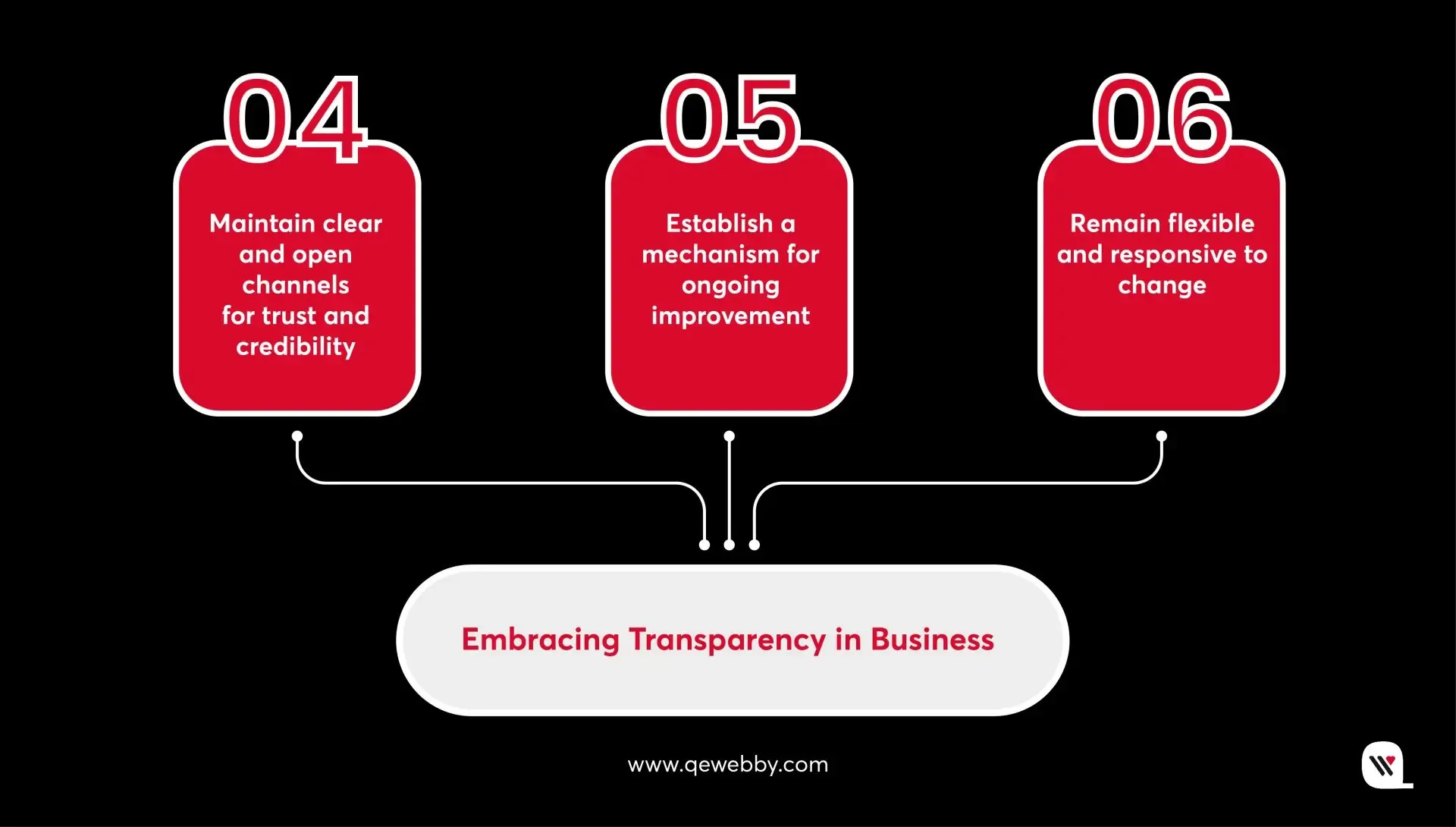
Pro Tip : Set internal quality standards and conduct regular quality assurance checks to ensure all deliverables meet or exceed client expectations.

8. Nurture the Partnership for Continued Growth

Nurturing the partnership for continued growth is essential for ensuring the long-term success and sustainability of agency-client relationships. Agencies should invest in building strong, personal connections with clients, demonstrating their dedication to mutual success. By regularly checking in with clients, offering strategic guidance, and identifying opportunities for expansion or additional services, agencies can foster a partnership that thrives over time. For example, a web development agency might provide ongoing support and maintenance services to help the client’s website evolve and grow alongside their business.

Pro Tip : Invest in building long-term relationships by regularly checking in with clients, providing strategic guidance, and offering value-added services that support their growth objectives.

9. Blend agency and client creativity to generate innovative solutions

Collaborating with clients to blend agency and client creativity can lead to the development of innovative solutions. By leveraging the unique perspectives and expertise of both parties, agencies can create campaigns, designs, and strategies that stand out in the market. Encouraging brainstorming sessions, soliciting input from the client’s team, and embracing a culture of experimentation are effective ways to foster this collaboration. For instance, a design agency might involve the client’s marketing team in the creative process to develop a website that reflects the client’s brand identity while incorporating cutting-edge design elements.

Pro Tip : Encourage experimentation and don’t be afraid to challenge conventional thinking to unlock truly innovative ideas.

End Note

Fostering strong agency-client relationships is not only beneficial but imperative in today’s competitive business landscape. By implementing the nine strategies outlined in this blog – from prioritizing understanding and alignment with client needs to nurturing partnerships for continued growth – agencies can elevate their collaborations to new heights. Through open communication, innovative thinking, and a commitment to delivering exceptional work, agencies can establish themselves as trusted partners and valuable allies in their clients’ success journeys. Remember, building and maintaining strong relationships takes time, effort, and dedication, but the rewards are well worth it. Here’s to creating lasting partnerships that drive mutual success and prosperity.

If you’re looking for a trusted partner in web development to help bring your vision to life and strengthen your online presence, look no further! Our agency specializes in creating custom, high-quality websites tailored to your unique needs and objectives. [Get in touch with us](/contact-us) today to learn more about how we can elevate your online presence and drive results for your business. Let’s embark on this journey together!

Take Your Business to New Heights with Our White Label Solutions!

Let’s Connect

WordPress 6.5 Release Highlights: Everything You Need To Know

WordPress 6.5 update is not just about minor tweaks – it’s a game changer!

This latest release introduces enhanced design flexibility and more options, bolstered block capabilities through new APIs, accessibility to current block theme features for classic themes, and the initial stages of the new admin redesign.

Just as we ensured you stayed ahead with the previous release of WordPress version 6.4, we’re here again with the latest version to keep you informed and up to date.

So, let’s look at the amazing features and enhancements in WordPress 6.5.

UPDATE: Originally planned for release on the 26th, WordPress 6.5’s release has been pushed back by one week and is now slated for Tuesday, April 2nd, 2024.

Within Core Trac, nearly 350 tickets awaited attention, comprising 99 enhancements and feature requests, 216 bug fixes, and 35 other important tasks. Notably, 20 tickets prioritize performance, 19 address accessibility, and 23 focus on modernizing code and adhering to coding standards. Gutenberg has been enhanced, 515 bugs have been fixed, and 65 accessibility improvements have been made as part of the 6.5 release. Overall, the updates in version 6.5 span across 40 core components.

Table of Contents

  • New in Design Tools
    • Font library
    • Improved pattern functionality
    • Theme.json Colorways
    • Automatic overlay color selection
    • AVIF support
  • New in Appearance Tools
    • Appearance tools in classic themes
    • Improved pattern management in classic themes
  • New in Foundational Experience in Site Editor
    • Tailored presentation options
    • Streamlined filtering and sorting capabilities
    • Efficient bulk actions
  • New in API
    • Interactivity API
    • HTML API
    • Script loader
  • Wrap Up

1. New in Design Tools

Font Library

The Font Library, a highly anticipated addition to the WordPress block theme ecosystem, is now available in the Site Editor’s global style panel. Users can easily upload fonts or choose from the extensive collection provided by Google Fonts. Initially, Web Fonts API in WordPress 6.0 enabled users to register new fonts through theme.json. Despite being initially slated for release with WordPress 6.4, the feature faced delays due to concerns regarding code quality. However, with the forthcoming WordPress 6.5 update, users can finally experience the Font Library firsthand. The Font Library will simplify the process of adding, removing, and activating fonts on your website. Just like the Media Library, it’s available globally, regardless of your theme. Once a font is installed, whether by you or your theme, it can be used throughout your editing experience.

Improved Pattern Functionality

Expanding on the concept of synced patterns, the introduction of pattern overrides (formerly known as partial sync patterns) enables users to maintain a synchronized layout and style while permitting customized content for each instance of the pattern. This ensures consistency in design across various content pieces. For example, imagine a testimonial pattern displayed in a grid format. With this enhanced feature, users can incorporate the testimonial pattern into multiple posts, ensuring that the layout and styling, such as the overall design of the recipe card, remain consistent across all instances. However, individual elements like the Name, Image, and Role can be tailored to each instance for personalized content. Furthermore, users will have the ability to revisit and adjust the design of the overall testimonial pattern without impacting the content in existing instances. It’s important to note that this development will need to align with both the Custom Fields API and Block Binding API.

Theme.json and Colorways

Expanding on the existing styling system that includes features like style variations, section-specific theme.json offers finer control over specific parts of your website using the same underlying system. In version 6.5, color variations are introduced through Colorways for group blocks, which is a comprehensive set of updates. Colorways, a subset of section-specific theme.json, specifically deals with styling elements. Initially, this option will be accessible only for Group blocks through code, with minimal user interface interaction for selection. These styles will encompass curated colors, typography, border styles, and other element styles like links and buttons. Currently, the primary use case is for theme authors to predefine a set of colors that are carefully selected based on considerations such as contrast and aesthetics. Looking ahead, there are plans to explore enabling users to create Colorways directly within the Styles interface.

Automatic Overlay Color Selection

Now, users no longer need to spend time selecting the perfect overlay color manually. In WordPress 6.5, when you add a cover block and upload or select an image from the media library, the system automatically applies an overlay color that matches the dominant color of the image. This saves users from the hassle of choosing the overlay color themselves. However, if desired, users still have the flexibility to change or customize the overlay color according to their preferences.

To test this feature:

  • Insert a “Cover block” into your content.
  • Upload or select an image from the media library.

You’ll notice that an automatic overlay color is applied, matching the dominant color of the image. However, you can easily modify this overlay color to suit your needs.

AVIF Support

WordPress 6.5 now supports AVIF, a modern image format offering superior image quality and compression compared to JPEG, PNG, and WebP. AVIF images can be up to 50% smaller than JPEGs while maintaining high quality. They also support a wide color range, including HDR, and produce sharper images, particularly in detailed areas. You can seamlessly upload and use AVIF images in WordPress 6.5, provided your hosting environment supports AVIF. Transitioning to AVIF is likely to enhance your site’s performance and improve user experience.

Looking to boost your site speed?

Reach out to us TODAY!

2. New in Adoption Pathways

Appearance Tools in Classic Themes

The inclusion of support for Appearance Tools broadens the scope of design possibilities that were previously exclusive to Block Themes or themes utilizing theme.json. For instance, functionalities like adding a basic border to a Group block necessitate the use of Appearance Tools. Efforts are currently in progress to enable Classic Themes to safely integrate support for most of these tools, ensuring compatibility and avoiding disruptions. This expansion unlocks an accessible plethora of design options for a wide range of websites, significantly enhancing their visual appeal.

Improved Pattern Management in Classic Themes

The themes not built with the Block Editor or theme.json will soon be able to tap into the rich library of Patterns, allowing for more versatile and modern design options. In addition to this fundamental shift, a direct link will be incorporated within the Appearance menu, leading users to the Patterns section. This link aims to enhance accessibility and promote awareness of Patterns as a core feature within WordPress. By making Patterns more visible and easily accessible to users of Classic Themes, WordPress is ensuring that all users can benefit from the latest design tools and functionalities, regardless of their theme choice.

3. New Foundational Experience in Site Editor

The Site Editor undergoes a significant enhancement with the introduction of robust new view modes tailored for efficient management of pages, patterns, templates, and template parts. These modes introduce heightened flexibility and user-friendliness, empowering users to seamlessly explore, filter, and manipulate their site’s components with enhanced efficiency.

Tailored Presentation Options

The updated library presentation now offers various layout options, allowing users to personalize the displayed information by selectively hiding or revealing specific fields. Accessible through the View options button located on the top-right corner of the panel, these settings enable users to tailor their viewing experience to suit their preferences.

Streamlined Filtering and Sorting Capabilities

For users managing multiple items, filtering based on authorship is now simplified through the Add filter setting located beneath the search bar. Additionally, organizing items is made easier with sorting options available in the View options settings. Users can choose to sort items by template names or authors, enhancing organization and accessibility.

Efficient Bulk Actions

The revamped library facilitates quicker workflow management by enabling users to select and manipulate multiple items simultaneously. For instance, within the patterns library, users can swiftly delete multiple patterns at once. Similarly, managing template parts is streamlined with the ability to perform bulk resets, allowing users to quickly revert multiple changes.

It’s important to note that certain locked patterns and native theme template parts cannot be deleted.

4. New in API

Interactivity API

The Interactivity API is designed to offer developers a standardized method for adding interactive elements to the front end of their blocks. This includes features such as liking a post or adding items to a cart without needing to reload the page. By establishing a standard, developers can more easily create engaging user experiences, ranging from simple actions like counters or pop-ups to more complex functionalities such as instant page navigation, search, or online shopping carts. Following months of testing within specific core-provided blocks in the Gutenberg plugin and, more recently, within WordPress 6.4, there are a few remaining tasks to make the API available for extensible use.

HTML API

The Tag Processor has been enhanced to thoroughly examine every tag within an HTML document, disregarding non-tag tokens. In WordPress 6.5, it gains the capability to analyze all elements. Tokens, the basic components of a document, encompass tags, comments, doctype definitions, and text nodes within HTML. This advancement allows for easier handling of tasks such as removing tags or truncating HTML, as the text content of an HTML document can now be readily accessed. Facilitating this enhancement is the introduction of a novel concept known as modifiable text. Modifiable text denotes content enclosed within token boundaries, which can be altered without impacting the overall structure of the document.

Script Loader

WordPress has introduced a new “Script Modules” interface to accommodate native JavaScript modules. JavaScript modules, also known as ECMAScript Modules or “ESM,” utilize import and export functionalities. In this post, we’ll use “scripts” and “modules” to refer to the concepts of Scripts and Script Modules, respectively. JavaScript modules are integral to web development, offering benefits such as proper scoping through import and export, enforced strict mode, and deferred loading. Supporting and promoting the use of modules is crucial for WordPress, as they represent the future of JavaScript development.

Ready for an upgrade?

Stay ahead of the curve with the newest version!

Connect with us NOW!

Wrap Up

WordPress 6.5 brings a host of exciting features and enhancements to the table! These updates position WordPress as a leading choice for website development, catering to the diverse needs of developers, designers, and content creators alike. As we move forward, we can anticipate even more exciting developments that continue to push the boundaries of what is possible with WordPress.

If you’re looking to leverage the full potential of WordPress for your website or project, our team offers expert WordPress development services tailored to your specific needs. From theme customization to plugin development and site optimization, we’re here to help you make the most out of WordPress. Contact us today to discuss how we can elevate your WordPress experience and bring your vision to life.

Dedicated Team vs Extended Team: Choosing the Perfect WordPress Development Approach

Quick Overview

Choosing the right team is not just a choice; it’s crucial. It determines the success of your WordPress project. While many companies start with in-house teams, some projects require fully outsourced teams, especially those utilizing specific technologies. This is where additional expertise becomes essential. Here, you’ll explore the careful evaluation of project dynamics, resource constraints, and strategic objectives while selecting the perfect team (whether dedicated or extended) for your WordPress project.

As businesses strive to harness the power of WordPress to stay competitive and relevant in today’s digital landscape, navigating this dilemma becomes paramount. Join us as we unravel the intricacies of this WordPress development dilemma, exploring the merits of dedicated and extended teams and empowering you to make informed decisions that drive your project toward success.

Let’s dive in!

Table of Contents

  • Understanding Dedicated Teams – Characteristics, Advantages, Potential Setbacks
  • Understanding Extended Teams – Characteristics, Advantages, Potential Setbacks
  • Dedicated Team vs Extended Team – Comparison in Working Process
  • Choosing the Right Approach for Your Project

Understanding Dedicated Teams

A dedicated team in WordPress development refer to groups of professionals exclusively assigned to work on a particular project or set of tasks. These teams typically consist of skilled individuals with specialized expertise in WordPress development, including web designers, developers, content creators, and project managers.
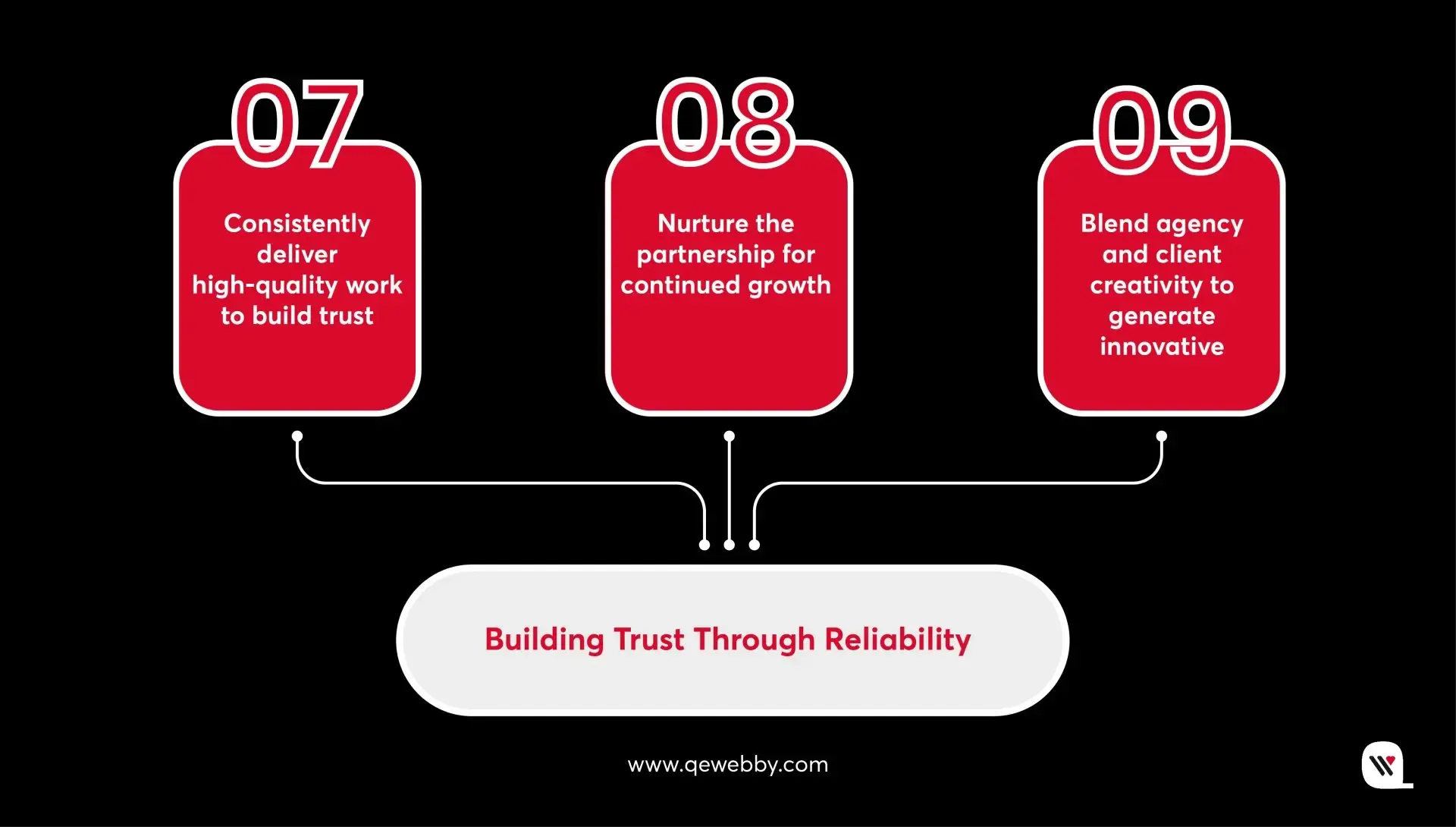
Characterized by their unwavering commitment and singular focus, dedicated teams prioritize the successful execution of the assigned project. They work closely with clients to understand their unique requirements, goals, andexpectations, tailoring their approach to deliver customized solutions that meet or exceed client expectations.

Key Characteristics of Dedicated Teams
  • They concentrate solely on the designated project, ensuring consistent attention to detail and optimal resource allocation.
  • The team members integrate seamlessly with the client’s internal processes, workflows, and communication channels, fostering a collaborative and cohesive working environment.
  • Dedicated teams bring diverse skill sets and domain knowledge to the table, enabling them to address complex challenges and implement innovative solutions effectively.
  • They often establish long-term relationships with clients, fostering trust, transparency, and mutual understanding over time.
Advantages of Dedicated Teams for WordPress Development
  • Enhanced Efficiency
  • Consistent Quality
  • Tailored Solutions
  • Streamlined Communication
  • Scalability and Flexibility
Potential Challenges and Limitations
  • Cost Considerations
  • Resource Availability
  • Over-Reliance on a Single Team
  • Dependency on Client Input

Hire Dedicated WordPress Developers

Empower your business like other 80% of Fortune 500 companies!

Connect Now!

Understanding Extended Teams

An extended team in WordPress development refer to collaborative partnerships that extend beyond the boundaries of the client’s organization, encompassing external specialists, contractors, or agencies to supplement in-house resources and capabilities. Unlike dedicated teams, which consist of exclusively assigned professionals, extended teams involve leveraging external expertise to augment project teams and address specific needs or requirements.

Key Characteristics of Extended Teams
  • Extended teams foster a collaborative ecosystem that transcends organizational boundaries, bringing together diverse talents, perspectives, and skill sets to achieve common objectives.
  • They offer flexibility in resource allocation, enabling organizations to scale their development capacity dynamically in response to changing project requirements, timelines, and scope.
  • You get access to niche expertise and specialized knowledge across various domains, allowing organizations to leverage external insights and capabilities to tackle complex challenges effectively.
  • Extended teams often form strategic partnerships with clients, aligning closely with their goals, values, and operational requirements to deliver tailored solutions that drive tangible business outcomes.
Advantages of Extended Teams for WordPress Development
  • Diverse Skill Sets
  • Scalability and Flexibility
  • Faster Time to Market
  • Cost-Effectiveness
  • Innovation and Creativity
Potential Challenges and Limitations
  • Coordination and Communication
  • Integration and Alignment
  • Dependency on External Partners
  • Cultural and Linguistic Barriers

Hire Our WordPress Experts

and drive your business to new heights!

Connect Now!

Dedicated Team vs Extended Team – Comparison in Working Process

Mode of Operation Dedicated Team Extended Team
Team Composition WordPress developers, UI/UX designers, QA specialists, project
managers, system administrators
External specialists, contractors, agencies, collaborating with
in-house resources
Expertise Specialized skills in WordPress development Diverse skills and expertise to complement requirements
Commitment Exclusive focus on the assigned project Collaboration across multiple projects and teams
Communication Close collaboration with stakeholders Collaboration across multiple projects and teams
Resource Allocation Dedicated resources for project Flexible allocation based on project needs
Collaboration Intensive collaboration within the team Collaboration with external partners
Long-term Partnership Often establishes long-term partnerships with clients Collaborative partnerships with external specialists
Project Focus Singular focus on project objectives and milestones Shared focus across various projects and initiatives
Decision Making Streamlined decision-making processes within the team Decision-making involves coordination with external partners and
stakeholders
Accountability Clear accountability within the dedicated team structure Shared accountability across internal and external team members
Scalability Limited scalability without significant changes in team structure Scalable model allowing for adjustments based on project demands and
resources
Innovation Innovation driven by internal team dynamics and expertise Innovation enhanced by access to diverse external perspectives and
skills
Risk Management Risks managed within the dedicated team framework Risk management involves coordination and mitigation across internal
and external entities
Client Interaction Direct interaction and feedback loop with clients Indirect client interaction through project managers or intermediaries
Project Ownership Full ownership and responsibility for project outcomes Shared ownership with external partners in project execution
Flexibility Limited flexibility in adapting to changing project requirements Flexibility to accommodate evolving project needs through external
resources
Communication Channels Direct communication channels within the team structure Varied communication channels necessitated by multiple stakeholders
and external partners
Knowledge Sharing Internal knowledge sharing mechanisms and practices External knowledge sharing through collaboration with diverse teams
and entities
Adaptability Adaptable to internal changes and dynamics within the team Requires adaptability to external changes and dynamics across multiple
entities
Project Control Tight control over project processes and workflows Shared control and coordination across internal and external entities
Budget Management Budget management confined within the dedicated team structure Budget management involves coordination and negotiation with external
partners
Conflict Resolution Internal conflict resolution mechanisms and protocols Conflict resolution may require mediation between internal and
external stakeholders

Choosing the Right Approach for Your Project

Choosing between dedicated and extended teams for WordPress development requires careful consideration of project dynamics, resource constraints, and strategic objectives. By understanding the key differences and evaluating relevant factors, businesses can make informed decisions to optimize project success and achieve desired outcomes in the ever-evolving landscape of WordPress development solutions. Here is what you can do:

  • Consider opting for a dedicated team when your project boasts clear requirements and a well-defined scope. Dedicated teams thrive in focused tasks and are ideal for projects with precise needs. Although they may entail higher initial costs, dedicated teams ensure dedicated attention to detail.
  • On the other hand, extended teams offer adaptability to evolving project needs and provide cost-effective solutions by leveraging external expertise as necessary. If you’re working within a limited budget, extended teams offer a flexible and efficient solution.
  • For projects with stringent deadlines, dedicated teams shine with their ability to maintain focus and meet timelines effectively. However, if your project’s timelines are subject to change or evolution, extended teams provide the necessary flexibility to adapt and adjust.
  • Close collaboration and streamlined communication are hallmarks of dedicated teams, making them ideal for projects that require constant interaction and feedback. Conversely, extended teams demand robust communication frameworks to manage dispersed teams effectively and ensure alignment.
  • While dedicated teams ensure stability and predictability in resource allocation, extended teams offer scalability and the flexibility to adjust resources dynamically based on project demands. Understanding these distinctions enables organizations to make informed decisions tailored to their specific project requirements and objectives.

End Note

As you navigate the complexities of your unique project requirements, it is important to remember the selecting factors we discussed here. Whether opting for the focus and precision of dedicated teams or the flexibility and scalability of extended teams, your selection needs to be aligned with your project’s scope, budget, timelines, and communication needs to set the stage for a successful WordPress development journey.

If you’re looking for dedicated teams that offer focused expertise and consistent support throughout your WordPress project, our services can provide the tailored solutions you need. Alternatively, if you require flexibility and access to external expertise as your project evolves, our team of experts can offer cost-effective solutions without compromising quality.

Contact us today to learn more about how our WordPress solutions can help you achieve your digital objectives efficiently and effectively. Let’s embark on a journey to elevate your WordPress
development experience together!

How InstaView for WooCommerce Helps You Sell Quicker

Are you looking for a simpler way to showcase product details and improve the customer experience?

The quick product view presents a fantastic opportunity to grab attention and enhance engagement. It provides an effortless way for customers to preview products and swiftly add them to the cart.

By incorporating a quick view plugin, you streamline the buying process, making it more convenient for customers to make purchasing decisions, ultimately aiming to boost conversions and revenue.

Let’s explore more!

What does the Plugin Do?

InstaView for WooCommerce stands as a dynamic and feature-rich plugin meticulously crafted to elevate the overall user experience and functionality of WooCommerce online stores. This innovative tool represents a paradigm shift in how customers engage with products, introducing an array of functionalities aimed at streamlining the shopping journey, fostering instant engagement, and promoting overall efficiency.

At its core, InstaView redefines the conventional product interaction process by offering customers an immediate and comprehensive overview of the available products. This goes beyond the traditional approach of navigating through individual product pages, allowing users to quickly assess and explore various items directly from their current location within the online store.

InstaView for WooCommerce Plugin

Sell quicker with

Free Download

Why Do You Need InstaView for WooCommerce?

Whether you’re a seasoned eCommerce entrepreneur or just venturing into the online retail space, InstaView offers a universal solution. It’s not just a plugin; it’s a commitment to providing a modern, efficient, and enjoyable shopping experience for your customers. In the crowded digital marketplace, where every click matters, InstaView is your gateway to unlocking enhanced user satisfaction, increased engagement, and sustained success for your WooCommerce store.
For businesses operating WooCommerce stores, integrating the InstaView plugin becomes not just a choice but a strategic necessity. This plugin addresses several crucial aspects of the online shopping experience, making it an invaluable asset for enhancing their store’s performance and user satisfaction.

Here’s how your eCommerce business can benefit from incorporating this plugin:

  • Enhanced User Experience – InstaView creates an immersive and user-friendly product exploration experience. Customers can quickly access product details without navigating away, reducing friction and enhancing overall satisfaction.
  • Faster Decision-Making – The plugin’s quick popups and instant loading capabilities empower customers to make faster purchasing decisions. The immediate access to key product information eliminates delays, reducing the likelihood of hesitation or second-guessing.
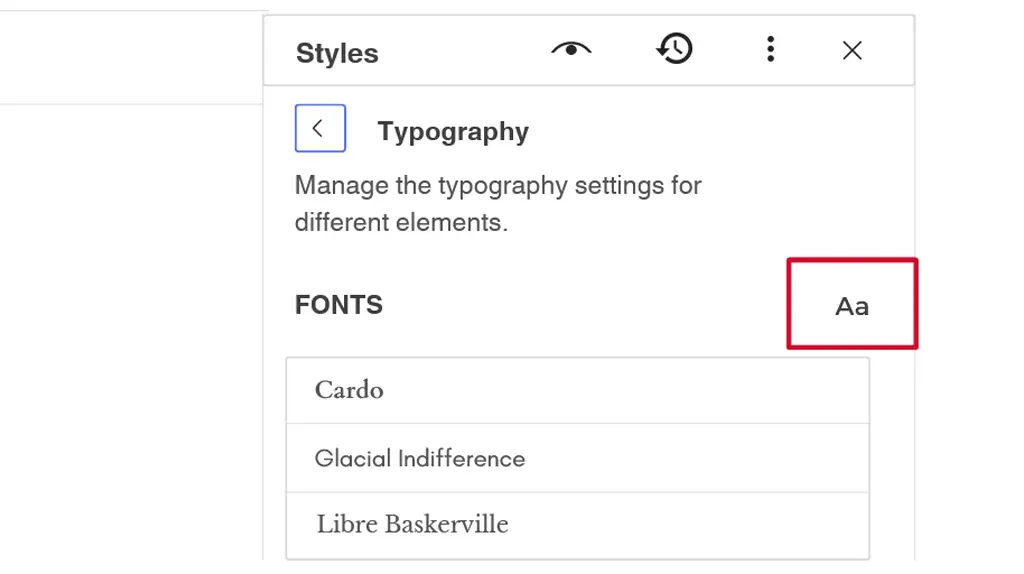

  • Reduced Cart Abandonment – By streamlining the shopping process with features like asynchronous cart operations and express checkout, InstaView minimizes steps, making it less likely for customers to abandon their carts. This contributes to higher conversion rates and increased revenue.
  • Competitive Advantage – Offering a modern and efficient shopping experience sets your eCommerce business apart from competitors. InstaView provides a competitive edge by aligning with contemporary customer expectations, attracting and retaining customers in a competitive market.
  • Improved Customer Engagement – The visually appealing popups and dynamic content loading keep customers engaged with your products. Extended time spent exploring products translates into increased interaction and a higher likelihood of making a purchase.
  • Mobile Responsiveness – InstaView’s mobile-first design ensures a seamless experience for customers accessing your store from smartphones and tablets. This adaptability caters to the growing trend of mobile commerce, expanding your reach and potential customer base.
  • Efficient Resource Utilization – The selective fetching of information and intelligent caching mechanisms optimize resource utilization. This not only contributes to a faster website but also ensures that server resources are used efficiently, improving overall site performance.
  • Time and Cost Savings – The efficiency gained by minimizing page reloads and unnecessary clicks results in time and cost savings. Users spend less time navigating, and your business benefits from a more streamlined and resource-efficient operation.
  • Positive Impact on SEO – Fast-loading pages and a smooth user experience contribute positively to search engine optimization (SEO) rankings. Google and other search engines prioritize user-friendly websites, potentially improving your eCommerce store’s visibility in search results.

How To Setup InstaView for WooCommerce Plugin?

InstaView transforms the traditional WooCommerce experience into a dynamic and efficient process. By leveraging asynchronous loading, selective data retrieval, lazy loading, efficient modal windows, intelligent caching, mobile-first design, event-driven interactivity, and asynchronous cart operations, the plugin ensures that users can explore and interact with products swiftly, resulting in a responsive, engaging, and streamlined shopping experience.

Step 1: Install and enable the InstaView for WooCommerce Plugin

Upon installation and activation of InstaView for WooCommerce plugin, it seamlessly integrates product quick view capabilities into your WooCommerce store immediately. By default, an InstaView button is automatically added to the primary shop page and category archives.

Upon clicking the button, the InstaView lightbox unveils and showcases:

  • Brief product description
  • Add to cart button
  • Image Gallery
  • Additional metadata including category, tags, and SKU code
  • Price information
  • Reviews
  • Along with various other essential product data as needed
Step 2: Select the InstaView Opening Preference for Shoppers

To access the settings for WooCommerce InstaView, utilize the plugin’s setup wizard or navigate to:

WooCommerce → Settings → Products → InstaView.

The initial setting to configure involves determining how shoppers initiate the quick view popup. Initially, you can decide whether to employ the dedicated quick view button. If opting for the button, you also have the flexibility to, enable or disable the button icon. Furthermore, you can specify whether to activate the quick view when a shopper clicks on the product’s title or image.

Quick Tip: In online shopping, visually driven products benefit from InstaView with larger images, making it easy for users to add items like dresses to their carts. Conversely, spec-driven products, such as laptops, require a deeper dive into detailed specs, usually found on the product details page. These detailed specifications are crucial for relatively expensive purchases. For websites focused on spec-driven products, like consumer electronics or industrial equipment, prioritizing improvements in Product List UX proves more effective than just focusing on InstaView Feature for your products.

Get The Most Convenient WooCommerce InstaView Plugin Today!

InstaView for WooCommerce goes beyond being a mere plugin; it transforms the entire shopping experience. By integrating this innovative tool into your WooCommerce store, you not only provide customers with a more engaging and efficient means of product exploration but also lay the foundation for increased satisfaction and potential improvements in conversion rates. Moreover, statistics reveal that approximately 45% of shoppers are inclined to utilize InstaView features.

Transform your eCommerce vision into reality! Elevate your online store with our expert WooCommerce development services. Let’s build a seamless and high-performing shopping experience together. Contact us now for tailored solutions that drive success in the digital marketplace

InstaView for WooCommerce Plugin

Sell quicker with

Free Download