How to Hire a Dedicated WordPress Development Team for Enterprises?

Did you know 60% of enterprises struggle to scale their WordPress websites due to a lack of specialized teams? If your business is growing fast, relying on scattered freelancers or overstretched IT staff may cost you time, money, and missed opportunities.

Enterprise websites demand more than just a digital presence they require enterprise WordPress development solutions that can handle scale, performance, and security. Yet many organizations still stretch their in-house IT teams thin or juggle scattered freelancers, leading to inefficiencies and missed opportunities.

According to Gartner, it projects that by 2026, 65% of enterprises will rely on third-party development partners for digital transformation. These stats highlight a growing reality: more businesses are turning to a dedicated WordPress development team often offshore, to manage projects end-to-end.

Whether you’re overhauling an outdated site, launching a customer portal, or integrating enterprise-grade systems, the right partner can transform your website into a scalable, revenue-driving asset.

Why Hiring a WordPress Development Team Is a Smart Enterprise Move

Digital expectations are at an all-time high. Enterprises can no longer rely on generic website solutions or patchwork freelancers. What they need is a dedicated WordPress development team for large-scale projects, one that can think strategically, execute precisely, and evolve continuously with the business.

Here’s why this move makes business sense:

1. Tailored Solutions for Complex Enterprise Needs

Decision-makers often land on your site with a specific intent—looking for answers, confidence, or a sign you “get it.” Good UX doesn’t just help them find what they need—it reassures them they’re in the right place.

  • Custom feature development to support unique workflows.
  • Enterprise-grade architecture designed for scalability and security.
  • Seamless third-party system integrations (CRM, ERP, APIs).

An experienced enterprise WordPress development solutions provider ensures your website is built for complexity without sacrificing usability.

2. Faster Time-to-Market

Speed matters especially when launching new services or rolling out updates.

  • A dedicated team works with streamlined processes and clear priorities.
  • Offshore teams enable 24/7 development cycles, reducing delivery timelines.
  • Task distribution across specialists (frontend, backend, QA, DevOps) accelerates execution.

This means quicker iterations, faster launches, and the ability to pivot with market changes.

3. Cost-Efficient Without Compromising Quality

Hiring senior in-house developers is costly and time-intensive. Offshore teams, by contrast, offer:

  • Competitive pricing with enterprise-level quality.
  • Savings on recruitment, onboarding, and infrastructure.
  • Flexible models (hourly, project-based, full-time) for budget control.

According to Deloitte, 70% of enterprises outsource software development to cut costs and boost efficiency and WordPress is no exception.

4. Access to Specialized Global Talent

When you hire an offshore WordPress development team for enterprises, you’re not limited by location. You gain:

  • Access to global WordPress specialists with cross-industry expertise.
  • Teams that stay updated with certifications and evolving best practices.
  • The right person for each role, every time.

5. Ongoing Support and Maintenance

Enterprise websites can’t “set and forget.” They require constant attention:

  • Updates, bug fixes, and backups.
  • Real-time support with strict SLAs.
  • Security patching and performance audits.

A dedicated team ensures your site remains fast, stable, and secure 24/7 eliminating the stress of last-minute fixes.

6. Alignment with Business Goals

This alignment keeps your website in step with your enterprise strategy.

  • Learn your brand voice, goals, and customer journey.
  • Use agile sprints, reporting, and check-ins for transparency.
  • Build a partnership focused on outcomes, not just tasks.

A professional team doesn’t just code; it collaborates. They:

7. Freeing Up Internal Resources

Let your staff focus on strategy, sales, and innovation — while experts handle:

  • Backend logic and frontend UI/UX.
  • Performance optimization, SEO, and analytics.
  • Security and compliance.

This division of labor increases efficiency and minimizes risks.
Essential Skills For Choosing the Right WordPress Development Team

Hiring a team isn’t just about coding knowledge. The best dedicated WordPress developers for large-scale projects combine technical expertise with soft skills that ensure long-term success.

Technical Skills: The Backbone of Your Website

The technical skills a WordPress development team brings to the table are non-negotiable, especially when you’re building an enterprise-grade website. These skills ensure your website runs smoothly, integrates seamlessly with other systems, and delivers an optimized user experience.

Custom Theme & Plugin Development

WordPress is incredibly flexible, but to unlock its full potential, you need developers who can build custom themes and plugins that meet your specific needs.

  • Custom Themes: If you need a unique design that matches your brand, a skilled team can create a custom theme from scratch. This means you’ll stand out from the thousands of other WordPress websites with off-the-shelf themes.
  • Custom Plugins: A good team will be able to build plugins tailored specifically for your business functions, whether it’s an advanced form, payment gateway integration, or special functionality you can’t find in existing plugins.

Custom development is vital to ensuring your site is future-proof, scalable, and capable of growing with your business needs.

REST API and Third-Party Integrations

Today’s WordPress websites are rarely standalone. They need to integrate with other tools, platforms, and services, from CRMs to marketing automation tools. The ability to work with REST APIs and integrate third-party services seamlessly is crucial.

An experienced WordPress development team should be able to connect your site to external APIs, such as social media platforms, payment gateways, and CRM systems.

They should also be adept at using RESTful APIs to allow for smoother, more efficient communication between your site and other services, resulting in faster load times and more powerful features.

Performance Optimization & SEO

A fast, high-performing website is essential for user experience and search engine rankings. Your WordPress development team should have a strong grasp of:

  • Performance optimization: From image compression and caching strategies to optimizing database queries and reducing server load, a good team knows how to make your site fast — no matter how much traffic you get.
  • SEO best practices: While SEO experts focus on content, your WordPress development team plays a big role in making sure the website is built with search engine rankings in mind. This includes ensuring proper site structure, fast load times, clean code, and accessibility.

These technical capabilities ensure that your site isn’t just functional but also visible and high-performing.

Security Best Practices

Security should never be an afterthought, especially when dealing with enterprise data and user information. A WordPress development team should be well-versed in security best practices:

  • SSL certifications, firewall configurations, and user access control.
  • They should be proactive in ensuring your site is protected from hacking attempts, malware, and potential vulnerabilities, and they should conduct regular security audits.
  • They must also stay up-to-date with the latest WordPress security protocols, which can evolve quickly.

In an era of data breaches and cyberattacks, you can’t afford to compromise on security.

Soft Skills: Where Collaboration Meets Innovation

While technical know-how is critical, soft skills are what transform a good WordPress development team into a great one. These are the traits that help teams collaborate, solve problems, and adapt to your evolving business needs.

Communication and Collaboration

Clear communication is key to the success of any development project, particularly when you’re working with remote or offshore teams. Your WordPress development team should be:

  • Responsive and transparent, keeping you in the loop about progress, challenges, and milestones.
  • Collaborative, willing to work with your internal teams, designers, and content creators to ensure your vision comes to life seamlessly.
  • Able to explain technical concepts in plain language, so you always understand what’s going on with your website, even if you’re not a tech expert.

Without strong communication, even the most skilled developers can miss the mark, leading to frustration, delays, and budget overruns.

Problem-solving and Innovation

Development is rarely a straight path. Problems and challenges will inevitably arise. You need a team that’s not only capable of solving problems but also innovative enough to come up with creative solutions.

  • The best WordPress teams are solution-oriented, willing to dig deep and find fixes that others might overlook.
  • They should have experience troubleshooting complex issues, whether that’s fixing site slowdowns, resolving conflicts between plugins, or troubleshooting complex integrations.
  • Beyond problem-solving, they should also bring a spirit of innovation, suggesting ways to improve your site’s functionality, design, or user experience that you hadn’t considered.

In the fast-paced digital world, innovation is a key driver of business success, and your WordPress team should be ready to contribute ideas that take your website to the next level.

Time Management

When it comes to development, time is of the essence — especially when there are multiple stakeholders and tight deadlines. Your WordPress development team should be skilled in:

  • Prioritizing tasks based on business needs and project timelines.
  • Managing resources to ensure work is being done efficiently without unnecessary delays.
  • Meeting deadlines and providing regular updates on progress.

Time management isn’t just about meeting deadlines; it’s about maximizing productivity and delivering results on time — without sacrificing quality.

Experience with Enterprise-Grade Solutions

Finally, you want a team that has experience working with enterprise-grade WordPress solutions. This means they’re familiar with:

  • Handling large-scale websites with thousands (or millions) of visitors, high data traffic, and complex workflows.
  • Integrating enterprise-level tools like ERP systems, CRM software, and other third-party business solutions.
  • Ensuring that your WordPress site is not only scalable but also maintainable as it grows over time.

Their experience in working with large-scale projects will help them anticipate challenges and set up your site for success well into the future.

7 Easy Steps to Hire a Dedicated WordPress Development Team

Hiring the right WordPress development team can feel like a big decision and it is. Your website isn’t just a digital storefront; it’s the engine powering customer experiences, driving conversions, and reflecting your brand at every click. So, choosing the right team to build, scale, and support it is worth getting right. Here are the essential steps to help you make a smart, confident hiring decision.
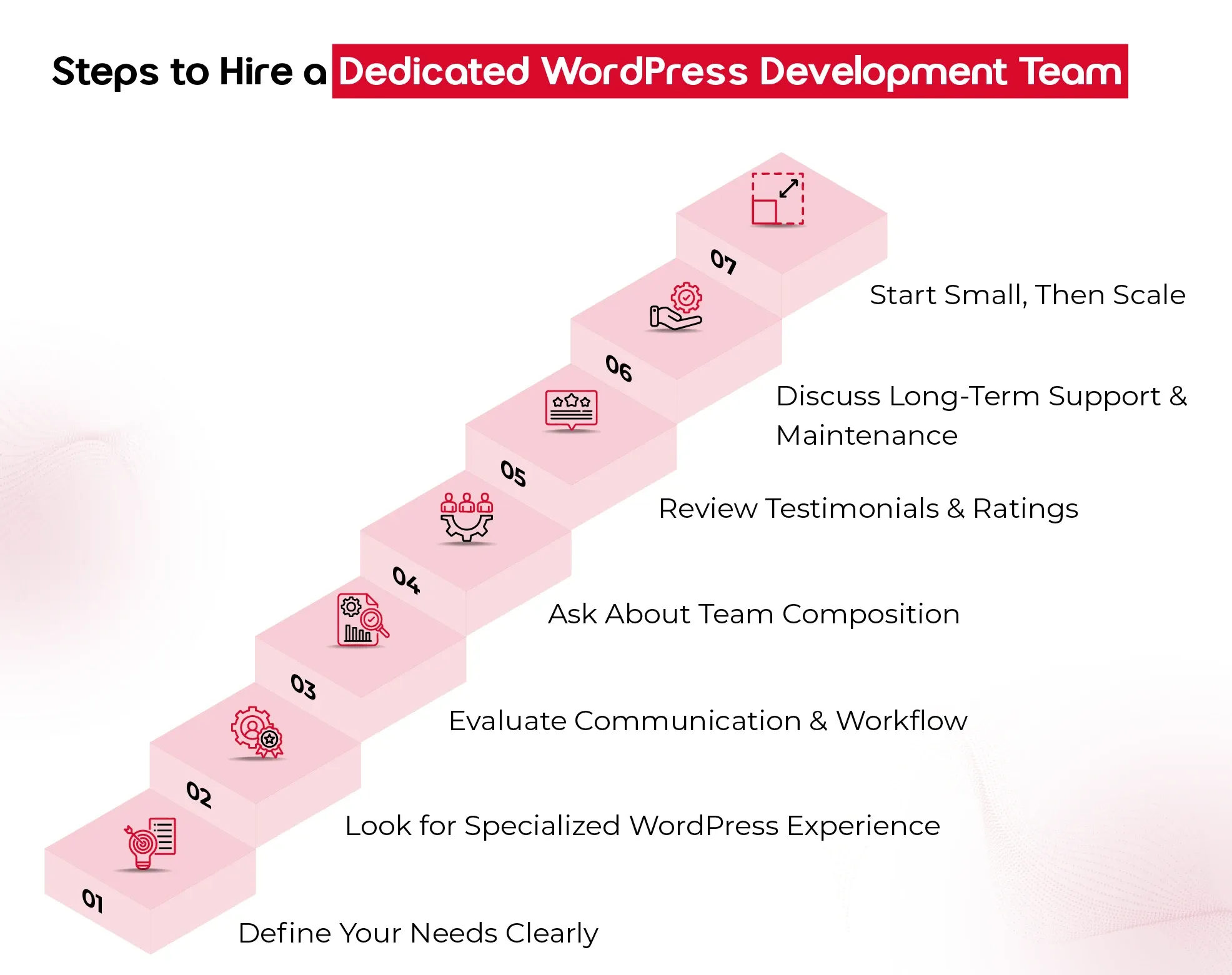
1. Define Your Needs Clearly

Before you even start looking for a team, take a step back and ask: What do you need this team to do?
Are you:

  • Building a website from scratch?
  • Redesigning an existing platform?
  • Adding custom features or integrations?
  • Needing ongoing support and maintenance?

Documenting your goals, technical requirements, timeline, and budget upfront gives you clarity—and makes it easier for the team you hire to deliver the results you expect.

2. Look for Specialized WordPress Experience

Not all developers who “know WordPress” are the same. For enterprise-grade projects, you need a team that specializes in:

  • Custom WordPress development (not just tweaking themes)
  • Scalable architecture and database management
  • Performance optimization and security
  • API integrations with CRMs, ERPs, or marketing tools

Ask to see case studies or a portfolio that reflects similar work to your needs. The right team won’t just say “yes” they’ll ask thoughtful questions, spot risks, and bring proactive solutions.

3. Evaluate Communication & Workflow

A great development team doesn’t just build well — they communicate well. Pay attention to how they:

  • Respond during your initial inquiry
  • Handle your questions (Are they clear, honest, and transparent?)
  • Explain their development process and timelines

You want a team that’s structured, easy to reach, and keeps you in the loop throughout the project. Especially if you’re hiring an offshore WordPress development team, time zone compatibility, tools for collaboration (like Slack or Trello), and clear project documentation become extra important.

4. Ask About Team Composition

An experienced WordPress development team is more than just developers. Ideally, you’re getting:

  • A project manager to guide and coordinate
  • Front-end and back-end developers
  • Designers (if design is in scope)
  • QA testers ensure everything runs smoothly

Understanding who’s involved and what roles they play helps you assess whether the team can handle your scope effectively, especially for large or ongoing enterprise projects.

5. Review Testimonials and Ratings

What others say about them matters. Look for:

  • Verified reviews on platforms like Clutch
  • References from past clients (especially other enterprises)
  • Detailed testimonials that speak to delivery quality, communication, and problem-solving

If they have a 5/5 rating on Clutch, that’s a great sign — but always dig deeper. Strong reviews should reflect more than surface-level praise.

6. Discuss Long-Term Support and Maintenance

Building the site is just one part of the journey. Make sure your potential team offers:

  • Post-launch support
  • Bug fixes
  • Regular updates and security monitoring
  • Scalability planning as your business grows

Your WordPress site should evolve with you, so choose a team that’s in it for the long haul, not just the build phase.

7. Start Small, Then Scale

If you’re unsure, start with a smaller engagement, like a test project, performance audit, or a single feature build. This gives you a real-world look at how the team works before committing to a larger, long-term contract.
Final Thought

In today’s digital-first landscape, a website isn’t just a marketing tool; it’s the backbone of customer experience and enterprise growth. Partnering with an offshore WordPress development team for enterprises gives you the best of both worlds: cost efficiency and access to specialized global talent. From custom architecture to long-term support, a skilled team ensures your website scales as your business grows.

At QeWebby, our dedicated WordPress developers for large-scale projects combine technical excellence with enterprise-level strategy. With a proven 5/5 Clutch rating and experience across industries, we help enterprises build, scale, and secure WordPress websites that drive measurable results.
8 Big WordPress Mistakes To Avoid During Website Scalability

Failure to scale your site appropriately can lead to slow load times, crashes, poor user experience, and overall a loss in revenue opportunities.

When your WordPress website is pulling in millions of views a month, it’s clear you’ve found success. But as your site grows, so do the challenges. Traffic surges can cause slowdowns, crashes, and security headaches if you’re not prepared. Failure to scale your site appropriately can lead to slow load times, crashes, poor user experience, and lost revenue opportunities.

Before scaling your WordPress website, it’s helpful to understand when the right time comes. Let us first find out how to recognize the early signs that indicate it’s time to start thinking about growth.

Identifying the Right Time to Scale Your WordPress Site

There are several signs that indicate it’s time to scale your WordPress website. If you notice any of the following, it’s time to start planning for scalability:

1. Decreasing Website Speed

If your WordPress website starts to slow down, even with a minimal increase in traffic, it may be a sign that your current hosting or website structure can’t handle the growing demand. Slow page load times can frustrate users and impact SEO rankings. It’s a strong indicator that scaling is necessary to maintain performance.

2. Traffic Surges or Spikes

Unexpected traffic spikes, like those from a viral blog post, promotional campaigns, or seasonal peaks, can overwhelm your server if your site isn’t designed to handle high volumes of visitors. If you’re experiencing frequent traffic surges, it’s time to consider scalable hosting solutions and load balancing.

3. Website Downtime

Frequent crashes or downtime are major red flags. If your site is going down often, especially during high-traffic periods, your infrastructure is likely not equipped to handle the load. This is a clear indication that scaling is necessary to keep your site running smoothly.

4. Security Concerns

As your WordPress website grows, so does the complexity of managing security. If your site is increasingly targeted by attacks, or you’re handling sensitive user data, it’s crucial to implement better security measures. Scaling your WordPress website with improved security practices, such as SSL encryption, firewalls, and regular updates, will protect your business and users.

5. Higher User Engagement

If you’ve noticed an increase in user engagement, such as more sign-ups, purchases, or interactions, your WordPress website may soon become overwhelmed by the growing demand. A scalable infrastructure will help you manage this higher engagement and ensure the user experience remains smooth.

6. Frequent Plugin and Theme Conflicts

As your WordPress website grows and you add more plugins and themes, you may begin to experience compatibility issues. If plugins are conflicting with each other, causing crashes or slowdowns, it’s a sign your site may need to be optimized for better compatibility and scalability.

7. Limited Hosting Resources

If you’re using shared hosting and see that your WordPress website performance is deteriorating, you may have reached the limits of your server’s resources. If you’re running into frequent issues with CPU usage, memory limits, or bandwidth, it’s time to consider a more robust hosting solution, such as VPS or dedicated hosting.

8. Expanding Content or Features

As your site grows, you may add more content, products, or features. These changes can significantly increase the load on your server, especially if you’re managing a large amount of data. Proper scaling helps accommodate these additions while keeping your site fast and functional.

With the right strategies and infrastructure, your site can continue to perform at its best, even as your business expands. But as your WordPress website begins to grow, it’s easy to overlook some crucial aspects that can lead to bigger problems down the line. Check out the biggest mistakes that hurt scalability and share simple tips to help your site grow without the growing pains.

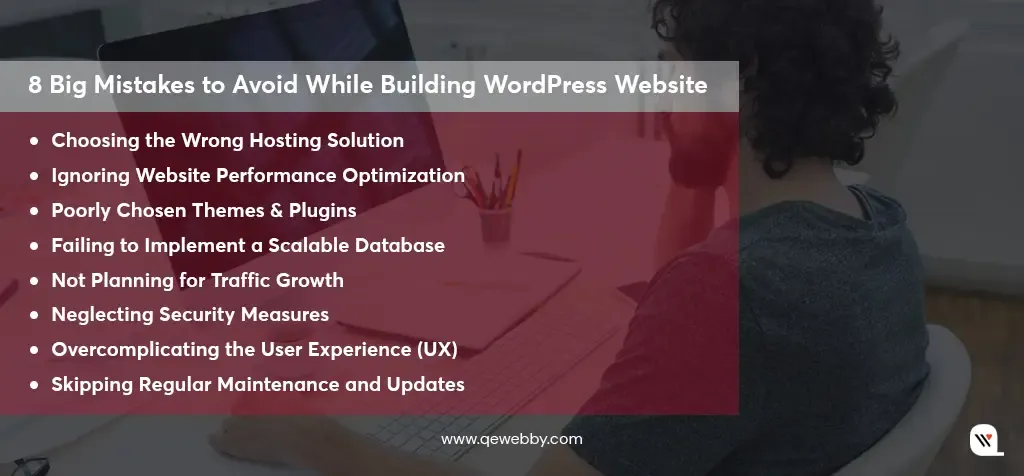
8 Big Mistakes to Avoid While Building WordPress Website

Mistake #1: Choosing the Wrong Hosting Solution

Many businesses make the mistake of going for cheap shared hosting, thinking it’s the best deal. The problem? Your site shares server space with tons of other sites, which leads to slower load times, frequent downtimes, and major issues as your site grows. It’s fine for small, low-traffic sites, but as your audience expands, you’ll quickly outgrow it.

Here’s what you should consider:

  • Shared Hosting: It’s budget-friendly but lacks the resources you need for scalability. It’s great for small sites but won’t cut it as your business grows.
  • VPS Hosting: More resources and better performance, with part of the server dedicated to your site. It’s a good middle ground for growing businesses.
  • Dedicated Hosting: All the resources of an entire server just for your site. It’s more expensive but essential for high-traffic sites or complex needs.

Choosing the right host is crucial—don’t go for a bargain if they can’t provide the support you’ll need down the line. Picking a low-cost host can backfire, causing slowdowns or even site crashes when traffic spikes.

Mistake #2: Ignoring Website Performance Optimization

A slow-loading WordPress website is a significant deterrent for users and a key ranking factor for search engines. Research shows that even a one-second delay in load time can lead to a 7% reduction in conversions. Google’s Core Web Vitals further emphasize the importance of fast load times for SEO rankings.

To improve performance:

Caching: Store static files so users don’t need to reload the same content every time they visit.

  • Image Optimization: Compress images without sacrificing quality to reduce page size.
  • Minimizing HTTP Requests: Reduce the number of elements on a page, such as scripts, images, and CSS files, to decrease load times.
  • Use Lazy Loading: Only load images and videos when they are in the user’s view to avoid unnecessary load on the initial page load.

Keeping your site lean, removing excess scripts, and reducing third-party integrations will help your site remain fast as it grows.

  • Talk about the impact of slow-loading WordPress websites on user experience and SEO.
  • Discuss strategies for optimizing performance, including caching, image optimization, and minimizing HTTP requests.
  • Share the importance of keeping your website lightweight and fast.

Mistake #3: Poorly Chosen Themes & Plugins

Themes and plugins can add great functionality to your WordPress website, but they can also hinder scalability if not chosen carefully. Poorly coded themes or plugins can cause slow performance, compatibility issues, and security vulnerabilities.

  • Choose Lightweight Themes: Opt for themes designed with scalability in mind—simple, minimalistic designs that load fast and avoid unnecessary scripts.
  • Test Plugins: Always test plugins for compatibility with your WordPress version, and ensure they are updated regularly. Overusing plugins can also bloat your site, so make sure each plugin serves a specific need.

Before adding any theme or plugin, review its performance impact using tools like GTMetrix or Pingdom.

Mistake #4: Failing to Implement a Scalable Database

A poorly structured database can easily become a bottleneck as your site grows. As data increases, the system’s ability to handle multiple queries without slowing down becomes critical.

To ensure scalability:

  • Database Indexing: Indexing helps your database quickly retrieve records, reducing load times, especially for larger websites.
  • Optimize Queries: Avoid excessive and complex database queries that slow down your site. For example, don’t use loops that make unnecessary database calls.
  • Database Cleanups: Regularly clean up unnecessary data, such as post revisions, spam comments, and expired transients, which can increase the database size unnecessarily.

A scalable database will ensure your website continues to perform well even as your business grows.

Mistake #5: Not Planning for Traffic Growth

Many businesses underestimate the future growth of traffic and fail to plan for surges, which can overwhelm their infrastructure. The lack of proper scalability can lead to crashes, slow speeds, and a poor user experience.

To scale effectively:

  • Load Balancing: Distribute traffic across multiple servers to prevent any single server from being overwhelmed.
  • Cloud Hosting: Provides the flexibility to scale your resources up or down based on demand.

Content Delivery Networks (CDNs): Distribute your site’s static content to servers worldwide, so users from different regions can load the site faster.

Mistake #6: Neglecting Security Measures

Security breaches are a common cause of site downtime, loss of data, and compromised user trust. Hackers can exploit vulnerabilities, especially on sites that aren’t regularly maintained.

To protect your site:

  • Regular Updates: Keep WordPress core, themes, and plugins updated to patch known vulnerabilities.
  • Two-Factor Authentication (2FA): Use 2FA for added protection against unauthorized logins.
  • SSL Certificates: An SSL certificate ensures data between the server and user is encrypted, improving both security and SEO.

Failing to implement proper security measures will not only harm your reputation but can also leave your website vulnerable to attacks.

Mistake #7: Overcomplicating the User Experience (UX)

A cluttered website with confusing navigation and too many distractions can overwhelm visitors. A bad user experience (UX) makes it hard for users to find what they need, increasing bounce rates and limiting conversions.

To create a user-friendly experience:

  • Intuitive Navigation: Make sure users can find what they need quickly with clear menus and categories.
  • Mobile-First Design: As mobile traffic continues to rise, your website must be optimized for mobile devices. Google even prioritizes mobile-first indexing.
  • Minimalist Design: Keep the layout clean and avoid overloading pages with excessive text or media.

Mistake #8: Skipping Regular Maintenance and Updates

Skipping updates and maintenance can lead to performance issues, security vulnerabilities, and compatibility problems. Neglecting regular WordPress core, theme, and plugin updates can lead to unforeseen problems down the line, especially when newer versions of PHP or WordPress are released.

A solid maintenance plan should include:
  • Routine Backups: Ensure you have regular backups in case of website failure.
  • Performance Audits: Run audits using tools like Google PageSpeed Insights to assess your site’s performance.
  • Consistent Updates: Regularly update the WordPress core, themes, and plugins to ensure everything is running smoothly.

By creating a solid maintenance schedule, you’ll prevent issues from escalating and ensure long-term scalability.

Don’t wait for your website traffic to slow down!

Scale up your WordPress website with us!

Contact Us Now!

In a Nutshell

Scaling your WordPress website successfully requires strategic planning and the right tools. We understand what it takes to get it right, and we’ve helped countless businesses ensure their WordPress websites stay fast, secure, and easy to navigate. Our team has a proven track record of ensuring everything runs smoothly, leaving you with more time to focus on your business.

Reach out today, and let us help you scale your WordPress website effortlessly!

Beyond Contracts: 9 Strategies that Strengthen Agency-Client Relationship

A strong agency-client relationship serves as the cornerstone of successful collaborations in the business world. This partnership is vital across various industries, including marketing, advertising, public relations, and consulting, among others. By investing in nurturing and maintaining these relationships, both agencies, and clients can unlock new opportunities, achieve their objectives, and thrive in an increasingly competitive marketplace.

Let’s examine these key strategies!

9 Strategies that Strengthen Agency-Client Relationships

The cornerstones for nurturing robust agency-client relationships are effective communication, transparency, and reliability. These pillars form the foundation for collaboration, innovation, and mutual success between agencies and clients. And for that reason, we categorize our 9 strategies as

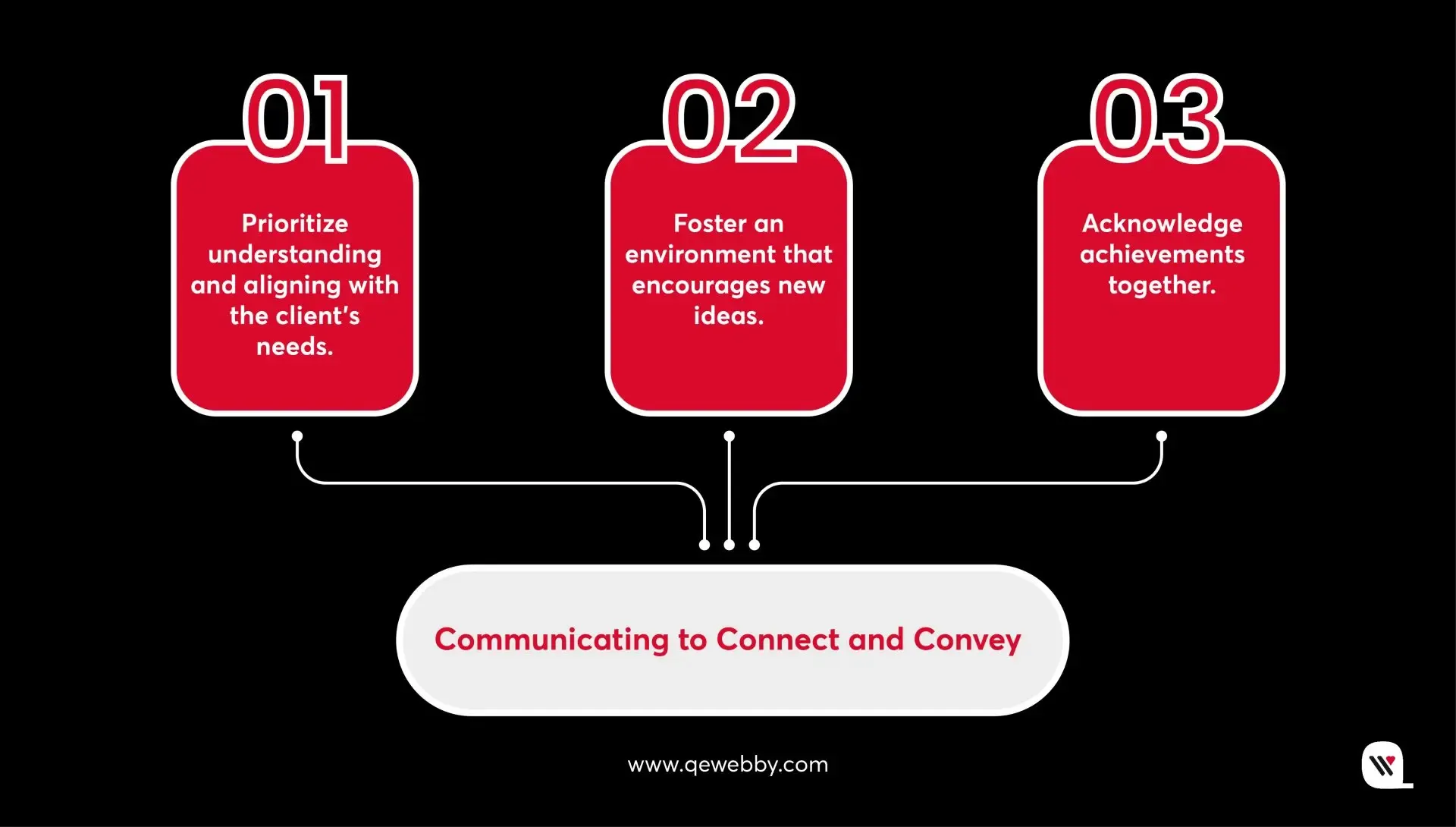
  • Communicating to Connect and Convey:
    1. Prioritize understanding and aligning with the client’s needs.
    2. Foster an environment that encourages new ideas.
    3. Acknowledge achievements together.
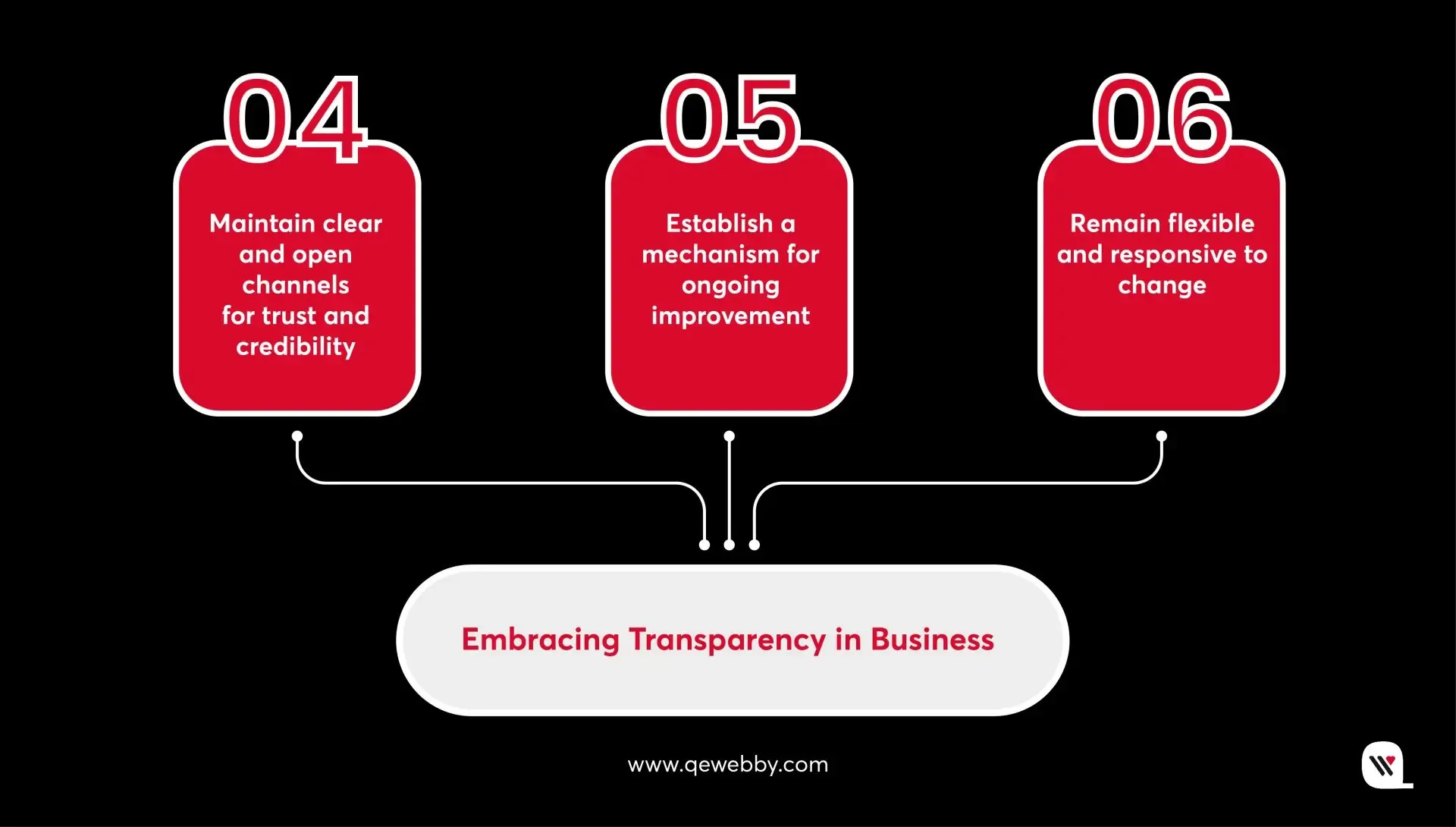
  • Embracing Transparency in Business:
    1. Maintain clear and open channels for trust and credibility.
    2. Establish a mechanism for ongoing improvement.
    3. Remain flexible and responsive to change.
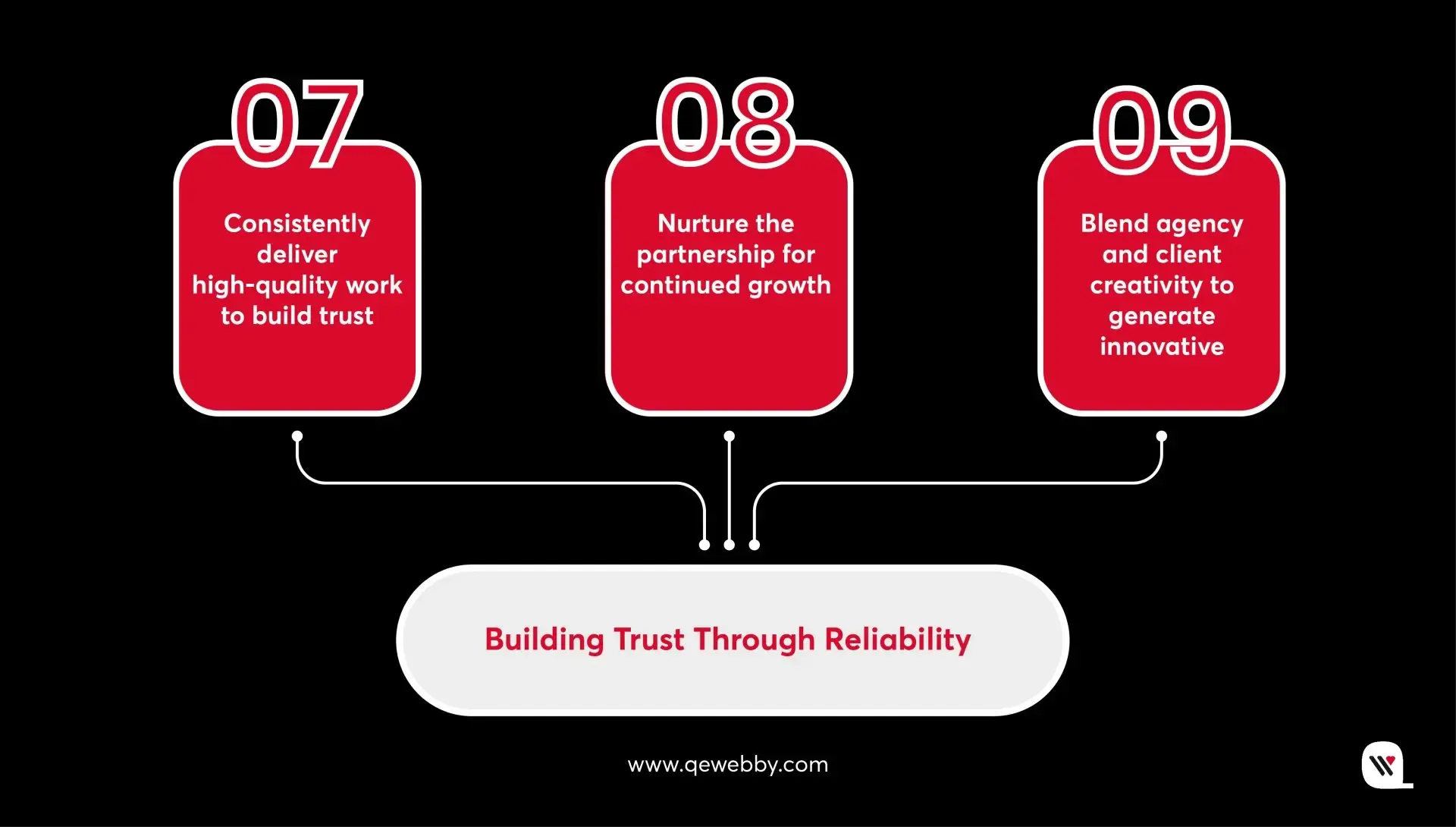
  • Building Trust Through Reliability:
    1. Consistently deliver high-quality work to build trust.
    2. Nurture the partnership for continued growth.
    3. Blend agency and client creativity to generate innovative solutions.

1. Prioritize Understanding and Aligning with the Client’s Needs

Understanding and aligning with the client’s needs should be the cornerstone of any agency-client relationship. By taking the time to truly comprehend the client’s goals, challenges, and objectives, agencies can tailor their strategies and solutions to meet their specific requirements. Active listening, thorough research, and collaborative workshops are key to achieving this alignment. For example, an advertising agency working with a client launching a new product would conduct in-depth research into the target audience and market trends, ensuring that their campaign resonates with the client’s vision.

Pro Tip : Regularly revisit and reassess client needs throughout the project lifecycle to ensure ongoing alignment and relevance.

2. Foster an Environment that Encourages New Ideas

Fostering an environment that encourages new ideas is essential for driving innovation and creativity in agency-client relationships. Agencies should create a culture that values experimentation, rewards creativity, and celebrates out-of-the-box thinking. By providing opportunities for team members to share their ideas and perspectives, agencies can inspire fresh thinking and generate innovative solutions. For example, an advertising agency might hold regular brainstorming sessions where team members are encouraged to pitch unconventional ideas for upcoming campaigns.

Pro Tip : Create a safe space for team members to share ideas without fear of judgment, fostering a culture of innovation and creativity.

3. Acknowledge Achievements Together

Acknowledging achievements together is a powerful way to reinforce the positive aspects of the agency-client relationship. Agencies should celebrate project milestones, successes, and achievements with clients, recognizing the collective efforts that led to success. By sharing in the excitement of accomplishments, agencies can strengthen the bond with clients and foster a sense of partnership and camaraderie. For example, a branding agency might host a virtual launch event to celebrate the successful rebranding of a client’s company, inviting key stakeholders from both organizations to participate.

Pro Tip : Celebrate both big and small wins with enthusiasm and sincerity, reinforcing the value of collaboration and shared success.

4. Maintain Clear and Open Channels for Trust and Credibility

Clear and open communication is essential for building trust and credibility in agency-client relationships. Agencies should establish transparent communication channels, provide regular updates on project progress, and address any concerns or issues promptly. By maintaining transparency and honesty, agencies can demonstrate their commitment to the client’s success. For example, a digital marketing agency might use project management software to keep the client informed about campaign performance metrics and optimization efforts in real-time.

Pro Tip : Practice active listening and empathy to truly understand the client’s perspective and build stronger rapport.

5. Establish a Mechanism for Ongoing Improvement

Establishing a mechanism for ongoing improvement is critical for ensuring that agency-client relationships continue to evolve and grow over time. Agencies should solicit feedback from clients, conduct performance reviews, and implement action plans to address any areas for improvement. By continuously striving to enhance their services and processes, agencies can demonstrate their commitment to client satisfaction and success. For example, a PR agency might conduct quarterly reviews with clients to gather feedback on media outreach efforts and identify opportunities for refinement.

Pro Tip : Embrace feedback as a gift and use it as a catalyst for continuous learning and improvement within the agency.

6. Remain Flexible and Responsive to Change

Remaining flexible and responsive to change is essential for navigating the ups and downs of agency-client relationships. Agencies should be adaptable in their approach, willing to adjust strategies and tactics in response to changing client needs, market conditions, or external factors. By demonstrating flexibility and agility, agencies can show their clients that they are committed to finding solutions that meet their evolving requirements. For example, a social media marketing agency might pivot their campaign strategy in response to shifts in consumer behavior or market trends, ensuring that the client’s objectives are still met.

Pro Tip : Anticipate change and have contingency plans in place to quickly adapt and pivot when necessary.

7. Consistently Deliver High-Quality Work to Build Trust

Consistently delivering high-quality work is paramount for building trust with clients. Agencies should set clear expectations, adhere to deadlines, and strive for excellence in every project. By exceeding client expectations and consistently delivering results, agencies can establish themselves as reliable and trustworthy partners. For instance, a content marketing agency might conduct thorough research and quality checks to ensure that all content produced aligns with the client’s brand voice and objectives.

Pro Tip : Set internal quality standards and conduct regular quality assurance checks to ensure all deliverables meet or exceed client expectations.

8. Nurture the Partnership for Continued Growth

Nurturing the partnership for continued growth is essential for ensuring the long-term success and sustainability of agency-client relationships. Agencies should invest in building strong, personal connections with clients, demonstrating their dedication to mutual success. By regularly checking in with clients, offering strategic guidance, and identifying opportunities for expansion or additional services, agencies can foster a partnership that thrives over time. For example, a web development agency might provide ongoing support and maintenance services to help the client’s website evolve and grow alongside their business.

Pro Tip : Invest in building long-term relationships by regularly checking in with clients, providing strategic guidance, and offering value-added services that support their growth objectives.

9. Blend agency and client creativity to generate innovative solutions

Collaborating with clients to blend agency and client creativity can lead to the development of innovative solutions. By leveraging the unique perspectives and expertise of both parties, agencies can create campaigns, designs, and strategies that stand out in the market. Encouraging brainstorming sessions, soliciting input from the client’s team, and embracing a culture of experimentation are effective ways to foster this collaboration. For instance, a design agency might involve the client’s marketing team in the creative process to develop a website that reflects the client’s brand identity while incorporating cutting-edge design elements.

Pro Tip : Encourage experimentation and don’t be afraid to challenge conventional thinking to unlock truly innovative ideas.

End Note

Fostering strong agency-client relationships is not only beneficial but imperative in today’s competitive business landscape. By implementing the nine strategies outlined in this blog – from prioritizing understanding and alignment with client needs to nurturing partnerships for continued growth – agencies can elevate their collaborations to new heights. Through open communication, innovative thinking, and a commitment to delivering exceptional work, agencies can establish themselves as trusted partners and valuable allies in their clients’ success journeys. Remember, building and maintaining strong relationships takes time, effort, and dedication, but the rewards are well worth it. Here’s to creating lasting partnerships that drive mutual success and prosperity.

If you’re looking for a trusted partner in web development to help bring your vision to life and strengthen your online presence, look no further! Our agency specializes in creating custom, high-quality websites tailored to your unique needs and objectives. [Get in touch with us](/contact-us) today to learn more about how we can elevate your online presence and drive results for your business. Let’s embark on this journey together!

Take Your Business to New Heights with Our White Label Solutions!

Let’s Connect

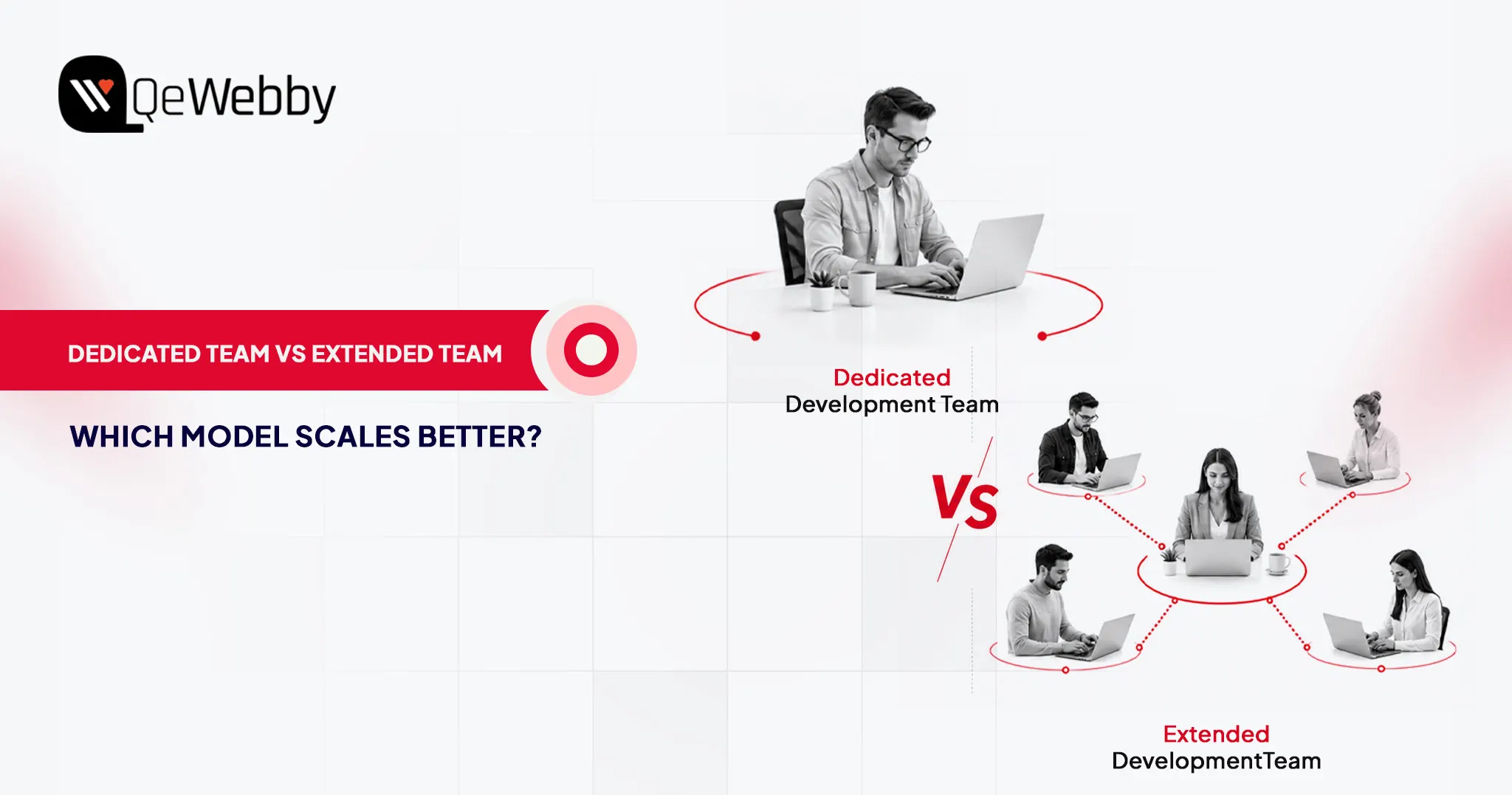
Dedicated Team vs Extended Team: Which Hiring Model Is Right for Your Business in 2026?

Businesses no longer compete solely on products, pricing, or marketing. They compete on execution speed as well as expertise.

The ability of organizations to access development talent quickly often determines how fast they can move in the market.

That is why the discussions around dedicated team vs extended team have become one of the most common hiring topics among startups, agencies, and enterprise organizations in 2026.

Traditional and manual hiring cycles are getting slower and more costly. And companies need flexibility, specialized expertise, and predictable delivery without carrying the overhead of permanent recruitment.

As a result, organizations are increasingly turning toward the dedicated team model and extended team model to access experienced and skilled talent.

According to Deloitte’s Global Outsourcing Survey 2024, 80% of executives plan to maintain or increase their investment in third-party outsourcing, highlighting the growing reliance on external development partners.

What Is a Dedicated Team?

A dedicated team is a fully allocated group of professionals assigned exclusively to your business for an agreed period of time.

Unlike freelancers who juggle multiple clients or consultants who engage intermittently, a dedicated team operates as an extension of your organization with long-term commitment and strategic alignment.

The team works only on your projects, follows your priorities, attends your meetings, and becomes deeply familiar with your business objectives.

How the Dedicated Team Model Works?

The dedicated team model functions much like building your own remote development department without handling recruitment, HR management, infrastructure, and employee administration.

A technology partner recruits, manages, and retains the talent while you retain strategic control over priorities and deliverables.

Typically, the engagement process follows these stages:

  • Requirements discovery
  • Team composition planning
  • Resource allocation
  • Onboarding
  • Sprint planning
  • Ongoing delivery cycles

The team integrates into your workflows, communication channels, and project management systems. This creates stronger knowledge retention, better accountability, and improved delivery consistency over time.

What is the typical team structure for the Dedicated Team Model?

Dedicated teams are customized based on project complexity, but most include the following roles.

Project Manager

The project manager acts as the coordination hub between stakeholders and technical teams.

Responsibilities include:

  • Sprint planning
  • Resource allocation
  • Risk management
  • Delivery tracking
  • Stakeholder communication

For agencies managing multiple client projects, project management support often becomes one of the biggest advantages of a dedicated engagement.

Developers

Developers form the core of the delivery team.

Depending on project requirements, the team may include:

  • Frontend developers
  • Backend developers
  • Full-stack developers
  • WordPress developers
  • Mobile developers
  • API specialists

Businesses seeking ongoing WordPress development often choose to Hire Dedicated WordPress Team resources to maintain continuous website improvements, plugin development, performance optimization, and security enhancements.

QA Engineers

Quality assurance specialists ensure stable releases through:

  • Manual testing
  • Automated testing
  • Regression testing
  • Performance testing
  • User acceptance support

QA involvement throughout the development lifecycle reduces production issues and improves release confidence.

UI/UX Designers

Design professionals support:

  • User research
  • Wireframing
  • Prototyping
  • User experience optimization
  • Interface design

For customer-facing platforms, design participation significantly improves adoption and engagement outcomes.

DevOps Engineers

DevOps professionals manage:

  • CI/CD pipelines
  • Infrastructure automation
  • Cloud deployment
  • Security monitoring
  • Performance optimization

Organizations running scalable applications increasingly include DevOps resources within their dedicated team structure.

Best Use Cases for a Dedicated Team

The dedicated approach is not ideal for every project. However, it performs exceptionally well in specific scenarios.

Long-Term Product Development

Products that require continuous enhancement benefit from dedicated resources because knowledge accumulates over time.

Instead of repeatedly onboarding new contributors, the same team develops deep familiarity with the product architecture and business logic.

This often leads to faster releases and fewer defects.

Agency Partnerships

Digital agencies frequently use dedicated teams to expand service capacity without increasing internal hiring overhead.

Many agencies leverage a white-label WordPress development team to handle client projects behind the scenes while maintaining their own branding and client relationships.

This approach creates predictable delivery capacity while protecting profit margins.

Ongoing WordPress Development

Businesses relying heavily on WordPress often require:

  • Feature enhancements
  • Security updates
  • Plugin customization
  • Performance improvements
  • Technical support

A dedicated team provides continuity that short-term contractors typically cannot deliver. For organizations investing heavily in WordPress Development Services, long-term team allocation often produces better operational efficiency and lower risk.

What Is an Extended Team?

An extended team is a staffing model where external specialists are added to your existing workforce to fill skill gaps, increase capacity, or accelerate delivery timelines.

Instead of operating as a separate unit, the external professionals become part of your internal team structure.

Think of the extended team model as augmenting your current workforce rather than replacing it.

This approach allows organizations to scale capabilities quickly while maintaining control over management, processes, and strategic direction.

As talent shortages continue to affect global hiring markets, the extended development team approach has become one of the fastest ways to access specialized expertise without lengthy recruitment cycles.

How does the Extended Team Model work?

In the extended team model, external resources report directly into your internal workflows.

Your project managers, product owners, or engineering leaders remain responsible for planning, prioritization, and execution.

The external team members simply become additional contributors.

For example:

A company with five in-house developers may add:

  • Two WordPress specialists
  • One DevOps engineer
  • One QA automation engineer

The external professionals work alongside internal staff while following the same sprint schedules, communication channels, and delivery processes. This creates a seamless operational environment with minimal disruption.

Typical Team Composition for Extended Team

An extended team can include virtually any role depending on business needs:

  • Software developers
  • WordPress developers
  • QA engineers
  • UX designers
  • DevOps engineers
  • Cloud architects
  • Security specialists
  • Data engineers
  • AI specialists

The flexibility of the model allows businesses to scale resources up or down based on project requirements. Unlike the dedicated model, team composition may evolve frequently depending on changing priorities.

Best Use Cases for an Extended Team

The extended team model performs best when organizations already have internal leadership and need to expand delivery capacity without increasing permanent headcount.

Internal Team Augmentation

Organizations with established engineering departments often use extended teams to increase development velocity without permanent hiring commitments. This approach is particularly valuable when recruitment timelines cannot keep pace with project demands.

Specialized Skill Gaps

Many projects require expertise that does not justify a full-time hire.

Examples include:

  • Enterprise WordPress architecture
  • Cloud migration
  • DevOps automation
  • Security compliance
  • Performance engineering

An extended development team allows companies to access specialized talent exactly when needed.

Short-to-Medium Duration Projects

Projects lasting several months often fit naturally within an extended team engagement.

Examples include:

  • Website redesigns
  • Platform migrations
  • Product launches
  • Application modernization initiatives

Businesses can increase capacity during peak demand periods and scale back once delivery objectives are achieved.

Freelancer vs Extended Team vs Dedicated Team

Understanding the differences helps avoid costly hiring mistakes and project disruptions.

Factor Freelancer Extended Team Dedicated Team
Ownership An individual contributor works independently External specialists integrate into your internal team Fully allocated team working exclusively for your business
Reliability Varies by individual availability High reliability with team support Very high reliability with dedicated resource allocation
Availability Shared across multiple clients Dedicated working hours aligned with project needs Full-time commitment to your projects
Management Responsibility Managed directly by the client Managed by the client’s internal leadership Shared or provider-managed, depending on engagement
Team Structure Usually one person Selected specialists added to the existing team Complete team, including developers, QA, designers, and project
management
Scalability Limited High Very high
Speed of Hiring Fast Fast Fast to moderate, depending on team size
QA Support Usually unavailable Available when required Typically included
Backup Resources Rarely available Available Available
Knowledge Retention Low Moderate High
Cost Structure Hourly or project-based Hourly or resource-based Monthly team allocation
Typical Pricing $20-$100/hr $30-$120/hr $4,000-$25,000+/month
Best Project Duration Short-term Short-to-medium term Long-term
Agile & Scrum Alignment Limited Strong Excellent
Specialized Skill Access Moderate High High
Internal Team Required No Yes Not necessarily
Long-Term Product Development Not ideal Suitable Ideal
Development
Operational Control Moderate High High
Best For Small one-off tasks, bug fixes, short projects Team augmentation, specialized expertise, temporary scaling Long-term products, agency growth, ongoing development, and strategic
initiatives

The right choice depends on your growth stage, technical requirements, and long-term strategy.

When a Freelancer Makes Sense?

Freelancers work best when:

  • The scope is clearly defined
  • Deliverables are limited
  • Specialized expertise is required temporarily
  • Budget constraints are significant

Freelancers are generally not ideal for mission-critical systems or long-term product ownership.

Knowledge retention becomes a challenge once the engagement ends.

When an Extended Team Makes Sense?

This model gives organizations flexibility without requiring long-term commitments.

Many scaling SaaS companies adopt an extended development team approach before transitioning toward dedicated teams.

  • Have experienced project managers
  • Need temporary capacity increases
  • Require niche technical expertise
  • Want to accelerate delivery timelines
  • Need specialized WordPress developers

The extended team model works exceptionally well when organizations already possess internal leadership and development capabilities.

An extended team is often the right choice when you:

When a Dedicated Team Makes Sense?

The dedicated team model becomes increasingly attractive as business complexity grows.

Choose a dedicated team when:

  • Product development is ongoing
  • Multiple projects run simultaneously
  • Long-term scalability is required
  • Knowledge retention matters
  • Consistent delivery capacity is critical
  • This model is especially popular among digital agencies.

A dedicated team can function as an internal production department while remaining externally managed.

Many agencies combine Agency Partnership Services with dedicated development resources to expand service capacity while maintaining brand ownership and client relationships.

Dedicated Team

Typical Cost Comparison In 2026: Dedicated Team Vs Extended Team

Model Typical Monthly Cost Typical Hourly Cost
Freelancer N/A $20-$100/hr
Extended Team Variable $30-$120/hr
Dedicated Team $4,000-$25,000+/month Lower blended rate

At first glance, freelancers often appear to be the least expensive option.

However, hourly pricing rarely tells the full story.

A freelancer charging $40 per hour may require significantly more management, communication, documentation, and rework compared to a structured team operating under established Agile Development processes.

Similarly, an extended team may appear more affordable than a dedicated team because you’re only paying for specific specialists.

But as resource requirements increase, dedicated teams often become more cost-efficient due to predictable allocation and reduced administrative overhead.

What Affects Pricing?

Several factors influence both dedicated team pricing and extended team pricing.

Geography

Location remains one of the largest pricing variables.
Average development costs vary significantly by region.
Many organizations build an offshore development team to reduce costs while maintaining quality standards.
Countries such as India, Poland, Ukraine, and the Philippines continue to attract businesses seeking experienced engineering talent with competitive pricing.

Skill Level

Senior architects, DevOps engineers, AI specialists, and enterprise consultants command significantly higher rates than mid-level developers.

The more specialized the skill set, the higher the investment required.

Team Size

A two-person team and a ten-person team naturally produce very different cost structures.

Team composition also matters.

For example:

  • 4 Developers
  • 1 QA Engineer
  • 1 Project Manager

will cost differently than:

  • 3 Senior Architects
  • 2 DevOps Engineers
  • 1 Security Consultant

Project Complexity

Projects involving integrations, enterprise workflows, compliance requirements, or high-availability infrastructure typically require more experienced resources.

As complexity increases, pricing follows.

Contract Duration

Longer engagements generally reduce effective hourly costs.

Technology partners can allocate resources more efficiently when engagements extend beyond six months.

This is one reason many organizations adopting the dedicated team model achieve better long-term cost efficiency than businesses constantly cycling through short-term contractors.

Is a Dedicated Team More Expensive Than an Extended Team?

Not necessarily.

A dedicated team usually requires a larger monthly commitment because resources are allocated exclusively to your organization.

However, the overall cost per deliverable often decreases over time.

Dedicated teams provide:

  • Faster onboarding
  • Better knowledge retention
  • Lower turnover impact
  • Greater delivery consistency
  • Reduced management overhead

An extended team may initially cost less because you’re adding only the resources you need.

But as projects grow in scope and complexity, coordination costs can increase.

For companies with a long-term roadmap, a dedicated team frequently becomes the more economical option despite the larger monthly investment.

The decision should be based on business objectives, not simply hourly rates.

Which Model Should You Choose?

After comparing costs, management responsibilities, and scalability, the next question is obvious:

Which hiring model is right for your business?

The answer depends less on budget and more on where your organization is today, and where you plan to be in the next 12 to 24 months.

Many companies make the mistake of choosing the cheapest option available. High-performing businesses choose the model that aligns with their growth trajectory.

Use the framework below to guide your decision.

Use a Freelancer If:

  • You have a small one-time project
  • The scope is clearly defined
  • The budget is extremely limited
  • You don’t need long-term support
  • Internal resources can manage the work

Freelancers offer flexibility but introduce dependency risks. If that individual becomes unavailable, knowledge transfer and continuity can become major challenges.

Choose an Extended Team If:

An extended development team is often the fastest way to scale delivery without committing to a full dedicated engagement.

  • You already have an internal team
  • You need specialized expertise
  • Hiring full-time employees isn’t practical
  • You need temporary capacity increases
  • Your roadmap fluctuates throughout the year

Choose a Dedicated Team If:

  • You have multiple concurrent projects
  • Development is ongoing
  • You need a predictable delivery capacity
  • Product knowledge retention is important
  • You want long-term cost efficiency
  • You’re scaling agency operations

A dedicated team model creates a stable development environment where resources remain aligned with your business goals over time.

Organizations investing heavily in digital transformation, SaaS development, and ongoing WordPress Development Services often see the highest ROI from dedicated teams because they eliminate many of the inefficiencies associated with frequent resource changes.

Pros and Cons of Each Hiring Model

No hiring model is perfect. Each comes with trade-offs that should be evaluated based on your business objectives.

Dedicated Team Pros

  • Exclusive resource allocation
  • Strong product ownership
  • Predictable delivery capacity
  • Better knowledge retention
  • Lower long-term operational risk
  • Easier scaling for ongoing projects
  • Often more cost-efficient for long-term development

Dedicated Team Cons

  • Higher monthly commitment
  • Less suitable for very short projects
  • Requires strategic planning to maximize utilization

Extended Team Pros

  • Flexible scaling
  • Faster access to specialized expertise
  • Lower commitment than dedicated teams
  • Strong integration with internal teams
  • Ideal for temporary capacity expansion

Extended Team Cons

  • Requires internal management capabilities
  • Knowledge may remain distributed across teams
  • It can become harder to coordinate as team size grows

Freelancer Pros

  • Lowest initial investment
  • Flexible engagement terms
  • Useful for specialized short-term tasks
  • Quick hiring process

Freelancer Cons

  • Limited availability
  • No backup resources
  • Minimal quality assurance processes
  • Higher continuity risk
  • Difficult to scale consistently
  • Often unsuitable for mission-critical projects

Build Development Team

Can You Transition from an Extended Team to a Dedicated Team?

Choosing between an extended team and a dedicated team isn’t always a long-term decision. As businesses grow, product roadmaps expand, and delivery demands increase, the hiring model that worked initially may no longer be the best fit.

The key takeaway from this dedicated team vs extended team comparison is that the right choice depends on your current stage, internal capabilities, and long-term objectives. Rather than focusing solely on cost, evaluate each model based on the value it can deliver to your business.

If you’re exploring the right engagement model for your next project, contact us to discuss how QeWebby can help you scale with dedicated teams, extended teams, and tailored WordPress development solutions.

Ultimately, the best hiring model is the one that enables your team to deliver faster, scale efficiently, and support long-term business success.

Migrate Your WordPress Sites: A Definitive Guide [Easy & Fast]

Over 43% of the web runs on WordPress, yet the moment someone needs to migrate a WordPress site to a new host, the process feels anything but routine.

The fear is legitimate.

A failed WordPress migration does not just break a website. It can affect SEO rankings, form submissions, analytics tracking, checkout functionality, and customer trust within hours.

According to W3Techs WordPress Usage Statistics, WordPress powers more than 43% of all websites globally, making migration reliability a critical operational concern for businesses of every size.

What most migration guides miss is that failure rarely happens during the transfer itself. It usually happens before the migration begins or after the new site goes live.

This guide covers the complete process, including:

  • pre-migration preparation
  • plugin-based migration
  • manual migration
  • SEO preservation
  • downtime prevention
  • post-launch validation
  • common troubleshooting scenarios

So you can migrate your WordPress website safely without damaging performance, visibility, or user experience.

Pre-Migration Checklist: What to Do Before You Start

The WordPress site migration checklist isn’t administrative busywork. Every item on it represents a failure mode caught in advance, rather than a recovery task you’ll face under pressure with a live site down. Skipping even one step can mean a corrupted database, missing media files, or an SSL mismatch that takes days to trace.

#1. Build Your WordPress Site Migration Checklist Around a Full Backup First

A full site backup means your database export (.sql file) AND your complete WordPress file directory, including wp-content, all themes, all active plugins, and your .htaccess file.

There are many tools that let you store backups to Google Drive, Dropbox, and Amazon S3. Run a fresh backup immediately before migrating, not the one from yesterday. The few minutes this takes pays off the moment something breaks mid-transfer.

#2. Create a Staging Environment Before Any Live Migration Work

A staging environment is a private, non-indexed copy of your site hosted on a subdomain or locally, where you can test the migrated version before switching DNS. Managed hosts like Cloudways, SiteGround, and WP Engine offer one-click staging environments.

If your current host doesn’t, set one up by pointing a subdomain at a temporary directory. Testing on staging catches the majority of migration errors before they touch your live site.

#3. Audit Your Plugin Stack, Theme Dependencies, and PHP Version

Check the PHP version your current site runs on and confirm your new host supports the same version. Plugin conflicts post-migration are frequently traced back to PHP version mismatches, not the migration process itself.

Deactivate any plugins you no longer use before migrating: fewer files, smaller export, and a cleaner environment on the new host. This step alone reduces migration time noticeably on sites with bloated plugin libraries.

#4. Document Your Current SEO Configuration as a Baseline

Record your current permalink structure, sitemap URL, and robots.txt setup. Screenshot your Google Search Console coverage report. These become your post-migration benchmarks.

A spike in 404 errors or crawl anomalies in Search Console within 48 hours of going live on the new host is the signal to investigate; a clean baseline tells you exactly what changed.

How to Avoid Downtime During WordPress Migration

DNS propagation issues, incomplete file transfers, or untested staging environments usually cause downtime during a WordPress migration. The safest migrations reduce risk before the DNS switch happens.

Practical Steps to Reduce Downtime
  • Lower DNS TTL 24 hours before migration
  • Complete all testing inside a staging environment
  • Keep the old hosting account active during propagation
  • Verify forms, images, redirects, and SSL before switching DNS
  • Schedule migrations during low-traffic hours
  • Avoid making content changes during migration windows

A properly planned migration often completes with minimal or no visible downtime for users.

Choosing the Right Migration Method

When Plugin-Based Migration Is the Smarter Call

Plugin-based migration handles file transfer, database export, import, and URL rewriting in a single coordinated workflow. For most site owners and small agencies, a WordPress migration plugin reduces a four-hour manual process to approximately 45 minutes.

Duplicator, with over 1 million active installs and a 4.9-star rating on WordPress.org, is the most commonly used tool for this. All-in-One WP Migration and Migrate Guru each cover the same core workflow with different trade-offs on file size limits, automation depth, and server-side processing.

The right choice depends on site size and technical comfort. All-in-One WP Migration works well for sites under 512MB with no technical configuration required. Duplicator’s free tier handles unlimited restore sizes and includes recovery tools. For large sites or multisite networks, Migrate Guru runs the migration on the server side, so your local machine never becomes a bottleneck.

When Manual Migration Gives You the Control You Need

Manual migration takes longer but gives you direct visibility into every layer of the process. Developers migrating sites with complex custom database tables, multisite configurations, or non-standard directory structures often find the manual route less prone to unexplained failures. If a plugin migration fails silently at the database import step, identifying which table caused it requires digging into logs. Manual migration makes every failure point explicit.

That said, manual migration is not inherently more reliable than a well-configured WordPress migration plugin. The reliability difference depends on the site’s complexity and your familiarity with phpMyAdmin, FTP, and wp-config.php, not on the method itself.

Best WordPress Migration Plugins in 2026

The right WordPress migration plugin depends on your website size, technical comfort level, and hosting environment.

Plugin Best For Key Strength
Duplicator Most WordPress websites Flexible and reliable migration workflow
All-in-One WP Migration Beginners Simple drag-and-drop interface
Migrate Guru Large websites Server-side migration handling
UpdraftPlus Backup-focused migrations Cloud backup integration
WPVivid Small-to-medium sites Easy scheduled backups and migrations

As per the WordPress Plugin Repository Duplicator reports over 1 million active installs, making it one of the most widely used migration tools in the WordPress ecosystem.

How to Migrate a WordPress Site Using a Plugin (Step-by-Step)

This walkthrough uses Duplicator, since it handles the widest range of site sizes, and the free version covers most common migration scenarios without file size restrictions on restores.

Step 1: Install and Activate Your WordPress Migration Plugin

Log in to your WordPress admin dashboard. Go to Plugins > Add New, search for Duplicator, install it, and activate. Once active, Duplicator appears in your left sidebar under its own menu.

Step 2: Create the Migration Package on Your Current Site

Click Duplicator > Packages > Create New. Run the pre-build scan to catch any configuration warnings: large files, oversized databases, and non-standard table prefixes. Name your package, run the build, and download both the installer file (.php) and the archive (.zip). Both files are required for the next steps. The installer file is useless without the archive.

Step 3: Prepare a Fresh Database on Your New Host

On your new host, create a MySQL database, create a database user, and assign full privileges. If your new host uses cPanel, the MySQL Databases section handles all three in under five minutes. Note the database name, username, and password; you’ll enter these during the Duplicator import step.

Step 4: Upload the Package Files and Run the Installer

Upload both Duplicator files to your new host’s root directory via FTP using FileZilla, or through your host’s cPanel file manager. Navigate to yoursite.com/installer.php in a browser. The installer walks you through database connection, archive extraction, and URL updating in a guided interface. Enter your new database credentials when prompted.

Step 5: Complete Your WordPress Site Migration Checklist Verification

After the installer finishes, log in to your new WordPress admin dashboard. Check that pages load, images display correctly, and no critical functions are broken. Run a URL search-replace if Duplicator didn’t handle it automatically; the Velvet Blues Update URLs plugin covers this. Update your DNS pointing to the new host only after this full verification step passes.

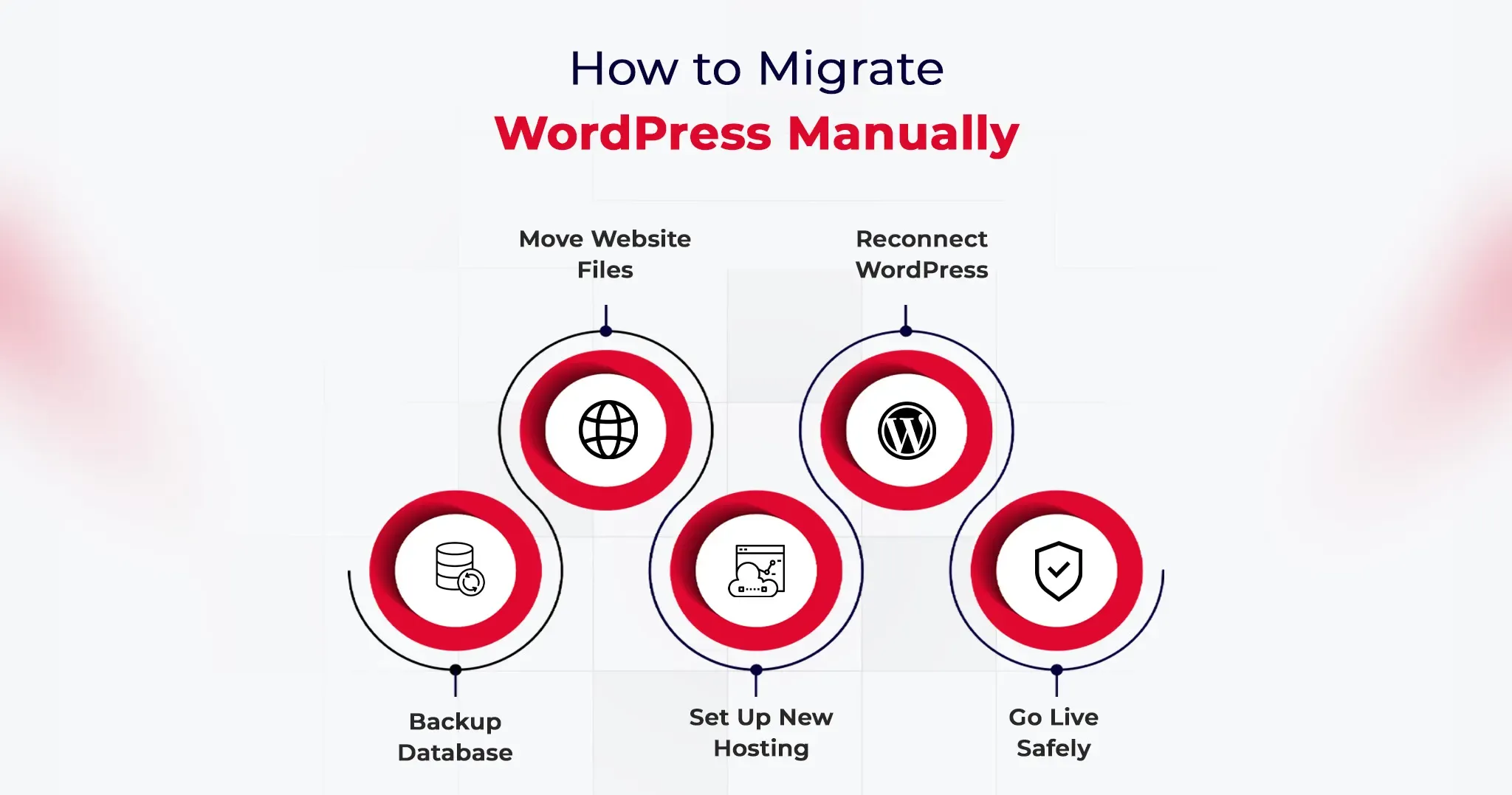
How to Migrate WordPress Site Manually (Step-by-Step)

Manual migration covers the same destination as the plugin method but gives you direct access to every component of the transfer.

Step 1: Export Your WordPress Database via phpMyAdmin

Log in to your current hosting cPanel and open phpMyAdmin. Select your WordPress database from the left panel, click the Export tab, choose the Quick export method, set the format to SQL, and click Go. Save the .sql file locally. This file contains every post, page, user, plugin setting, theme option, and WordPress configuration your site holds. Back it up separately before importing to the new host.

Step 2: Download All WordPress Files via FTP

Connect to your current server using FileZilla or an equivalent FTP client. Navigate to your WordPress root directory, typically public_html or www. Download the entire directory including wp-content, wp-includes, wp-admin, and the .htaccess file. Download time ranges from 15 minutes for a lean site to over an hour for wp-content folders heavy with media.

Step 3: Create a New Database on Your Destination Host

On your new host’s cPanel, open MySQL Databases. Create a fresh database, create a user, and assign all privileges to that user. Record the database name, username, and password precisely. The WordPress site migration checklist requirement at this step is exact credential matching: a single character mismatch between your wp-config.php and the actual database credentials will produce a database connection error.

Step 4: Import the Database and Reconfigure wp-config.php

Open phpMyAdmin on your new host, select the new empty database, click Import, and upload your .sql file. Once imported, open wp-config.php in a text editor and update DB_NAME, DB_USER, DB_PASSWORD, and DB_HOST to match your new database credentials. Upload the updated wp-config.php and all your WordPress files to the new host’s public root via FTP.

Step 5: Update URLs and Complete Your WordPress Site Migration Checklist

Navigate to your new site using the host’s temporary URL during the staging period. Run a database search-replace to update all instances of your old domain with the new one.

Better Search Replace handles serialized data correctly, which is critical for sites built with Elementor, Divi, or WooCommerce, where hardcoded URLs nest inside serialized arrays. Flush your permalinks by going to Settings > Permalinks and clicking Save Changes. That single action resolves approximately 90% of 404 errors that appear immediately after a manual migration.

How to Migrate WooCommerce Sites Safely

WooCommerce migrations require additional caution because they involve customer accounts, order data, payment gateways, and transactional functionality.

Important WooCommerce Migration Checks
  • Place the store in maintenance mode before migration
  • Backup WooCommerce orders separately
  • Test checkout and payment gateway functionality after migration
  • Reconnect Stripe, PayPal, and shipping integrations if needed
  • Verify transactional emails and automation workflows
  • Check product image references and inventory sync

Even when pages load correctly, payment or checkout issues can remain hidden until customers attempt purchases. That is why live transactional testing is essential after migrating WooCommerce websites.

Important Post-Migration Tasks You Shouldn’t Skip

The migration is not finished when the site loads correctly on the new server. These tasks are where most people create the problems they later spend hours debugging.

Verify SSL installation and HTTPS consistency. Confirm HTTPS works correctly on the new host. If your old host provisioned the SSL and your new host requires a fresh certificate, your site may load on HTTP but not HTTPS, which breaks any hardcoded HTTPS links stored in the database.

Recheck Google Analytics and Search Console tracking. Confirm your analytics tracking code fires on the new environment. If you changed domains, update your Search Console property and resubmit your XML sitemap to trigger a fresh crawl indexing the correct URLs.

Test every form, integration, and payment gateway. Contact forms, WooCommerce checkout flows, and third-party API connections (Mailchimp, Stripe, CRM hooks) need live testing. API keys and environment variables don’t transfer automatically, and a visual check of the page doesn’t confirm a form submission actually routes correctly.

Run a full crawl within 24 hours of going live. Screaming Frog or Sitebulb will surface broken internal links, redirect chains, missing image references, and duplicate content signals that a manual browse misses entirely. Even a 15-page site can return a crawl report with 30 actionable items.

Reduce DNS TTL 24 hours before the migration, not after. Lowering TTL to 300 seconds before you switch DNS means propagation completes in minutes rather than 24 to 48 hours. Set it back to 3600 once propagation confirms fully across major DNS resolvers.

WordPress Migration SEO Checklist

Moving a WordPress website without protecting SEO can quietly damage rankings, traffic, and indexed pages even when the migration itself appears successful. A structured SEO migration checklist helps preserve visibility and reduces the risk of crawl or indexing issues after launch.

Key SEO Checks Before and After Migration

  • Preserve the existing URL structure whenever possible
  • Configure 301 redirects for changed URLs
  • Verify canonical tags after migration
  • Re-submit your XML sitemap in Google Search Console
  • Review robots.txt configuration on the new environment
  • Monitor crawl errors and indexing coverage for at least two weeks
  • Check Core Web Vitals and page speed after DNS propagation
  • Validate internal links and image URLs after migration

According to Google Search Central, proper redirects and sitemap resubmission are critical steps when migrating websites without losing search visibility.

Even small migration errors like broken redirects or incorrect noindex settings can affect organic performance within days.

Common Migration Issues and How to Fix Them

404 errors across all pages. Go to Settings > Permalinks and click Save Changes without modifying anything. This regenerates the rewrite rules in .htaccess and resolves the majority of post-migration 404 issues within seconds.

White screen of death after migration. This points to a PHP version mismatch or an exhausted memory limit on the new host. Check the server error logs first. If logs show a memory error, add define(‘WP_MEMORY_LIMIT’, ‘256M’); to wp-config.php. If logs show plugin errors, rename the entire plugins folder via FTP to deactivate all plugins at once, confirm the admin loads, then reactivate plugins one by one to isolate the conflict.

Images not loading after the transfer. Hardcoded image URLs in the database still reference the old domain. Run Better Search Replace, searching for your old domain and replacing with the new one, with the dry-run option turned off. Confirm the serialized data checkbox is enabled.

Database import timeout or file size error. Large .sql files frequently exceed phpMyAdmin’s default upload limit. Compress the file to .sql.gz before importing, or use a tool like BigDump for databases exceeding 200MB. Alternatively, import via SSH: mysql -u username -p database_name < backup.sql.

Admin login broken after migration. This is typically a cookie domain mismatch or a siteurl/home URL conflict. Add define(‘COOKIE_DOMAIN’, ”); to wp-config.php to reset the cookie domain configuration, then log in and correct the URLs under Settings > General.

Bonus Tips to Make WordPress Migration Even Faster

Use your new host’s free migration service. Per hosting industry data, 63% of managed WordPress hosting plans include free site migrations. Providers like Kinsta, WP Engine, and Cloudways move your site at no additional charge and handle technical edge cases that trip up self-managed migrations. For non-developers, this is consistently the fastest and lowest-risk path.

Move to NVMe-based hosting while you’re migrating. Sites migrated from SATA SSD to NVMe infrastructure typically see a 50 to 70% reduction in server response time (TTFB), according to hosting benchmark data from Hostingstep. If your migration is performance-driven, the hosting infrastructure choice matters more than the migration method you use.

Migrate during low-traffic hours. Schedule migrations between midnight and 6 AM in your site’s primary audience timezone. Any DNS propagation window falls during minimum traffic, errors surface before peak audience hours, and your monitoring tools catch anomalies before users do.

Use WP-CLI for databases over 1GB. WP-CLI, WordPress’s command-line interface, handles database exports, imports, and search-replace operations directly on the server, with no phpMyAdmin file size caps and no browser timeout risk. For any site with a database above 1GB, command-line tooling is the correct approach, not a browser-based phpMyAdmin interface.

Conclusion

Getting the process of how to migrate a WordPress site right is not primarily a technical challenge. It is a sequencing challenge. Full backup happens before anything else. The staging environment gets tested before DNS changes. The post-migration checklist runs before you announce the new site is live.

Whether you use a WordPress migration plugin like Duplicator or work through the manual FTP and phpMyAdmin method, the structure of the process matters more than the specific tools. Follow the sequence, test before switching DNS, verify after switching, and most migrations complete without incident.

WordPress 6.3 Unwrapped: Discover What’s New and Exciting

WordPress 6.3 marks the second major release of 2023, bringing with it a plethora of notable updates, fresh features, enhancements, and bug fixes that amplify the strength and utility of WordPress. With the changes that are spread across 43 core components, WordPress 6.3 opens new possibilities for the creative expression of designers, creators, and builders.

Within this post, we’ll unveil the highlights of WordPress 6.3 and spotlight the features that deserve your attention following the update.

Let’s take a look!

Enhancements in Selectors API

Designed to elevate your styling capabilities to unprecedented heights, this advanced API empowers you with the ability to configure multiple CSS selectors, ensuring a seamless generation of global styles across your blocks. Notably, this can be achieved across three distinct levels: root, feature, and sub-feature.

  • Root Selectors At the core of the Selectors API lies the root selector, your block’s principal CSS selector. Every block requires a primary CSS selector to orchestrate global style declarations. Should you not designate one through the Block Selectors API, rest assured that a default selector (in the form of .wp-block-) will be generated for you.
  • Feature-level Selectors In the new version, API empowers you to target specific block features with unparalleled precision – be it borders, colors, typography, or other attributes. This facet enables you to bestow distinct styles upon various elements within your block. For instance, imagine applying color schemes to your block’s wrapper while refining typographic elements within an inner text element.
  • Subfeature Selectors The Subfeature Selectors elevate your styling prowess to unparalleled heights. Now, individual styles associated with block features (e.g., background-color or border-radius) can be expressed through unique selectors. This proves invaluable when aiming to implement diverse styles within a single feature. Consider a scenario where the block’s typography necessitates font family at the wrapper level while specifying distinct text decoration and font size for inner elements.

The brand-new Command Palette

This exciting feature takes center stage within the post and site editors, granting users swift access through keyboard shortcuts, namely ctrl + k or command + k. It offers two avenues to maximize command utilization: static and dynamic commands.

  • Static Commands: Easily register static commands using the wp.data.dispatch( wp.commands.store ).registerCommand action or the wp.commands.useCommand React hook. With either approach, a command object is provided, equipped with a distinct name, a clear label, an icon, a callback function invoked upon command selection, and potentially, a context.
  • Dynamic Commands: Dynamic commands, on the other hand, are enabled via “command loaders.” These prove invaluable when command availability hinges on user-input search terms or certain conditions.

The command palette’s versatility extends to contextual commands, ensuring priority visibility and a seamless user experience. These commands shine in specific contexts, such as navigating the site editor or editing a template. Currently, two key contexts have been implemented:

  • Site-editor – While navigating the site editor with the sidebar visible.
  • Site-editor-edit – When engaged in editing a document (template, template part, or page) within the site editor.
  • And the journey doesn’t end here. As adoption grows, additional contexts will be seamlessly incorporated

To manipulate the command palette’s behavior, it is enriched with a host of selectors and actions through the WordPress Data API. These include:

  • Retrieving registered commands and command loaders with selectors like getCommands and getCommandLoader.
  • Checking whether the command palette is open via the isOpen selector.
  • Programmatic control over opening and closing the command palette using the open and close actions.

Evolution of Layout Support

The latest WordPress 6.3 update brings exciting enhancements to layout support, marking its graduation from experimental to stable. While the functionality remains consistent, the upgrade comes with a small change: when you’re adding block support for layout in your block.json, the syntax “layout” now replaces “__experimentalLayout.” Although the support for the “__experimentalLayout” syntax will still be retained for a transitional period, we strongly recommend that you seize the opportunity to elevate your custom blocks by transitioning to the rock-solid layout syntax.

Innovations in CSS Specificity for Enhanced Layouts:

When you offer something valuable in exchange for someone’s email (like a free trial, eBook, or exclusive demo), you’re not just collecting random email addresses. You’re attracting leads who are genuinely interested in what your software can do. This means the leads you gather are more likely to convert into paying clients.

Empowering Complex Block Markup with Classnames:

Building on the foundation laid in WordPress 6.2, the latest version integrated layout classnames into the block inner wrapper. While this aligns with the outer wrapper for most blocks, certain blocks (like the core Cover block) encompass multiple inner containers. With WordPress 6.3, a novel classname graces the inner wrapper of all blocks with layout, amalgamating the block classname with the layout classname.

Say Hello to the New Grid Layout:

Embrace innovation with the introduction of the all-new grid layout type, underpinned by the power of CSS Grid. This dynamic layout defaults to an auto-fill approach, complete with configurable column widths. For those seeking precise control, the columnCount property within the layout object allows you to establish a fixed number of columns.

Elevated Layout and Spacing in the Post Template Block:

Embrace innovation with the introduction of the all-new grid layout type, underpinned by the power of CSS Grid. This dynamic layout defaults to an auto-fill approach, complete with configurable column widths. For those seeking precise control, the columnCount property within the layout object allows you to establish a fixed number of columns.

Seamless Spacer Block Alignment with Parent Layouts:

Spacer blocks now seamlessly integrate with parent layout configurations, taking on the orientation of the parent layout, especially within flex-type layout blocks. While you can still manually set an orientation for Spacer blocks based on parent context, flex layouts grant priority to the flex orientation, ensuring consistent and harmonious designs.

Dynamic Coloring of Social Icons Block

The Social Icons block now offers the option to customize both the “Icon color” and “Icon background color” in WordPress 6.3. Prior to this version, the chosen colors were hardcoded as hex code values within the block, even if you selected a color from the theme palette defined in theme.json.

Now, with WordPress 6.3 release, the Social Icons block embraces CSS classes that seamlessly align with your chosen color values. These classes are an integral part of the WordPress ecosystem, ingeniously generated in harmony with the color palette outlined in your theme.json file. Their structure is straightforward:

has-[color_slug]-color

has-[color_slug]-background-color

It’s essential to note that these empowering classes won’t come into play when a user opts for a custom color. This dynamic integration ensures that your design retains its integrity and aligns seamlessly with your chosen color palette, making WordPress 6.3 the pinnacle of design control and cohesion.

Bundled Themes Drops Internet Explorer Scripts and Styles

In recognition of the diminishing traffic from Internet Explorer users and WordPress’ discontinuation of support for this outdated browser, certain default themes have taken proactive steps. By removing specific Internet Explorer-oriented scripts and styles, these themes are ensuring that the majority of users can enjoy a smoother and faster browsing journey.

Moreover, these optimizations extend to focus enhancement scripts that were previously tailored for Internet Explorer and older versions of Chrome. With the arrival of WordPress 6.3, themes like Twenty Thirteen and Twenty Fourteen have gracefully evolved, no longer incorporating these scripts in their functions.js files. Additionally, from Twenty Fifteen to Twenty Twenty-One, themes have been fine-tuned to neither enqueue nor print these scripts.

This strategic move not only aligns with modern web standards but also reflects our commitment to delivering a top-tier experience for every user. Embrace these enhancements as we usher in a new era of optimized performance and a richer online encounter.

Improvements to the Cache API

WordPress 6.3 release brings forth an array of strategic enhancements that redefine how queries are cached within the WordPress ecosystem.

Elevating Cache Group Dynamics:

Diving into the heart of WordPress 6.3, a paradigm shift in cache group dynamics emerges. Previous versions of WordPress stored query results in cache groups aligned with their corresponding objects. However, the landscape has evolved, and WordPress 6.3 introduces a groundbreaking approach that offers developers unprecedented control and precision.

As the WP_User_Query class joins the cache hierarchy, a dynamic modification unfolds. The introduction of distinct cache groups tailored for queries becomes the cornerstone of this evolution. Developers now hold the reins to specify cache group expiration times, enabling the fine-tuning of cache duration. The innovative wp_cache_flush_group() function stands ready for developers seeking tailored cache clearance.
Flexibility extends even further, granting developers the ability to designate cache groups as non-persistent, if necessary. The newly introduced cache groups encompass:

  • post-queries
  • term-queries
  • comment-queries
  • network-queries (global cache group)
  • site-queries (global cache group)
  • user-queries (global cache group)

Enhancement to get_pages() Function

WordPress 6.3 introduces a significant improvement to the get_pages()function. It now utilizes WP_Query internally, addressing a 13-year-old ticket (#12821). This update reduces complexity by offloading database queries and cache handling to WP_Query.

As a result, this eliminates redundancy and ensures that all filters within WP_Query apply to get_pages(). Users employing filters like posts_pre_query or posts_results for customized WP_Query behavior, including data retrieval from alternative sources such as cache or other databases, will benefit. Additionally, a new filter named get_pages_query_args has been added, allowing developers to modify parameters passed to WP_Query while maintaining compatibility with original arguments.

PHP Support

WordPress 6.3 no longer provides support for PHP 5.

The minimum supported PHP version has been raised to 7.0.0.

Wrap Up

WordPress 6.3 release represents a significant leap in the editing experience. The improvements are substantial, covering various new editing features in the site editor, a redesigned and versatile block pattern system, new blocks, improved performance, enhanced accessibility, and internationalization enhancements, among other improvements.

If you’re thinking about upgrading your WordPress site to leverage these remarkable advancements, our skilled team of WordPress professionals is here to offer seamless assistance and guidance. Embrace the capabilities of WordPress 6.3 and discover new possibilities for your online presence.

WordPress 6.3 introduces notable improvements aimed at enhancing load time performance for content containing images. The impact of these enhancements is particularly evident in the Largest Contentful Paint (LCP) metric, which gauges the time taken from the request initiation until the largest content element within the viewport is rendered.

Automated fetchpriority Support

WordPress 6.3 latest release, now includes the fetchpriority attribute, set to “high,” within the image tag it identifies as the “LCP image” – the image constituting the largest content within the viewport. This attribute instructs the browser to prioritize this image, boosting LCP performance by approximately 5-10%. For further context, refer to the initial proposal post.

Automated lazy-loading

A series of refinements and resolutions have been introduced to enhance the automatic management of lazy-loading using the loading attribute. This refinement process, initiated in WordPress 5.9 and continued in 6.2, culminates in comprehensive enhancements in WordPress 6.3. This meticulous approach ensures the more accurate identification of images where omission of the attribute is appropriate, thereby contributing to optimized performance. For deeper insights into the significance of not lazy-loading in-viewport images, especially the LCP image, in the context of performance, refer to the relevant WordPress 5.9 dev note post.