How to Choose a WordPress Theme for Your Business Website

Most business owners don’t land on the wrong WordPress theme because they have bad taste. They pick by scrolling demos, not by checking what’s under the hood. And the hood is exactly what breaks six months later.

WordPress.org alone hosts more than 14,000 free themes, and once you count the premium marketplaces, the number rockets past six figures. That much choice is paralyzing. Worse, almost every theme conversation gets stuck on how things look. But the best theme isn’t a design pick at all. It’s an infrastructure decision, and it touches speed, crawlability, and whether your plugins play nice together.

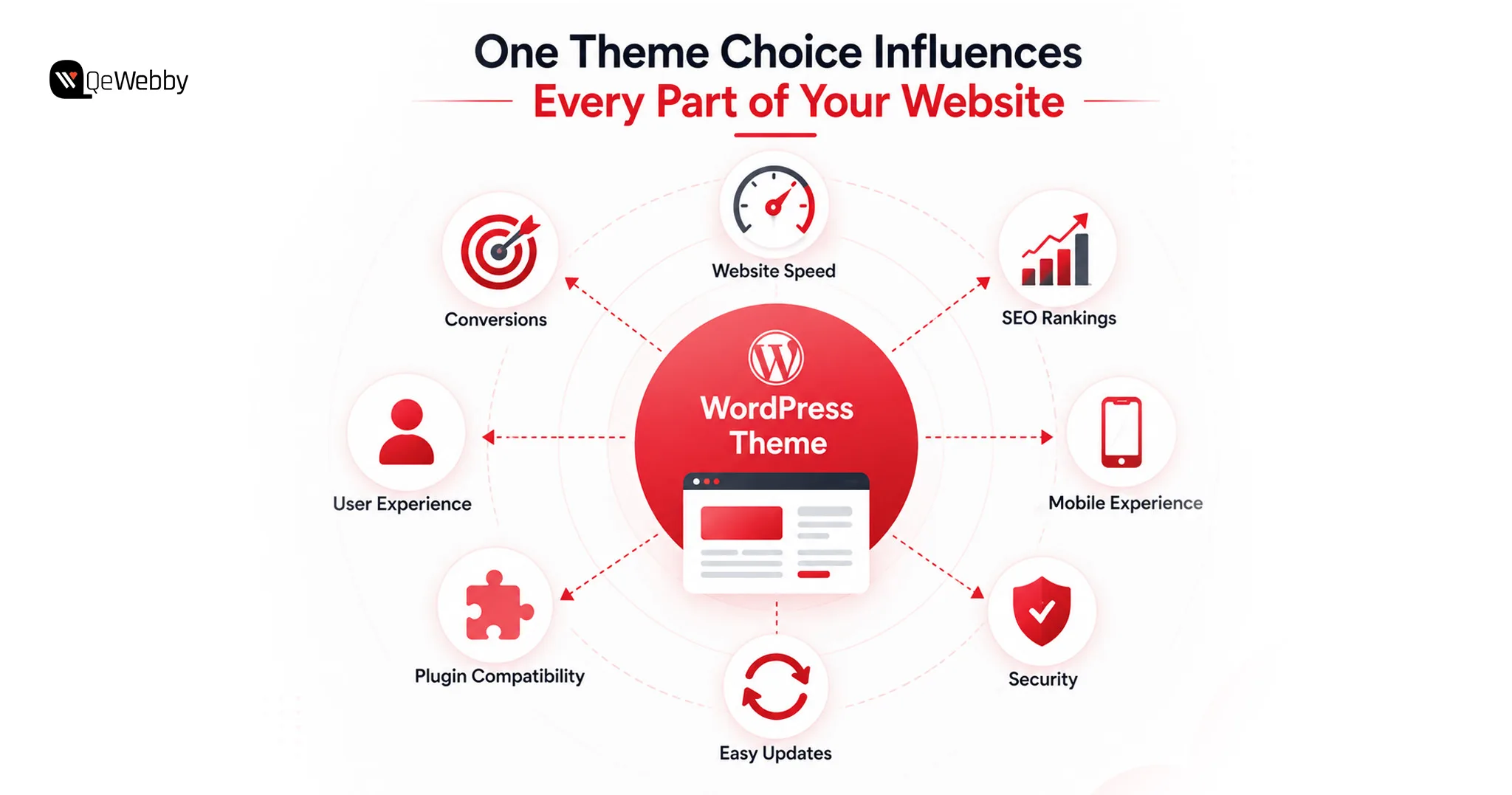
Choosing the wrong WordPress theme doesn’t just affect how your website looks. It influences page speed, SEO, mobile usability, plugin compatibility, maintenance costs, and even how easily your team can update content. A good theme becomes the foundation for everything that follows.

This guide walks through what to check before you install anything: a pre-purchase checklist, an honest free-versus-premium breakdown, the strongest options available right now, and the one mistake nearly every owner makes the moment the theme goes live.

Your Theme Isn’t a Design Choice. It’s the Foundation Everything Else Sits On
One Theme Choice

Your WordPress theme isn’t a design decision. It’s a technical foundation. You set it on day one, before a single word of content or a single plugin ever touches the site.

Most people judge a theme by scrolling the demo and asking, does it look good? That’s the wrong question. The theme decides how fast every page loads, how the browser paints it, and how long a visitor stares at nothing before something finally shows up. Looks should be the last thing you weigh, not the first.

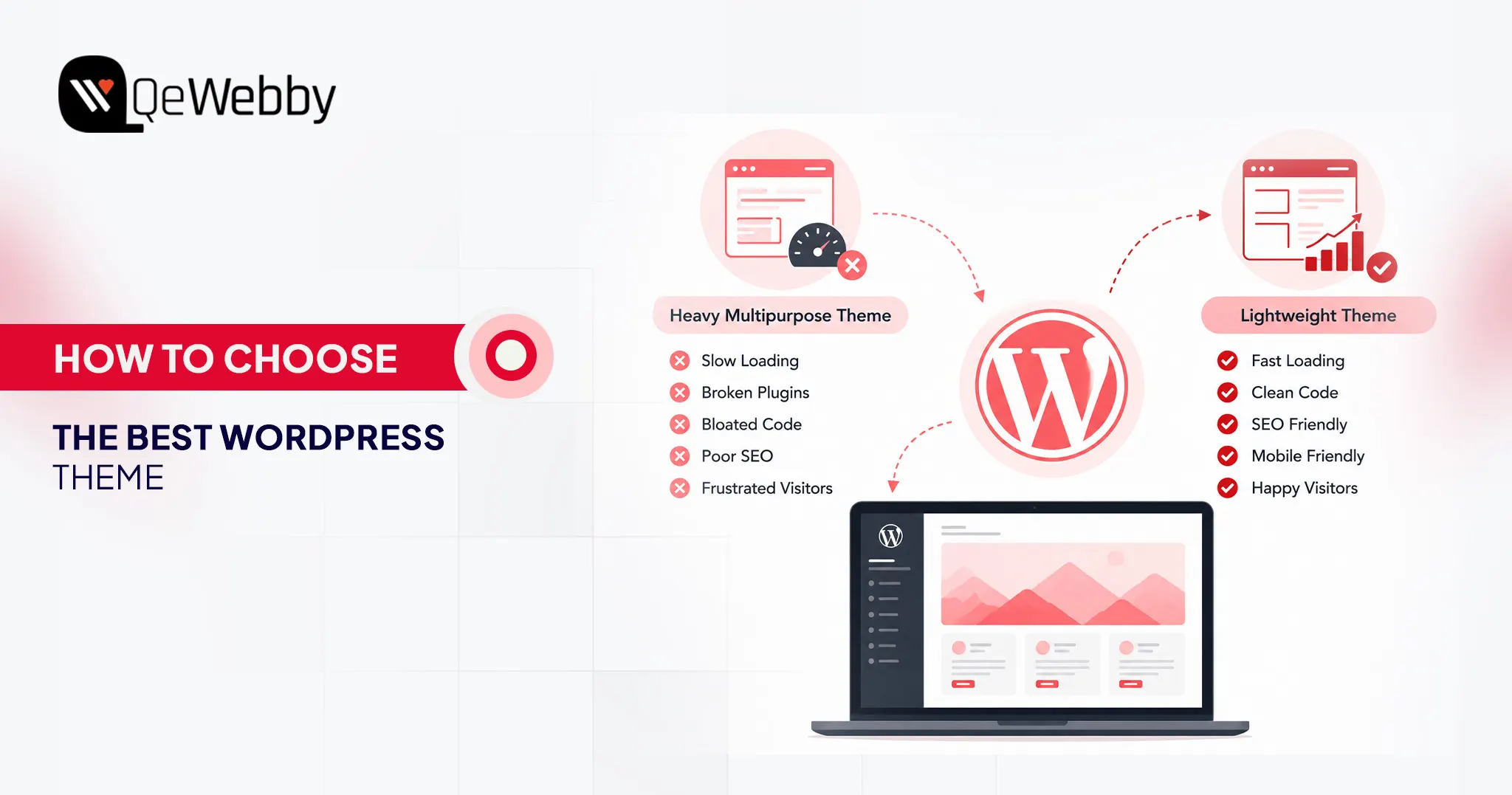
Here’s where it all goes sideways. Those flashy “multipurpose” themes promise you everything at once. Sliders. Animation libraries. A dozen design modules. Page builders stacked on page builders. Sounds generous. It’s the opposite of generous.

Every one of those features ships as extra CSS and JavaScript that your browser has to download and parse, whether you ever use it or not. And most of it you never will. The browser has no way of knowing that. So it loads the whole payload anyway, chokes, and your load time picks up the tab.

Once you’re stuck on a bloated theme, you can’t optimize your way back out. Install a caching plugin. Lazy-load your images. Minify the scripts. Buy a faster host. None of it repairs the foundation. A slow, poorly coded theme stays slow, and you end up patching a structural problem with surface-level tools.

So flip the priority. Fast sites start with lightweight themes built on clean, minimal code. The good ones use modular architecture, which is a fancy way of saying they load a resource only on the page that actually needs it. Nothing ships by default. Nothing loads “just in case.”

Before You Browse a Single Theme, Answer Three Questions

Here’s how each question maps to the technical calls that decide whether your site ends up fast or slow.

1. What Is This Site Actually For?

The site’s core job doesn’t just shape the layout. It dictates your whole hosting and caching strategy, and those two calls matter more than the theme itself.

Service and content-first sites are the easy case. They serve mostly static pages to anonymous visitors, so a lightweight theme plus edge caching, something like Cloudflare APO, can deliver those pages almost instantly anywhere on earth while barely touching your server.

WooCommerce and membership sites are a whole different animal. Everyone checks whether a theme looks good with WooCommerce, and that’s the part that matters least. These sites run on dynamic, personalized content: shopping carts, user profiles, account pages. That content skips standard page caching entirely. You simply can’t cache a cart.

So you push the caching down a level. Server-side object caching with Redis is what soaks up the flood of complex database queries these setups throw off. Skip it, and the database turns into your bottleneck no matter how clean the theme underneath is.

2. Who Manages The Site Day-To-Day?

The manager’s technical comfort decides whether you build on a page builder or on native WordPress tools. That one fork has huge consequences for speed.

Non-technical owners drift toward Elementor and WPBakery for an obvious reason. They’re easy. Drag, drop, done. But a page builder isn’t a feature. It’s an entire framework bolted on top of WordPress, and it injects heavy, render-blocking CSS and JavaScript into every page you publish. The convenience is real. So is the tax.

Want that usability without paying the tax?

Skip the heavy builders and lean on the native Gutenberg block editor instead. Pair Gutenberg with a performance-first theme, GeneratePress, Astra, Neve, or Kadence, and you can build genuinely complex layouts at file sizes that often land well under 50KB. Same result on screen. A fraction of the weight underneath it.

3. What Plugins Does The Business Actually Need?

Map your plugin stack before you commit to a theme, because quality beats quantity every single time, and it isn’t close. One badly coded plugin will drag your site down harder than a dozen well-built ones running side by side.

While you’re mapping, cut the resource-heavy gimmicks. Image sliders and carousels are the worst offenders. They pull in multiple heavy JavaScript files and oversized images, wreck your Largest Contentful Paint scores, and trigger layout shifts, all while posting some of the lowest engagement numbers in web design. You’re paying a steep performance price for something almost nobody clicks.

Defining your exact needs upfront, contact forms, SEO, booking, whatever the business truly runs on, does one more thing for you. It stops you from stacking overlapping plugins that fight each other, bloat your database, and multiply your HTTP requests. Fewer moving parts. Fewer things waiting to break.

Before choosing plugins, it’s also worth reviewing the essential WordPress features every business website should include so your theme supports the functionality your website will actually need from day one.

The pattern across all three questions is the same. Decide what you need before you choose what you build on. Not after.

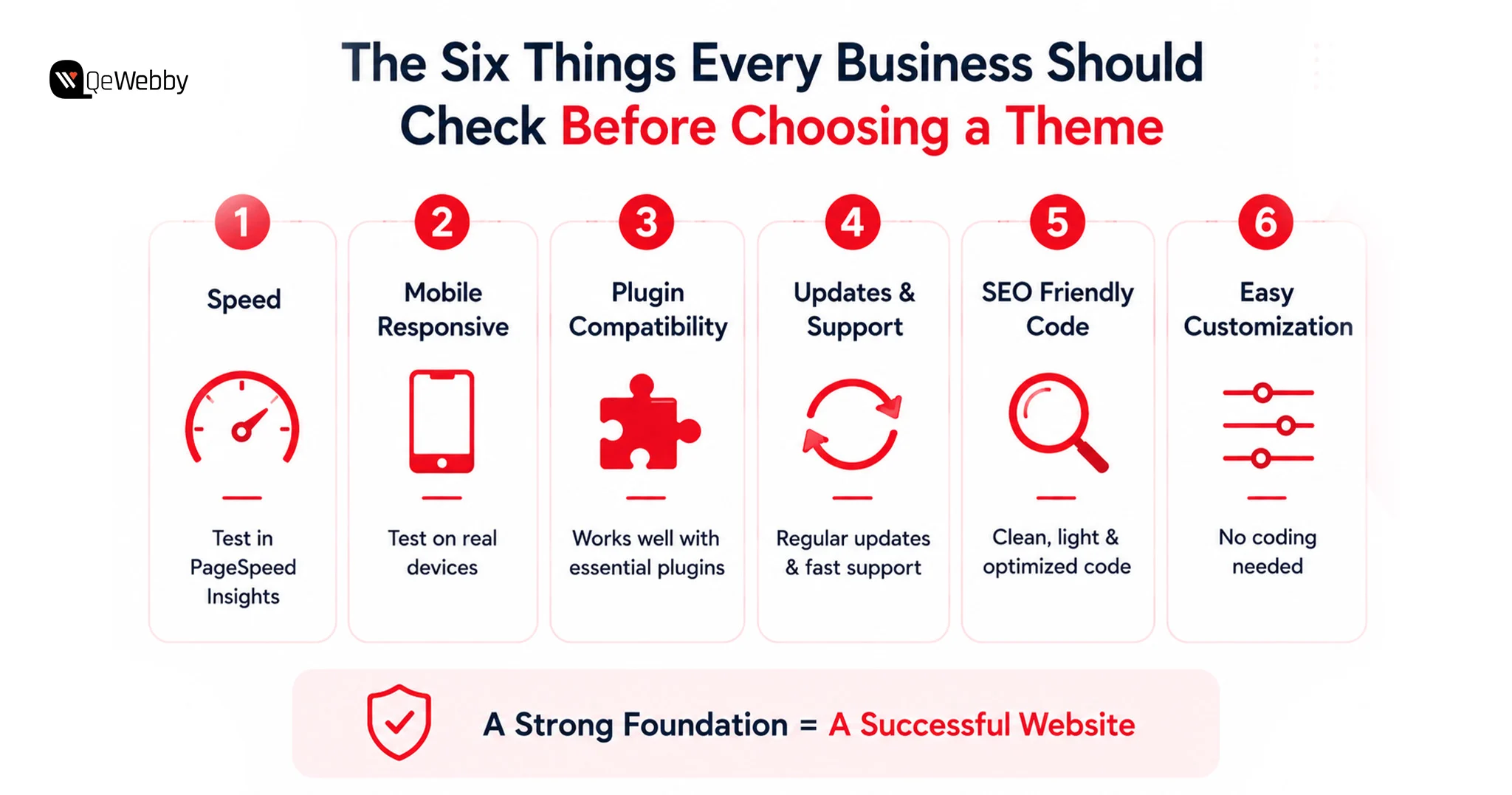
The Six Checkpoints That Separate a Theme That Lasts From One You’ll Replace by Q3

These six checkpoints do the one thing most theme checklists never manage. They connect what you’re checking to why it decides the outcome.

Each one maps straight onto the technical reality of a fast site, from Core Web Vitals down to whether the thing still scales two years from now.

Here’s how each checkpoint translates into the architecture underneath a site that actually performs.
Six Things Every Business Should Check

1. Speed: Test The Demo Before You Buy

Run the demo through Google PageSpeed Insights before you spend a dollar. Not optional. The theme sets your absolute performance ceiling, and here’s the part people miss: if it’s already bloated in its clean, empty state, it only gets worse from there.

All that render-blocking CSS and JavaScript is baked in from the start. Add real content, real images, real plugins, and the numbers slide further down. Look for themes built for speed and sold as “lightweight,” usually under 1MB.

Astra, GeneratePress, Neve, and Kadence all clear that bar. They run on modular architecture, and a well-configured page can sometimes load with under 50KB of resources.

Even the fastest theme benefits from ongoing optimization. Our WordPress speed optimization service helps improve Core Web Vitals, reduce load times, and maximize website performance after launch.

2. Mobile Responsiveness Isn’t Optional

Test on a real phone. Not the browser’s mobile preview, an actual device, because that’s where themes quietly come apart. Phones have weaker CPUs and slower networks, so a theme that flies on your desktop can flunk Google’s Interaction to Next Paint metric on mobile with no warning at all. The usual culprit is JavaScript.

When the menus, animations, or formatting all lean on heavy scripts, every tap and scroll comes with a lag. Mobile visitors feel it before they can even name what’s wrong.

3. Match The Theme To Your Builder

Pairing the theme with the right builder avoids the obvious technical conflicts, and you’re right to check for it. But the faster move is to skip the heavy page builders altogether whenever you can. A builder isn’t a plugin. It’s a second framework stacked on top of WordPress, and it drags the whole site down with it.

The native Gutenberg block editor is cleaner and quicker, full stop. If you genuinely need Elementor, at least pair it with a stripped-down, blank-canvas theme like Hello Elementor or Astra, so the theme isn’t wrestling the builder for the same resources.

4. Updates And Support Response Time

An abandoned theme isn’t just a broken-features problem. It’s a security hole and a performance anchor at the same time. Themes the developer walked away from stop keeping pace with new PHP versions, and that traps you.

To keep the old theme breathing, you end up running an old, unsupported PHP version, which forces your server to process every request the slow way.

That’s a free speed upgrade you’re tossing in the bin, because modern PHP handles two to three times the requests per second. You’re leaving real performance on the table just to protect code nobody maintains anymore.

Keeping your theme updated is only one part of maintaining a healthy website. Following a comprehensive WordPress security checklist helps protect your site against outdated plugins, malware, weak login security, and other common vulnerabilities.

5. SEO-Friendly Code Structure

Clean code decides whether the browser can paint your page fast or has to crawl through it. Watch for themes that load external scripts, tracking pixels, and web fonts on every single page, used or not. Each one is another HTTP request, and each request blocks the first render.

Stack enough of them, and you’ve gutted your Time to First Byte and your Largest Contentful Paint, the exact scores that both search engines and visitors notice. The tell is simple: a theme that loads everything everywhere, just in case.

6. Customization Without Developer Intervention

A friendly customizer matters if you’re not technical. No argument there. But watch how the theme buys you that flexibility. Too many pay for their “easy customization” with visual gimmicks, built-in sliders, carousels, and animated hero modules, and those come at a real cost. They demand multiple large images and heavy JavaScript, wreck your load times, and cause the jarring layout shifts that tank your Cumulative Layout Shift score.

All of that, for features with some of the lowest engagement numbers on the web. Pick a theme that’s genuinely easy to edit but leans on clean, static hero images instead of interactive modules that look impressive and do nothing.

Free vs. Premium: The Comparison Most Guides Won’t Give You Straight

Most guides simply compare free and premium themes feature by feature. The better question is when each option actually makes sense for your business.

A free theme is a smart and sensible option for a straightforward 5-page brochure site, a webpage that is still learning, and also a business introducing a concept prior to investing real money. Official WordPress.org themes are pre-reviewed for quality and security before they enter the official WordPress.org directory. For now, the best free options are Astra Free, GeneratePress Free, Kadence Free, and Blocksy Free.

The moment reliable support, frequent updates, and design quality begin to turn a profit (most of the time for business sites and eCommerce stores) is among the reasons that Premium is expensive.

Generally, the hours of time you save will cost around $50 to $100. Premium themes also offer more secure shipment by using teams that practice standard shipping practices. This can slow down free themes and leave their support to the community forums.
Schedule a Free Consultation

Discover the best WordPress Business Themes that are currently used.

  • Astra: It is the all-rounder, with over 2 million active users. Elementor, Divi, and Gutenberg are all fast, lightweight, and clean. The free version is pretty solid on its own, and Astra Pro further provides a sophisticated header/footer builder and more in-depth WooCommerce support.
  • GeneratePress: The theme that has always been one of the fastest builders out there due to its minimal design. Core Web Vitals affect the page rank of the website, particularly in developer and corporate websites with lots of content.
  • Kadence: Natively built forthe WordPress block editor, which means it provides a fast, flexible editing experience with no separate page builder to clutter the mix. Out of the box, a solid integration of WooCommerce. It’s the perfect match for anyone who wants to stick with native WordPress solutions in the long term.
  • Avada: It is one of the world’s highest-selling premium themes, with its own Fusion Builder and hundreds of pre-built designs. As a part of the purchase price, lifetime updates and dedicated support are provided.

Why Your Site Never Looks Like the Demo, and Nobody Tells You Why

A businessman sets up a theme, gets its pages published and then wonders, “What’s the point if it looks nothing like the thing that sold me?” Despite being one of the most frequent grips in the entire WordPress community, it is almost never tackled in a head-on fashion by any theme guide.

The demo sites feature staged content to demonstrate the possibilities of a theme. As soon as it’s installed, a real site replaces that staging, and it can be a painful experience until you are able to tweak your menus, medi,a and pages just so they look right. Premium stock photography is used to create demo content by professional designers, and most businesses cannot manage to get that polish without any assistance.

Eliminating the gap isn’t difficult. It’s just deliberate. Import the demo content before you start to import your own. Themes with good quality are normally one-click import. Replace all the sample pictures with actual photos; there’s nothing like a good quality, free Unsplash photo or real photo over a shoddy phone photo.

The typography is the most obvious and easily replicated visual element, so follow the demo’s font combinations as closely as possible. Limit your layouts to a basic design. Attempting to duplicate a complex demo without design experience will necessarily tend to make things harder rather than easier.

Many businesses discover that installing the right theme is only the first step. If you want your finished website to match the quality of the demo while reflecting your own brand, our WordPress website design service for small businesses can help with professional layouts, typography, imagery, and customization.

Expert’s Take: Select the theme with the minimalism demo, which fits the business, not the most gorgeous one. A well-designed, simple theme is better than a complicated, poorly designed theme, and that’s always true.

Talk To Our Designers

Common Mistakes When Choosing a WordPress Theme

Most businesses don’t regret choosing WordPress. They regret choosing the wrong theme.

The mistake usually isn’t obvious on launch day. It appears months later when the website becomes difficult to update, loads slowly, conflicts with new plugins, or no longer reflects how the business has grown.

1. Choosing a Theme Based Only on the Demo

The homepage demo is designed to sell the theme, not represent what your website will look like after installation.

Professional demos use premium photography, carefully written copy, custom graphics, and hours of design work. Installing the same theme won’t automatically recreate that experience.

Instead of asking, “Does this demo look impressive?” ask:

  • Does this layout support my business goals?
  • Can I realistically recreate it?
  • Will it still look good with my own content?

A simple, well-designed theme customized properly almost always performs better than a complicated demo that’s impossible to replicate.

2. Ignoring Website Speed

Many business owners fall in love with themes packed with animations, sliders, videos, and visual effects.

Unfortunately, every additional feature usually means more CSS, JavaScript, and larger files that visitors must download before the page becomes usable.

Before purchasing any theme, run its demo through Google PageSpeed Insights.

If the demo loads slowly before you’ve added your own content, it will almost certainly load even slower after launch.

3. Forgetting About Plugin Compatibility

A website rarely relies on the theme alone.

Most business websites also use plugins for:

  • SEO
  • Contact forms
  • WooCommerce
  • Booking systems
  • Memberships
  • Marketing automation

Choosing a theme without checking compatibility often leads to layout issues, broken functionality, and expensive development work after the website goes live.

4. Choosing a Theme That’s Difficult to Maintain

Some themes offer hundreds of customization options but require constant developer involvement to make even small updates.

If your team plans to manage content internally, choose a theme that allows you to update:

  • Text
  • Images
  • Colors
  • Fonts
  • Page layouts

Without writing code.

5. Ignoring Updates and Support

A WordPress theme isn’t something you install once and forget.

Themes need regular updates to remain compatible with:

  • New WordPress releases
  • PHP updates
  • Security improvements
  • Plugin changes

Before choosing a theme, check:

  • When it was last updated
  • Whether the developer actively maintains it
  • How quickly support questions receive responses

An abandoned theme can quickly become both a security risk and a maintenance headache.

6. Switching Themes Directly on a Live Website

Many businesses underestimate how much a theme controls.

Changing themes without testing first can break:

  • Navigation menus
  • Widget areas
  • Page layouts
  • Custom styling
  • WooCommerce pages

Always test a new theme in a staging environment before replacing your live website.

The Right Theme Makes Everything Easier

The theme is the foundation on which everything else sits. Speed, SEO, mobile experience, conversions- they all start right here. Five things outweigh how impressive any demo looks: speed, mobile responsiveness, page builder compatibility, regular updates, and plugin support.

Choose for the business goal and for whoever manages the site day to day. Not for the polished screenshot on the sales page.

Next step: open Google PageSpeed Insights, paste in the demo URL you’re eyeing, and check the score before you buy.

That’s 60 seconds against weeks of headaches down the road. If you’d rather avoid the trial and error altogether, a professional WordPress website development service can help you choose the right theme, customize it around your business goals, optimize performance, and launch a website that’s built for long-term growth.
Book a free strategy call

The Bottom Line

The best WordPress theme isn’t necessarily the one with the most impressive demo or the longest list of features. It’s the one that aligns with your business goals, performs well, works with your existing tools, and remains easy to manage as your website grows.

Choosing carefully today is far easier and far less expensive than rebuilding your website six months from now.
How to Build a WordPress Website for Small Business

WordPress powers over 43% of all websites on the internet, and for good reason: it’s free, flexible, and designed specifically to let small business owners build professional sites without hiring developers or learning to code.

But here’s the reality: WordPress has dozens of options, infinite customization paths, and if you skip steps or misunderstand what you’re doing, things break fast. This is why many growing businesses rely on WordPress development services to build scalable and reliable websites from the start.

This guide walks you through the complete process of building a WordPress website for your small business, from choosing a domain to publishing your first post to launching live. You’ll have a fully functional, SEO-ready site that’s completely yours to control.

How to Build a WordPress Website for Small Business

Building a WordPress website for a small business involves following a clear process that ensures your site is secure, fast, and optimized for search engines.

Here are the essential steps to build a WordPress website:

  • Register a domain name for your business
  • Purchase a reliable web hosting plan
  • Install WordPress on your hosting server
  • Choose a professional WordPress theme
  • Install essential plugins for SEO, security, and backups
  • Create core pages such as Home, About, Services, and Contact
  • Add useful content and blog posts for your audience
  • Optimize your website for SEO and page speed
  • Set up website security and automatic backups
  • Launch and promote your website online

Following these steps helps you create a fully functional WordPress website that supports long-term business growth.

What You Need Before Getting Started?

Building a WordPress website for a small business requires exactly three things:

  • A domain name (your web address: yourname.com or yourbusiness.com)
  • Web hosting (the server that hosts your website files)
  • About one hour of focused time (and a notebook to write down passwords)

Your domain is your website address. Yourname.com or yourbusiness.com. Hosting is the server that your site actually lives on. Think of it like this: the domain is your street address, hosting is the actual building.

You’ll also need to decide whether to build this yourself or hire someone to do it.

Businesses that want advanced functionality or custom design often choose custom custom WordPress website development services to create a faster, more scalable platform from the beginning.

Step 1: Choose and Register a Domain Name

Your domain is the first decision for a small-business WordPress website because everything else connects to it.

Go to Namecheap or GoDaddy to register a domain for your WordPress website for a small business, and search for your preferred domain. Here’s the hard truth about building a WordPress website for a small business: most premium .com domains are already taken. Have 3–4 backup options ready before you search.

Cost & Strategy:

  • Standard .com domains: $10–$15/year
  • Register for 2 years if possible (locks in pricing, prevents accidental expiration)
  • Avoid exotic extensions (.info, .biz) unless necessary; people default to .com in their browsers

When setting up a WordPress website for a small business, your domain choice matters more than most people realize. It should be simple, memorable, and ideally include a keyword related to what you do (“plumbing-denver.com” instead of “jimbosservices.com”).

Once registered, save your domain registrar login details in a password manager. You’ll need it later.

Step 2: Purchase a Hosting Plan

For hosting a WordPress website for a small business, Bluehost is WordPress’s official recommendation and starts at around $4 a month. SiteGround costs a bit more but has better support. WP Engine is solid for more serious sites. Any of the three will work.

For a small-business WordPress website, don’t go with the cheapest option. Those providers oversell their servers, meaning your site shares resources with hundreds of other sites and loads slowly. Slow sites lose customers and rank lower on Google. Spend a few extra dollars a month and get something decent. Look for one-click WordPress installation, automatic backups, and a real uptime guarantee.

Many growing businesses later invest in professional WordPress website optimization services to improve loading speed, server configuration, and technical SEO performance. In more advanced setups, this often involves quality assurance testing services to identify performance bottlenecks and ensure stability.

After you sign up to host your WordPress website for a small business, your provider will provide you with nameservers. You plug those into your domain registrar account, and the two connect. This takes 24 to 48 hours to propagate fully.

Recommended hosting providers:

  • Bluehost– WordPress’s official recommendation, one-click installation, starts at ~$4/month
  • SiteGround– Better support quality, slightly higher cost (~$3/month base)
  • WP Engine– Premium option for more serious sites (~$20+/month)

What to look for:

  • One-click WordPress installation
  • Automatic daily backups
  • Real uptime guarantee (99.9%+)
  • SSD storage (not traditional hard drives)
  • Free SSL certificate (HTTPS)

Step 3: Install WordPress

Log in to your hosting control panel to build a WordPress website for a small business, and look for a tool called “WordPress Installer” or “Softaculous.” Click through the setup wizard, choose your domain, create an admin username and password, and hit install. The whole thing takes three minutes.

Write that admin password down somewhere real, like a password manager. Seriously. That login is how you access your entire site. If you lose it, recovering it is annoying. If someone else gets it, they control everything.

Once your WordPress website for a small business installation is done, go to yoursite.com/wp-admin and log in. That’s your backend. You’ll do everything from here. The left sidebar has Posts, Pages, Plugins, Themes, and Settings. Leave it alone for now. The first step is to pick a theme for your custom WordPress website development project.

Step 4: Choose a WordPress Theme

A theme is a pre-built design template for a small-business WordPress website. There are thousands of them. Free themes like Astra and Neve work great for a WordPress website for a small business are good enough for most small businesses and blogs. You don’t need to spend money here.

How to choose:

  • Go to Appearance > Themes > Add New
  • Browse or search for a theme
  • Preview it, then test it on your phone (over 60% of web traffic is now mobile)

Check your WordPress website for a small business on your phone before committing. Website speed directly impacts user behavior. Google reports that 53% of mobile users abandon sites that take longer than three seconds to load.

If you want to use a free WordPress builder for your WordPress website for a small business, instead of manually tweaking code, many themes come with drag-and-drop builders. These free WordPress builder tools make customization incredibly easy.

Most small-business owners building a WordPress website pick a theme and then never really change it. That’s completely fine. For your WordPress website for a small business, pick something clean, readable, and fast. Unless you work in design or fashion, flashy doesn’t help. People want to find what they’re looking for, not admire your website.

After you activate a theme for your WordPress website for a small business, go to “Appearance,” click on “Customize,” and add your site name, logo, and header image. These updates across the whole site are automatic.

Drag-and-drop builders, if you want to avoid code entirely, many themes include free builders:

  • Elementor (free version works well)
  • Beaver Builder
  • Gutenberg blocks (built into WordPress)

These let you design by dragging elements around like a Canva document.

Once you’ve chosen, activate your theme. Then go to Appearance > Customize to add:

  • Your site name and tagline
  • Your logo
  • Header images
  • Brand colors

These changes automatically apply across your entire site.

Step 5: Install Essential Plugins

Plugins add functionality to your WordPress website for a small business without code. But installing too many slows your site and creates maintenance nightmares.

When websites require features that plugins cannot support efficiently, businesses often turn to custom WordPress plugin development services to build tailored functionality.

For a WordPress website for a small business, install only these four essential plugins:

1. Yoast SEO or Rank Math

For your WordPress website for small business to rank, one of these is non-negotiable if you want your small-business WordPress website to rank in Google. They help you:

  • Optimize each page and post for search keywords
  • Generate XML sitemaps
  • Fix on-page SEO issues
  • Improve readability

Both are free. Choose one and stick with it.

2. Wordfence Security

WordPress gets attacked constantly. Wordfence monitors suspicious activity and blocks common attacks. Install it, run one security scan, then let it run in the background.

3. Jetpack or BackWPup

Automatic daily backups save you if your site ever breaks or gets hacked. Restore from yesterday’s backup with one click. This is critical.

4. Smush

Automatically compresses images on your WordPress website for small business before they are uploaded. Large image files are the #1 reason WordPress sites load slowly.

That’s it. Don’t install 20 plugins because you might need them. Every plugin you add increases your maintenance burden and slows your site.

Step 6: Customize Your Website

Most small business sites built on WordPress need five pages: Home, About, Services or Products, Blog, and Contact. Create them now for your WordPress website for a small business, even if they’re empty.

Go to Pages > Add New. Start with About. For your WordPress website for a small business’s About page, write 300 to 500 words about who you are and what you do. Write it like you’d explain yourself to someone at a coffee meeting, not like a press release.

Repeat that for Services and Contact. For Contact, just create the page for now.

Once your pages are set up, go to Settings > Reading and change your homepage from the default blog feed to your actual Home page. Then go to your Contact page, click Add Block, find your form plugin, insert it, and publish.

Step 7: Add Content to Your Site

For your first blog post, go to Posts > Add New. Don’t title it “Welcome to My Blog.” Write something useful. What’s a question your customers always ask you? Answer it in 800 to 1,200 words and publish it.

This first piece of content on your WordPress website for a small business is your foundation. It’s what Google indexes for your WordPress website for a small business, what visitors read, and where you show your expertise.

Step 8: Optimize for SEO and Speed

Go to Settings, click on “Permalinks,” and select “Post name.” For your WordPress small-business website, this makes your URLs readable instead of showing a bunch of numbers. Google prefers readable URLs.

After that, whenever you’re editing a page or post, scroll down to the Yoast or Rank Math section. It shows you what’s missing. At minimum, put your main keyword in the title and opening paragraph, and write a meta description under 160 characters.

On a WordPress website for a small business, don’t stuff keywords everywhere. Instead, focus on building a strong foundation with proper structure, which is often supported by WordPress SEO services for better long-term visibility. Write normally, and they’ll appear naturally.

To optimize your WordPress website for small-business speed, run it through Google PageSpeed Insights. It tells you what’s slow. Images are almost always the problem. Use Smush to compress them before uploading.

Step 9: Set Up Website Security

This is where WordPress security basics come into play for a small-business WordPress website. For your WordPress small-business website, use a strong password for your admin account. Not your dog’s name with a number appended. Something long and random that lives in your password manager.

Update WordPress, your theme, and plugins on your WordPress website for a small business whenever you see the notification. Outdated software is how most sites get hacked. WordPress security basics also include turning on auto-updates for plugins.

Larger websites often implement professional WordPress security services to add advanced monitoring, malware protection, and firewall configuration.

Enable the Wordfence firewall on your WordPress website for a small business. Run a security scan after you first install it. It takes a few minutes and tells you if anything is wrong.

For your WordPress small-business website, backups are critical. If your site gets hacked or something breaks, a backup from yesterday makes it a one-click fix. Jetpack’s automatic daily backups handle this for you. This is fundamental to WordPress security basics.

Step 10: Launch and Promote Your Website

Click every link on your WordPress website for a small business and make sure nothing’s broken. Fill out your WordPress website’s small-business contact form and make sure you actually receive the email. Pull up your WordPress website for a small business on your phone. Read everything for typos.

Go to Settings, “Reading,” and look for the checkbox that says “Discourage search engines from indexing this site.” If it’s checked, uncheck it. People forget to do this and then wonder why Google can’t find them.

Then go to Google Search Console, add your site, and submit your sitemap. Google will start picking up your pages within hours.

Put your WordPress website URL for a small business in your email signature. Add it to all your social profiles. Share your first blog post somewhere your audience actually is.

If you have existing customers, let them know about your new site. Ask a few if they’d be willing to link to you. Links from other sites are one of the biggest factors in where Google ranks you.

Keep publishing content on your WordPress website for a small business. If you’re planning long-term growth, this guide on tech skills for entrepreneurs can help you build the right digital foundation. One post every two weeks is manageable. The sites that consistently rank well in Google aren’t the ones with the most money. They’re the ones that kept showing up.

When Should You Hire a Custom WordPress Development Company?

Many small businesses start by building their own website using WordPress. However, as a website grows and requires more advanced functionality, businesses often choose to work with a custom WordPress development company.

A professional development team can help when your website needs:

  • A custom website design tailored to your brand
  • Advanced functionality or third-party integrations
  • Technical SEO optimization for better search visibility
  • Faster loading speeds and performance improvements
  • Ongoing website maintenance and security monitoring

A reliable custom WordPress website development company can build scalable websites that load faster, rank better in search engines, and support long-term business growth.

Common Mistakes to Avoid

  • For a WordPress website for a small business, don’t choose the wrong hosting provider. Cheap hosting with slow servers kills conversions and hurts your SEO rankings. Spend a few extra dollars for quality.
  • Don’t ignore mobile responsiveness on your WordPress website for a small business. More than half of your visitors use phones. If your site falls apart on mobile, you lose those visitors immediately.
  • Don’t skip WordPress security basics. Set strong passwords, keep everything up to date, and enable monitoring. Security isn’t optional.
  • Don’t over-install plugins. Every plugin slows your site and increases maintenance burden. Install only what you actually need.
  • Don’t write like a robot. Your website represents you. Write like a human, not like marketing copy.
  • Don’t forget to optimize for SEO. SEO isn’t magic. It’s just writing good content with keywords in the right places. Do this from the beginning.

Conclusion

Building a WordPress website for a small business feels overwhelming until you’ve done it once. Then you realize managing a WordPress website for a small business is mostly clicking around in a dashboard. Give it an afternoon, follow the steps, and you’ll have something real by the end.

Something you own completely is a WordPress website for a small business that’s yours. Not a Wix site that holds your content hostage. Not a Squarespace subscription you’re paying for forever. Your own site, on your own hosting, that you can do anything with.

If you need help with a custom WordPress website development strategy or want professional guidance, a team offering white-label WordPress development services can handle the technical setup and optimization while helping you scale faster. But you can absolutely build a WordPress website for a small business yourself.

If you want a faster launch, better SEO performance, and a scalable website architecture, partnering with a custom WordPress development company can help you build a professional website that grows with your business.

HTML vs WordPress: Which One to Choose for Your Website?

Did you know ? WordPress powers over 43% of all websites on the internet (more than one out of every three sites).

Building a website today is about choosing a foundation that can support your goals, growth plans, and user expectations. The website building landscape has evolved significantly, giving businesses more choices than ever before. From flexible content management systems to lightweight, code-driven setups, each approach serves a different purpose. That’s why the debate around WordPress vs HTML continues to be relevant for businesses of all sizes.

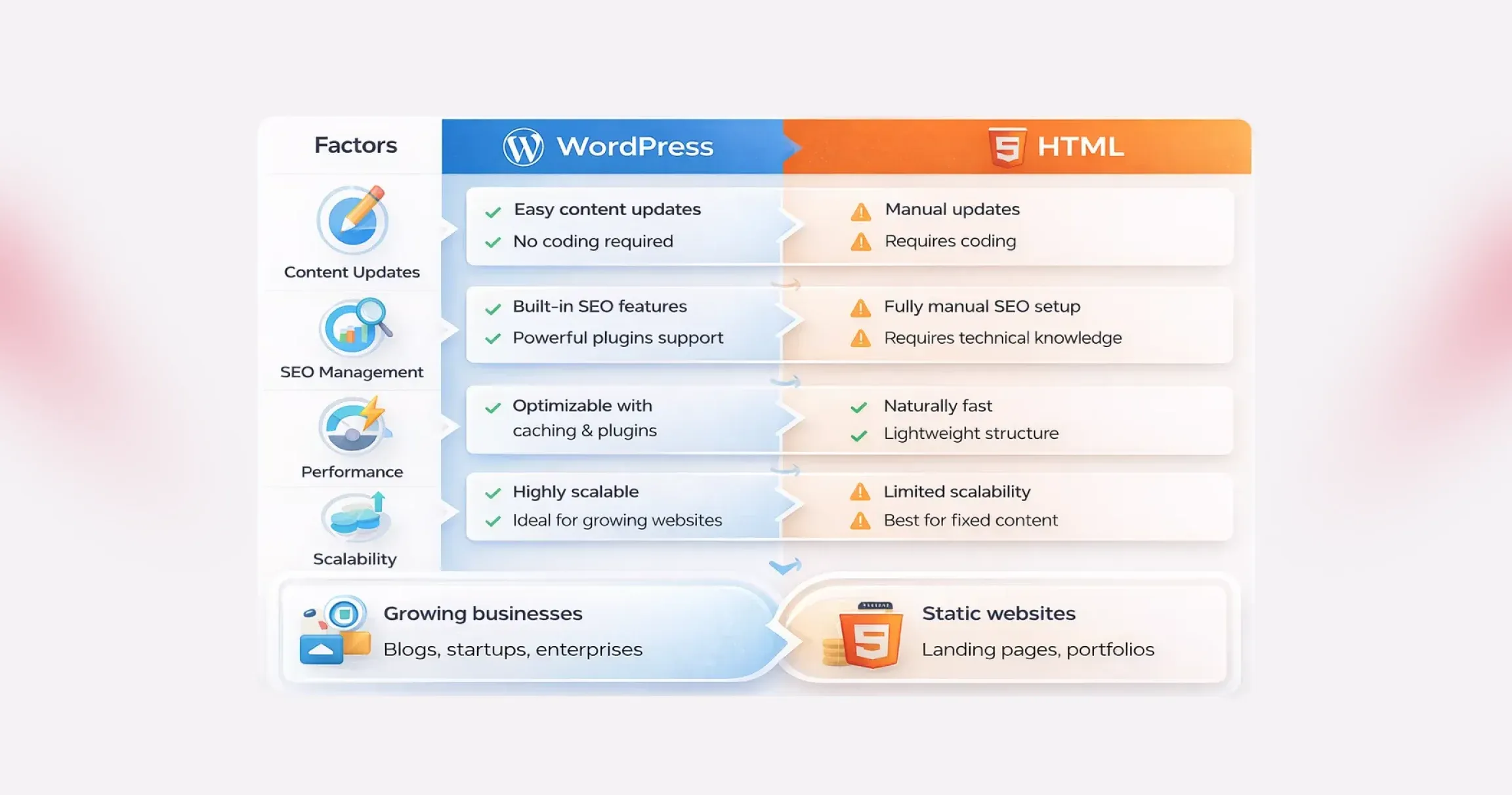
On one side, WordPress dominates the web as a powerful, open-source CMS known for its ease of use, customization options, and cost efficiency. It allows businesses to launch, manage, and scale websites without deep technical expertise. On the other hand, HTML websites are built from the ground up using clean code. They are fast, secure, and minimal, but often require hands-on development effort for updates and changes. This contrast makes WordPress vs HTML websites an important decision, not just a technical one, but a strategic one.

  • Choose WordPress if you plan to update content regularly, scale features, or rely on SEO and marketing.
  • Choose HTML if your website is static, rarely updated, and performance is your top priority.

In this blog, we’ll break down WordPress vs HTML in detail, compare their strengths and limitations, and help you decide which option aligns best with your website goals.

Cons of HTML Websites

  • Time-consuming updates: Every change requires manual code edits. For content-heavy or frequently updated sites, this becomes inefficient.
  • Requires technical expertise: HTML, CSS, and often JavaScript knowledge are necessary, making it less accessible for non-technical users.
  • Limited flexibility: Adding new features or redesigning sections can mean rewriting large portions of the site.
  • Not ideal for complex functionality: Static HTML struggles with advanced requirements like eCommerce, user accounts, or dynamic content.

In the broader discussion of WordPress vs HTML websites, neither option is universally better. WordPress prioritizes flexibility, growth, and ease of management, while HTML emphasizes speed, simplicity, and control. The right choice depends on how often your site changes, how complex it needs to be, and who will manage it day to day.

Why the WordPress vs HTML Decision Still Matters

To make a confident decision in the WordPress vs HTML discussion, it’s important to understand what each technology is built for and where it performs best. While both can power successful websites, they solve very different problems and support different growth paths.

That’s why understanding how each platform behaves in real business scenarios is critical.

What Is WordPress?

WordPress is a content management system designed to simplify website creation and ongoing management. It allows users to build and update websites without writing code, which is why it powers a significant portion of the web today. From blogs and corporate websites to complex eCommerce platforms, WordPress adapts easily as business needs evolve.

Its strength lies in flexibility. Themes control the visual layout, while plugins extend functionality, enabling features like SEO tools, forms, analytics, and integrations without custom development. This dynamic nature is a key factor in WordPress vs HTML websites, especially for businesses that publish content frequently or rely on user interaction.

Did you know ? WordPress captures approximately 64% of the market, far ahead of competitors like Shopify, Joomla, or Wix.

1. Ideal Use Cases for WordPress

WordPress works best when content needs to change often or when scalability matters. It’s well-suited for blogs, marketing websites, news portals, membership platforms, and online stores. Small and mid-sized businesses also favor WordPress because it reduces development time and makes ongoing updates manageable without technical teams.

2. Popular Brands Using WordPress

Many global brands rely on WordPress for its stability and flexibility. Companies like Sony Music, The Walt Disney Company, TechCrunch, and BBC America use WordPress to manage high-traffic, content-rich websites. Their adoption highlights why WordPress remains a strong contender in the WordPress vs HTML comparison.

What Is HTML?

HTML, or Hypertext Markup Language, is the core building block of the web. It’s used to create static web pages where content is manually coded and doesn’t change unless the source code is updated. Unlike WordPress, HTML websites don’t depend on databases or backend systems.

This simplicity brings performance benefits. Static HTML sites are typically faster, lighter, and less vulnerable to security threats. In comparison of WordPress vs HTML websites, HTML stands out for control and efficiency, especially when content remains consistent.

1. Static vs Dynamic Websites

The core difference between WordPress and HTML comes down to content delivery. WordPress generates dynamic pages using a database, enabling real-time updates and personalization. HTML produces static pages that remain unchanged until manually edited. Dynamic sites offer flexibility, while static sites prioritize performance and predictability.

2. Use Cases Where HTML Is Preferable

HTML is ideal for landing pages, portfolios, microsites, documentation hubs, and websites with fixed content. It’s often chosen when performance, security, and full design control matter more than frequent updates. For teams with development expertise, HTML can be the winning choice when comparing WordPress vs HTML.

3. Popular Brands Using HTML

Several high-performance and design-focused brands rely heavily on HTML for specific parts of their web presence. Companies like GitHub (documentation pages), Dropbox (landing pages), Stripe (marketing pages), and Apple (product showcases) use static HTML to deliver speed, consistency, and flawless user experiences.

WordPress vs HTML: Side-by-Side Comparison

Choosing between WordPress and HTML isn’t about which option is “better.” It’s about understanding how each one fits your goals, resources, and long-term vision. When you look closely at WordPress vs HTML, the differences become clear, not just in how websites are built, but in how they grow, perform, and stay competitive over time.

Below, we break down the key differences between WordPress and HTML websites:

#1. Ease of Use and Learning Curve

This is often the first deciding factor in the WordPress vs HTML discussion.

WordPress is designed to remove friction. You don’t need to touch code to publish content, update pages, or manage media. Everything happens inside a visual dashboard. Themes control layout. Plugins extend functionality. Even beginners can launch a professional-looking site quickly, which explains why WordPress dominates the CMS market.

HTML, on the other hand, assumes technical comfort. Building WordPress vs HTML websites with pure HTML means writing and managing code manually. You’ll need a working knowledge of HTML, CSS, and often JavaScript. Modern tools and IDEs make the process smoother, but the learning curve is still steeper, especially for non-developers.

Bottom line: If speed, accessibility, and ease matter, WordPress has a clear edge in the WordPress vs HTML comparison.

#2. Design and Customization

Design flexibility looks very different when comparing WordPress vs HTML websites.

With HTML, design freedom is absolute. Every visual element is controlled by code. Advanced developers can create highly customized layouts with pixel-perfect precision. But that freedom comes at the cost of time and effort.

WordPress takes a modular approach. You start with themes, then customize them using built-in settings, page builders, or custom development. Tools like Elementor and Divi allow drag-and-drop design, making customization accessible even without coding. For businesses that want flexibility without complexity, this balance is hard to ignore in the WordPress vs HTML debate.

Functionality follows a similar pattern. HTML sites rely on custom-coded features, while WordPress unlocks thousands of plugins that add capabilities in minutes.

Bottom line: HTML offers raw control. WordPress offers scalable customization, which is faster and more practical for most teams.

#3. Maintenance and Updates

Maintenance is where WordPress vs HTML websites start to diverge sharply.

WordPress requires ongoing attention. Core updates, plugin updates, and theme updates are essential for performance and security. While this sounds demanding, most updates are automated or handled with a few clicks and many businesses choose professional Website Maintenance Services to ensure these updates are managed consistently without disrupting site performance.

HTML websites are lighter and simpler. There’s no CMS, no database, and no plugins to update. That reduces routine maintenance. However, even small changes, like updating content or fixing a typo, require editing the code and redeploying files.

Bottom line: WordPress needs regular upkeep, but is easier to manage. HTML needs less frequent maintenance but demands technical involvement every time.

#4. SEO and Performance

SEO and speed are critical in any WordPress vs HTML comparison.

HTML websites are naturally fast. There’s no server-side processing or database queries. The server simply delivers static files, which usually means quicker load times right out of the box.

WordPress websites do more behind the scenes. Pages are generated dynamically, which can add overhead. But modern optimization techniques, such as caching, CDNs, and optimized hosting, can make WordPress sites extremely fast.

From an SEO perspective, WordPress pulls ahead. Built-in features like clean permalinks, media optimization fields, and automatic sitemaps help search engines understand your site. When supported by structured WordPress SEO Services, businesses can further refine technical optimization, content structure, and performance signals without needing to modify core code.

With HTML, SEO is entirely manual. You can achieve similar results, but every optimization requires direct code edits.

Bottom line: HTML wins on raw simplicity. WordPress wins on SEO flexibility and long-term optimization in the WordPress vs HTML websites comparison.

#5. Cost and Budget Considerations

At first glance, both options appear free. In reality, WordPress vs HTML comes down to where you spend money.

WordPress itself is open source, but costs can add up through hosting, premium themes, plugins, and maintenance. Dynamic sites also tend to need better hosting environments.

HTML websites often cost less to host because they’re lightweight. There are no paid plugins or themes by default. However, development costs can rise quickly if you don’t have in-house coding expertise and need professional help.

Maintenance costs also differ. WordPress demands ongoing attention. HTML demands fewer updates, but every change can cost time or money.

Bottom line: WordPress spreads costs over time. HTML concentrates costs upfront, especially if development skills are outsourced.

#6. WordPress vs. HTML: Scalability and Growth

Every website evolves. You add content, introduce new features, attract more visitors, and suddenly, the platform you chose in the beginning starts to matter more than expected. This is where the WordPress vs HTML comparison becomes practical rather than theoretical.

WordPress is built with growth in mind. Publishing new pages, expanding functionality, or adjusting layouts doesn’t require rebuilding the site. Plugins, themes, and hosting upgrades allow WordPress vs HTML websites to scale smoothly as traffic and business needs increase.

HTML websites, on the other hand, can handle high traffic efficiently, but growth comes at a cost. Every new feature, page, or update must be manually coded. As the project expands, development becomes slower and more resource-intensive.

Bottom line: If continuous growth, frequent updates, and evolving functionality are part of your roadmap, WordPress clearly has the edge. HTML works best when the scope is fixed and unlikely to change.

#7. WordPress vs. HTML: Security Considerations

Did you know? As per the IBM report, 44% of organizations experienced a security breach related to website vulnerabilities, highlighting the importance of active maintenance and security practices.

Security is often misunderstood in the WordPress vs HTML debate. Many assume static HTML sites are automatically secure and WordPress websites are risky. In reality, both platforms require thoughtful security practices.

WordPress websites are more complex. Databases, plugins, and themes increase the attack surface, which makes them attractive targets. However, this complexity also comes with mature security tools, regular updates, and active monitoring options.

Many businesses rely on professional WordPress Security Services to implement firewalls, malware scanning, vulnerability patching, and continuous monitoring to reduce risk and maintain site integrity.

Bottom line: WordPress demands more attention but offers more protection tools. HTML is simpler, but responsibility rests entirely on how well access and hosting are managed.

Pros and Cons of WordPress and HTML

When comparing WordPress vs HTML, the decision often comes down to trade-offs. Both platforms are powerful in their own way, yet they solve very different problems. Understanding the strengths and limitations of WordPress vs HTML websites helps you choose a platform that aligns with your goals.

Pros and Cons of WordPress

WordPress is widely adopted for a reason. It lowers the barrier to entry while offering room to grow, but that convenience comes with a few considerations.

Pros of WordPress

  • Free and open-source foundation: WordPress can be used without licensing fees, and its global developer community continuously improves performance, security, and features. This ecosystem is one of the biggest advantages in the WordPress vs HTML debate.
  • Ease of use for non-developers: The dashboard is intuitive. Creating pages, publishing content, or updating layouts doesn’t require coding skills, making WordPress ideal for teams that want speed and autonomy.
  • High flexibility and extensibility: From blogs to enterprise-grade platforms, WordPress adapts easily. Thousands of themes and plugins allow WordPress vs HTML websites to support advanced functionality without starting from scratch.
  • Cost-effective entry point: You can launch quickly using affordable hosting and free themes, which makes WordPress attractive for startups and small businesses.
  • SEO-friendly by design: Clean structure, customizable URLs, and SEO plugins help WordPress sites perform well in search results with less manual effort.

Cons of WordPress

  • Hidden and recurring costs: While the core is free, expenses can add up through hosting, premium themes, plugins, and security tools.
  • Security requires active management: WordPress sites are common targets due to their popularity. Regular updates and security plugins are essential to reduce risk.
  • Performance can suffer if unmanaged: Too many plugins or poorly optimized themes can slow down a site, impacting user experience.
  • Some technical setup is unavoidable: Initial installation, configuration, and ongoing maintenance still require a basic level of technical understanding.

Pros and Cons of HTML Websites

  • Static HTML websites take a fundamentally different approach. They prioritize simplicity and control, which can be powerful but limiting.

Pros of HTML Websites

  • Simple and lightweight development: HTML sites don’t rely on CMS platforms or databases. With basic coding knowledge, developers can build clean, predictable websites.
  • Easy and flexible hosting options: Almost any server can host an HTML site, often at a lower cost than dynamic platforms.
  • Fast loading speeds: Without server-side processing, HTML pages load quickly, offering excellent performance out of the box.
  • Smaller attack surface: The absence of databases and dynamic scripts reduces common security vulnerabilities, a key consideration in WordPress vs HTML comparisons.

WordPress vs HTML: Which Platform Makes More Sense for Your Website?

Now that the strengths and limitations are clear, the real question is simple: which option actually fits your goals? The answer depends less on technology and more on how you plan to use your website and what you expect.

If flexibility, independence, and long-term growth matter, WordPress usually comes out ahead in the WordPress vs HTML debate. It gives you control without forcing you to rely on developers for every small update. Want to add new pages, refresh content, or test new ideas? WordPress lets you do that quickly and cost-effectively, which is why many growing brands prefer WordPress over HTML websites for business use.

On the other hand, if your website is purely informational and unlikely to change, a static HTML site can be a practical choice. It’s lightweight, fast, and does exactly what it’s built to do.

But if your website is meant to evolve and you want to generate leads, sell products, build a community, or create new revenue streams, WordPress offers far more room to scale. From eCommerce and memberships to digital downloads and online payments, WordPress supports growth without rebuilding your site from scratch.

In short, HTML works when your needs are fixed. WordPress wins when your ambitions aren’t.

Conclusion

Choosing between WordPress vs HTML isn’t just a technical decision; it’s a reflection of how your business plans to evolve online. Beyond features and performance, the right platform determines how quickly you can respond to market changes, experiment with new ideas, and deliver consistent user experiences. As digital expectations grow, businesses need website foundations that support agility, scalability, and long-term value rather than short-term convenience.

This is where QeWebby stands out. As a trusted custom WordPress development company, we help businesses design, build, and optimize websites based on real business outcomes, not assumptions. From strategy to execution, our experts ensure your website is future-ready and performance-driven. Contact us to explore how we can help you build a website that grows with your business.

Custom WordPress vs Page Builders: Which is Right for Your B2B Business?

A B2B business website is not just a gateway for your customers to interact with your services and products. It’s a powerful platform for demand generation, CRM integration, and improving brand credibility. So, you need to get it right, and a wrong architectural choice can impact your site performance.

One way is to use WordPress page builders that offer development speed. Just drag, drop, and launch the site. The platform handles everything else. And yet, your team has complete control over every functionality without writing a single line of code. The second approach is to opt for custom WordPress development, which offers more than WordPress page builders.

You don’t just get a fully functional site with a custom WordPress development approach, but one that has tailored themes, templates, and features. It’s engineered to your needs and offers CRM integration from day one.

So, which approach should you choose: Custom WordPress or page builders?

This article answers it with a clear comparison between Custom WordPress vs page builders. It covers everything from technical comparison to business trade-offs. But first, let’s understand each of these approaches individually.

What is Custom WordPress Development?

According to W3Techs, WordPress powers over 43% of all websites globally, making it the most widely adopted content management system. For B2B businesses, this dominance translates into long-term stability, a mature ecosystem, and strong compatibility with enterprise tools and integrations.

Custom WordPress development is an approach to building your website customized to specific business goals. This includes developing custom themes and templates with the exact content structure you need to cater to your audience.

A custom WordPress website has purpose-built components that offer functionalities as per your business requirements. Whether you need an ROI calculator that integrates with your CRM or want to create a resource library for gated content or lead scoring, it allows you to design and develop a site tailored to your needs.

A custom WordPress solution offers,

  • Optimized database queries that make your site faster
  • Tailored integrations that connect your site with the systems you need.
  • Brand differentiation through customizations of themes and templates
  • Optimal performance, both technically and SEO-based
  • Advanced SEO and structured content to improve visibility across channels

What are WordPress Page Builders?

WordPress page builders are drag-and-drop interfaces that let anyone build webpages without coding. It comes with pre-built blocks, widgets, and templates, which you can assemble to create high-performance websites.

It offers a live preview editor that lets you drag and drop hero sections, testimonial sliders, pricing tables, and contact forms. You can even tweak colors, fonts, and spacing with sliders without knowledge of CSS. Plus, it offers pre-built templates like “SaaS Landing Page,” and you can even add your custom logo. After all of this, your site will be ready to launch, and that too in hours and not weeks.

But its biggest advantage is also its most significant disadvantage. You don’t have control over how elements, functions, and components behave whenever a user interacts. Plus, maintaining branding consistency becomes complex.

But does that mean custom WordPress development is better?

Let’s evaluate custom WordPress development vs. page builders using different criteria.

Custom WordPress vs Page Builders: Key Comparison Areas

B2B businesses choose the web development approach based on what compounds revenue over time. Here is a comparison of custom WordPress development vs page builders.

Comparison Area Custom WordPress Page Builders Winner for B2B Scale
Performance & Core Web Vitals Lean code, optimized assets, 90+ Lighthouse scores. Your pricing page loads in 1.2s Bloated DOM, unused CSS/JS everywhere. 50-70 Lighthouse scores are typical Custom – Speed wins SEO and conversions
SEO & Content Structure Granular HTML control, custom schema, semantic content models, Limited markup, bloated layouts dilute semantic signals Custom – Google rewards clean structure
Scalability & Long-Term Growth Handles 100k+ pages, complex content types, deep integrations Restrictive at 10k+ visitors, content sprawl kills performance Custom – Built for your 5-year roadmap
Flexibility & Custom Integrations Deep CRM/automation connections, purpose-built functionality Plugin-dependent, shallow integrations, API limits Custom – Your workflows, not vendor limits
Time-to-Market 4-8 weeks planning + build 1-2 weeks drag-drop-launch Page Builders – Speed for MVPs
Maintenance & Technical Debt Clean architecture, dev-friendly, future-proof Lock-in, upgrade breakage, “spaghetti code” inheritance Custom – Lower lifetime ownership cost
Cost Over Time $20-50k upfront, $2-5k/year maintenance $5-15k upfront, $10-30k/year bloat fixes + migrations Custom – ROI compounds Year 2+

For B2B companies focused on long-term growth, custom WordPress consistently outperforms page builders across performance, SEO, and scalability.

1. Performance and Core Web Vitals

Custom WordPress development helps you minimize coding by keeping the focus on the functionality your site needs. There are no unused slider libraries or components that are slowing your site. What this means is your core web vitals are right on point. The Large Contentful Paint (LCP) is under 2 seconds. Similarly, you can keep the Cumulative Layout Shift (CLS) close to zero. Page builders add assets per page, such as animations, fonts, and effects, which are often not useful for your website but can affect performance and core web vitals.

Did you know ? “Google officially confirms that Core Web Vitals are a ranking factor, meaning site architecture, code efficiency, and performance directly influence search visibility.”

2. SEO and Content Structure

Custom WordPress development with custom theme development. WordPress practices enable granular control over HTML, schema markup, and semantic content models through WordPress SEO best practices, allowing precise structured data for rich snippets in B2B searches like “ERP software comparison.”

This approach follows Elementor vs custom WordPress comparisons, where custom builds produce cleaner code that boosts indexing and visibility, unlike Gutenberg vs page builders, where native blocks offer better semantic output than bloated plugins. Page builders like Elementor generate generic divs and bloated layouts that dilute crawler signals and weaken topical authority over time.​ Clean architecture combined with strong UI/UX design helps reduce friction and improve task completion.

3. Scalability & Long-Term Growth

WordPress website scalability shines in custom development, supporting complex content types, API-driven catalogs, and integrations like HubSpot without dips, thanks to its optimized architecture.

Page builders restrict growth due to nested elements causing content sprawl and slowdowns at scale, often requiring migrations that harm SEO equity. Custom setups align with long-term roadmaps, avoiding the limitations of Gutenberg vs. page builders on high-traffic sites.

4. Flexibility & Custom Integrations

Custom WordPress sites support advanced API integration services that connect CRMs, analytics, and internal systems without plugin limitations.

Page builders depend on plugins for integrations, risking shallow APIs, rate limits, and breakage during updates, as highlighted in Elementor vs custom WordPress analyses. This flexibility supports WordPress performance optimization by minimizing dependencies.

5. Time-to-Market

Page builders accelerate launches to 1-2 weeks via drag-and-drop, making them ideal for MVPs in demand gen or pilots where speed trumps depth. Custom WordPress projects require 4-8 weeks of planning to build robust foundations that reduce future rework and support evolution. Balance depends on urgency versus WordPress website scalability needs.

6. Maintenance and Technical Debt

Custom builds provide a clean, modular architecture for easy updates and no vendor lock-in, enhanced by WordPress performance optimization techniques such as lean queries. Page builders create proprietary lock-in, upgrade issues, and spaghetti code that raise costs for teams. Ongoing QA and testing services help ensure updates and new features don’t degrade performance over time.

7. Cost Over Time

According to McKinsey, unresolved technical debt can consume 20–40% of an organization’s IT budget, slowing innovation and increasing long-term costs.

Page builders have lower upfront costs but incur higher costs for fixes and migrations due to bloat. Custom WordPress costs more initially but yields savings in maintenance and SEO gains, as custom solutions outperform in the long term.

Which Option Fits Your B2B Business? (Decision Framework)

Before choosing the best option for your web development, ensure it aligns with your lead generation and retention goals. To make this decision more accurate, here is a framework you can use,

Choose Page Builders if

Leverage a page builder only when you need speed over customizations or are looking to launch a minimum viable product. It suits best for temporary assets or microsites. The performance of the website you get is basic and there are no deep custom integrations.

  • Campaign Landing Pages: Deploy event promos or webinar signups in days for A/B testing lead magnets.
  • MVP Prototypes: Validate SaaS demos or quick commerce pilots with non-technical teams.
  • Temporary Microsites: Run seasonal product launches or partner co-branded pages without long-term commitment.
  • Small Agency Sites: Basic service showcases under 1k monthly visitors, where drag-drop speeds client delivery.

Choose Custom WordPress If,

Select custom WordPress development to build scalable platforms which can offer better SEO optimixations, customizations and integrations. It is the most suitable for enterprise B2B companies with complex workflows, offering better Core Web Vitals.

  • Enterprise Content Hubs: Scale resource libraries, case studies, and blogs to 100k+ pages with semantic SEO.
  • Integrated Lead Funnels: Sync ROI calculators, gated ebooks, and CRM scoring for nurturing pipelines.
  • High-Traffic Portals: Handle surges from LinkedIn campaigns or webinars with optimized Core Web Vitals.
  • Custom Workflows: Build demo schedulers, analytics dashboards, or API-driven catalogs for CTO audiences.

Hybrid WordPress Strategy: When It Makes Sense for B2B

Many B2B companies adopt a hybrid WordPress strategy that leverages custom development as the core foundation while incorporating selective Gutenberg blocks or lightweight page builders for targeted marketing needs.

This approach delivers marketing flexibility through drag-and-drop editing on specific pages without compromising site-wide performance or scalability. Custom themes provide optimized architecture, lean code, and deep integrations, while Gutenberg’s native blocks enable non-technical teams to handle content updates efficiently.

Core Foundation

Custom WordPress themes form the backbone, ensuring 90+ Lighthouse scores, granular SEO control, and CRM syncing from launch. Optimized database queries and semantic HTML support enterprise-scale growth to 100k+ pages without bloat.

Selective Builder Use

Gutenberg blocks or lightweight builders like Beaver Builder integrate sparingly for high-velocity pages such as campaign landing pages or A/B tests. This maintains Core Web Vitals like LCP under 2s and CLS near zero, while avoiding the DOM bloat of full-page builders.

Benefits for B2B Scale

Marketing teams gain speed for MVPs and seasonal microsites, while developers retain control over critical funnels and portals. Long-term ROI compounds through reduced technical debt and seamless evolution.

Final Note

No universal “right” choice exists between custom WordPress and page builders; success depends on your B2B stage and revenue goals. Startups benefit from page builders’ rapid 1-2-week launches for MVPs and A/B testing, delivering quick ROI via low costs and fast demand generation.

Page builders offer short-term speed but dilute SEO over time. Custom development’s upfront investment yields long-term savings, and hybrid flexibility with Gutenberg for marketing pages without performance trade-offs. For B2B sites as revenue engines, prioritize scalable architecture over design ease.

Top 11 APIs for Seamless B2B API Integration in Your Next Business Project

In modern B2B environments, speed, data flow, and seamless API integration determine whether businesses scale or stall. According to Salesforce’s 2025 report, only 27% of enterprise applications in APAC are fully interconnected, leaving most organizations operating in data silos.

As companies embrace innovations such as generative AI, B2B API integrations become increasingly crucial. McKinsey reports that 42% of B2B decision-makers are already using generative AI, or are preparing to use it. But if your systems can’t connect and integrate such innovations seamlessly, your business will lag in an AI-first market.

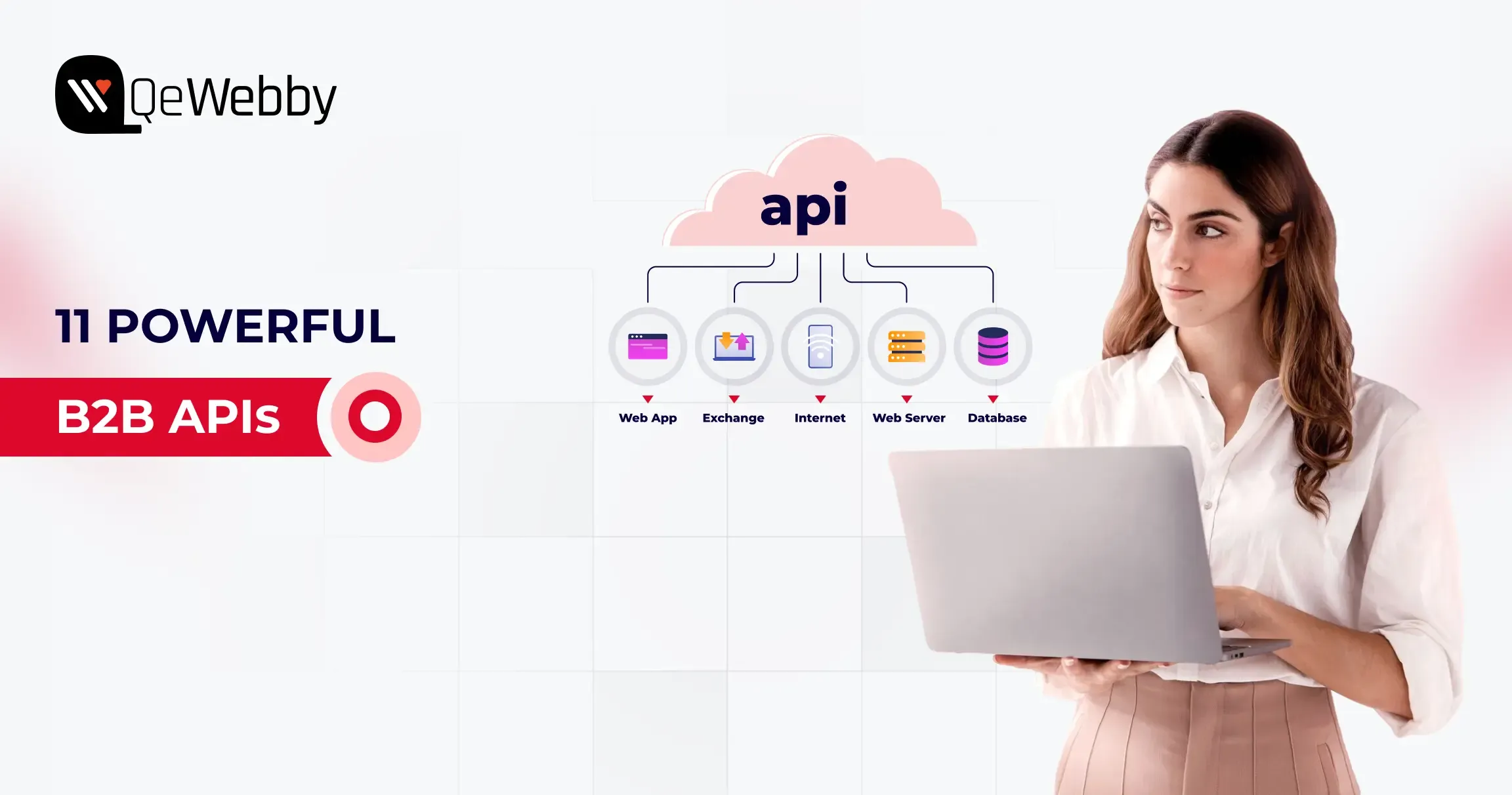
That’s where API integration for business becomes the real growth driver. APIs aren’t just technical add-ons. B2B APIs help connect your existing systems with CRMs, payment systems, logistics tools, and communication platforms.

The best APIs for B2B integration depend on your business function. CRM APIs like Salesforce and HubSpot unify customer data, payment APIs like Stripe handle secure transactions, communication APIs like Twilio enable real-time messaging, while infrastructure APIs like AWS and Microsoft Graph power scalable, connected enterprise systems. Most modern B2B platforms rely on multiple APIs working together rather than a single solution.

Why B2B API Integration Is the Backbone of Modern Business Operations?

B2B API integrations enable seamless, real-time data exchange between systems, automating processes and reducing errors. It also allows businesses to create an agile, efficient, and connected business ecosystem.

Here are some key reasons why you need to invest in B2B API integrations,

  • Reduced Silos- B2B API integrations help break down silos across CRM, ERP, and supply chain processes. It offers a unified view of all the data and ensures everyone has access to real-time data.
  • Process Automation- Integrating B2B APIs can automate repetitive tasks that take too much time and effort. It also minimizes human error and optimizes outcomes.
  • Improved Collaborations- APIs enable direct, secure data sharing with partners, suppliers, and customers. This fosters smoother collaborations, faster approvals, and transparent communication across the value chain.
  • Faster Decision-Making- With real-time data flowing across integrated platforms, leaders gain timely and accurate information to make better business decisions, respond quickly to market changes, and capitalize on new opportunities.
  • Scalability and Flexibility- APIs make it easy to add or upgrade business systems, launch new products, or scale to new markets without rebuilding core infrastructure.
  • Enhanced Customer Experience- By connecting backend and frontend systems, B2B APIs ensure that customers and partners have seamless interactions, prompt support, and efficient order fulfillment.
  • Stronger Security & Compliance- APIs enable secure, permission-based data exchange and make it easier to track data flows, thereby supporting better compliance with industry regulations.

Now that you know the reason why you need B2B API integrations, it’s time to choose the best option for your project. However, before you select the best B2B APIs, you need to consider some of the key criteria.

Key Criteria for Choosing the Right API for B2B Integration

Selecting the best API for your B2B integration project is fundamental to creating a reliable, efficient, and future-ready business operation. Here’s what you should continually evaluate before making your choice:

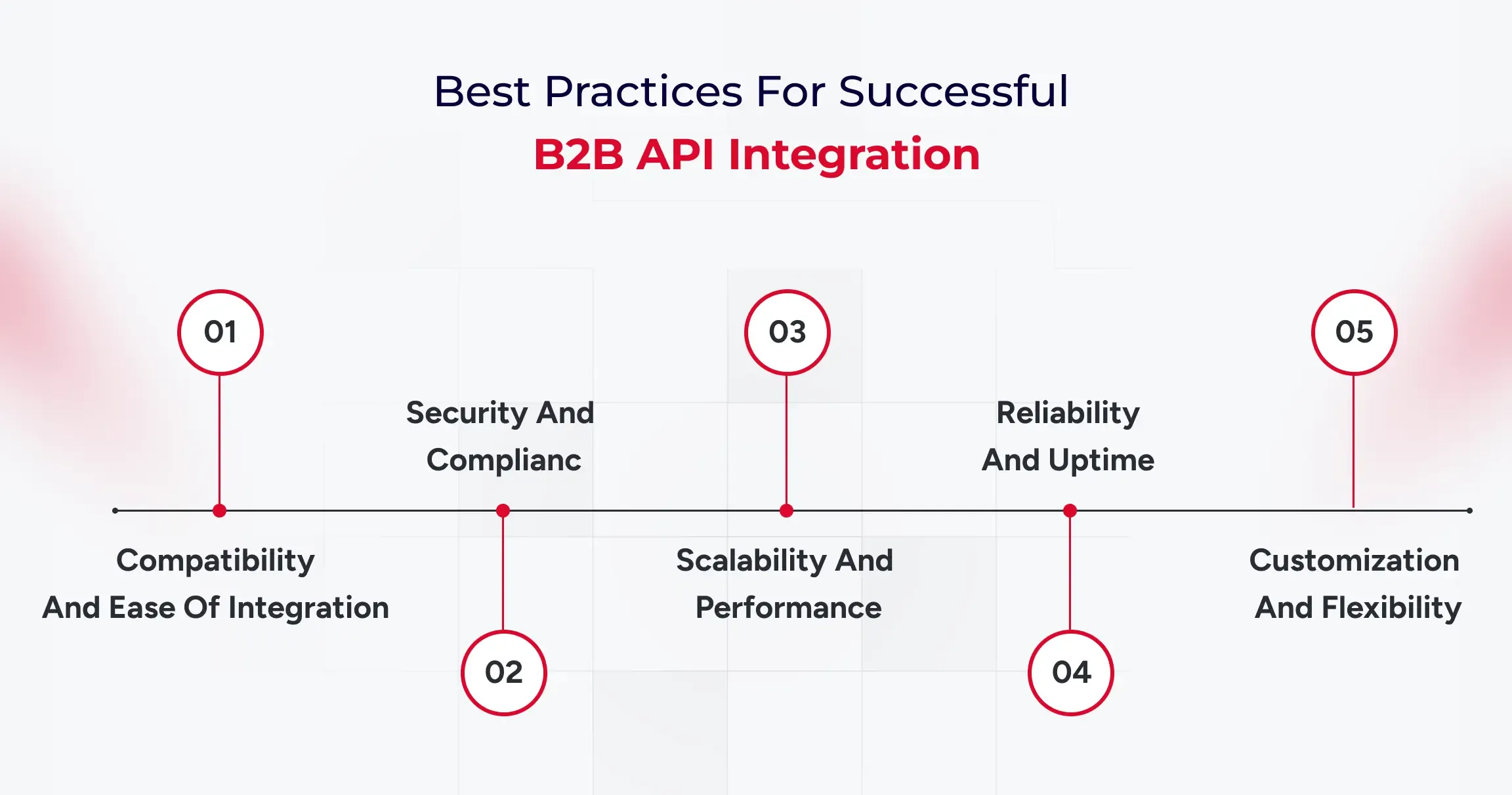
1. Compatibility and Ease of Integration

Ensure the API works seamlessly with your existing systems (CRM, ERP, supply chain, etc.). Look for well-documented endpoints, SDKs, and support for multiple programming languages to minimize development time and complexity.

2. Security and Compliance

Your chosen API should support secure data transmission and robust authentication protocols (such as OAuth2). Ensure it complies with relevant industry standards, such as GDPR, HIPAA, and PCI DSS, to protect sensitive information and meet regulatory requirements.

3. Scalability and Performance

Consider whether the API can handle increasing volumes of data and users as your business grows. Features such as rate limiting, efficient data formats, and low latency are crucial for high-volume, mission-critical integrations.

4. Reliability and Uptime

Pick APIs with established reputations for stability and high availability. Check for documented SLAs (Service Level Agreements), redundant infrastructure, and clear incident response protocols to avoid costly downtime.

5. Customization and Flexibility

Choose APIs that let you tailor functionality to your specific business needs. This may include support for webhooks, extensible features, and modular endpoints that make it easy to adapt as your processes evolve.

Now that you have the criteria defined to choose the best APIs for integration into your systems, it’s time to choose the most suitable ones.

Top 11 APIs for Enhancing Your B2B Projects

With millions of APIs available, finding the right ones for your B2B projects can feel overwhelming. The goal is to select tools that enhance your B2B API integration capabilities and streamline everything from supply chains to customer communication. A well-chosen API integration platform can transform your operations.

Here are some of the best options,

1. Salesforce API for Streamlined CRM Operations

The Salesforce API is the best CRM API for B2B companies looking to consolidate customer relationship information across connected systems. By connecting Salesforce with your other business applications, you can build a single, unified view of all customer interactions. This integration helps all your sales, marketing, and support organizations work from the same current information.

Key Features:
  • Unified customer data across systems
  • Real-time data synchronization
  • Programmatic access to CRM analytics
  • Workflow automation
  • Extensive data migration
When to Integrate:
  • eCommerce checkout address validation
  • On-demand delivery apps
  • Travel, hospitality, or multi-location directories
  • Real estate or property mapping platforms

2. Stripe API for Seamless Payment Processing

Including the Stripe API in your B2B platform makes it really easy to process payments. Stripe is built to handle complex payment scenarios, making it ideal for companies with recurring subscriptions, marketplace payouts, or high-volume transactions. Using its powerful API, you can include payment gateways directly within your applications.

Key Features:
  • Secure card payments (Apple Pay, Google Pay, etc.)
  • Recurring subscriptions and invoicing
  • Real-time payout tracking
  • Fraud prevention and compliance tools
  • Multi-currency and international support
When to Integrate:
  • eCommerce stores and marketplaces
  • SaaS subscription platforms
  • Mobile apps requiring in-app purchases
  • Donation or fundraising portals

3. Twilio API for Advanced Communication Solutions

The Twilio API provides a comprehensive set of tools for integrating communication capabilities into your applications. To send automated SMS messages, handle voice calls, or add video chat, Twilio gives you the building blocks to reach users in real time. This is what business departments must have today to communicate with customers and trading partners instantly.

Key Features:
  • SMS, MMS, and voice call automation
  • Phone number masking
  • Global phone verification
  • Video and chat integrations
  • Real-time status tracking
When to Integrate:
  • Account signup verification (OTP)
  • Customer service chatbots
  • Marketing campaigns via SMS
  • Telemedicine/video appointment platforms

4. DocuSign API for Secure Document Management

The DocuSign API is essential for companies that want to automate and secure document management processes. It enables you to add electronic signature functionality directly within your own apps, simplifying processes that have long required manual printing, signing, and scanning.

Key Features:
  • Seamless integration with the existing system
  • Secure authentication through OAuth 2.0
  • Compliance with global eSignature laws
When to Integrate:
  • Automated order or signup confirmations
  • Newsletter distribution
  • Password reset/notification workflows
  • Application status updates

5. AWS API for Cloud Infrastructure

The Amazon Web Services (AWS) API is a core B2B API integration, offering cloud infrastructure services and improved data control. Rather than having to manually set up servers, databases, or storage, your applications can leverage the AWS API to provision and manage these resources automatically. This is critical to creating scalable, high-availability B2B applications. This robust B2B API integration enables your systems to dynamically respond to shifting demands in real time.

Key Features:
  • Fully-managed services for API management
  • Offers API Gateway Pattern
  • Automates the process of app integration with third-party services
When to Integrate:
  • Instant messaging apps
  • Real-time user dashboards
  • Multi-user collaboration platforms
  • Event-driven content

6. HubSpot API for Powerful Marketing Automation

The HubSpot API is among the greatest CRM APIs for B2B companies with marketing automation. It enables you to sync customer data across all your tools. It allows seamless data flows between your CRM, email marketing tool, and website, and offers a single view of your marketing and sales funnel.

Key Features:
  • Lead/enquiry syncing
  • Campaign automation
  • CRM and content integration
  • Analytics endpoints
When to Integrate:
  • To streamline marketing, CRM, and sales handoffs
  • Automating end-to-end customer journeys
  • Generating robust marketing analytics

7. Microsoft Graph API for Connected Workflows

The Microsoft Graph API is one gateway to data and intelligence throughout the Microsoft 365 solution. It includes services such as Outlook, Teams, OneDrive, and SharePoint. You can use this API to develop robust application integration solutions that connect business departments and simplify their everyday processes. This B2B API integration simplifies complex business processes spanning multiple applications.

Key Features:
  • Cross-app file and calendar automation
  • Task and message triggers
  • Unified identity/authentication
When to Integrate:
  • Collaborative document sharing/editing
  • Automated notifications across teams
  • Task tracking and reporting

8. QuickBooks API for Efficient Accounting Integration

For any B2B business, seamless accounting integration is not optional, and the QuickBooks API offers a one-way ticket to get there. The API lets your applications talk directly to QuickBooks, automatically exchanging financial information and removing manual data entry between your sales, invoicing, and accounting systems.

Key Features:
  • Invoice/expense syncing
  • Real-time payment updates
  • Comprehensive reporting
When to Integrate:
  • Automated order-to-cash workflows
  • Invoice management in eCommerce
  • Financial reporting for B2B projects

9. Slack API for Real-Time Team Collaboration

The Slack API makes your workspace a unified team collaboration center by bringing together notifications and tools in one location. Coupling third-party APIs with an environment such as Slack enables your team to get real-time updates from applications such as project management software, CRM software, and code repositories without ever leaving their main communication channel.

Key Features:
  • Custom notifications
  • Bot automation
  • Third-party integrations
  • Message/search endpoints
When to Integrate:
  • For instant notifications from business apps
  • Real-time project status updates
  • Automated alerts for support issues

10. Google Maps API for Location-Based Services

Google Maps API is one of the key B2B API integration tools that support businesses through location-based services. It helps you map custom data, calculate logistics routes, and find the closest points of interest. This B2B API integration is used across B2B platforms, particularly in logistics and retail operations.

Key Features:
  • Map and address embedding
  • Geocoding, routing
  • Places info and search
  • Live traffic data
When to Integrate:
  • Delivery, logistics, or fleet solutions
  • Real estate or local business directories
  • eCommerce store locators

11. Shopify API for eCommerce Management

The Shopify API enables you to integrate your Shopify store with other essential business systems, including your ERP, warehouse management system, and marketing platforms. This automates key processes and gives you a single, unified view of your entire operation. When selecting a B2B API integration platform, choose one that supports the multifaceted processes of eCommerce.

Key Features:
  • Product/inventory updates
  • Order processing
  • Customer and sales analytics
  • Integration hooks
When to Integrate:
  • B2B/B2C commerce platforms
  • Businesses expanding into online retail
  • Synchronizing eCommerce with back-end systems

How to Choose the Right API Stack for B2B Integration?

Most B2B platforms require a combination of APIs rather than a single solution. CRM, payments, communication, infrastructure, and collaboration APIs work best when integrated through a unified architecture or API management layer supported by reliable API integration services that ensure secure data flow, scalability, and long-term system stability.

How to Implement These APIs for Optimal Integration?

Successful B2B API integration involves defining clear goals, selecting secure and scalable APIs, designing integration architecture, testing thoroughly, and continuously monitoring performance.

  • Define Integration Objectives- Start by clarifying your business goals, whether it’s automating order processing, real-time inventory updates, or enhancing customer experiences. Map out the data flows and processes you need to connect.
  • Assess Current Systems- Audit existing infrastructure, determine compatibility, and identify any legacy systems or manual workflows that need API-driven transformation.
  • Choose Scalable and Secure APIs- Select APIs based on the criteria outlined earlier, prioritizing security, scalability, and ease of integration.
  • Develop Integration Architecture- Decide on integration patterns (point-to-point, middleware, API gateway) and design your data mapping between systems.
  • Test and Validate- Use sandbox environments or staging to run extensive tests checking for data accuracy, error handling, and performance under load.
  • Monitor and Optimize- Once live, continuously monitor API usage, performance, and security. Collect feedback and iterate to improve reliability, efficiency, and user experience.
  • Train Teams and Document Processes- Equip IT and business users with guides and support to maximize the value of your integrations and respond rapidly to any issues.

What is The Future of B2B API Integration?

B2B API integration is rapidly evolving, transforming how companies collaborate, automate, and scale in the digital age.

  • AI-Driven, Self-Optimizing APIs- Machine learning will allow APIs to auto-adapt to changing workflows, errors, or demand, further reducing manual intervention.
  • Universal API Management Platforms- Unified portals will centralize monitoring, deployment, and security for all API connections, simplifying multi-cloud, multi-partner management.
  • Hyperconnectivity and Industry Standards- A shift towards standardized data schemas and protocols will allow businesses to onboard new partners or applications with minimal development effort.
  • Event-Driven and Real-Time Integrations- Future APIs will enable instant interactions, predictive analytics, and adaptive business logic, ushering in real-time B2B automation.
  • Enhanced Security and Compliance- Next-gen APIs will ace the compliance checks, consent management, and advanced encryption as standard features, safeguarding sensitive B2B data exchanges.

B2B API integration is moving toward real-time, event-driven, AI-optimized ecosystems where systems adapt automatically, scale instantly, and enforce security by design.

Final Thoughts

Effective B2B API integration is not merely a matter of system integration. It is about empowering quantifiable productivity and building a digitally scalable ecosystem. When it comes to weighing the optimal CRM APIs for B2B or the wider API integration to the business, the aim is the same: a smooth bridge that will bring growth.

Incorporated strategically, the API integration in the B2B sphere will become the start of the scalable development and of the smarter decisions. The concepts of data security, scalability and constant optimization must remain at the center of your integration strategy.

To learn more about the ways you can speed up your digital transformation with the integration of API, schedule a strategic consultation with our solution experts.

8 Big WordPress Mistakes To Avoid During Website Scalability

Failure to scale your site appropriately can lead to slow load times, crashes, poor user experience, and overall a loss in revenue opportunities.

When your WordPress website is pulling in millions of views a month, it’s clear you’ve found success. But as your site grows, so do the challenges. Traffic surges can cause slowdowns, crashes, and security headaches if you’re not prepared. Failure to scale your site appropriately can lead to slow load times, crashes, poor user experience, and lost revenue opportunities.

Before scaling your WordPress website, it’s helpful to understand when the right time comes. Let us first find out how to recognize the early signs that indicate it’s time to start thinking about growth.

Identifying the Right Time to Scale Your WordPress Site

There are several signs that indicate it’s time to scale your WordPress website. If you notice any of the following, it’s time to start planning for scalability:

1. Decreasing Website Speed

If your WordPress website starts to slow down, even with a minimal increase in traffic, it may be a sign that your current hosting or website structure can’t handle the growing demand. Slow page load times can frustrate users and impact SEO rankings. It’s a strong indicator that scaling is necessary to maintain performance.

2. Traffic Surges or Spikes

Unexpected traffic spikes, like those from a viral blog post, promotional campaigns, or seasonal peaks, can overwhelm your server if your site isn’t designed to handle high volumes of visitors. If you’re experiencing frequent traffic surges, it’s time to consider scalable hosting solutions and load balancing.

3. Website Downtime

Frequent crashes or downtime are major red flags. If your site is going down often, especially during high-traffic periods, your infrastructure is likely not equipped to handle the load. This is a clear indication that scaling is necessary to keep your site running smoothly.

4. Security Concerns

As your WordPress website grows, so does the complexity of managing security. If your site is increasingly targeted by attacks, or you’re handling sensitive user data, it’s crucial to implement better security measures. Scaling your WordPress website with improved security practices, such as SSL encryption, firewalls, and regular updates, will protect your business and users.

5. Higher User Engagement

If you’ve noticed an increase in user engagement, such as more sign-ups, purchases, or interactions, your WordPress website may soon become overwhelmed by the growing demand. A scalable infrastructure will help you manage this higher engagement and ensure the user experience remains smooth.

6. Frequent Plugin and Theme Conflicts

As your WordPress website grows and you add more plugins and themes, you may begin to experience compatibility issues. If plugins are conflicting with each other, causing crashes or slowdowns, it’s a sign your site may need to be optimized for better compatibility and scalability.

7. Limited Hosting Resources

If you’re using shared hosting and see that your WordPress website performance is deteriorating, you may have reached the limits of your server’s resources. If you’re running into frequent issues with CPU usage, memory limits, or bandwidth, it’s time to consider a more robust hosting solution, such as VPS or dedicated hosting.

8. Expanding Content or Features

As your site grows, you may add more content, products, or features. These changes can significantly increase the load on your server, especially if you’re managing a large amount of data. Proper scaling helps accommodate these additions while keeping your site fast and functional.

With the right strategies and infrastructure, your site can continue to perform at its best, even as your business expands. But as your WordPress website begins to grow, it’s easy to overlook some crucial aspects that can lead to bigger problems down the line. Check out the biggest mistakes that hurt scalability and share simple tips to help your site grow without the growing pains.

8 Big Mistakes to Avoid While Building WordPress Website

Mistake #1: Choosing the Wrong Hosting Solution

Many businesses make the mistake of going for cheap shared hosting, thinking it’s the best deal. The problem? Your site shares server space with tons of other sites, which leads to slower load times, frequent downtimes, and major issues as your site grows. It’s fine for small, low-traffic sites, but as your audience expands, you’ll quickly outgrow it.

Here’s what you should consider:

  • Shared Hosting: It’s budget-friendly but lacks the resources you need for scalability. It’s great for small sites but won’t cut it as your business grows.
  • VPS Hosting: More resources and better performance, with part of the server dedicated to your site. It’s a good middle ground for growing businesses.
  • Dedicated Hosting: All the resources of an entire server just for your site. It’s more expensive but essential for high-traffic sites or complex needs.

Choosing the right host is crucial—don’t go for a bargain if they can’t provide the support you’ll need down the line. Picking a low-cost host can backfire, causing slowdowns or even site crashes when traffic spikes.

Mistake #2: Ignoring Website Performance Optimization

A slow-loading WordPress website is a significant deterrent for users and a key ranking factor for search engines. Research shows that even a one-second delay in load time can lead to a 7% reduction in conversions. Google’s Core Web Vitals further emphasize the importance of fast load times for SEO rankings.

To improve performance:

Caching: Store static files so users don’t need to reload the same content every time they visit.

  • Image Optimization: Compress images without sacrificing quality to reduce page size.
  • Minimizing HTTP Requests: Reduce the number of elements on a page, such as scripts, images, and CSS files, to decrease load times.
  • Use Lazy Loading: Only load images and videos when they are in the user’s view to avoid unnecessary load on the initial page load.

Keeping your site lean, removing excess scripts, and reducing third-party integrations will help your site remain fast as it grows.

  • Talk about the impact of slow-loading WordPress websites on user experience and SEO.
  • Discuss strategies for optimizing performance, including caching, image optimization, and minimizing HTTP requests.
  • Share the importance of keeping your website lightweight and fast.

Mistake #3: Poorly Chosen Themes & Plugins

Themes and plugins can add great functionality to your WordPress website, but they can also hinder scalability if not chosen carefully. Poorly coded themes or plugins can cause slow performance, compatibility issues, and security vulnerabilities.

  • Choose Lightweight Themes: Opt for themes designed with scalability in mind—simple, minimalistic designs that load fast and avoid unnecessary scripts.
  • Test Plugins: Always test plugins for compatibility with your WordPress version, and ensure they are updated regularly. Overusing plugins can also bloat your site, so make sure each plugin serves a specific need.

Before adding any theme or plugin, review its performance impact using tools like GTMetrix or Pingdom.

Mistake #4: Failing to Implement a Scalable Database

A poorly structured database can easily become a bottleneck as your site grows. As data increases, the system’s ability to handle multiple queries without slowing down becomes critical.

To ensure scalability:

  • Database Indexing: Indexing helps your database quickly retrieve records, reducing load times, especially for larger websites.
  • Optimize Queries: Avoid excessive and complex database queries that slow down your site. For example, don’t use loops that make unnecessary database calls.
  • Database Cleanups: Regularly clean up unnecessary data, such as post revisions, spam comments, and expired transients, which can increase the database size unnecessarily.

A scalable database will ensure your website continues to perform well even as your business grows.

Mistake #5: Not Planning for Traffic Growth

Many businesses underestimate the future growth of traffic and fail to plan for surges, which can overwhelm their infrastructure. The lack of proper scalability can lead to crashes, slow speeds, and a poor user experience.

To scale effectively:

  • Load Balancing: Distribute traffic across multiple servers to prevent any single server from being overwhelmed.
  • Cloud Hosting: Provides the flexibility to scale your resources up or down based on demand.

Content Delivery Networks (CDNs): Distribute your site’s static content to servers worldwide, so users from different regions can load the site faster.

Mistake #6: Neglecting Security Measures

Security breaches are a common cause of site downtime, loss of data, and compromised user trust. Hackers can exploit vulnerabilities, especially on sites that aren’t regularly maintained.

To protect your site:

  • Regular Updates: Keep WordPress core, themes, and plugins updated to patch known vulnerabilities.
  • Two-Factor Authentication (2FA): Use 2FA for added protection against unauthorized logins.
  • SSL Certificates: An SSL certificate ensures data between the server and user is encrypted, improving both security and SEO.

Failing to implement proper security measures will not only harm your reputation but can also leave your website vulnerable to attacks.

Mistake #7: Overcomplicating the User Experience (UX)

A cluttered website with confusing navigation and too many distractions can overwhelm visitors. A bad user experience (UX) makes it hard for users to find what they need, increasing bounce rates and limiting conversions.

To create a user-friendly experience:

  • Intuitive Navigation: Make sure users can find what they need quickly with clear menus and categories.
  • Mobile-First Design: As mobile traffic continues to rise, your website must be optimized for mobile devices. Google even prioritizes mobile-first indexing.
  • Minimalist Design: Keep the layout clean and avoid overloading pages with excessive text or media.

Mistake #8: Skipping Regular Maintenance and Updates

Skipping updates and maintenance can lead to performance issues, security vulnerabilities, and compatibility problems. Neglecting regular WordPress core, theme, and plugin updates can lead to unforeseen problems down the line, especially when newer versions of PHP or WordPress are released.

A solid maintenance plan should include:
  • Routine Backups: Ensure you have regular backups in case of website failure.
  • Performance Audits: Run audits using tools like Google PageSpeed Insights to assess your site’s performance.
  • Consistent Updates: Regularly update the WordPress core, themes, and plugins to ensure everything is running smoothly.

By creating a solid maintenance schedule, you’ll prevent issues from escalating and ensure long-term scalability.

Don’t wait for your website traffic to slow down!

Scale up your WordPress website with us!

Contact Us Now!

In a Nutshell

Scaling your WordPress website successfully requires strategic planning and the right tools. We understand what it takes to get it right, and we’ve helped countless businesses ensure their WordPress websites stay fast, secure, and easy to navigate. Our team has a proven track record of ensuring everything runs smoothly, leaving you with more time to focus on your business.

Reach out today, and let us help you scale your WordPress website effortlessly!

Top 7 WordPress Development Trends to Watch in 2026

The days of evaluating WordPress solely by its aesthetic themes and basic publishing workflows are officially over. As we navigate 2026, the platform has transformed into a sophisticated operating layer. For direct-to-consumer brands looking to scale, the focus has fundamentally shifted. You are no longer just building a digital destination. You are engineering a content ecosystem built to survive and thrive alongside Agentic AI and rapidly evolving search algorithms.

This evolution changes every metric of success. The most critical WordPress development trends today intersect directly with advanced visibility strategies like Answer Engine Optimization and Generative Engine Optimization.

The objective is no longer just rendering web pages. It is about structuring data so AI models can confidently discover, extract, and cite your brand authority, all while maintaining uncompromising rendering speeds.

If your development team is planning a new digital experience or growth stack, sticking to legacy build models is a massive risk. These seven trends highlight the precise architectural and operational shifts you must implement now to ensure your platform remains resilient, visible, and highly functional.

Quick Trend Snapshot

Trend Why It Matters in 2026 Primary Impact Priority Level
Full Site Editing Block-first workflows are becoming standard. Faster delivery and reusable systems High
Headless WordPress Modern delivery models need more flexibility. Architecture freedom Medium-High
AEO and GEO AI search visibility is reshaping discoverability Better AI citations and visibility Critical
AI-Powered Workflows Teams need faster production without operational overload Workflow efficiency High
Core Web Vitals Performance directly affects rankings and conversion Better UX and SEO Critical
Low-code delivery Businesses want faster launch cycles and iteration Faster deployment Medium
Composable integrations WordPress now powers connected digital ecosystems Operational scalability High

Why Does WordPress Still Matter in 2026?

WordPress remains foundational because it strikes a rare balance among editorial control, developer extensibility, and ecosystem depth. While newer platforms push highly opinionated architectures, few match WordPress when content scale, workflow flexibility, and deployment speed are required simultaneously.

The critical shift is strategic. In 2026, WordPress will no longer be evaluated merely as a content management system. It is a content operating layer built to support SEO, AI-driven discovery, analytics integrations, and multi-channel delivery within a single cohesive stack.

The stakes for getting this right are high. According to recent McKinsey research, data-driven organizations are 23 times more likely to acquire customers and 19 times more likely to be profitable. Your CMS is the engine that structures and distributes that data.

1. Full Site Editing Is Becoming the Default Build Model

Full Site Editing continues to mature into the definitive standard for assembling modern WordPress sites. Instead of isolating templates, headers, and styling controls from daily content management, FSE unifies these layers within a single block-based editing system.

This standardization is a critical signal for digital agencies and in-house teams. According to Accenture’s 2026 Technology Vision research, 84 % of executives at diversified technology platforms are focused on fundamental transformation, compared to just 52 % at legacy companies. Sticking to rigid legacy theme architectures is an incremental tactic that slows down agility.

For developers, FSE delivers cleaner architectures and reusable components. For marketing teams, it allows template adjustments without creating engineering bottlenecks. Defaulting to classic themes without a strict legacy requirement is now a strategic misstep.

2. Headless WordPress Is Expanding Beyond Niche Use Cases

Headless WordPress is now a primary architectural strategy entering 2026. By decoupling the backend content workflows from a modern frontend presentation layer like Next.js or Astro, organizations gain unprecedented architectural freedom.

This is a practical requirement for DTC brands and enterprises that demand multi-channel publishing, granular performance control, and composable frontend stacks. The advantages include superior rendering performance and alignment with modern JavaScript patterns. The tradeoff involves increased deployment complexity and a higher coordination burden between content and engineering units.

Headless is a fit, not a default. Smart teams adopt it when the user experience ambition or a technical roadmap clearly justifies the separation.

3. AEO and GEO Are Becoming Core WordPress Visibility Priorities

Digital visibility in 2026 cannot rely on classic search models. Answer Engine Optimization and Generative Engine Optimization are mandatory priorities. Gartner predicts a 25 % decline in traditional search engine queries by 2026 as users shift to AI-generated answers and summaries.

Daily usage of AI integrated directly into search will be three times that of any standalone AI tool, with nearly one-third of adults encountering AI search summaries daily. Forbes corroborates this impact, noting that organic click-through rates have dropped 61 % on queries where AI Overviews appear, and 60 % of searches now end without a traditional click.

For WordPress teams, pages must be structured so AI systems can confidently extract and cite them. This requires sharp heading hierarchies, concise answer blocks, clean internal linking, and flawless schema markup. Technical SEO and citation readiness are now fundamental engineering tasks.

4. AI-Powered WordPress Workflows Are Becoming Operational Infrastructure

Artificial intelligence within WordPress has moved past the novelty phase. It is an operational infrastructure used to accelerate metadata generation, internal linking, and publishing operations.

The objective is not to flood the internet with thin content. The goal is operational efficiency. Agentic AI is driving the next era of enterprise integration, predicting that the majority of organizations will adopt agentic workflows by 2026. When integrated correctly, AI reduces production drag, allowing developers and strategists to focus on precision and conversion quality.

5. Core Web Vitals and Hosting Architecture Still Shape Outcomes

Performance remains a commercially critical development trend because it dictates visibility, retention, and conversion metrics. A visually polished site that responds slowly is a failing asset.

The current performance conversation revolves around LCP, INP, and CLS. With INP now the standard metric for interactivity, performance engineering must encompass script loading, font strategy, cache behavior, and rigorous plugin restraint.

Performance is an infrastructure decision that relies heavily on edge and object caching, as well as managed cloud environments.

6. Low Code and Pattern-Driven Delivery Are Speeding Up Launch Cycles

Pattern-driven workflows are accelerating how projects are shipped. Repeatable layout execution is becoming faster, freeing engineering teams to focus on bespoke integrations and performance-critical elements.

This rapid deployment is vital for minimal viable products, campaign hubs, and landing pages. Reusable block libraries reduce the time to market materially when governed with strict discipline. The optimal approach is selective acceleration: utilizing visual assembly tools to reduce drag while aggressively avoiding long-term technical debt.

7. Composable Integrations Are Defining the Next WordPress Stack

WordPress operates within a broader digital ecosystem. The most capable 2026 implementations connect seamlessly with CRMs, marketing automation platforms, commerce systems, and external APIs.

Content supports lead generation, customer education, and retention simultaneously. A platform that publishes well but integrates poorly creates systemic friction. Developers are building modular data flows and intentional plugin stacks, moving WordPress toward a composable operating model that delivers enterprise connectivity without forcing full headless complexity.

Final Thoughts

WordPress remains relevant in 2026, but the reasons are more strategic than before. It is no longer enough for a site to be easy to edit or quick to launch. It also has to perform well, integrate cleanly, stay secure, and remain visible in both traditional search and AI-mediated discovery.

That is why the most important WordPress development trends in 2026 intersect content, engineering, infrastructure, and discoverability. Teams that adapt early will build sites that are easier to scale, easier to govern, and far more resilient as the web continues to shift toward answer-driven discovery.

The Business Guide to Headless WordPress: Scalability, Speed, and Growth in 2026

The global headless commerce market is experiencing explosive growth, expanding from an estimated $1.74 billion to a projected $7.16 billion by 2032 at a 22.4% CAGR. This trajectory is not merely driven by developer enthusiasm but by concrete commercial results: businesses adopting headless architecture report an average 42% increase in conversion rates following implementation.

Traditional WordPress was built for an era when a website had a single frontend and a single audience. However, for growth-focused teams operating under performance pressure, this business guide to headless WordPress cuts through the technical framing. It maps the architectural shift directly to revenue, scalability, and competitive positioning.

What is Headless WordPress and How Does It Work?

Headless WordPress decouples the content management layer from the frontend presentation layer. WordPress handles content storage and API-based delivery, while a modern JavaScript framework renders the user-facing experience independently.

That separation allows development teams to build faster, more flexible frontends without the constraints of WordPress’s default themes or plugin architecture.

Traditional WordPress ties content, design, and delivery into a single monolithic system. Every page load triggers PHP execution, database queries, and server-side rendering through WordPress’s template engine before a single byte reaches the user’s browser.

A well-optimized traditional setup delivers a time-to-first-byte (TTFB) of 180-250ms. A headless Next.js frontend with incremental static regeneration (ISR) delivers that same metric at 50 to 120ms, per the 2025 benchmark. That difference at the infrastructure level compounds into measurable business outcomes.

How the Decoupled Architecture Works in Practice?

Editorial teams retain the familiar WordPress dashboard for publishing posts, managing media, and updating pages. The frontend, built on a framework such as Next.js, Gatsby, or Nuxt.js, fetches content via the WordPress REST API or the WPGraphQL plugin.

Visitors interact with a pre-rendered interface served from a CDN edge network. WordPress never touches a user-facing request directly.

That model eliminates the performance bottlenecks associated with traditional WordPress: PHP rendering overhead, plugin conflict latency, and single-server delivery constraints.

What remains is a content API proven at scale and an editorial workflow that non-technical teams already know.

The clean separation between content operations and frontend engineering is exactly what makes headless CMS solutions compelling for enterprise and growth-stage teams who need both editorial simplicity and frontend performance.

Why Growth-Focused Businesses Should Use Headless WordPress?

73% of businesses now deploy headless architecture, up 14% from equivalent research conducted in 2021, per WP Engine’s State of Headless 2024 report. Another 98% of non-adopters plan to evaluate headless solutions within the next 12 months.

The adoption curve is not a trend. It is a structural response to constraints that traditional WordPress cannot address at scale.

Growth organizations face a specific set of demands that monolithic WordPress handles poorly: traffic volatility, multi-channel content delivery, rapid UI iteration without content disruption, and frontend performance benchmarks that directly affect organic search rankings and paid acquisition efficiency.

Many businesses first encounter these limitations while scaling traditional WordPress websites through WordPress development services.

Nearly 70% of organizations cite competitive advantage as the primary driver for headless adoption, per the same WP Engine report. The architecture addresses those demands at the system level, not through plugin layers or caching workarounds that require ongoing maintenance.

Scalable WordPress Solutions for High-Traffic Operations

Scalable WordPress solutions built on headless architecture handle traffic spikes fundamentally differently from traditional WordPress deployments. In a coupled setup, a traffic surge hits the WordPress server directly, triggering PHP execution, database queries, and server-side rendering for every concurrent request. In a headless deployment, the frontend is served as pre-rendered static assets or server-side rendered pages from CDN edge nodes, and the WordPress backend receives only lightweight API requests.

79% of headless users rate their scalability as strong, compared to 62% on traditional platforms, per Swell’s commerce data. That 17-point gap is structural, not configurational.

For seasonal campaigns, product launches, or high-traffic content moments, a headless frontend absorbs demand spikes without WordPress server modifications, provisioning delays, or user-facing performance degradation.

Speed as a Revenue Lever, Not Just a Technical Benchmark

A 0.25-second improvement in load time yields a 1.75% increase in conversion rate, and every additional second of load time reduces conversions by approximately 2%, per Curious Minds Media’s performance analysis. Traditional WordPress sites with optimization plugins typically deliver page loads of 3-5 seconds for dynamic content. Headless sites served from a CDN edge network routinely load in under 2 seconds.

At scale, that difference is not marginal. For a business converting at 3% on 100,000 monthly visitors, a 1.75% improvement in conversion from speed alone represents hundreds of additional monthly leads without increasing acquisition spend.

Treating page speed as commercial infrastructure rather than developer preference is the shift growth-stage organizations need to make, and headless WordPress is the mechanism that makes it architecturally permanent.

Scalable WordPress Solutions That Strengthen SEO Through Core Web Vitals

Google’s Core Web Vitals scoring system rewards sites that deliver fast Largest Contentful Paint (LCP), low Cumulative Layout Shift (CLS), and quick Interaction to Next Paint (INP). Headless WordPress deployments consistently outperform traditional WordPress on all three metrics when implemented with server-side rendering or static generation.

One documented migration moved Google PageSpeed scores from the mid-60s and low-70s to high-90s and 100 across both mobile and desktop.

The SEO benefit compounds over time. Higher Core Web Vitals scores improve organic rankings, increasing qualified traffic volume and improving conversion output without increasing paid acquisition costs.

Plugin-based optimization on traditional WordPress closes part of that gap, but it cannot replicate the baseline performance that a CDN-delivered headless frontend produces by architectural default.

Get Free Consultation

Technical Stacks for Headless WordPress in 2025

A headless WordPress implementation involves three distinct technical layers: the CMS backend (WordPress itself), the API layer, and the frontend framework.

Choosing correctly across all three determines whether the final system delivers the performance, scalability, and maintainability the business actually needs.

Each layer has meaningful options, and the decisions interact: a poor API layer choice compounds the limitations of an otherwise strong frontend framework.

The API Layer: WP REST API vs WPGraphQL

The WordPress REST API has been included natively since WordPress 4.7, released in December 2016. It exposes content as JSON endpoints consumable by any frontend framework via standard HTTP requests. It requires no additional plugins, is well-documented, and provides sufficient functionality for most standard headless implementations.

WPGraphQL is a plugin with over 60,000 active installations as of 2025 that adds a complete GraphQL implementation to WordPress, allowing frontend applications to request exactly the data they need in a single query rather than making multiple REST requests and filtering oversized responses.

For content structures with nested taxonomies, custom post types, and relational data, WPGraphQL reduces API call volume and improves frontend rendering efficiency. Teams building complex editorial architectures on Next.js tend to find WPGraphQL’s query precision worth the additional configuration.

Scalable WordPress Solutions with Next.js and the React Ecosystem

Next.js has become the dominant frontend framework for new headless WordPress projects in 2025, having largely displaced Gatsby for modern implementations.

It supports static site generation (SSG), server-side rendering (SSR), and incremental static regeneration (ISR) within a single framework, allowing teams to select the rendering strategy per route rather than committing to one approach sitewide.

The typical production deployment pairs WPGraphQL with Next.js data-fetching functions, served from Vercel or a comparable edge deployment platform. That stack delivers the 50-120ms TTFB benchmarks noted earlier and scales horizontally without modifications to the WordPress server.

For most business implementations of headless WordPress in 2025, this combination represents the lowest-risk architectural choice given its ecosystem maturity, community support, and deployment tooling depth.

When to Choose Gatsby, Nuxt.js, or Astro for Scalable WordPress Solutions

Gatsby remains a valid option for content-heavy sites with predictable static structures, particularly where incremental builds are configured to avoid full-site regeneration on each content update. Its primary limitation on large sites is build time, which Next.js’s ISR model resolves more elegantly by regenerating individual pages on demand rather than rebuilding the entire site.

Nuxt.js serves teams working in the Vue.js ecosystem, offering SSR and static generation capabilities comparable to Next.js. Astro is worth evaluating for content-first sites where JavaScript interactivity is minimal, as it ships zero JavaScript by default and produces exceptionally low page weight.

Business ROI: Is Headless WordPress Worth the Investment?

Headless WordPress projects require 30 to 50% more initial development time and budget compared to equivalent traditional WordPress implementations. That figure is accurate and should not be softened: the upfront investment is higher.

The question is whether downstream returns justify it for a specific business profile, and for growth-stage organizations with traffic volume, conversion sensitivity, and multi-channel content requirements, the ROI case closes faster than most internal finance teams expect.

Initial Costs and Development Timeline

A headless WordPress build requires frontend engineering expertise that traditional WordPress projects don’t demand.

Beyond WordPress configuration and content modeling, the team must architect the API layer, build the frontend application, configure the CDN deployment pipeline, and establish preview environments so content editors can review changes before publishing.

Initial setup for an experienced headless team typically runs 4 to 8 weeks, compared to 1 to 3 weeks for an equivalent traditional WordPress build.

Businesses migrating from legacy websites often combine this process with an engagement for a WordPress Migration Service.

The total cost of ownership (TCO) calculation changes materially when you account for what headless eliminates: performance plugin licensing, recurring maintenance overhead from plugin conflicts, and the infrastructure scaling costs that traditional WordPress server architectures incur as traffic grows.

One documented B2B SaaS implementation recovered the full headless rebuild cost within 4 months through conversion rate improvements driven by performance gains. That is not universal, but it reflects how quickly the arithmetic shifts when baseline conversion performance is materially constrained.

Performance Gains That Map Directly to Revenue

Nine out of ten organizations deploying composable or headless architectures report meeting or exceeding their ROI expectations, per Swell’s commerce statistics. Businesses report a 42% average increase in conversion rate, 24% average first-year sales growth, and a 20% average reduction in site load times following a headless migration.

These figures aggregate across implementation quality levels; the upside is meaningfully higher for well-executed builds on traditional sites where performance is already constraining conversions.

There’s a separate story running beneath the ROI numbers headline. The 30-50% development-cost premium is a one-time capital event, whereas conversion improvements and reduced maintenance overhead compound annually.

For a business that has identified page performance as a conversion bottleneck, the investment case is strongest in the first 12 to 24 months post-migration, and the payback period shortens in proportion to the severity of the existing performance problem.

Headless WordPress Success Stories That Prove the Business Case

Adoption data gains credibility when anchored to specific organizational outcomes. Several documented implementations across diverse business contexts demonstrate what headless WordPress delivers at scale.

Android Authority: 6x Speed Improvement Through Headless Architecture

Android Authority, a high-traffic technology publication with significant concurrent reader volume, achieved a 6x improvement in site speed by migrating to headless architecture with WordPress managing the content backend.

By decoupling the frontend from the backend, the team preserved WordPress as the content management system while adopting a React-based frontend optimized for speed, flexibility, and mobile performance. The result was a scalable architecture capable of handling heavy traffic without the rendering overhead that typically slows reader experience.

Georgian College: Core Web Vitals Compliance With Headless WordPress

Georgian College deployed headless WordPress on WP Engine’s headless platform and achieved full compliance with Google’s Core Web Vitals requirements, per WP Engine’s documented case studies. For an educational institution competing for organic search visibility on program keywords with national-level competition, Core Web Vitals compliance translates directly into measurable ranking improvements.

The implementation demonstrates that headless WordPress is operationally viable for content-heavy institutional sites with complex navigation structures and high page volume, not only for technology publications or eCommerce operations.

Schedule Consultation

Conclusion

Headless WordPress is a specific architectural response to specific business constraints: the performance ceilings, scalability limits, and frontend rigidity that monolithic WordPress imposes as organizations scale. The 30-50% development premium is real.

So are the 42% conversion improvements, the 4-month payback periods documented in production deployments, and the structural scalability advantages that CDN-delivered frontend architecture provides under growth-level traffic.

This business guide to headless WordPress points to one clear conclusion: the decision should be grounded in current performance metrics, expected traffic trajectory, and the development team’s capabilities, not in architectural theory or vendor preference.

If you’re an agency serving enterprise clients, our White Label WordPress Development Service can help deliver headless WordPress projects under your brand.

What Makes Headless WordPress Unique? Pros & Cons Explored

With over 60% of the market share in the CMS market, WordPress is the most widely used and also the fastest-growing CMS of this digital world. Renowned for its user-friendly interface, extensive plugin ecosystem, and robust community support, WordPress has become the go-to choice for website owners and bloggers worldwide. Now, with the rise of Headless CMS, WordPress expands its horizons, embracing a new era of flexibility and innovation.

Here you will discover how Headless WordPress transcends the limitations of traditional websites and opens the door to a new realm of innovation and user engagement.

Let’s explore!

Defining the Concept of Headless WordPress

Headless WordPress is a powerful concept that revolutionizes how we approach content management systems. At its core, Headless WordPress separates content management capabilities from the frontend presentation. It focuses solely on content management through its robust backend. It exposes a powerful API (Application Programming Interface) that allows developers to retrieve content in a structured manner. And this content can then be consumed by a separate frontend application or framework, which handles the rendering and presentation. So ultimately, it gives the developers the freedom to choose the frontend technologies that best suit the project requirements.

Differentiating Traditional WordPress from Headless WordPress

Understanding the distinctions between Traditional WordPress and Headless WordPress is crucial in selecting the right approach for your specific project requirements. Traditional WordPress is suitable for simple websites with straightforward needs, offering simplicity and ease of use. On the other hand, Headless WordPress provides greater flexibility, customization options, and the ability to deliver content to multiple channels beyond websites. Here are the basic differences:

How Headless WordPress Works?

In the world of Headless WordPress, the traditional coupling of the frontend and backend layers gives way to a more flexible architecture. Here are the key components involved in its operation.

Separation of frontend and backend layers

In a Headless WordPress setup, the frontend and backend are decoupled, allowing for independent development and management of each layer. Let us see how this separation works:

Backend (Content Management):

  • The backend layer, powered by WordPress, serves as the content management system (CMS).
  • Content creators utilize the familiar WordPress admin interface to manage and organize content, including creating posts, pages, and media.
  • WordPress retains its robust content management capabilities, ensuring efficient organization, searchability, and retrieval of content.

Frontend (Presentation and User Interface):

  • The frontend layer is responsible for rendering and presenting the content to the end-users.
  • Instead of relying on WordPress to generate complete web pages, the frontend is developed using modern JavaScript frameworks like React, Vue.js, or Angular.
  • These frameworks consume the content using APIs provided by Headless WordPress and handle the rendering and user interface interactions.
  • Developers have the freedom to design highly customized and dynamic interfaces, tailoring the user experience to specific requirements.
Role of APIs in Headless Architecture

API plays a pivotal role in facilitating the communication and data flow between the backend and frontend layers in Headless WordPress. Here’s how APIs enable this seamless interaction:

REST API (Representational State Transfer):

  • WordPress provides a powerful REST API that exposes endpoints to access and manipulate content.
  • The REST API allows frontend applications to retrieve structured content, such as posts, pages, categories, and tags.
  • By making HTTP requests to these API endpoints, frontend frameworks can fetch the required content and utilize it to build dynamic interfaces.

GraphQL:

  • In addition to the REST API, Headless WordPress also supports GraphQL, an alternative query language for APIs.
  • GraphQL offers more flexibility in fetching precisely the data needed, reducing the overhead of over-fetching or under-fetching data.
  • Developers can define custom queries in GraphQL to retrieve specific fields or related data efficiently.
Exploring the Content Delivery Process in Headless WordPress:

Once the frontend is developed and the APIs are utilized, content delivery process in Headless WordPress follows these steps:

Content Creation and Management:

  • Content creators use the WordPress admin interface to create and manage content, organizing it into posts, pages, and other relevant structures.
  • Metadata, taxonomies, and custom fields can be added to enhance the content structure and organization.

API Consumption:

  • The frontend application, built with JavaScript frameworks, interacts with the Headless WordPress API to retrieve the desired content.
  • Developers use API requests to fetch specific content, filtering by categories, tags, or custom parameters as needed.

Content Rendering and Presentation:

  • The retrieved content is then dynamically rendered and presented to the end-users.
  • Frontend frameworks handle the rendering process, applying the desired design, layout, and user interface interactions.

Real-World Utilization of Headless WordPress Implementation

  • Headless WordPress serves as a powerful backend for mobile applications, enabling businesses to leverage their existing WordPress content and deliver it seamlessly to mobile users.
  • When modern frontend frameworks are used it helps to build highly interactive and engaging product catalogs and shopping interfaces.
  • Integration with third-party eCommerce platforms or custom-built solutions will handle transactions, inventory management, and order processing.
  • The robust content management capabilities of WordPress will allow the flexibility to tailor the frontend experience to match specific branding and user interface requirements.
  • Headless WordPress empowers businesses with a multichannel content delivery approach to ensure consistent branding and engaging experiences across platforms.

Challenges of Headless WordPress Implementation

While the benefits of Headless WordPress are compelling, it’s essential to consider the following challenges when implementing this approach:

  • Development expertise: Implementing Headless WordPress requires familiarity with frontend frameworks and API integrations. Ensure you have the necessary technical expertise or partner with experienced developers.
  • Customization complexity: Headless WordPress provides extensive customization options, but this can also introduce complexity. Plan for additional development time and resources for building and maintaining the frontend application.
  • Plugin compatibility: Some WordPress plugins rely on the traditional frontend architecture and may not be compatible with Headless WordPress setups. Ensure critical functionality can be replicated or find suitable alternatives.

Conclusion

Headless WordPress stands out as a transformative approach to content management systems that offers unparalleled flexibility, customization, and multichannel content delivery. By decoupling the frontend and backend layers, Headless WordPress empowers you to deliver exceptional user experiences, achieve enhanced performance and scalability, and future-proof your website.

QeWebby specializes in harnessing the full potential of every innovation in WordPress website development. Our team of experts can best guide you through the setup process, ensuring a seamless transition to Headless WordPress and helping you unlock the benefits it offers.

Don’t miss out on the opportunity to revolutionize your digital presence with a free consultation call with our experts! Contact us today to explore how Headless WordPress can transform your business and create memorable experiences for your audience.

Progressive Web Apps: Exaggeration or Evolution?

World has come to a mutual understanding that evolution can only happen with iterations and synchronicities. Especially after the discovery of learning algorithms, technology has reached a point where it can adapt itself to deal with newer problems. PWA (Progressive Web Apps) are a type of web apps with a similar kind of taste. It has one for all and all for one sort of functionality. They are known for their flexibility of running in different systems as well as for reaching maximum people or users.

What areProgressive Web Apps?

PWAs are software applications that can work with any device that has a basic browsing system. They are installable, linkable, with push notifications, progressively enhanced (meaning can work on older browser versions with lesser efficiency) and use SEO to appear first on Google Index. This is what makes these types of apps more reachable. They are specially built in such a way that they are extremely easy to handle and use.

As you might know there are now in total 3 basic types of apps: Web apps, Native apps, and PWAs.
Web apps are more reachable.
Native apps have more features whereas,
PWAs are sort of a hybrid of both.

What makes Progressive Web Apps so special?

1) Discoverability:

PWAs can be easily found over the grid as they only require a basic web browser. This makes it easy for the content available inside the app to get indexed in Google Indexing. This makes it appear before any other apps on google search page. SEO (Search Engine Optimization) plays a very important role in creation of content for the PWA. It is the main reason why a PWA stays trending.

2) Capable:

Until recently video chatting was only available on platform specific apps but with the recent development of programming languages, one can easily integrate two languages as extensions to add more functionality. This makes the creation of PWAs easier and also makes them more capable.

3) Reliable:

One more interesting fact about PWAs is that they work regardless of the quality of internet connection that the user has. Even if the network is bad or the user is offline, PWAs are reliable and fast. The quickness of these apps is what makes them more reliable. As the page load time increases, the bounce rate of the webpage also increases simultaneously. This reduces the quantity of the audience that visits the website. Thus, to avoid such hassle, PWAs are made to make the app content available and the app usable in the blink of an eye.

4) Installable:

Another thing that makes PWAs so interesting is the fact that they can easily be installed over the computer. The app opens in a separate window over which the user can operate it easily. This gives extra functionality to the user and the data that is modified over the installed app automatically saved over the browser PWA. For example: the latest WordPress.

5) Progressive:

PWAs are specially made to make them usable in older versions of web browsers. As the version of browsing improves, the functionality of the app also improves. This makes it possible for them to be available everywhere no matter how much older technology the user is using. This in turn increases the traffic of the website making them more and more popular.

6) Linkability:

Last but not the least, PWAs are also very linkable meaning they can be easily shared through various devices using a link. These days, links can be shared easily using any social media platform like-Whatsapp and since PWAs can be made available on any device with a basic web browser, its linkability supports the overall reach.

If you have further queries regarding how affordable they can be or if you are interested in making one, then you can always Hire WordPress Developers to fulfil your IT needs and additionally, we have Digital Marketing to help you reach further.